> For the complete documentation index, see [llms.txt](https://docs.xorosoft.com/llms.txt). Markdown versions of documentation pages are available by appending `.md` to page URLs; this page is available as [Markdown](https://docs.xorosoft.com/whats-new/release-notes/previous-releases/2026/february-2026-release.md).
# February 2026 Release
{% hint style="warning" %}
This is a Custom Release. Feature availability depends on configuration and rollout status. Some features listed above may not be visible in your environment if they are part of a staged or custom deployment. Please contact your support representative to confirm enablement.
{% endhint %}
### **Enhanced Location Selection to Support Damaged Area in Manufacturing Orders**
**Overview:**
In Manufacturing Orders, the selection of destination locations plays a critical role in defining where finished goods are produced and stored. Previously, finished goods location dropdowns within Manufacturing workflows (including Quick Produce) restricted selection to warehouse location types, excluding locations marked as **Damaged Area**.
With this enhancement, the system now allows **Damaged Area** locations to be selected within **Manufacturing Order location dropdowns as finished goods locations**, ensuring alignment with real-world operational processes.
***
**Enhancement Added:**
Updated Manufacturing Order location dropdowns to include locations with **Type as Damaged Area**.
***
**Impact:**
* **Improved Workflow Flexibility:** Enables businesses to produce goods directly into inspection or quality control locations without changing location types.
* **Accurate Representation of Operational Processes:** Supports real-world scenarios where produced goods require inspection before being moved to sellable inventory.
* **Eliminates Workarounds:** Removes the need to temporarily change location types (e.g., from Damaged Area to Warehouse) to enable production.
* **Consistent System Behavior:** Ensures location availability aligns across Manufacturing workflows, including Quick Produce and standard MO processing.
***
### **Enhanced Access Control for Create and Edit Customer Permissions**
**Overview:**
Access control in the **Access Manager** module has been enhanced to provide more granular control over user actions. Previously, customer creation and editing were not distinctly controlled through separate access dependencies, which could lead to unintended permissions.
With this enhancement, **Create** and **Edit** customer actions are now governed by clearly defined and dependent access keys, ensuring better control, security, and role-based access management.
***
**Enhancement Added:**
* Support for separate **Create** and **Edit Customer** access keys has been implemented.
* A user can **create** a customer only if they have access to both **“Create Customer Module”** and **“Create Customer.”**
* A user can **edit** a customer only if they have access to both **“Create Customer Module”** and **“Edit Customer.”**
* A user can **both create and edit** a customer if they have access to **“Create Customer Module,” “Create Customer,” and “Edit Customer.”**
***
**Impact:**
* **Granular Access Control:** Enables precise control over who can create vs edit customers, reducing the risk of unauthorized changes.
* **Improved Security & Compliance:** Enforces stricter permission validation, including for shortcut-based actions.
* **Consistent User Experience:** UI actions such as Create, Update, and Duplicate dynamically reflect assigned permissions.
* **Reduced Access Misconfiguration Risks:** Clear dependency structure ensures access is intentionally granted rather than implied.
***
### **Added an Email Interceptor for Overdue Invoice Emails for B2B & WHS Order Types**
**Overview:**
Overdue invoice email notifications are used to remind customers of pending payments. Previously, these emails were triggered without restriction across all order types, including D2C, which could lead to undesired communication.
With this enhancement, an **Email Interceptor** has been introduced to control the triggering of **overdue invoice emails**, ensuring they are sent only for relevant business order types.
***
**Enhancement Added:**
Created a new Email Interceptor in the **Email Interceptor Centre** that, when active, ensures overdue invoice emails are triggered only for **B2B and WHS order types**.
***
**Impact:**
* **Targeted Customer Communication:** Ensures overdue reminders are sent only to relevant business channels (B2B & WHS), avoiding unnecessary emails to D2C customers.
* **Improved Customer Experience:** Prevents inappropriate or excessive payment reminders for D2C orders.
* **Better Control Over Email Automation:** Provides flexibility to align email triggers with business-specific workflows and order types.
* **Reduced Noise & Operational Clutter:** Minimizes unwanted email traffic and improves the effectiveness of overdue communication.
***
### **Item Sub Categories Filter Added at Presentation Level in B2B Portal**
**Overview:**
The **Presentation Centre** enables businesses to control how products are displayed and filtered for B2B customers, allowing a more structured and intuitive browsing experience. Filters play a critical role in helping users refine product visibility based on specific attributes.
With this enhancement, a new **Item Sub Categories Filter** has been introduced, allowing users to further refine product listings within presentations using item sub-category classifications.
***
**Feature Added:**
Introduced **Item Sub Categories Filter** in the **Presentation Centre** under the **Filters** tab, with support for:
* **Show/Hide toggle** to control filter visibility in the presentation
* **Collapse/Expand** option for better UI control
* Full compatibility with **Include/Exclude sub categories** filtering logic
***
**Key Enhancements:**
* **Enhanced Product Filtering Granularity:** Allows users to filter products at a more detailed level using item sub-categories, improving product discoverability.
* **Improved Presentation Experience:** Enables end-users to quickly narrow down product selections, leading to a smoother and more efficient browsing experience.
* **Flexible UI Control:** Supports Show and Collapse toggles, giving better control over how filters appear in the presentation interface.
* **Seamless Integration with Existing Filters:** Works alongside existing filters (Brand, Tags, Categories, etc.) without disrupting current filtering behavior.
***
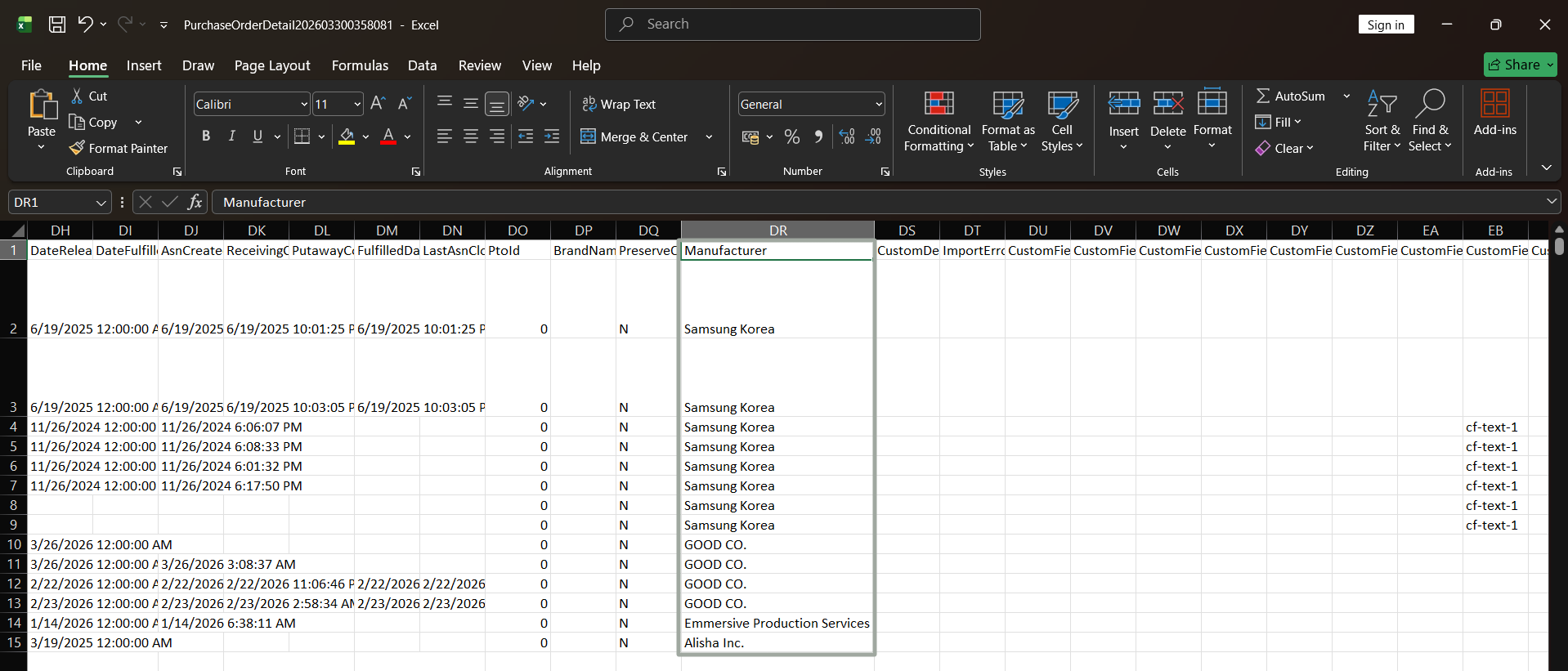
### **"Manufacturer" Column Introduced in Purchase Order Detail View**
**Overview:**
The **Purchase Order module** captures item-level details required for procurement, tracking, and reporting. However, visibility into the **Manufacturer** associated with each item was previously not directly available within Purchase Order workflows.
A new **“Manufacturer”** column has been introduced in **Purchase Order Detail**, which dynamically references the Manufacturer defined at the Item level. This column has been added in the following modules:
* **Purchase Order** – Line level
* **Purchase Order Centre** – Search by **Purchase Order Detail**
* **Purchase Order Subform**
* **Data Export Centre** – Search by **Purchase Order Detail**
* **Export File**
***
**Key Enhancements:**
* **Improved Data Visibility:** Enables users to directly view the Manufacturer associated with each item within Purchase Orders without navigating to the **Item Centre**.
* **Consistent Data Across Modules:** Ensures Manufacturer information is consistently reflected across UI views, subforms, exports, and reporting layers.
* **Enhanced Filtering & Searchability:** Supports visibility in **Purchase Order Centre** and works with advanced search/filtering for better data analysis.
* **Export & Reporting Readiness:** Manufacturer data is now included in **Data Export Centre** and export files, enabling downstream reporting and external processing without additional mapping.
***
### **Active BOM Filtering Enabled in Update BOM Items Module**
**Overview:**
The **Update BOM Items** page is used to manage and update components across multiple Bills of Materials (BOMs). As BOM data grows, identifying relevant and active records becomes critical for efficient updates and accuracy.
With this enhancement, users can easily filter and identify **active BOMs** using the **“Active BOMs”** toggle on the **Update BOM Items** page, which displays only active BOM records.
Added a new **“Is BOM Active”** column to clearly indicate the active status of each BOM in the grid.
***
**Key Enhancements:**
* **Improved Data Filtering:** Allows users to quickly focus on active BOMs, reducing clutter and improving operational efficiency.
* **Better Decision-Making:** The “Is BOM Active” column provides clear visibility into BOM status, helping users avoid unintended updates on inactive BOMs.
* **Enhanced User Control:** Users can seamlessly switch between viewing all BOMs and only active ones using the toggle, without needing additional filters.
* **Reduced Risk of Errors:** Minimizes the chances of modifying inactive or obsolete BOMs during bulk update operations.
***
**How It Works:**
**Step 1:** Navigate to the **Bill of Material** module and select the required BOM. Check the status of the **Active** checkbox for the BOM.
**Step 2:** Navigate to the **Update BOM Items** page. Use the **Active BOMs** toggle to filter and view either active or inactive BOMs.
**Step 3:** Select the required BOM and update item details (e.g., quantity, Item Unit Cost). Click **Update Selected Records** to apply the changes.
**Step 4:** The changes made will be automatically reflected in the corresponding BOM.
***
### **Implemented the Ability to Create Task Across Transaction Modules**
**Overview:**
The ability to create and manage tasks directly from the **Sales Order** module has now been extended across multiple transaction modules. This enhancement allows users to seamlessly create, link, and track tasks at various stages of the transaction lifecycle, improving overall workflow efficiency.
The **“Task” tab** has been introduced in the following modules:
* Create Estimate
* Estimate Subform
* Purchase Order
* Purchase Order Subform
* Invoice
* Invoice Subform
* Bill
* Bill Subform
* Credit Memo
* Invoice Credit Memo
* Credit Memo Subform
***
**Key Enhancements:**
* **Centralized Task Management:** Enables users to create and access tasks directly from multiple transaction modules, reducing the need to switch between modules.
* **Improved Workflow Efficiency:** Tasks can now be created at different stages, ensuring better tracking and execution of activities.
* **Automatic Linking with Transactions:** Tasks created from any module are automatically linked to the respective transaction using the reference number.
* **Enhanced Visibility & Accountability:** Improves collaboration by allowing teams to track tasks tied to specific transactions.
***
### **App Configuration: Allow All Users to Update Task**
**Overview:**
Task update permissions are now configurable through an app-level setting, allowing businesses to control whether tasks can be modified by all users or restricted to the task creator.
This enhancement introduces flexibility in task collaboration while ensuring control over critical actions like deletion and ownership.
***
**App Config Name:** Allow Task Update by All Users
**Configuration Location:** Menu → App Config → General → **Allow All Users to Update Task**
***
**Functionality:**
**When App Config is Enabled:**
* All users can update task details, including changing the **Status**, **Assignee**, and **Due Date**, as well as adding **comments**. This enables collaborative task management across users.
***
**When App Config is Disabled:**
* Only the **task creator** has full control over task updates. Other users have limited access and can perform the following actions:
* Change status
* Update assignee
* Update due date
* Add comments *(a validation message is displayed stating that the user does not have access to update the task)*
* No **Edit** option is available for users other than the task creator. Actions such as updating the **due date reminder**, adding/removing **watchers**, or performing any other task modifications are not allowed.
***
**Impact:**
* **Configurable Access Control:** Enables organizations to switch between restricted and collaborative task update models.
* **Improved Team Collaboration:** When enabled, multiple users can contribute to task progress without dependency on the creator.
* **Data Protection:** Deletion rights remain restricted to the task creator, preventing accidental or unauthorized data removal.
* **Better Governance & Accountability:** Ensures clear ownership while allowing controlled flexibility in task updates.
{% hint style="info" %}
**Task deletion** is always restricted to the **task creator**, regardless of whether the app configuration is **enabled** or **disabled**.
{% endhint %}
***
### **Addition Of “Amount Remaining To Ship” Column in Sales Orders**
**Overview:**
A new calculated field, **“Amount Remaining To Ship,”** has been introduced in the **Sales Order module** to provide better visibility into the pending shipment value.
This enhancement helps users quickly understand the financial impact of unfulfilled quantities by calculating the remaining shipment amount based on quantity and pricing.
***
**Feature Added:**
* Added a new field **“Amount Remaining To Ship”** in the following areas:
* **Create Sales Order Module (Item Line Level)**
* **Sales Order Subform (Line Level)**
* **Sales Order Centre (Detail View)**
* The **“Amount Remaining To Ship”** field is calculated as **Qty Remaining to Ship × Effective Unit Price (EUP)**.
***
**Key Enhancements:**
* **Improved Financial Visibility:** Provides real-time insight into the value of pending shipments directly within the Sales Order.
* **Better Order Tracking:** Helps users track unfulfilled quantities not just in units, but also in monetary terms.
* **Enhanced Decision-Making:** Enables more informed planning for fulfillment, invoicing, and revenue forecasting.
* **Reduced Manual Calculation:** Eliminates the need for users to manually calculate pending shipment amounts using quantity and pricing.
***
### **Added Producible Inventory Columns to the Data Export Centre**
**Overview:**
The **Data Export Centre** under **Search by: Inventory by Item** has been enhanced to include additional columns related to **BOM producible quantities**.
This enhancement enables users to view not only current inventory levels but also the producible quantities based on BOM configurations, providing deeper insight into manufacturing readiness and inventory potential.
***
**Prerequisite / App Configuration:**
**App Config Name:** Show BOM Inventory Levels in Inventory Snapshot
**Configuration Location:** Menu → App Config → System→ Show BOM Inventory Levels in Inventory Snapshot
***
**Functionality:**
**When App Config is Enabled:**
* Additional columns related to **producible quantities** become available for selection in the Data Export Centre under **Search by: Inventory by Item**. These include the following fields:
* Producible On Hand
* Producible Net Available
* Producible Available
* Producible ATS Qty
* Producible ATS Qty (Inc PO / MO / PO & MO)
* Total Producible On Hand
* Total Producible Net Available
* Total Producible Available
* Total Producible ATS Qty (Inc PO / MO / PO & MO)
These columns display producible quantities for manufacturable items based on BOM and available inventory.
***
**When App Config is Disabled:**
* The producible quantity columns are not available for selection. The Data Export Centre continues to display only standard inventory-related fields without BOM-based producible calculations.
***
**Key Enhancements:**
* **Enhanced Inventory Visibility:** Provides a combined view of both **available stock** and **producible quantities**, improving inventory transparency.
* **Manufacturing Readiness Insights:** Helps users understand how many units can be manufactured from existing inventory without manual calculations.
* **Better Planning & Forecasting:** Supports production planning, procurement decisions, and order fulfillment by exposing potential inventory.
* **Reduced Manual Effort:** Eliminates the need to separately analyze BOMs and inventory to estimate producible quantities.
***
### **Enhanced Catalyst Selection Flexibility in Manufacturing Lab Records**
**Overview:**
The **Manufacturing Lab Record** module plays a critical role in capturing catalyst-specific data for manufacturing processes. The selected catalyst determines associated property values and impacts validation, quality control, and reporting.
Previously, once a lab record was created, the catalyst field was not editable, limiting flexibility in cases of incorrect selection or process changes.
***
**Enhancement Added:**
The **Catalyst dropdown** in the Manufacturing Lab Record module is now **editable even after the lab record is created**, allowing users to update or change the selected catalyst.
***
**Impact:**
* **Improved Flexibility:** Users can modify the catalyst after record creation, accommodating changes in manufacturing requirements.
* **Enhanced Data Accuracy:** Reduces the need to void and recreate lab records due to incorrect catalyst selection.
* **Better Workflow Efficiency:** Saves time and effort by allowing updates within the existing record instead of recreating it.
* **Consistent Property Mapping:** Updating the catalyst ensures that the corresponding property values align with the selected catalyst profile, maintaining data integrity.
***
### **Automated Email Notification on Credit Memo Creation**
**Overview:**
The Credit Memo module is used to issue credits to customers for returns, adjustments, or refunds. Timely communication of such financial transactions is essential for maintaining transparency and improving customer experience.
To streamline this process, an automated email notification mechanism has been introduced for credit memo creation.
***
**App Configuration Requirement:**
**App Config Name:** Automatically Send Email on Credit Memo Creation
**Configuration Location:** Menu → App Config → Sales → Automatically Send Email on Credit Memo Creation
***
**Functionality:**
**When App Config is Enabled**
* The system automatically sends an email to the customer’s **Main Email** upon successful creation of a credit memo.
***
**When App Config is Disabled**
* No email is triggered when a credit memo is created.
***
**How It Works:**
**Step 1:** Navigate to **Menu** → **Sales** → **Credit & Deposit** → **Credit Memo Centre** and create a new Credit Memo.
**Step 2:** If the app configuration is enabled, the system automatically triggers an email to the customer’s **Main Email**, including the credit memo details.
**Step 3:** Navigate to the **Credit Memo Centre** and verify the **“Email Sent?”** column. A checkmark indicates that the email was successfully sent.
***
**Key Enhancements:**
* **Automated Communication:** Eliminates the need for manual email sending after credit memo creation.
* **Improved Customer Experience:** Customers receive instant confirmation of issued credits.
* **Operational Efficiency:** Reduces manual effort and ensures timely notifications.
* **Dependency Awareness:** Ensures proper setup by requiring the customer’s Main Email for successful email delivery.
{% hint style="info" %}
The **customer’s Main Email must be configured** in the Customer module for the email to be sent successfully.
{% endhint %}
***
### **Added "Master Case" and "Inner Case" Fields in Item Module**
**Overview:**
The **Item module** in XoroERP allows users to define detailed product attributes, including dimensions and packaging configurations such as Item, Master Case, and Inner Case.
With this enhancement, additional fields under the **Weights & Dims** section for **Master Case** and **Inner Case** are now more flexible, as they are non-mandatory and seamlessly integrated across the system. These fields are also available in the Item Centre and supported in Advanced Search for improved visibility and usability.
***
**Feature Added:**
* New fields are introduced under the **Master Case** and **Inner Case** sections in the **Weights & Dims** tab of the **Create Item** page. The following fields have been added:
* **Size UOM**
* **Length**
* **Width**
* **Height**
* **Weight UOM**
* **Weight**
* **Cubic Capacity UOM**
* **Cubic Capacity**
* All these fields are available as columns in the **Item Centre**, enabling better tracking and reporting.
***
**Key Enhancements:**
* **Improved Flexibility:** Users can create or update items without being বাধforced to enter Master Case or Inner Case details.
* **Enhanced Visibility:** Newly added fields are exposed in Item Centre for better data access.
* **Advanced Search Support:** Users can search and filter items using these new fields.
* **Better Data Management:** Supports optional packaging-level data capture without impacting item creation workflows.
***
### **Expense Line Support in Vendor Credit Batch Upload**
**Overview:**
The **Vendor Credit upload** functionality allows users to create vendor credits in bulk using a predefined template. Traditionally, there was limited flexibility for accounting use cases that require posting amounts directly to specific expense accounts.
With this enhancement, users can now include expense-related data in the upload file and optionally create expense lines during the upload process. This provides better control over how vendor credits are recorded in the system, especially for scenarios such as freight, bill-back, or other GL-specific postings.
***
**Feature Added:**
* A new field, **“Account Expense Name,”** has been added to the **Vendor Credit upload template**.
* A new checkbox, **"Add Expense Line"**, has been added to the **Upload Vendor Credit** page.
***
**Functionality**:
When the **“Add Expense Line”** checkbox is selected, and both the **Expense Account Name** and **Expense Amount** fields are provided in the upload file, the system will create an expense line.
***
**How It Works:**
**Step 1:** Download the template file by clicking on the **“Download Template”** option and populate the CSV file with the required data.
**Step 2:** Select the **“Add Expense Line”** checkbox if you want to create an expense line in the Vendor Credit.
**Step 3:** Click on the **“Verify & Upload”** button. A preview screen will open, displaying the details entered in the template. Users can modify the data before final upload.
**Step 4:** Click on **“Upload Vendor Credits”** to create the Vendor Credits.
**Step 5:** If any amount is entered in the **Total Amount** field, a **Miscellaneous Charges** item line will be created in the Vendor Credit (as per existing behavior).
If the required conditions for creating an expense line are also met, the system will create the corresponding **expense line** in the Vendor Credit.
If the account specified in the **Expense Account** field does not exist or is left blank, the system will automatically select the vendor’s **default expense account** (if available) as the expense account, as shown in the example below.
***
**Validation Rules:**
1. If the **“Add Expense Line”** checkbox is selected and the **Total Amount** field in the upload file is left blank, the system displays an error: **“No amount provided for the vendor credit.”**
2. If the **“Add Expense Line”** checkbox is not selected and the **Total Amount** field is left blank, the Vendor Credit is created with **only an expense line** and no item line.
3. If the **Expense Account** field is left blank and no **default expense account** exists for the vendor, the system does not insert any records, as a valid expense account is required.
4. The **Store Code** and **Vendor** specified in the upload file must exist in the system; otherwise, the records will not be created.
***
**Key Enhancements:**
* **Expense Line Support in Bulk Upload:** Enables creation of expense lines directly through the Vendor Credit upload process, improving flexibility in accounting entries.
* **Optional Expense Handling:** The “Add Expense Line” checkbox gives users control to include or exclude expense lines during upload without impacting existing workflows.
* **Backward Compatibility Maintained:** Existing behavior remains unchanged when the “Add Expense Line” checkbox is not selected.
* **Smart Default Handling:** Automatically assigns the vendor’s default expense account when a valid account is not provided (if available), reducing upload failures.
***
### **“Standard Unit Cost” Column Added to BOM Centre and Data Export Centre**
**Overview:**
This enhancement introduces the **Standard Unit Cost** column when the selected option in the **Search By** field is **Bill of Material Lines**, making cost visibility more accessible directly within the system.
Users can now view the standard unit cost of raw materials in both the **Bill of Materials Centre** and the **Data Export Centre**, ensuring better transparency and easier access to cost-related information.
***
**Key Enhancements:**
* **Visibility in BOM Centre:** Users can now view standard unit cost directly within the **Bill of Materials Centre** grid.
* **Availability in Data Export:** The same field is now available in the **Data Export Centre**, enabling users to extract cost data for reporting and analysis.
* **Consistent Data Representation:** Ensures that the values displayed in the UI match those in the exported files.
***
**How It Works:**
**Step 1:** Navigate to the **Bill of Materials Centre** and select **Bill of Material Lines** in the **Search By** field.
**Step 2:** Ensure the **Standard Unit Cost** column is visible to view the cost for each BOM line item.
**Step 3:** Similarly, navigate to the **Data Export Centre** and select **Bill of Material Lines**. Ensure the **Standard Unit Cost** column is visible in the grid.
**Step 4:** Export the data for a selected record. The downloaded file will also display the **Standard Unit Cost** for the selected item(s).
***
### **Addition of “Create RMA” Option in Invoice Page**
**Overview:**
This enhancement introduces a new option, **Create RMA**, in the **Options** dropdown menu at the header level of the **Create Invoice** page. It simplifies the return process by allowing users to initiate RMAs directly from the relevant invoice, eliminating the need to navigate separately to the RMA module.
***
**Key Enhancements:**
* When you click on the **Create RMA** option, the user is redirected to the **RMA (Return Merchandise Authorization)** module.
* The RMA generated is automatically linked to the selected invoice.
* The **Create RMA** option is also available in the **Invoice Centre** when you right-click on an invoice and select **Create RMA**.
***
**How It Works:**
**Step 1:** Navigate to **Menu → Sales → Invoice**. The **Create Invoice** page opens.
**Step 2:** Click on the **Options** dropdown available at the top-right corner of the page and select the **Create RMA** option.
**Step 3:** The system redirects to the **Return Merchandise Authorization (RMA)** page. A **Select Invoice Lines** pop-up appears, allowing users to choose the items to be returned.
**Step 4:** Enter the required RMA details, such as **return type**, **RMA type**, **customer details**, and **return quantities**.
**Step 5:** Click **Save** to create the RMA. The RMA is created and linked to the original invoice.
***
### **Enhanced Order Balance Calculation in Customer Balance Overview**
**Overview:**
This enhancement refines how the **Order Balance** is calculated in the **Customer Balance Overview**. The update ensures that only relevant order statuses contributing to financial exposure are considered, providing a more accurate representation of customer liability.
***
**Key Enhancements:**
* The **Order Balance** field in the **Customer Balance Overview** page now includes only **Sales Orders** with statuses **Released** and **Partially Shipped**.
* Orders in **Open status** and **Estimates** are excluded from the Order Balance calculation.
* The updated calculation provides a more accurate reflection of committed and in-progress orders.
***
**How It Works:**
**Step 1:** Navigate to **Menu → Sales → Customer → Customer Info** and search for the required customer.
**Step 2:** Click on the **Balance Overview** option from the **Options** dropdown at the **top-right corner** of the page.
**Step 3:** Locate the **Order Balance (Released/Partially Shipped)** field. The system automatically calculates the **Order Balance** based on Sales Orders in **Released** and **Partially Shipped** status.
***
### **Auto Calculation of ASN Label Quantity During Receiving**
**Overview:**
This enhancement introduces automatic calculation of label quantity in the Receive ASN module. Based on the item’s **Master Case Qty** and **ASN Qty**, the system then calculates the required number of labels, reducing manual effort and ensuring consistency in receiving operations.
***
**Enhancement Added:**
A new App Config, **"Auto Calculate ASN Label Qty While Receiving"**, has been introduced.
***
**Functionality:**
**When App Config Is Enabled:**
* The system automatically calculates the **Labels** value in the **Receive ASN** module. The calculation is based on **ASN Qty** and **Master Case Qty** for each item.
* The label quantity dynamically adjusts according to the item’s Master Case Qty defined in the Item Centre.
**When App Config Is Disabled:**
* The system follows the previous behavior; label quantity is not auto-calculated and must be managed manually during ASN receiving.
***
**How It Works:**
**Step 1:** Navigate to **Menu → App Config → Purchase** and enable the app config **"Auto Calculate ASN Label Qty While Receiving"**.
**Step 2:** Go to the **Item Centre** and ensure that the **Master Case Qty** is defined for the respective items.
**Step 3:** Navigate to the **Receive ASN** module and open an ASN record for the respective item.
**Step 4:** Observe the **ASN Qty** and **Labels** columns. The system automatically calculates the label quantity based on **ASN Qty** and **Master Case Qty** for each item.
***
### **Added Order Type and Brand Name Fields in PO and SO Upload Templates**
**Overview:**\
\
This enhancement introduces **Order Type Code & Name** in **Purchase Order (PO)** and **Brand Name** fields in both **Purchase Order (PO)** and **Sales Order (SO)** **upload templates**.\
\
It enables users to define these header-level attributes directly through bulk upload, ensuring better control, consistency, and reduced manual intervention during order creation.
***
**Key Enhancements:**
* New Fields Added in Templates: **OrderTypeCode** and **OrderTypeName** have been added to the **PO Upload Template**, while **BrandName** has been added to both **PO** and **SO Upload Templates**.
* Header-Level Mapping: When multiple lines belong to the same order (e.g., multiple items), the system considers header values such as **Order Type Name**, **Order Type Code**, **Brand Name** from the first row of the order, while subsequent rows contribute only to line-level data (items) and do not override header values.
* Priority Handling: If either **OrderTypeName** or **OrderTypeCode** is provided, the system automatically derives the corresponding value. However, if OrderTypeCode is invalid and a valid OrderTypeName is provided, the system prioritizes and applies the OrderTypeName.
* Efficient Handling of Missing Data: If no value is provided in the first row, the fields remain blank in the order header. Values in subsequent rows do not override the header.
* Validation Feedback: **Invalid OrderTypeCode** values are flagged in the **Import Error** column without blocking the processing of valid data.
***
**How It Works:**\
\
**Step 1:** Navigate to **Menu → Utilities → Data Imports → Upload Purchase Orders**. Click on **“Download Template”** to download the **PO Upload Template**.\
\
**Step 2:** Populate the required fields like **OrderTypeCode**, **OrderTypeName**, and **BrandName**. Ensure that header-level values are correctly entered in the first row of the order.
For orders containing multiple lines (multiple items), the system considers header values from the first row, while subsequent rows are used to add additional item lines to the same order.\
\
**Step 3:** Upload the file using the Upload option. The system processes the data and creates purchase orders accordingly.\
\
**Step 4:** Navigate to the **Purchase Order Centre** to review and verify the details of the newly created purchase orders.
***
### **Added "Batch Delete Images" option in Product Centre**
**Overview:**
This enhancement introduces a new **Batch Delete Images** option in the Product Centre, allowing users to remove product images efficiently without manually editing each product record.
The feature simplifies product image management by enabling users to delete images in bulk for selected products. It also ensures that image deletions are isolated to the selected product, preventing unintended removal of images from other products that may use the same image file.
***
**Feature Added: Batch Delete Images** option in Product Centre.
**Location:**
`Inventory → Product → Product Centre → Options → Batch Delete Images`
***
**Key Enhancements:**
**1. Bulk Image Deletion**\
Users can delete product images using the **Batch Delete Images** option available in the Product Centre Options menu. This eliminates the need to open individual product records to remove images.
**2. Product-Level Image Isolation**\
If the same image is used across multiple products, deleting the image from one product using **Batch Delete Images** will **not affect other products** using the same image.
**3. Permission-Based Visibility**\
The **Batch Delete Images** option will only be visible to users who have the **Delete Products** permission enabled in the Access Manager.
**4. Variant Image Synchronisation**\
Deleting images from a product using the **Batch Delete Images** option will also remove the corresponding images from all its variants, ensuring consistent image management across the product and its associated variants.
***
**How It Works:**
**Step 1:** Navigate to **Product Centre** and select the products from which you want to delete images.
**Step 2:** Click **Options → Batch Delete Images**. A dialogue box displaying the message *“Product(s) images deleted successfully. Press OK to refresh the page.”* appears, confirming the deletion.
**Step 3:** You will see that the selected images are removed from the chosen product only. If the same image exists in other products, those images will remain unaffected.
---
# Agent Instructions
This documentation is published with GitBook. GitBook is the documentation platform designed so that both humans and AI agents can read, navigate, and reason over technical content effectively. Learn more at gitbook.com.
## Querying This Documentation
If you need additional information that is not directly available in this page, you can query the documentation by asking a question.
Perform an HTTP GET request on the following URL with the `ask` and `goal` query parameters:
```
GET https://docs.xorosoft.com/whats-new/release-notes/previous-releases/2026/february-2026-release.md?ask=&goal=
```
`ask` is the immediate question: it should be specific, self-contained, and written in natural language.
`goal` is what the user is ultimately trying to achieve, the reason they need the answer. Sharing it helps GitBook give you a better, more relevant answer. A goal is most helpful when it describes the outcome the user wants rather than restating the question. For example, with `ask=how do I create an API token`, a goal like `automate deployments from our CI pipeline` lets GitBook tailor the answer to that use case.
The response will contain a direct answer to the question and relevant excerpts and sources from the documentation.
Use this mechanism when the answer is not explicitly present in the current page, you need clarification or additional context, or you want to retrieve related documentation sections.