> For the complete documentation index, see [llms.txt](https://docs.xorosoft.com/llms.txt). Markdown versions of documentation pages are available by appending `.md` to page URLs; this page is available as [Markdown](https://docs.xorosoft.com/whats-new/release-notes/previous-releases/2026/january-2026-release.md).
# January 2026 Release
{% hint style="warning" %}
This is a Custom Release. Feature availability depends on configuration and rollout status. Some features listed above may not be visible in your environment if they are part of a staged or custom deployment. Please contact your support representative to confirm enablement.
{% endhint %}
### **Vendor Bill# Column added in Item Purchase History**
**Overview:**
The **Purchase History** tab in the **Item** **Subform** provides a detailed view of all purchase transactions associated with an item. This section is critical for tracking procurement activity, vendor interactions, and historical pricing.
A new column, **“Vendor Bill#”**, has been added to the **Purchase History** grid within the **Item Subform**. This column displays the **vendor’s bill number** associated with each purchase transaction, aligning the view with the Bill Centre and improving cross-referencing capabilities.
***
**Key Enhancements:**
* **Improved Traceability:** Users can now directly view the vendor’s bill number alongside each purchase transaction in the **Purchase History** tab of Item Subform without needing to navigate to the **Bill module**.
* **Enhanced Visibility:** Provides a more complete view of purchase-related data in a single place.
* **Reduced Navigation Effort:** Minimizes the need to open individual bills to identify vendor bill references, saving time and improving efficiency.
***
### **Batch Update Sales Notes in Item Centre**
**Overview:**
The **Item Centre** in XoroERP enables users to manage and update item-related information efficiently through batch update functionality. This feature allows users to modify multiple item records simultaneously without opening each item individually.
With this enhancement, the **Sales Notes** field is now supported within the **batch update** process, allowing users to update sales-related notes across multiple items in a single action.
***
**Key Enhancements:**
* **Improved Efficiency:** Reduces time spent updating Sales Notes individually for multiple items.
* **Consistent Data Management:** Ensures uniform sales-related messaging or notes across multiple items.
* **Reduced Manual Effort:** Eliminates repetitive manual updates, especially for bulk changes.
* **Enhanced Usability:** Provides a more streamlined approach to maintaining item-level sales information within the system.
***
### **Default Sales Rep and Order Type Handling in Sales Orders**
**Overview:**
This enhancement standardizes how **Sales Rep** and **Order Type** are assigned during Sales Order creation when these values are not explicitly defined in the Presentation.
The system now intelligently defaults **Sales Rep** and **Order Type** values based on a defined priority, ensuring smoother B2B order creation while maintaining flexibility and data consistency.
***
**Priority Order:**
1. **Logged-in Sales Rep User:** If the order is created by a Sales Rep user, that user is assigned as the Sales Rep.
2. **Presentation:** If a Sales Rep is defined in the **Primary** tab of the Presentation settings, it is assigned when the logged-in user is not a Sales Rep.
3. **Customer:** If the Sales Rep is not defined in either of the above, the Sales Rep defined at the Customer level is assigned.
**Order Type** follows the same priority logic as **Sales Rep**.
**Order Type** follows the same priority logic as **Sales Rep**.
***
**How It Works:**
**Step 1:** Open the Presentation through which you want to place the order. In the **Primary** tab of the Presentation, you can select the **Sales Rep**.
If it is not selected here, you will be required to select a Sales Rep on the checkout page, as the system will not allow you to proceed without it.
If the Sales Rep is defined at the Customer level, the system will automatically populate the Sales Rep field on the checkout page.
**Step 2:** Choose the Sales Rep you want for your B2B Order.
**Step 3:** Similarly, in the **Other Attributes** tab of the Presentation settings, you will see the **Order Type** field, where you can select a value if it is not defined in the Customer settings.
If the Order Type is already defined at the Customer level, the system will automatically fetch it from there.
**Step 4:** Click on the **Submit Order** button. The Sales Order is created and can be viewed in the Sales Order Centre.
**Step 5:** The system assigns the **Sales Rep** and **Order Type** values based on the defined priority logic.
{% hint style="info" %}
Unlike **Sales Rep**, **Order Type is not a mandatory field** and does not need to be defined in either the Customer settings or the Presentation (**Other Attributes** tab).
{% endhint %}
***
### **Dynamic Cost Update in Manufacturing Orders**
**Overview:**
This enhancement improves the accuracy of cost representation in **Manufacturing Orders (MO)** by dynamically updating the **Unit Cost** and **Total Cost** fields based on the latest transaction values.
Previously, MO line costs remained static after production, even if the underlying inventory costs changed. With this update, the system ensures that when you open the MO subform or edit it in a new window, the MO line costs always reflect the most recent average cost derived from inventory transactions.
***
**Key Enhancements**
* **Transaction-Based Cost Sync:** MO line costs now reflect the latest average cost from inventory transactions.
* **Dynamic Cost Refresh:** Unit Cost and Total Cost are automatically updated when the MO is accessed.
* **Accurate Post-Production Costing:** Changes in raw material average cost after MO production are reflected in MO lines.
* **Consistency Across Modules:** Cost values in MO align with Inventory Valuation and transaction records.
* **No Manual Intervention Required:** Eliminates the need for manual cost reconciliation or updates.
***
**How It Works:**
**Step 1:** Create and produce a **Manufacturing Order (MO)** using raw materials. At this stage, the **Unit Cost** is calculated based on the current average cost of the raw material (e.g., *10.00*, as shown in the MO line).
**Step 2:** If the **average cost of raw material items changes** due to subsequent inventory transactions (e.g., item receipt, adjustment), the inventory valuation is updated.
**Step 3:** Right-click on the produced MO in the **Manufacturing Order Centre** and click on the **Edit in New Window** option, or open the **MO Subform view.**
**Step 4:** The system fetches the latest cost from related inventory transactions and updates **Unit Cost** and **Total Cost** values.
***
### **System Alert for Unconfigured or Inactive Home Country**
**Overview:**
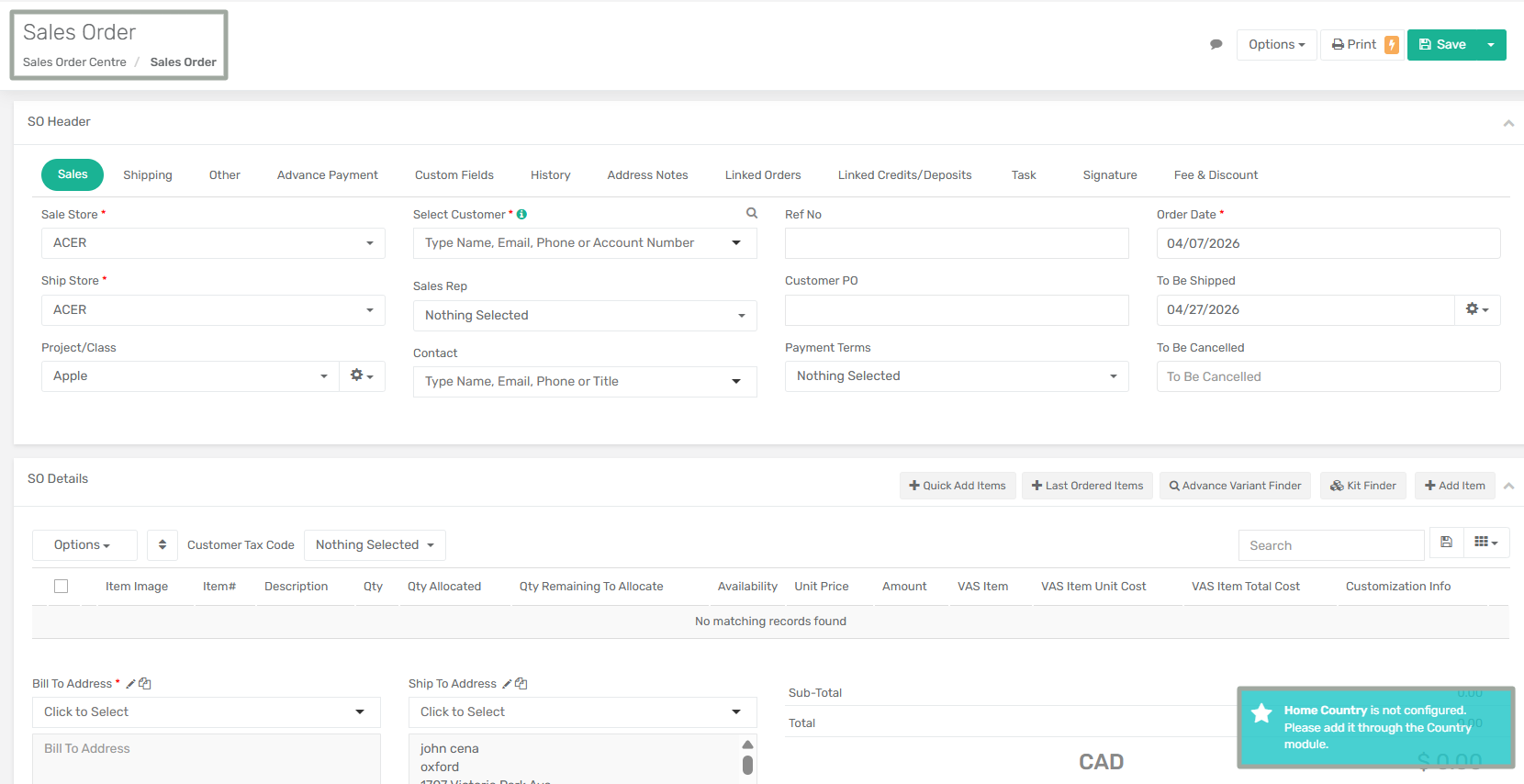
To improve system awareness and prevent configuration gaps, an ERP-wide alert has been introduced to notify users when a **Home Country is not configured** or **is inactive**.
Since the Home Country plays a critical role in transactions, taxation, and regional settings, this enhancement ensures users are proactively informed and can take corrective action without encountering downstream issues.
***
**Key Enhancements:**
* Introduced an ERP-wide alert message when no Home Country is set or when the configured Home Country is inactive.
* The alert is consistently displayed across multiple modules, including Sales, Purchase, B2B, Warehouse, Inventory, Manufacturing, Accounting, Admin, Users, and Reports.
* Ensures better visibility and prevents users from operating the system with incomplete country configuration.
* Eliminates silent failures or confusion caused by a missing Home Country setup.
***
**How It Works:**
**Step 1:** Navigate to the **Country Centre** module. If no country is marked as the Home Country (or the configured Home Country is inactive), the system identifies this as a missing configuration.
**Step 2:** When you navigate to various modules (such as Sales, Purchase, Inventory, B2B, Warehouse, etc.), an alert message is displayed notifying the user that the Home Country is not configured.
***
### **Order Tags Added to Purchase Order Centre (Detail View)**
**Overview:**
To enhance visibility and usability of Purchase Order data, the **Order Tags** defined at the Purchase Order header level are now available in the **Purchase Order Centre (Detail level view)**.
This allows users to easily identify, filter, and analyze purchase orders based on tags directly from the detail grid, without needing to open individual records.
***
**Key Enhancements:**
* Added **Order Tags (header-level)** to the **Purchase Order Centre – Detail view**.
* Introduced a **Tags column** to display all tags associated with the Purchase Order.
* Enabled **search and filtering** based on tags using both quick search and advanced search.
* Ensures consistency between Purchase Order entry and reporting views.
* Improves traceability and categorization of purchase orders at the line-item level.
***
**How It Works:**
**Step 1:** Create or open a Purchase Order and add the required tags in the **Order Tags** field under the **Other Info** tab at the header level.
**Step 2:** Navigate to **Purchase Order Centre** and select **Search By: Purchase Order Detail**.
**Step 3:** In the detail grid, select the **Tags column** to view header-level tags for each corresponding line item.
**Step 4:** You can also use the **Advanced Search** option and select **Tags** as a filter to find specific purchase orders based on tag values.
***
### **Addition of a Dropdown Field for Selecting the Print Requester in the Print Modal**
**Overview:**
This enhancement introduces the ability to select a **Print Requester** while printing Sales Orders directly from the Sales Order Centre. It allows users to route print jobs through a specific, configured print requester, improving control and flexibility in the printing process.
***
**Enhancement Added:**
* A new field, **Print Requester**, has been added in the **Select Reporting Template** pop-up in the Sales Order Centre, which appears when the user initiates the **Print** action (via right-click) on one or more Sales Orders.
* This field is a dropdown displayed next to the **Send to Printer** toggle and lists all available Print Requesters configured in the system.
***
**Prerequisite:**
App Config **"Enable Xoro Print Service"**, available under **Menu → App Config → System**, must be enabled for this enhancement to work.
***
**Functionality:**
**When App Config is Enabled:**
* The **Send to Printer** toggle is available in the print pop-up.
* Once the toggle is turned ON, the **Print Requester** dropdown is enabled, allowing users to select a Print Requester from the list.
* When a Print Requester is selected, the print job is routed through the selected Print Requester, and the Sales Order is added to the **Print Service Queue**.
***
**When App Config is Disabled:**
* The **Send to Printer** toggle is not available in the print pop-up.
* The **Print Requester** dropdown is also not visible, and printing follows the default behavior.
***
**How It Works:**
**Step 1:** Navigate to **Menu → App Config → System** and enable the app config **"Enable Xoro Print Service"**.
**Step 2:** Go to the **Sales Order Centre**, select one or multiple Sales Orders, and click on the **Print** option from the **Options** dropdown menu.
**Step 3:** The **Select Reporting Template** pop-up appears. Turn ON the **Send to Printer** toggle and select a **Print Requester** from the dropdown field.
**Step 4:** Click the **Print** button. The Sales Order(s) are sent to the **Print Service Queue** using the selected Print Requester.
***
### **Enhancement to Batch Creation Criteria for Sales Order** and Invoices
**Overview:**
This enhancement introduces configurable criteria for grouping **Sales Orders** and **Invoices during batch creation**. Two new app configurations, **Invoice Batch Creation Criteria** and **Sales Batch Creation Criteria**, have been added that allow users to control how records are consolidated into batches based on selected parameters.
Additionally, a **PAPS# editable field** has been introduced in the **Sales Order Batch** and **Invoice Batch** sub-forms. These enhancements provide greater flexibility in batch processing by ensuring that only records meeting the defined grouping criteria are included in the same batch.
***
**Enhancement Added:**
* **PAPS# editable field** in the Sales Order Batch sub-form and Invoice Batch sub-form.
* **PAPS# column in the respective Batch Centres**
* Sales Order Batch Center
* Invoice & Packing Slip Batch Centre
* **Consolidation Identifier Enhancement:** A new dropdown option **“Nothing Selected”** has been added to the **Consolidation Identifier** field in the **Generate Invoice Batch** subform.
***
**Configuration Details:**
1. **Invoice Batch Creation Criteria**
* **Configuration Location:** Menu → App Config → General → Invoice Batch Creation Criteria
* **Type:** Multi-select Dropdown
* **Available Options:**
* Tracking Number
* BOL Number
* Currency
* Customer
2. **Sales Batch Creation Criteria**
* **Configuration Location:** Menu → App Config → General → Sales Batch Creation Criteria
* **Type:** Multi-select Dropdown
* **Available Options:**
* Store
* Currency
* Customer
Multiple options can be selected in the app configuration dropdowns.
***
**Workflow:**
1. **Creating an Invoice Batch**
**Step 1:** Navigate to Menu → App Config → General → **Invoice Batch Creation Criteria** and select the parameters that should be used for grouping invoices.
**Step 2:** Go to the **Invoice Centre** and select the invoices you want to include in a batch. Click **Generate Invoice Batch** from the **Options** dropdown menu.
**Step 3:** A pop-up will appear displaying the **Consolidation Identifier** dropdown. Select one of the following options:
* Nothing Selected
* Tracking Number
* BOL Number
**Step 4:** Click **Generate**. The system evaluates invoices based on the selected **App Configuration parameters** and the **Consolidation Identifier** selected from the UI.
**Step 5:** Invoices meeting the grouping criteria are included in the same batch. Invoices missing required identifiers (such as **Tracking Number or BOL Number**) are excluded from batch creation.
***
2. **Creating a Sales Order Batch**
**Step 1:** Navigate to Menu → App Config → General → **Sales Batch Creation Criteria** and select the parameters used to group Sales Orders.
**Step 2:** Go to the **Sales Order Batch Centre** and select the orders you want to include in the batch.
**Step 3:** The system groups orders based on the selected parameters in the app configuration. For example, if only **Currency** is selected, orders with the same currency will be grouped into the same batch.
***
**System Behavior:**
* Orders are grouped into the same batch only when the selected parameters share **identical values**.
* If **no criteria are selected** in the configuration, the system creates **a single batch containing all selected records**.
* By default, **all parameters are selected** in the app configurations.
* If **I**nvoices or Sales Orders do not contain the parameters selected in the app configuration for grouping, those records are not included in the generated batch.
* You will be unable to generate a new batch for orders already existing in a batch.
* If the **SO/Invoice** batch contains multiple customers, then the customer name and customer account number will show comma-separated values in the Batch header data.
---
# Agent Instructions
This documentation is published with GitBook. GitBook is the documentation platform designed so that both humans and AI agents can read, navigate, and reason over technical content effectively. Learn more at gitbook.com.
## Querying This Documentation
If you need additional information that is not directly available in this page, you can query the documentation by asking a question.
Perform an HTTP GET request on the following URL with the `ask` and `goal` query parameters:
```
GET https://docs.xorosoft.com/whats-new/release-notes/previous-releases/2026/january-2026-release.md?ask=&goal=
```
`ask` is the immediate question: it should be specific, self-contained, and written in natural language.
`goal` is what the user is ultimately trying to achieve, the reason they need the answer. Sharing it helps GitBook give you a better, more relevant answer. A goal is most helpful when it describes the outcome the user wants rather than restating the question. For example, with `ask=how do I create an API token`, a goal like `automate deployments from our CI pipeline` lets GitBook tailor the answer to that use case.
The response will contain a direct answer to the question and relevant excerpts and sources from the documentation.
Use this mechanism when the answer is not explicitly present in the current page, you need clarification or additional context, or you want to retrieve related documentation sections.