> For the complete documentation index, see [llms.txt](https://docs.xorosoft.com/llms.txt). Markdown versions of documentation pages are available by appending `.md` to page URLs; this page is available as [Markdown](https://docs.xorosoft.com/whats-new/release-notes/previous-releases/2026/july-2026-release.md).
# July 2026 Release
{% hint style="warning" %}
This is a Custom Release. Feature availability depends on configuration and rollout status. Some features listed above may not be visible in your environment if they are part of a staged or custom deployment. Please contact your support representative to confirm enablement.
{% endhint %}
### Enhanced Custom Description Character Limit for Items
**Overview**
The maximum character limit for the **Custom Description** field in the Item module has been increased from its previous limit to **4,000 characters**. This enhancement allows users to store more detailed product information, specifications, or custom descriptions without being constrained by a shorter text limit.
The **Custom Description** field is available under the **Other Attributes** tab of the Item module and is also displayed as a column in the **Item Centre**, making the complete description accessible for reference.
***
**Key Enhancements**
* Increased the maximum length of the **Custom Description** field to **4,000 characters**.
* Supports saving and displaying longer item descriptions without truncation.
* The updated Custom Description is displayed in the **Item Centre** through the **Custom Description** column.
* Enables users to maintain more comprehensive product information directly against an item.
***
**How It Works**
**Step 1:** Navigate to **Menu → Admin → Item** and create a new item.
**Step 2:** Go to the **Other Attributes** tab and enter a **custom description** in the **Custom Description** field. The field now supports descriptions of up to **4,000 characters**. Click **Save** to save the item.
**Step 3:** Navigate to **Menu → Admin → Item → Item Centre**. Locate the item in the Item Centre. The **Custom Description** column displays the saved description, confirming that descriptions up to **4,000 characters** are stored and displayed successfully.
***
### **Display Customer Default Deposit Account During Customer Deposit Creation**
**Overview**
The Customer Deposit functionality has been enhanced to prioritize the customer's configured **Default Deposit Account** when recording deposits in the Sales Order, Sales Order Centre, or Customer Deposit modules **Sales Order**, **Sales Order Centre**, or the **Customer Deposit** module.
Earlier, the system always populated the **Deposit Account** using the **Page Defaults** configuration, even if a customer-specific default deposit account was configured. With this enhancement, the system now displays the customer's default deposit account when available.
Additionally, if the customer doesn't have a configured default deposit account, the **Deposit Account** field will remain blank, allowing users to select the appropriate account manually.
***
**Key Enhancements**
* The system now displays the customer's configured **Default Deposit Account** when recording a customer deposit.
* The customer's default deposit account takes precedence over the **Page Default Deposit Account**.
* If the customer does not have a configured default deposit account, the **Deposit Account** field now remains blank.
* The updated behavior is consistently applied when taking deposits from the **Customer Deposit**, **Sales Order**, and **Sales Order Centre** modules.
***
**How It Works**
**Step 1:** Navigate to **Menu → Sales → Customer Section → Customer Centre** and configure a **Default Deposit Account** for the required customer in the **Payments** tab.
**Step 2:** Navigate to **Menu → Customer Deposit → Customer Deposit**. Click the **three vertical dots** in the top-right corner of the page and configure a **Deposit Account** under **Page Defaults**.
**Step 3:** Create a **Sales Order** for the same customer. Then, select **Options → Take Deposit → Record Deposit**.
**Step 4:** The **Customer Deposit** window opens. If the selected customer has a configured **Default Deposit Account**, the system automatically populates the **Deposit Account** field with that account.
**Step 5:** Save the **Customer Deposit**. Then, navigate to **Menu → Accounting → Account Register** to verify that the selected customer deposit account is used for the accounting transaction.
***
### Added Net Total-Based Email Interceptor for Customer Statements
**Overview**
A new enhancement has been added to the **Email Interceptor** for **Customer Statements** that allows emails to be sent conditionally based on the customer's **Net Total**.
With this enhancement, the Email Interceptor evaluates the Net Total when the Customer Statement email job is executed. Customer Statement emails are sent only when the customer's **Net Total is greater than 0**. Customers with a **Net Total of 0 or a negative Net Total** are automatically excluded from the email process.
***
**Key Enhancements**
* Added Net Total-based email filtering in the **Customer Statement Email Interceptor**.
* Customer Statement emails are sent only when the customer's **Net Total is greater than 0**.
* Customers with a **Net Total of 0** are automatically excluded from email delivery.
* Customers with a **negative Net Total** are also excluded from email delivery.
***
**How It Works**
**Step 1:** Navigate to **Menu → Admin → Email Interceptor** and create a new **Email Interceptor**. Select **Entity** as **Customer Statement** and **Action** as **General**.
Configure the custom script to evaluate the customer's **Net Total** and allow email delivery only when the **Net Total** is greater than **0**. Save the Email Interceptor.
**Step 2:** Navigate to **Menu → Sales → Customer Section → Customer Info** and search for the required customer. Verify that the customer's **Net Total** is greater than **0**.
**Step 3:** Navigate to **Menu → Sales → Customer Statement**, select the required customer statement, click the header-level **Options** menu, and select **Email Statement**.
**Step 4:** In the **Select Reporting Template** window, select the required reporting template and click **Preview &** **Send**.
**Step 5:** The Customer Statement email is added to the **Email Queue** in the **Email Centre**. Send the queued email to deliver the Customer Statement to the customer's email address.
The Customer Statement email is sent successfully to the email address (configured in the **Emails** sub-tab of the **Contact Info** tab on the **Customer** page), only if the customer's **Net Total** is greater than **0**.
***
### **Added Last Landed Cost (Home Currency) Column in Bill and Item Receipt Modules**
**Overview**
A new **Last Landed Cost (Home Currency)** column has been added across the **Bill** and **Item Receipt** modules to provide better visibility into the latest landed cost of inventory items in the company's home currency. The column is available in transaction entry screens, corresponding detail centres, and sub forms, enabling users to quickly view and search the latest landed cost without opening individual item records.
Additionally, the **Advanced Search** functionality has been enhanced to support filtering records using the **Last Landed Cost (Home Currency)** field in both the Bill Centre (Search By: Bill Item Detail) and Item Receipt Centre (Search By: Item Receipt Detail).
***
**Key Enhancements**
* Added **Last Landed Cost (Home Currency)** column to:
* Bill Details section
* Bill Centre (Search By: Bill Items Detail)
* Bill Sub Form
* Item Receipt Details section
* Item Receipt Centre (Search By: Item Receipt Detail)
* Item Receipt Sub Form
* Added **Advance Search** support for **Last Landed Cost (Home Currency)** in:
* Bill Centre (Search By: Bill Item Detail)
* Item Receipt Centre (Search By: Item Receipt Detail)
* The value is displayed in the company's **Home Currency**, regardless of the vendor currency used in the transaction.
***
**How It Works**
**Step 1:** Navigate to **Menu → Purchase → Bill** and create a Bill. Add an inventory item. Verify that the **Last Landed Cost (Home Currency)** column is displayed in the **Bill Details** section.
**Step 2:** Go to **Menu → Purchase → Bill → Bill Centre** and select **Bill Item Detail** from the **Search By** dropdown.
**Step 3:** Verify that the **Last Landed Cost (Home Currency)** column is available in the grid and displays the latest landed cost for each item in the corresponding Bill.
***
### **Enhanced Exchange Rate Editing for Same Foreign Currency Fund Transfers**
**Overview**
The **Funds Transfer** module has been enhanced to allow users to manually update the **Exchange Rate** when both the **Transfer From** and **Transfer To** accounts use the same foreign currency and that currency is different from the home currency. This enables users to record foreign exchange (FX) adjustments directly through the Funds Transfer module without creating a separate Journal Entry.
***
**Key Enhancements**
* Users can now edit the **Exchange Rate** field when both the **Transfer From** and **Transfer To** accounts are in the same foreign currency, and the currency is not the home currency.
* Eliminates the need to create a Journal Entry solely for recording FX adjustments between same-currency foreign accounts.
* Existing exchange rate behavior remains unchanged for all other transfer scenarios.
***
**How It Works**
**Step 1:** Navigate to **Menu → Accounting → Transfer Funds**.
**Step 2:** Select the **Transfer From** and **Transfer To** accounts. Ensure both accounts use the same foreign currency and that the currency is different from the company's home currency.
Select the corresponding **Transfer Currency**.
**Step 3:** The **Exchange Rate** field becomes editable. Enter the required exchange rate to reflect the desired foreign exchange adjustment.
***
### **Enhanced Inventory Adjustment Centre to Display Adjustment Amount with Four Decimal Places**
**Overview**
The **Inventory Adjustment Centre** has been enhanced to display the **Adj Amount** column with up to **four decimal places**. This provides greater precision when reviewing inventory adjustments, particularly for transactions involving fractional quantities or values.
***
**Key Enhancements**
* The **Adj Amount** column in the **Inventory Adjustment Centre** now displays values with up to **four decimal places**.
* Improved precision makes it easier to review and reconcile inventory adjustments involving decimal quantities or values.
* The enhancement applies across the **Inventory Adjustment**, **Inventory Adjustment Detail**, and **Inventory Change Log (Transaction Type: Inventory Adjustment)** views.
***
**How It Works**
**Step 1:** Navigate to **Menu → Inventory → Inventory Adjustment → Create Inventory Adjustment** and create a **Quantity** adjustment for the required **store** and **item**.
**Step 2:** Navigate to **Menu → Inventory → Inventory Adjustment → Inventory Adjustment Centre** and search for the newly created inventory adjustment.
**Step 3:** The **Qty Adj** column displays the adjustment quantity with up to **four decimal places**, providing greater precision when reviewing inventory adjustments.
**Step 4:** Double-click the required inventory adjustment record to open the **Inventory Adjustment Detail** window.
The **Qty Adjustment** field is displayed with up to **four decimal places**, ensuring consistency between the Inventory Adjustment Centre and the detail view.
***
### **Product Price Range and Variant Visibility in the Presentation Portal**
**Overview**
The Presentation Portal has been enhanced to ensure that only sellable product variants are considered when displaying product prices and product visibility.
***
**Key Enhancements**
* Product price ranges are calculated only from product variants where **Is Sellable** is set to **True**.
* If a product contains only one variant and that variant is marked as non-sellable, the product is not displayed in the Presentation Portal.
* When a non-sellable single-variant product is accessed, the **"Item Not Specified"** message is displayed.
***
**How It Works**
**Step 1:** Navigate to **Menu → B2B → Presentation Centre** and create or edit a Presentation.
**Step 2:** In the **Products** tab, include a product with multiple variants, where one or more variants are marked as **Is Sellable = False**, and save the Presentation.
**Step 3:** Generate or open the Presentation link from the **Links** tab to access the Presentation Portal.
**Step 4:** The product price range is calculated using only the variants where **Is Sellable = True**.
For example, if the product contains variants priced at **50**, **100**, and **150**, and the **50-**priced variant is non-sellable, the displayed price range is **100–150**.
**Step 5:** If a product contains only one variant and that variant is marked as **Is Sellable = False**, the product is not displayed in the Presentation Portal. If the product is accessed, the system displays the **"Item Not Specified"** message.
***
### **Enhanced Item Availability with Qty Details Popup in Sales Estimates**
**Overview:**
The **Availability** column in the **Estimate Details** section has been enhanced to provide quick access to item inventory information. Clicking the **Availability** indicator for an inventory item now opens the **Qty Details** popup, allowing users to review inventory availability, stock levels, sales history, incoming deliveries, and location-level inventory details without leaving the Estimate page.
***
**Key Enhancements**
* Added the ability to open the **Qty Details** popup directly from the **Availability** column in the **Estimate Details** section.
* Users can review inventory availability and stock details for the selected item without navigating to another module.
* The popup reflects the latest inventory information, including inventory adjustments and lot-controlled inventory.
* The enhancement is available regardless of how the item is added to the Estimate, including:
* Add Item
* Advanced Variant Finder
* Item Inventory Snapshot
* Transfer Sales Order
* Copy Estimate
* Duplicate Estimate
* Short Inventory Planner
***
**How It Works**
**Step 1:** Navigate to **Menu → Sales → Estimate** and create an Estimate.
**Step 2:** Add one or more inventory items to the **Estimate Details** section. In the **Estimate Details** section, locate the **Availability** column for the required inventory item.
**Step 3:** Click the **Availability** indicator to open the **Qty Details** popup.
**Step 4:** Review the item's inventory information, including inventory levels (On Hand, Available, Not Available), sales history and forecast trends, incoming deliveries, and location-level inventory details.
***
### **Added Additional Fields in Batch Update for Item Centre**
**Overview**
The **Batch Update** option in the **Item Centre** has been enhanced to support updating additional item dimension and measurement fields. This enhancement allows users to update multiple items simultaneously with size, dimension, weight, and cubic capacity information, eliminating the need to edit each item individually.
***
**Key Enhancements**
* Added **Size UOM** field to the **Batch Update** window.
* Added **Length**, **Width**, and **Height** fields to the **Batch Update** window.
* Added **Weight UOM** and **Weight** fields to the **Batch Update** window.
* Added **Cubic Capacity UOM** and **Cubic Capacity** fields to the **Batch Update** window.
* Users can batch update these fields for multiple selected items in a single operation.
***
**How It Works**
**Step 1:** Navigate to **Menu → Admin → Item → Item Centre**.
**Step 2:** Select one or more items and click **Options → Batch Updates**.
**Step 3:** In the **Batch Update** window, you can now update the **Size UOM**, **Length**, **Width**, **Height**, **Weight UOM**, **Weight**, **Cubic Capacity UOM**, and **Cubic Capacity** fields.
**Step 4:** Enter the required values for the fields, then click **Update** to apply the changes to all selected items. Verify that the values have been updated successfully for the selected item(s) in the **Item Centre**.
***
### Batch Update Support for Item Date Fields
**Overview**
The **Batch Update** option in the **Item Centre** has been enhanced to support updating the **Launch Date**, **Expiration Date**, and **Discontinued Date** fields for multiple items simultaneously. Changes made through Batch Update are also recorded in **Activity Tracking**, making it easier to manage and audit item date updates.
***
**Key Enhancements**
* Added support for updating **Launch Date**, **Expiration Date**, and **Discontinued Date** through the **Batch Update** window.
* Users can update these date fields for multiple selected items in a single batch update.
* Updated date values are reflected in the corresponding item records in the **Item Centre**.
* Changes made through **Batch Update** are also recorded in **Activity Tracking**.
***
**How It Works**
**Step 1:** Navigate to **Menu → Admin → Item → Item Centre**. Select one or more items and click **Options → Batch Updates**.
**Step 2:** The **Launch Date**, **Expiration Date**, and **Discontinued Date** fields are now available in the **Batch Update** window. Select **Launch Date** from the **Column** **Name** field, enter the required value, and click **Update**.
**Step 3:** Verify that the **Launch Date** value has been updated successfully for the selected item.
***
### **Enhanced Transaction Page Titles with Order Number**
**Overview**
Transaction pages have been enhanced to display the **transaction name** and **order number** in the browser tab title. This makes it easier to identify and switch between multiple open transaction tabs.
***
**Key Enhancements**
* Enhanced transaction page titles to display the transaction name and order number in the format **` - `**.
* The page title is displayed when opening a transaction in **New** or **Edit** mode.
* Supported transaction pages include:
* Sales Order
* Invoice
* Purchase Order
* Bill
* Item Receipt
* Credit Memo
* RMA
* Manufacture
* Estimate
***
**How It Works**
**Step 1:** Navigate to any supported transaction page, such as **Menu → Sales → Estimate → Create Estimate**.
**Step 2:** Create a new Estimate or open an existing estimate from the **Estimate Centre**.
**Step 3:** Verify that the transaction opens in a new browser tab and that the page title is displayed in the format **` - `** (for example, **Estimate - LA-SO16385**).
***
### **Enhanced Delivery Management System (DMS) Mobile Application**
**Overview**
The Delivery Management System (DMS) Mobile Application has been enhanced to improve delivery processing, provide additional delivery information, and simplify delivery management. The enhancements include support for Invoice Header Custom Fields in the **Mark Order As Delivered** pop-up window, new delivery filters and refresh functionality, and Route and Case Count display.
***
**Key Enhancements**
* Enhanced the **Mark Order As Delivered** window with separate **Delivery** and **Custom Fields** tabs.
* Added support for displaying and editing the first five configured **Invoice Header Custom Fields** during delivery confirmation.
* Updated Invoice Header Custom Fields automatically when an order is marked as delivered.
* Added **Case Count** to the **Delivery** tab to display the total invoice line quantity included in the delivery.
* Added the **Route** column to the **Delivery Detail** page using the Route configured on the Sales Order header.
* Added **Status Filters**, **Date Filters**, and a **Refresh** button to the Delivery page for easier delivery management.
***
**How It Works**
**Step 1:** Navigate to the **Delivery** module in the [DMS Mobile Application](/other-products/xorodms/xorodms-delivery-management-system/dms-workflow.md).
The Delivery page now includes:
* **Status Filters** (Open, In Progress, Partially Delivered, Delivered)
* **Date Filters**
* **Refresh** button
Use these options to filter and refresh the delivery list.
**Step 2:** Select a delivery to open the **Delivery Detail** page. The **Route** column displays the value configured in the corresponding **Sales Order Header** (Shipping tab).
**Step 3:** Click **Mark As Delivered** for the required order.
The **Mark Order As Delivered** window now contains:
* **Delivery** tab
* **Custom Fields** tab (displayed only when Invoice Header Custom Fields are configured)
The **Delivery** tab also displays the **Case Count**, which represents the total invoice line quantity included in the delivery.
**Step 4:** Open the **Custom Fields** tab. Only the first **five** configured **Invoice Header Custom Fields** are displayed, and all displayed fields are editable.
**Step 5:** Update the required custom field values and click **Mark as delivered**. The updated values are saved to the corresponding **Invoice Header Custom Fields** (Custom Fields tab).
***
### **Apply Purchase Order Approval Rules Based on System User**
**Overview**
The **PO Approval Rule** module has been enhanced to support **System User** filtering. This allows approval rules to be applied only to Purchase Orders created by selected system users. When no system users are selected, the approval rule continues to apply to Purchase Orders created by all system users.
***
**Key Enhancements**
* Added a **System User** field to the **PO Approval Rule** module.
* By default, approval rules apply to Purchase Orders created by all system users.
* When one or more system users are selected, the approval rule applies only to Purchase Orders whose **Created Source** matches one of the selected system users.
***
**How It Works**
**Step 1:** Navigate to **Menu → Admin → PO Approval Rule** and create a new PO Approval Rule or open an existing rule.
**Step 2:** In the **System User** field, select your user to apply the approval rule only to Purchase Orders whose **Created Source** matches your user ID.
**Step 3:** Save the PO Approval Rule. Navigate to **Menu → Purchase → Purchase Order** and create a new Purchase Order. Verify that the approval rule is applied only to Purchase Orders created by your user.
{% hint style="info" %}
Purchase Orders that are pending approval cannot be printed or added to the Email Queue. The **Print** and **Add to Email Queue** options become available only after the Purchase Order has been approved.
{% endhint %}
***
### Enforce Item Customer Mapping
**Overview**
This enhancement simplifies customer-specific inventory item restrictions by moving the control from the Sales App Configuration to the Customer module.
A new **Enforce Item Customer Mapping** toggle has been introduced in the Other Info tab of the **Create/Update Customer** and **Upload Customer** modules. When enabled for a customer, inventory items available across Sales modules are filtered according to the configured **Item Customer Mapping** records and, where applicable, the selected **Ship To Address**.
This provides greater flexibility by allowing item restrictions to be managed individually for each customer while maintaining existing behavior for customers where item restrictions are not enforced.
***
**Functionality**
**When Enforce Item Customer Mapping Is Enabled**
* Inventory items displayed in Sales modules (Estimate, Sales Order, Invoice, Credit Memo, and Sales Receipt) are filtered according to the configured **Item Customer Mapping** records.
* The **Ship To Address** field is always available in the **Item Customer Mapping** module.
* When Ship To Address-specific mappings exist, only inventory items mapped to the selected Ship To Address are available.
* When customer-level mappings exist without Ship To Address restrictions, only the mapped inventory items are available.
* If no Item Customer Mapping records exist for the selected customer, all inventory items remain available.
* Customer-based item validation is enforced for manual item selection, Quick Add Items, Last Ordered Items, uploads, APIs, and third-party integrations.
**When Enforce Item Customer Mapping Is Disabled**
* Existing system behavior is maintained.
* Customer-specific item restrictions are not applied.
* All eligible inventory items remain available for selection.
***
**What's Changed**
* The **Ship To Address** field is now always displayed in the **Item Customer Mapping** module.
* Introduced the **Enforce Item Customer Mapping** toggle in the **Create/Update Customer** and **Upload Customer** screens.
* Item restrictions are now controlled at the **Customer** level instead of through a global Sales App Configuration.
* Existing Item Customer Mapping behavior, validation rules, Ship To Address logic, and supported mapping combinations remain unchanged.
***
**How It Works**
**Step 1:** Navigate to **Create/Update Customer** (or **Upload Customer**) and enable the **Enforce Item Customer Mapping** option for the required customer.
**Step 2:** Navigate to **Menu → Admin → Item Customer Mapping** and create an Item Customer Mapping for the required customer and inventory item.
Likewise, create additional **Item Customer Mappings** for the same customer and inventory item using different **UOMs** or **Ship To Addresses**, as required.
The configured mappings are displayed in the **Item Customer Mapping Centre**, including the corresponding **Ship To Address Name** column, which displays the **Ship To Address** for each mapping.
**Step 3:** Navigate to **Menu → Sales → Sales Order**, and select the required customer.
**Step 4:** Click **Add Item**. The Item Detail pop-up displays inventory items according to the configured Item Customer Mapping.
**Step 5:** Select the required inventory item and UOM, click **Add Item**, and then click **Save** to save the Sales Order.
The same customer-based validation is applied when adding inventory items through **Quick Add Items**, **Last Ordered Items**, manual item entry, uploads, APIs, and third-party integrations.
***
**Validation Rules**
**Allowed Mapping Combinations**
The following Item Customer Mapping combinations are supported:
* The same **Item**, **Customer**, and **UOM** can be mapped to multiple **Ship To Addresses**.
* When **Multi UOM** is enabled, the same **Item** and **Customer** can be mapped to the same **Ship To Address** using different UOMs.
**Ship To Address Consistency**
For the same **Item** and **Customer**, mappings must be configured consistently.
* If an existing mapping does not have a **Ship To Address**, additional mappings with a **Ship To Address** cannot be created. Update the existing mapping to assign a Ship To Address before creating additional mappings.
* Similarly, if existing mappings already use **Ship To Addresses**, a new mapping without a **Ship To Address** cannot be created.
{% hint style="info" %}
Duplicate mappings are allowed only when **Multi UOM** is enabled, and the UOM is different for the same customer-item mapping.
{% endhint %}
***
### Added Weight Precision support in Barcode **Identification** profile
**Overview**
A new **Weight Precision** field has been added to the **Barcode Identification Profile** to support weight values stored in barcodes without a decimal point. This enhancement allows the system to interpret the extracted numeric weight based on the configured precision, ensuring that the correct decimal value is resolved during barcode scanning in WMS.
***
**Key Enhancements**
* Added a new **Weight Precision** dropdown to the **Barcode Identification Profile**.
* The **Weight Precision** field is displayed **only when the profile detail Type is set to Weight**.
* Supported precision options include:
* **No Precision**
* **10th Place**
* **100th Place**
* **1000th Place**
* The selected precision determines how the extracted weight value is interpreted when the barcode does not contain a decimal point.
* For profile detail types other than **Weight** (Item UPC, Batch Number), the **Weight Precision** field remains hidden and does not affect barcode resolution.
***
**How It Works**
**Step 1:** Navigate to **Menu → Admin → Barcode Identification Profile** and create a new Barcode Identification Profile.
Configure the barcode profile by adding the required profile detail rows:
* Add a profile detail with **Field Type = Item UPC** and configure the appropriate **Start Index** and **End Index**.
* Add another profile detail with **Field Type = Weight**, configure the required **Start Index**, **End Index**, **Weight UOM**, and select the appropriate **Weight Precision** (**No Precision**, **10th Place**, **100th Place**, or **1000th Place**).
**Step 2:** Navigate to **Menu → Admin → Item → Item Centre** and open the required inventory item. In the **Primary** tab, enable the **Catch Weight** toggle and configure the required pricing information.
**Step 3:** Navigate to **Menu → Purchase → Vendor Section → Vendor Centre** and open the required vendor. In the **Other Info** tab, select the configured **Barcode Identification Profile** and save the vendor.
**Step 4:** Navigate to **Menu → Purchase → Purchase Order** and create a Purchase Order for the configured vendor and catch weight item. Release the Purchase Order and create an ASN.
**Step 5:** Open the **Receiving** module in WMS and select **Receive**. In the **Scan ASN** page, enter or scan the ASN number in the **ASN#** field and click **Accept**.
**Step 6:** In the **Receiving Mode** page, select **Receive By Item**.
**Step 7:** Scan or enter the **Item UPC** in the **Scan ASN#** field and click **Accept**. The system:
* Identifies the item using the configured **Item UPC** portion of the barcode.
* Extracts the configured weight value from the barcode.
* Applies the configured **Weight Precision** to resolve the correct decimal value.
* Displays the resolved weight using the appropriate **Weight UOM**.
* Displays the decoded barcode details, including the **UPC**, **Item Number**, **Description**, **Weight**, **LPN**, and other configured barcode attributes.
{% hint style="info" %}
**Note:** The system determines the Weight UOM using the following priority:
* The item's **SKU UOM** (UOM tab).
* The **Default Weight UOM** configured in **App Config**, if the item does not have a default Weight UOM.
{% endhint %}
***
### Route Scheduling and Shipment Delivery Enhancements
**Overview**
We've introduced a comprehensive set of enhancements to the **Route** and **Shipment Delivery** functionality to make delivery planning more intelligent, shipment management more flexible, and the overall fulfillment process more efficient.
With this release, you can configure delivery schedules for each route, automatically calculate shipment and delivery dates based on predefined routing rules, create Shipment Deliveries directly from Sales Orders, manage partial shipments with greater accuracy, and continue updating deliveries as fulfillment progresses. These improvements reduce manual effort, improve scheduling accuracy, and provide greater control over the entire delivery lifecycle.
***
**Key Enhancements**
**Smarter Route Scheduling**
The Route module has been enhanced to automate delivery scheduling and reduce manual planning.
* Added a new **Delivery Day** multi-select field in the [**Route** module,](/xoroerp-1/admin/route.md) allowing one or more delivery days to be configured for each route.
* Added a new **Day** column in the **Route Centre** to provide quick visibility into the configured delivery schedule for every route.
* Introduced a **Ship Date Offset** field for each route, enabling the system to calculate when an order must be shipped to meet its scheduled delivery date.
* If no Ship Date Offset is specified, XoroERP automatically considers the offset as **0**.
* Customers can now be assigned a **default Route**, ensuring the appropriate route is automatically selected whenever a new Sales Order is created for that customer.
* The system automatically calculates both the **Delivery Date** and **Ship Date** using:
* The assigned Route
* Configured Delivery Day(s)
* Ship Date Offset
* Sales Order Date
* If the **Customer**, **Route**, **Order Date**, or **Delivery Date** is modified, the system automatically recalculates the remaining dates to maintain an accurate delivery schedule.
* If **Delivery Manager** is disabled, Route selection remains optional, and the Sales Order continues through the standard processing workflow without any restrictions.
***
**Create Shipment Deliveries Earlier in the Fulfillment Process**
Shipment planning can now begin much earlier without waiting for invoicing.
* Shipment Deliveries can now be created directly from **Sales Order** lines using the Line Header Options dropdown.
* An invoice is **no longer required** before creating a Shipment Delivery.
* If the selected Sales Order quantities have not yet been completely shipped, the Shipment Delivery is automatically created in **Draft** status.
* Once the planned shipment quantity has been fully shipped, the same Shipment Delivery automatically transitions from **Draft** to **Open**.
* Only Shipment Deliveries in **Open** status can be processed through the **Delivery Manager**.
* This enhancement allows warehouse and logistics teams to prepare deliveries in advance while ensuring deliveries are processed only after shipment requirements have been fulfilled.
***
**Greater Flexibility When Managing Shipment Deliveries**
Shipment Deliveries can now be updated throughout the fulfillment process, rather than fixed after creation.
Users can now:
* Add additional eligible Sales Order lines to an existing Shipment Delivery.
* Remove Sales Order lines that have not yet been delivered.
* Modify the **Quantity to Deliver** for individual Shipment Delivery lines.
* Continue refining Shipment Deliveries while they remain in **Draft** or **Open** status.
To preserve shipment integrity:
* Shipment Deliveries or Shipment Delivery lines with **Delivered**, **In Progress**, **Void**, or **Cancelled** statuses cannot be modified.
* This prevents accidental changes to deliveries that have already entered the fulfillment process.
***
**Improved Support for Partial Shipments**
XoroERP now provides enhanced support for organizations that fulfill customer orders across multiple shipments.
* A single Sales Order line can now be shipped in multiple batches.
* Each shipment is automatically linked to its corresponding:
* Shipment Delivery
* Invoice
* The system independently tracks shipped quantities for each shipment.
* Duplicate shipment quantities are automatically prevented.
* The cumulative Shipment Delivery quantity always remains synchronized with the original Sales Order quantity.
* This provides complete traceability while simplifying multi-stage order fulfillment.
***
**Add Sales Order Lines to Existing Shipment Deliveries**
Managing deliveries is now more flexible by allowing Sales Order lines to be associated with existing deliveries.
Users can now add Sales Order lines directly from:
* **Sales Order Centre**
* **Create Sales Order** page
They can choose to:
* Add selected Sales Order lines to an existing Shipment Delivery.
* Create a brand-new Shipment Delivery using the selected Sales Order lines.
This simplifies delivery consolidation, reduces duplicate deliveries, and minimizes navigation between different modules.
***
**Enhanced Validation and Data Integrity**
Additional system validations have been introduced to ensure Shipment Deliveries remain accurate and consistent throughout the fulfillment lifecycle.
The system now ensures that:
* Shipment Deliveries with a **Delivered** status cannot be deleted.
* Sales Order lines can only be added to Shipment Deliveries with **Open**, **In Progress**, or **Partially Delivered** statuses.
* Only **shipped** Sales Order lines can be associated with **In Progress** or **Partially Delivered** Shipment Deliveries.
* **Void** and **Cancelled** Sales Order lines cannot be added to any Shipment Delivery.
* Shipment quantities remain synchronized with their originating Sales Orders, preventing duplicate or inconsistent fulfillment records.
These validations help maintain data integrity while providing users with greater confidence when managing deliveries across the order fulfillment process.
***
**How It Works**
1. Configure one or more **Delivery Days** and an optional **Ship Date Offset** for each Route.
2. Assign a default Route to the appropriate Customer.
3. When a Sales Order is created, XoroERP automatically populates the customer's assigned Route.
4. Using the configured Route, Delivery Day(s), Ship Date Offset, and Sales Order Date, the system automatically calculates the required **Ship Date** and **Delivery Date**.
5. Users can create Shipment Deliveries directly from Sales Order lines without first generating an invoice.
6. If the planned shipment quantity has not yet been completely shipped, the Shipment Delivery is created in **Draft** status. Once the planned quantity has been fully shipped, the Delivery automatically transitions to **Open**.
7. While the Shipment Delivery remains editable, users can add eligible Sales Order lines, remove undelivered lines, and adjust delivery quantities as business requirements change.
8. For orders fulfilled across multiple shipments, XoroERP tracks every shipment independently, links each shipped quantity to its corresponding Shipment Delivery and Invoice, and ensures delivered quantities remain synchronized with the originating Sales Order.
***
**Business Benefits**
* Automates route-based delivery scheduling.
* Reduces manual date calculations during order fulfillment.
* Enables delivery planning before invoicing.
* Simplifies management of partial and multi-stage shipments.
* Improves flexibility when modifying deliveries.
* Prevents duplicate shipment quantities and maintains fulfillment accuracy.
* Enhances operational visibility through improved routing and delivery controls.
***
### Commission Rules and Commission Report Enhancements
**Overview**
This enhancement introduces greater flexibility in commission calculations and significantly improves the Commission Report. Users can now manually update either the **Commission Percentage** or the **Commission Rate**, with the system automatically recalculating the corresponding value to keep both fields synchronized.
Additionally, Commission Rules now support using **Line Quantity** in both **Conditions** and **Offset Criteria**, allowing businesses to define quantity-based commission structures. The enhanced Commission Report provides an expandable view with detailed commission breakdowns, advanced filtering, clearer visibility into commission adjustments, and improved printing options.
***
**Key Enhancements**
**Manual Commission Percentage and Rate Synchronization**
* Commission Percentage can now be edited directly.
* When the Commission Percentage is updated, the system automatically recalculates the corresponding Commission Rate.
* Similarly, when the Commission Rate is modified, the Commission Percentage is automatically recalculated.
* Both values remain synchronized, ensuring consistent and accurate commission calculations.
* Updated values are reflected immediately in the Commission Report.
**Quantity-Based Commission Rules**
Commission Rules now support using **Line Quantity** in both:
* Conditions
* Offset Criteria
This enables organizations to create commission rules that reward or adjust commissions based on the quantity sold on individual invoice lines.
**Enhanced Commission Report**
The Commission Report has been redesigned with a modern, expandable interface, allowing users to:
* Review commissions by Sales Representative, Invoice, Customer, and individual Item Line.
* Expand and collapse report levels for easier navigation.
* Filter results by Sales Representative, Invoice, Customer, and Item.
* View the Base Commission Rate and any applied Commission Adjustments separately.
* Clearly identify when an Offset Criterion has been applied, along with the corresponding reason.
**Improved Effective Commission Rate Display**
The report now displays invoice-level effective commission rates more clearly:
* Displays a single percentage (for example, **15%**) when all invoice lines use the same commission percentage.
* Displays a percentage range (for example, **15%–20%**) when invoice lines have different commission percentages.
* Displays **Mixed** when percentage-based and amount-based commission methods are combined.
* Displays **Amount** when only fixed commission amounts are applied.
**Enhanced Printing Options**
The Commission Report now supports additional print options, including:
* Selectable report detail levels.
* Sales Representative filtering.
* Optional page breaks between sections.
* Optional **Created By** and timestamp footers.
***
**How It Works**
1. Configure Commission Rules as required, including quantity-based Conditions or Offset Criteria if applicable.
2. Create or process transactions that generate commissions.
3. Update either the **Commission Percentage** or **Commission Rate**, if necessary.
4. The system automatically recalculates the corresponding value to keep both fields synchronized.
5. Open the Commission Report to review the updated commission details, applied adjustments, effective commission rates, and quantity-based calculations.
6. Apply filters, expand report sections, or print the report using the available print options as needed.
***
### **Enhanced Invoice Payment Module with Batch Credit/Deposit Application and Parent-Child Invoice Support**
**Overview**
The Invoice Payment module has been enhanced to simplify invoice payment processing for customers with multiple invoices. Users can now apply customer deposits and credits to multiple selected invoices in a single action, define the sequence in which the available balance is allocated, and quickly view payment summaries while selecting invoices.
Additionally, the Invoice Payment module now automatically displays invoices belonging to child customers when a parent customer is selected, allowing users to make direct payments to child invoices without first transferring credits or deposits from the parent customer.
***
**Key Enhancements**
* Added **batch application of Deposits and Credits** to multiple selected invoices.
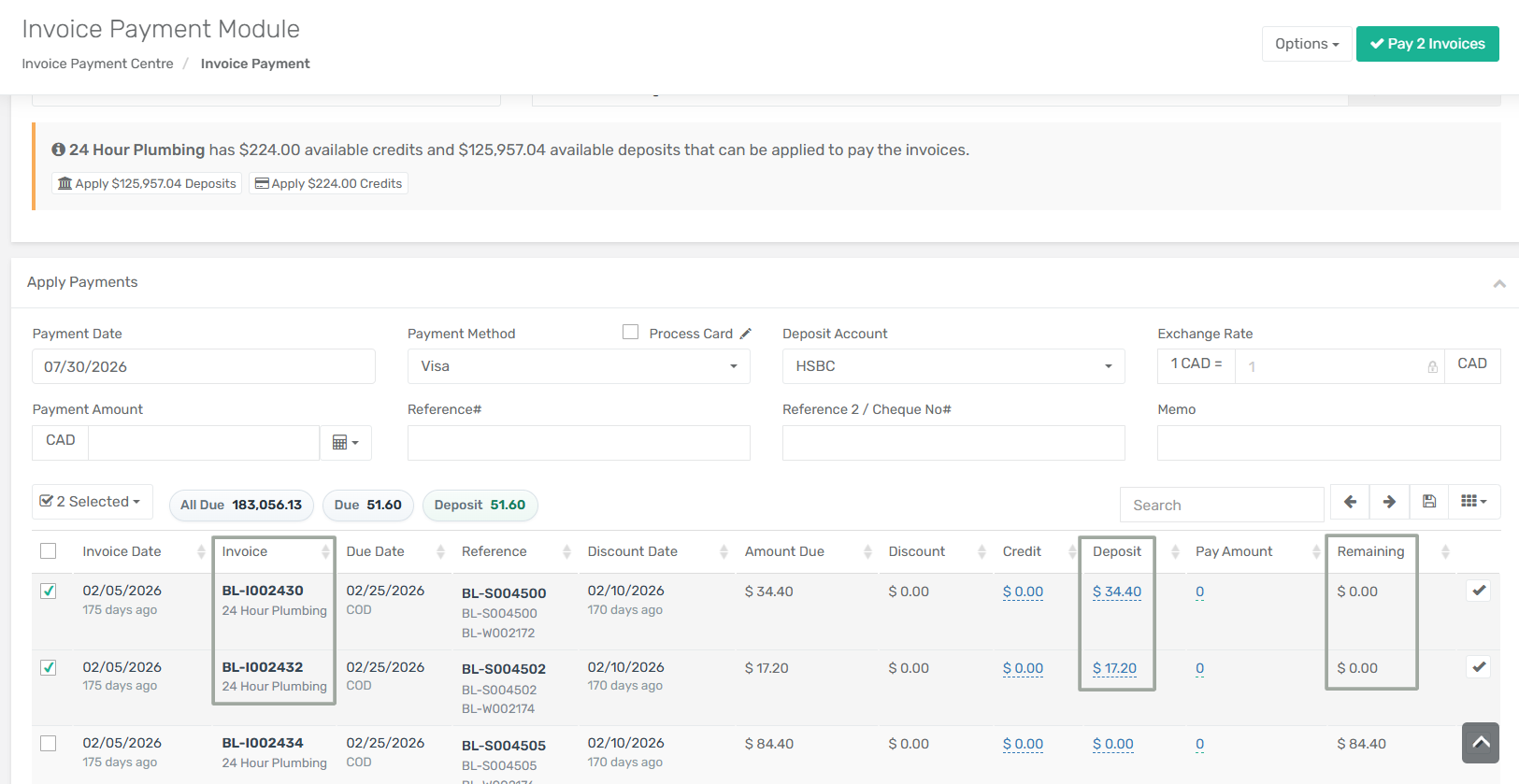
* Enhanced **All Due**, **Due**, **Deposit**, **Credit**, and **Remaining** payment summary indicators in the **Apply Payments** section that automatically update based on the selected invoices.
* Added **Credit** and **Deposit** columns in the invoice grid to display the amounts applied to each invoice.
* Added an **Apply Sequence** option in the **Apply Deposit/Credit to Selected Invoices** pop-up when batch applying deposits, allowing users to control the order in which invoices receive the available deposit balance.
* Enhanced batch deposit allocation to automatically distribute the available deposit balance across selected invoices without requiring manual amount entry.
* Added support for applying **multiple deposits or credits individually** to a single invoice.
* Enhanced invoice payment processing to allow **direct payment of child customer invoices** without requiring parent-to-child credit or deposit transfers.
***
**How It Works**
**Step 1:** Navigate to **Menu → Sales → Payment → Invoice Payment**. Select the required **Store** and **Parent Customer**.
**Step 2:** Select the invoices to which you want to apply deposits or credits.
As invoices are selected, the payment summary above the grid is automatically updated:
* **All Due** displays the customer's total outstanding invoice balance.
* **Due** displays the combined **Amount Due** of the selected invoices.
* **Remaining** displays the outstanding balance of the selected invoices after deposits, credits, or payments are applied.
**Step 3:** Click **Apply Deposits** from the **Payment Header** section, located below the message displaying the selected customer's available deposits and credits.
The **Apply Deposit to Selected Invoices** window opens and displays all available customer deposits.
**Step 4:** Select the deposit to use. Users can select only one deposit and cannot manually enter the amount to apply.
The system automatically applies the required amount from the selected deposit toward the selected invoices, up to the deposit's available balance.
**Step 5:** Select the preferred **Apply Sequence**. Users can choose how the available deposit should be distributed across the selected invoices:
* Invoice Order
* Oldest Invoice First
* Highest Remaining First
* Smallest Remaining First
The window also displays:
* **Ready to Apply** – The available balance of the selected deposit that can be applied.
* **Invoices Selected** – The total number of selected invoices.
* **Selected Pending** – The total outstanding balance of the selected invoices.
**Step 6:** Click **Apply Deposit**. The system automatically allocates the available deposit across the selected invoices according to the chosen sequence.
The **Deposit** column displays the amount applied to each invoice, while the **Remaining** column reflects the outstanding balance still payable.
**Step 7:** To apply deposits or credits to an individual invoice, click the value in the **Deposit** or **Credit** column for the required invoice.
The corresponding **Apply Deposit** or **Apply Credit** pop-up window opens, where users can apply multiple deposits or credits to a single invoice.
**Step 8:** For each available deposit or credit, users can manually enter the amount to apply.
The system validates the entered amount and does not allow the applied value to exceed the invoice's remaining payable balance.
After clicking **Apply**, the applied deposit is reflected in the corresponding **Deposit** column of the invoice grid, and the invoice's remaining balance is recalculated automatically.
***
---
# Agent Instructions
This documentation is published with GitBook. GitBook is the documentation platform designed so that both humans and AI agents can read, navigate, and reason over technical content effectively. Learn more at gitbook.com.
## Querying This Documentation
If you need additional information that is not directly available in this page, you can query the documentation by asking a question.
Perform an HTTP GET request on the following URL with the `ask` and `goal` query parameters:
```
GET https://docs.xorosoft.com/whats-new/release-notes/previous-releases/2026/july-2026-release.md?ask=&goal=
```
`ask` is the immediate question: it should be specific, self-contained, and written in natural language.
`goal` is what the user is ultimately trying to achieve, the reason they need the answer. Sharing it helps GitBook give you a better, more relevant answer. A goal is most helpful when it describes the outcome the user wants rather than restating the question. For example, with `ask=how do I create an API token`, a goal like `automate deployments from our CI pipeline` lets GitBook tailor the answer to that use case.
The response will contain a direct answer to the question and relevant excerpts and sources from the documentation.
Use this mechanism when the answer is not explicitly present in the current page, you need clarification or additional context, or you want to retrieve related documentation sections.