> For the complete documentation index, see [llms.txt](https://docs.xorosoft.com/llms.txt). Markdown versions of documentation pages are available by appending `.md` to page URLs; this page is available as [Markdown](https://docs.xorosoft.com/whats-new/release-notes/previous-releases/2026/july-2026-release/july-2.0.md).
# July 2.0
### **Enhanced B2B Variant Grid with Fixed Top Row and Left Column**
**Overview**
The B2B Variant Grid has been enhanced to improve usability when browsing products with a large number of item variants. The grid now keeps the top header row and the left-most item column fixed while scrolling, making it easier to identify item names and variant codes during order entry. Users can continue selecting quantities anywhere in the grid without losing context.
***
**Key Enhancements**
* Enhanced the B2B Variant Grid to keep the top header row fixed during vertical scrolling.
* Enhanced the B2B Variant Grid to keep the left-most item name column fixed during horizontal scrolling.
* Added support for simultaneous vertical and horizontal scrolling while keeping both the header row and item column visible.
***
#### How It Works
**Step 1:** Navigate to **Menu → B2B → Presentation Centre** and open a Presentation whose **Default Product Layout** is configured as **Grid**.
**Step 2:** Hover over a product and click on View Details. The Variant Grid opens, displaying the product variants in a matrix.
Scroll both vertically and horizontally. Both the top header row and the left-most item column remain fixed simultaneously, allowing users to identify the corresponding item and option values regardless of the scroll position.
{% hint style="info" %}
Ensure that the Presentation contains products with multiple variant combinations. The product should have more than three values configured for **Option 1**, **Option 2**, and **Option 3**. Product option names and values can be configured from the [**Product** module](/xoroerp-1/admin/product/product/create-product.md) before generating the corresponding product variants.
{% endhint %}
***
### **Enable SMS Notifications for Shipment Delivery Updates**
**Overview**
The shipment notification process has been enhanced to support SMS notifications for delivery updates. A new **SMS Notifications** option has been added to the **App Module Access** module, allowing the system to send SMS notifications to customers for key shipment events.
When enabled, customers receive SMS notifications on their **Main Phone** number when an order is **Out for Delivery** and when it has been **Delivered**.
Additionally, the **Main Phone** field in the **Customer** module now includes a **Country Code** selector to support international phone numbers for SMS delivery.
***
**Key Enhancements**
* Added a new **SMS Notifications** option in **App Module Access** to enable or disable shipment SMS notifications.
* Customers receive SMS notifications for the following shipment events:
* **Out for Delivery**
* **Order Delivered**
* Added a **Country Code** selector to the **Main Phone** field in the **Customer** module for SMS delivery.
* Delivery notification emails now prioritize the **Shipment Notification Email** field.
* If no Shipment Notification Email is configured, the system automatically sends notifications to the customer's **Main Email**.
* Multiple email addresses can be configured in the **Shipment Notification Email** field by separating them with commas (,). Notifications are sent to all configured email addresses.
***
**How It Works**
**Step 1:** Navigate to **Menu → Admin → App Module Access** and enable the **SMS Notifications** option.
**Step 2:** Navigate to **Menu → Sales → Customer** **Section → Customer** and create a customer.
**Step 3:** Select the appropriate **Country Code** for the customer's **Main Phone** number in the **Contact Info** tab.
* Enter the customer's **Main Phone** number.
* (Optional) Enter one or more email addresses in the **Shipment Notification Email** field **(Emails tab)**, separated by commas (,). If this field is left blank, the system uses the customer's **Main Email** address **(Contact Info tab)** for delivery notifications.
Update the new changes made in the Customer record.
**Step 4:** Create a Shipment Delivery by following the standard [**Shipment Delivery process**](/other-products/xorodms/xorodms-delivery-management-system/dms-workflow.md). Once the Shipment Delivery is created, log in to the **Xoro DMS** application using the assigned delivery operator account and open the generated delivery.
When the delivery is opened, the shipment status changes to **Out for Delivery (In Progress)**. The system automatically:
* Sends an **Out for Delivery** SMS notification to the customer's **Main Phone** number.
* Sends an **Out for Delivery** email to the customer's **Shipment Notification Email** address(es). If no Shipment Notification Email is configured, the email is sent to the customer's **Main Email** address.
**Step 5:** After completing the delivery, click **Mark as Delivered** in the Xoro DMS application and complete the delivery confirmation process.
When the delivery status changes to **Delivered**, the system automatically:
* Sends an **Order Delivered** SMS notification to the customer's **Main Phone** number.
* Sends an **Order Delivered** email to the customer's **Shipment Notification Email** address(es). If no Shipment Notification Email is configured, the email is sent to the customer's **Main Email** address.
{% hint style="info" %}
If the **SMS Notifications** option is disabled in **App Module Access**, SMS notifications are not sent. Email notifications continue to be sent based on the configured email priority.
{% endhint %}
***
### **Enhanced Batch Update to Clear Field Values**
**Overview**
The Batch Update feature has been enhanced to allow users to clear supported field values across multiple records in a single operation. A new **Clear Data** toggle has been added to the **Batch Update** window. When enabled, the selected field is updated to an empty (null) value for all selected records, eliminating the need to manually edit each record individually.
The feature includes validations to prevent required fields from being cleared and is available across modules that support Batch Update.
***
**Key Enhancements**
* Added a **Clear Data** toggle to the **Batch Update** window.
* Users can clear the value of supported fields for multiple selected records in a single batch update.
* When **Clear Data** is enabled, the **Value** field is automatically disabled since no input is required.
* Required fields cannot be cleared. If users attempt to clear a mandatory field (such as **WIP Account** in the Item Centre), the system prevents the update and displays an appropriate validation message.
* The **Clear Data** toggle is automatically hidden for **Boolean (Yes/No)** fields, as these fields cannot be set to an empty value.
* Supported across modules that provide the Batch Update functionality.
***
**How It Works**
**Step 1:** Navigate to the **Menu → Sales → Sales Order Centre** module and select one or more records.
**Step 2:** Click on the **Options** menu and select the **Batch Updates** option. In the **Batch Update** window, select the field to update from the **Column Name** dropdown.
**Step 3:** Enable the **Clear Data** toggle.
* The **Value** field is automatically disabled.
* The selected field will be updated to an empty (null) value for all selected records when the update is performed.
**Step 4:** Click **Update** to apply the changes.
* If the selected field supports empty values, the existing values are cleared for all selected records.
* If the selected field is mandatory, the system blocks the update and displays a validation message indicating that the field cannot be left empty.
{% hint style="info" %}
The **Clear Data** toggle is not displayed for Boolean fields because these fields only support predefined values (such as **Yes** or **No**) and cannot be cleared.
{% endhint %}
***
### **Enhanced Batch Update to Clear Existing Field Values**
**Overview**
The **Batch Update** feature has been enhanced to allow users to clear existing values from supported fields across multiple records in a single operation. A new **Clear Existing Data** option has been added to the **Batch Update** window. When selected, the system removes the existing value from the selected field for all selected records, eliminating the need to clear each record individually.
This enhancement streamlines bulk maintenance tasks while preserving existing validations for fields that cannot be left empty.
***
**Key Enhancements**
* Added a **Clear Existing Data** option to the **Batch Update** window.
* Users can clear the existing value of a selected field across multiple records in a single batch update.
* The feature updates all selected records in one operation, reducing manual effort.
***
**How It Works**
**Step 1:** Navigate to the **Menu → Admin → Item → Item Centre** and select the records to update.
**Step 2:** Click **Options → Batch Updates** to open the **Batch Update** window.
**Step 3:** Select the required field from the **Column Name** dropdown. Click **Clear Existing Data**.
The system prepares the selected field to be cleared for all selected records.
**Step 4:** Click **Update**. The existing value of the selected field is removed from all selected records.
***
### **Copy Selected Sales Order Lines to Released Purchase Orders**
**Overview**
The **Copy Selected Lines to Existing PO** functionality has been enhanced to allow users to copy selected Sales Order lines to **Released** Purchase Orders. Previously, the selection window displayed only Open Purchase Orders, limiting users to copying lines into POs that had not yet been released.
With this enhancement, users can now choose from both **Open** and **Released Purchase Orders**, providing greater flexibility when updating existing procurement documents.
***
**Key Enhancements**
* Enhanced the **Copy Selected Lines to Existing PO** popup to display both **Open** and **Released** Purchase Orders.
* Enables users to append selected Sales Order lines to Released Purchase Orders without creating a new Purchase Order.
* Improves procurement workflows by allowing users to update eligible Purchase Orders regardless of whether they are in **Open** or **Released** status.
***
**How It Works**
**Step 1:** Navigate to **Menu → Sales → Sales Order** and open the required Sales Order.
**Step 2:** In the **SO Details** grid, select the line(s) to copy.
**Step 3:** Click **Options → Create / Copy → Copy Selected Lines to Existing PO**.
**Step 4:** The **Select Existing PO** window opens and displays Purchase Orders with both **Open** and **Released** statuses.
**Step 5:** Select the required Purchase Order from the list. Click **Add To PO**. The selected Purchase Order opens with the copied Sales Order lines in edit mode.
**Step 6:** Review the Purchase Order and click **Save**. The copied Sales Order lines are added to the Purchase Order only after the Purchase Order is saved.
***
### **Introduced Custom Field Mapping Support for Manufacturing Orders**
**Overview**
The **Custom Field Mapping** module has been enhanced to support mapping custom fields from **Item** to **Manufacturing Order (MO)** and **Item** to **Manufacturing Order Item Line**. This enhancement enables custom field values defined on an Item to be automatically transferred to the corresponding Manufacturing Order header or line during MO creation, reducing manual data entry and ensuring consistency across manufacturing transactions.
***
**Key Enhancements**
* Added support for mapping custom fields from **Item → Manufacturing Order (MO)**.
* Added support for mapping custom fields from **Item → Manufacturing Order Item Line**.
* Supports mapping only between custom fields with the **same data type**. For example, **Text** fields can only be mapped to **Text** fields, and **Number** fields can only be mapped to **Number** fields.
* The mapped custom field values are also displayed in the **Manufacturing Order Centre** and the **Manufacturing Order** popup window.
***
**How It Works**
**Step 1:** Navigate to **Menu → Admin → Custom Field Mapping** and create a new custom field mapping.
**Step 2:** Enter the **Name**, **Description**, and **Priority** for the mapping. Select **Item** as the **From Entity**.
**Step 3:** Select either **Manufacturing Order** or **Manufacturing Order Item Lines** as the **To Entity**, depending on where you want the custom field values to be transferred.
**Step 4:** Select the corresponding **From Custom Field** and **To Custom Field**, then click **Add** to create the mapping.
**Step 5:** Click **Save** to save the custom field mapping configuration.
**Step 6:** Define the custom fields for an Item in the **Custom Fields** tab.
**Step 7:** Create a Manufacturing Order for the respective Item. The mapped custom field values are automatically transferred from the **Item** to the **Custom Fields** section of the **Manufacturing Order**.
***
### **Auto-Population of Ship Carrier and Ship Service Based on Customer Default Ship Method**
**Overview**
The **Sales Order** module has been enhanced to improve the automatic population of shipping details based on the customer's default shipping configuration. When a customer is selected, or the **Ship Method** is changed back to the customer's configured **Default Ship Method**, the system automatically populates the corresponding **Ship Carrier** and **Ship Service**, ensuring that the customer's preferred shipping settings are consistently applied throughout the Sales Order process.
***
**Key Enhancements**
* Enhanced the **Ship Method** logic to automatically restore the customer's default **Ship Carrier** and **Ship Service** when the **Customer Default Ship Method** is reselected.
* Ensures the **Ship Carrier** and **Ship Service** remain synchronized with the selected **Ship Method**.
* Prevents blank or incorrect carrier and service values when switching between different Ship Methods.
* Preserves the correct shipping configuration after saving and reopening the Sales Order.
***
**How It Works**
**Step 1:** Navigate to **Menu → Sales → Customer Section → Customer** and open the required customer.
**Step 2:** In the **Shipping** tab, configure the customer's **Default Ship Method**, **Default Carrier**, and **Default Service**, then click **Save**.
**Step 3:** Navigate to **Menu → Sales → Sales Order** and create a new Sales Order. Select the customer. The system automatically populates the **Ship Method**, **Ship Carrier**, and **Ship Service** based on the customer's default shipping configuration.
**Step 4:** Change the **Ship Method** to a different value. The system updates the available **Ship Carrier** and **Ship Service** based on the selected Ship Method.
***
### **Enhanced Missing Address Alert Display**
**Overview**
The **Show Missing Address Alert** app configuration has been enhanced to display a non-blocking warning banner at the top of the page when mandatory **Bill To** or **Ship To** address fields are incomplete. Instead of interrupting users with warning messages, the system now shows a persistent banner in the selected modules, allowing users to review the missing information while continuing to save and process the record.
***
**Key Enhancements**
* Enhanced the **Show Missing Address Alert** app configuration to display warning banners instead of warning messages.
* The enhancement applies to the modules selected in the app configuration:
* Sales Order
* Invoice
* Customer
* The banner identifies missing mandatory address fields, such as **City**, **State**, **Postal Code**, and **Country**.
* Records can still be saved even when warning banners are displayed, as the alerts are informational only.
* When the **Show Missing Address Alert** app configuration is disabled, no warning banners are displayed.
***
**How It Works**
**Step 1:** Navigate to **Menu → App Config** **→ Sales** and view the **Show Missing Address Alert** app configuration.
**Step 2:** Select the modules in which missing address alerts should be displayed:
* Sales Order
* Invoice
* Customer
**Step 3:** Create a Sales Order with incomplete **Bill To** or **Ship To** address details. The system displays a warning banner at the top of the page.
Likewise, warning banners are displayed in the Invoice and Customer modules when the configured address details are incomplete. These banners are informational only and do not prevent the record from being saved.
***
### **Improved Customer Deposit Visibility in the Sales Order Centre**
**Overview**
The **Sales Order Centre** has been enhanced with two new columns—**Deposit Refunded** and **Deposit Remaining**—to provide immediate visibility into the refunded and available balance of customer deposits linked to each Sales Order.
When a Customer Deposit is linked to a Sales Order during deposit creation, the linked deposit is displayed in the **Linked Credits/Deposits** tab of the Sales Order. As deposits are refunded, the Sales Order Centre automatically reflects both the total refunded amount and the remaining deposit balance, enabling users to monitor deposit activity without opening the individual Customer Deposit record.
***
**Key Enhancements**
* Added **Deposit Refunded** column to the **Sales Order Centre** (Header View).
* Added **Deposit Remaining** column to the **Sales Order Centre** (Header View).
* Both columns automatically display values for Customer Deposits linked to the Sales Order.
* Deposit values are updated automatically as refund transactions are processed, providing real-time visibility into the remaining deposit balance.
***
**How It Works**
**Step 1:** Navigate to **Sales → Credit & Deposit → Customer Deposit**. Create a **Customer Deposit**, then select the required **Sales Order Ref#**. Enter the **Link SO Amount**, then click **Link**. The Customer Deposit is linked to the selected Sales Order.
**Step 2:** The linked deposit is displayed in the **Linked Credits/Deposits** tab of the corresponding Sales Order, where users can view details such as:
* Customer Deposit Number
* Deposit Status
* Linked Amount
* Remaining Amount
* Total Amount
**Step 3:** Process a refund against the linked **Customer Deposit** by selecting **Refund Balance** from the **Options** dropdown menu on the **Customer Deposit** page. The deposit status and remaining balance are updated automatically.
**Step 4:** The **Customer Refund** window opens. Enter the required amount in the **Refund Amount** field, complete the remaining required details, and click **Refund Deposit**. The refund is processed, and the linked Customer Deposit's status is updated accordingly.
**Step 5:** Open the **Sales Order Centre** and verify that the following columns are available in the **Sales Order Header** view:
* **Deposit Refunded:** Displays the total amount refunded from the Customer Deposit linked to the Sales Order.
* **Deposit Remaining:** Displays the remaining balance available in the linked Customer Deposit after refunds have been processed.
***
### **Filter Bills by Status in the Bill Centre Using the Advanced Search Option**
**Overview**
The **Bill Centre** Advanced Search has been enhanced to include the **Status** field as a searchable column. Users can now filter bill records based on their status directly from the Advanced Search window, making it easier to locate bills that match specific workflow stages without relying only on the standard header filters.
***
**Key Enhancements**
* Added **Status** as a selectable **Column Name** in the **Advanced Search** window of the Bill Centre.
* Enables users to build advanced search queries using bill status with supported operators (such as **Contains**, **Equals**, depending on the selected operator).
* Allows the **Status** field to be combined with other search criteria to create more refined and reusable searches.
***
**How It Works**
**Step 1:** Navigate to **Purchase → Bill → Bill Centre**, then click the **Advanced Search** icon.
**Step 2:** In the **Column Name** dropdown, select **Status**. Choose the required **Operator**, enter or select the desired **Status** value, and click **Find**.
**Step 3:** The Bill Centre displays only the bill records that match the specified status criteria.
***
### **Set Default Tax Code Behavior for New Customers**
**Overview**
A new **Force Default Tax Code** option has been added to the **Page Defaults** configuration in the Customer module. This setting allows users to define whether the **Force Default Tax Code** checkbox is enabled by default whenever a new customer is created. Currently, this option is turned **ON** by default.
***
**Key Enhancements**
* Added the **Force Default Tax Code** option to **Customer → vertical three-dot (⋮) menu → Page Defaults**.
* Allows users to configure the default state of the **Force Default Tax Code** checkbox for newly created customers.
* When enabled, the **Force Default Tax Code** checkbox is automatically selected for new customer records.
***
**How It Works**
**Step 1:** Navigate to **Sales → Customer Section → Customer**, then click the **vertical three-dot (⋮) menu** in the top-right corner and select **Page Defaults**.
**Step 2:** In the **Default Configuration** window, enable or disable the **Force Default Tax Code** option based on your preferred default behavior, then save the changes.
**Step 3:** Create a new customer. The **Force Default Tax Code** checkbox in the **Sales Tax** tab is automatically set according to the configured page default.
***
### **Addition of "Cancel Qty" field in the Update Sales Order Items module**
**Overview**
The **Update Sales Order Items** module now includes a new editable **Cancel Qty** field, allowing users to specify the quantity to cancel for individual sales order lines directly from the bulk update screen. This enables users to cancel quantities across multiple sales orders without opening and editing each sales order individually.
***
**Key Enhancements**
* Added a new editable **Cancel Qty** field to the **Update Sales Order Items** module.
* The field defaults to **0** for all loaded sales order lines.
* Users can enter the quantity to cancel for each sales order line directly within the grid.
* Supports bulk quantity cancellation together with other updates such as item replacement, quantity changes, and price recalculation.
***
**How It Works**
**Step 1:** Navigate to **Sales → Sales Order → Update Sales Order Items**. In the **Search Item Number** dropdown, search for and select the required item. The module displays all sales order lines containing the selected item.
**Step 2:** Select the required record and, in the **Cancel Qty** column, enter the quantity to cancel for the sales order line.
**Step 3:** Click **Update Selected Records**.
**Step 4:** Open the selected **Sales Order**. In the **SO Details** section, verify that the **Cancel Qty** value has been updated for the corresponding sales order line.
If the **Cancel Qty** is equal to the **Ordered Qty** (for example, both are **1**), the sales order line is automatically updated to the **Cancelled** status.
***
### Added Parent Customer Search Support Across Multiple Modules
**Overview**
The **Parent Customer** search filter has been enhanced across multiple modules to support customer hierarchy searches. Users can now search using a parent customer and retrieve records for the parent customer along with all associated child customers. If the selected customer is not part of a hierarchy, only that customer's own records are returned.
***
**Key Enhancements**
* Added the **Parent Customer** search field to the following modules:
* Sales Order Centre
* Invoice Centre
* Customer Centre
* Customer Statement Centre
* Estimate Centre
* Credit Memo Centre
* Searching by a parent customer returns records for the parent customer, all child customers, and all grandchild customers.
* If the selected customer has no parent or child hierarchy, only that customer's own records are displayed.
* Supports consistent hierarchy-based customer searches across multiple modules.
***
**How It Works**
**Step 1:** Navigate to **Sales → Customer Section → Customer Centre**.
**Step 2:** In the **Parent Customer** search field, search for and select the required parent customer, then click **Search**.
**Step 3:** The module displays records for the selected parent customer, along with records for all associated child and grandchild customers.
***
### **Show Offset Account(s) of Matched Transactions in Bank Reconciliation**
**Overview**
The **Reconcile Bank Account** module has been enhanced to improve the visibility of matched transaction details and streamline the bank reconciliation process.
Users can now view **Account Names** alongside **GL Codes** in the **Match Found** section, optionally display the **offset account(s)** of matched transactions through a configurable application setting, and save their preferred **rows-per-page** selection in the reconciliation grid for a more consistent user experience.
***
**Configuration Details**
**App Config Name:** Show Offset Account(s) of Matched Transaction in Bank Reconciliation
**Configuration Location:** Menu → App Config → Accounting → Show Offset Account(s) of Matched Transaction in Bank Reconciliation
***
**Functionality**
**When App Config Is Enabled**
* The **Match Found** section displays the **offset account(s)** of the matched transaction instead of the account being reconciled.
* Each offset account is displayed with both its **GL Code** and **Account Name**.
* If multiple offset accounts exist, they are displayed as a comma-separated list.
***
**When App Config Is Disabled**
* The **Match Found** section displays the **account being reconciled**.
* The reconciled account is displayed with both its **GL Code** and **Account Name**.
***
**How It Works**
**Step 1:** Navigate to **Menu → Accounting → Bank Reconciliation → Reconcile Bank Account**. Search for the required bank reconciliation, then click **Resume Reconciling** to open it.
**Step 2:** Locate a matched transaction in the **Match Found** section. The system displays the reconciled account's **GL Code** and **Account Name**.
**Step 3:** Navigate to **Menu → App Config → Accounting** and enable the **Show Offset Account(s) of Matched Transaction in Bank Reconciliation** toggle.
Return to the **Reconcile Bank Account** module and open the same bank reconciliation. In the **Match Found** section, the system displays the matched transaction's **offset account(s)** along with their **GL Code** and **Account Name**.
***
### **Enhanced JE Memo Priority During Bank Reconciliation**
**Overview**
The **Apply Rule and Reconcile** functionality in the **Reconcile Bank Account** module has been enhanced to assign the Journal Entry (JE) Memo using a defined priority. This ensures that the most relevant memo information is carried forward to the generated Journal Entry, improving transaction traceability and reducing the need for manual updates.
When a bank transaction contains a **Description**, the system uses it as the Journal Entry Memo. If the **Description** is unavailable, the system automatically falls back to the **Memo** configured in the corresponding **Bank Reconciliation Rule**.
***
**Key Enhancements**
* Added a priority-based mechanism for assigning the **Journal Entry Memo** during **Apply Rule and Reconcile**.
* Bank transaction **Description** is given the highest priority when creating the Journal Entry.
* If the bank transaction **Description** is blank or null, the system uses the **Memo** configured in the **Bank Reconciliation Rule**.
* Ensures Journal Entries always contain meaningful memo information without requiring manual intervention.
***
**How It Works**
**Step 1:** Navigate to **Menu → Accounting → Bank Reconciliation → Reconcile Bank Account**. Search for the required bank reconciliation, then click **Resume Reconciling** to open it.
**Step 2:** Locate a transaction that has a matching **Bank Reconciliation Rule**. Click **Apply Rule and Reconcile**.
If the bank transaction contains a **Description**, the system creates the Journal Entry using that **Description** as the **JE Memo**.
**Step 3:** Now, apply the rule and reconcile a bank transaction with a blank or null description.
When the Journal Entry is created, the system uses the value specified in the **Memo** field of the applied **Bank Reconciliation Rule** as the **Journal Entry (JE) Memo**.
***
### **Item Vendor Mapping Price Based on Default Vendor Currency**
**Overview**
The Item module has been enhanced to automatically populate the Item Vendor Mapping price based on the currency of the selected Default Vendor during item creation. When a foreign currency vendor is selected as the default vendor, the system retrieves the corresponding price from the item's Advanced Pricing configuration instead of using the home currency price.
This ensures that Item Vendor Mapping reflects the correct vendor price based on the selected vendor's currency.
***
**Key Enhancements**
* Item Vendor Mapping is created automatically when a Default Vendor is assigned during item creation.
* If the selected Default Vendor belongs to the home currency, the Item Vendor Mapping uses the item's listed (Standard Cost) price.
* If the selected Default Vendor belongs to a foreign currency, the Item Vendor Mapping automatically uses the corresponding Standard Cost configured under **Advanced Pricing** for that currency.
* This functionality is supported when **Multi UOM is enabled**. When **Multi UOM is disabled**, the Item Vendor Mapping continues to be created without retrieving the UOM-specific Advanced Pricing values, as designed.
***
**How It Works**
**Step 1:** Navigate to **Menu → Admin → Item → Item Centre** and create a new item. Configure the required pricing for the applicable foreign currency (for example, USD) under the **Advanced Pricing** tab in the **Multi Currency Pricing** section.
**Step 2:** Open the **Other Attributes** tab, select a **Default Vendor**, and save the item.
Since the default vendor belongs to a **foreign currency** (for example, USD), the system creates or updates the **Item Vendor Mapping** using the **Standard Cost** configured for that currency under **Advanced Pricing**.
**Step 3:** Go to **Menu → Purchase → Item Vendor Mapping → Item Vendor Mapping Centre** and verify the **Vendor Price.**
***
### **Create Multiple Dropship Purchase Orders from a Sales Order**
**Overview**
The **Create Dropship PO** functionality has been enhanced to support creating multiple dropship purchase orders from a single Sales Order. Users can now create separate dropship purchase orders for different order lines while preventing duplicate dropship PO creation for lines that are already linked.
***
**Key Enhancements**
* Multiple dropship purchase orders can now be created from a single Sales Order.
* The **Create Dropship PO** window now includes an **Is Dropship?** column to indicate whether an order line is already linked to a dropship purchase order.
* Order lines that are already linked to a dropship purchase order are displayed with **Is Dropship?** selected, and their selection checkbox is disabled to prevent duplicate dropship PO creation.
* If all order lines in the Sales Order are already linked to dropship purchase orders, the system displays the following error message when Create Dropship PO is selected: *"Cannot create dropship PO for already linked order(s)."*
***
**How It Works**
**Step 1:** Navigate to **Menu → Sales → Sales Order**. Create a Sales Order and release it.
**Step 2:** Click the **header-level Options** drop-down menu and select **Create / Copy → Create Dropship PO**.
**Step 3:** In the **Create Dropship PO** window, review the available order lines. Select one or more eligible order lines that you want to dropship, then click **Create PO**.
The system creates a dropship purchase order for the selected order line(s) and displays the generated **Dropship PO Number**.
**Step 4:** After the dropship purchase order is created, the Sales Order status is updated to **Dropship**.
To create another dropship purchase order for a different order line, select the next eligible order line and navigate to **Options → Create / Copy → Create Dropship PO**.
**Step 5:** In the **Create Dropship PO** window:
* Order lines that are already linked to a dropship purchase order display **Is Dropship?** as selected, and their selection checkbox is disabled.
* Order lines that are not linked to a dropship purchase order remain available for selection.
**Step 6:** Select the eligible order line(s) and click **Create PO**. The system creates another dropship purchase order and generates a new **Dropship PO Number** for the selected order line(s).
{% hint style="info" %}
A Sales Order line can be linked to only one dropship purchase order. Once a dropship PO has been created for an order line, it cannot be selected again for another dropship PO.
{% endhint %}
***
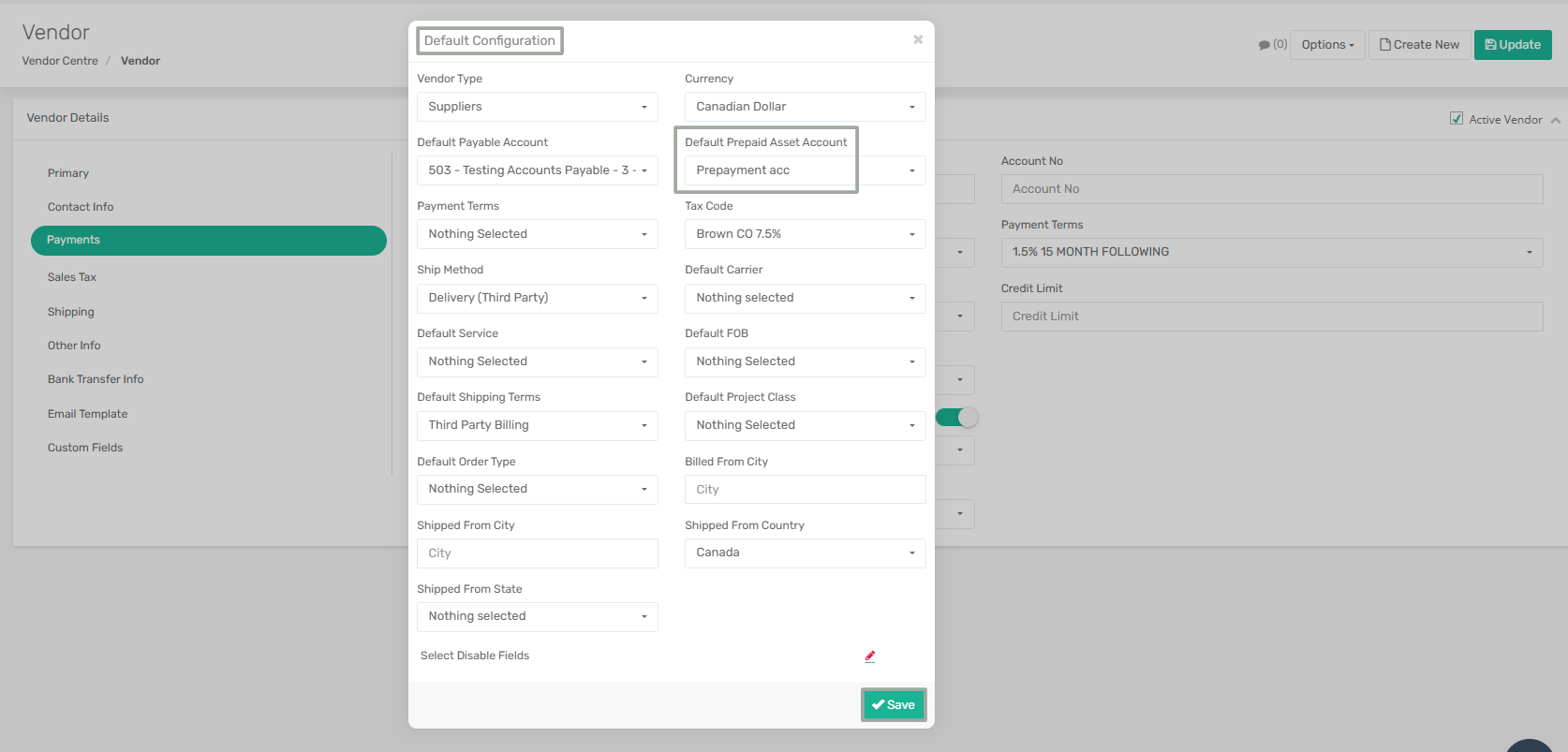
### **Added Default Prepaid Asset Account for Vendors**
**Overview**
The Vendor module has been enhanced with a **Default Prepaid Asset Account** field under the **Payments** tab. This account is automatically used as the default **Asset Account** when creating Vendor Prepayments, including prepayments created directly from a Purchase Order.
The enhancement also extends support for this field across Vendor Page Defaults, Vendor Centre, Vendor Import/Export, and Vendor Upload, ensuring consistent account selection and reducing manual effort.
***
**Key Enhancements**
* Added a **Default Prepaid Asset Account** field to the **Payments** tab in the Vendor module.
* Added support for **Default Prepaid Asset Account** in **Vendor Page Defaults**.
* Added the **Default Prepaid Asset Account** column to **Vendor Centre** and **Vendor Export**.
* Added the **Default Prepaid Asset Account** field to the **Vendor Upload** template and upload process.
* The system validates the uploaded account name and displays an error if an invalid asset account is provided.
* When a Vendor is selected while creating a **Vendor Prepayment**, the **Asset Account** is automatically populated using the vendor's configured **Default Prepaid Asset Account**.
* The same defaulting behavior is supported when creating Vendor Prepayments directly from the **Purchase Order** module.
***
**How It Works**
**Step 1:** Navigate to **Menu → Purchase → Vendor Section → Vendor**. Click the vertical three-dot menu in the top-right corner of the page and select **Page Defaults**.
In the **Default Configuration** window, configure the **Default Prepaid Asset Account** and save the changes.
**Step 2:** Create a Vendor by entering the required details. In the **Payments** tab, the **Default Prepaid Asset Account** is automatically populated with the account configured in **Page Defaults**. Modify the value if required, and save the Vendor.
**Step 3:** Now, go to the **Vendor Centre** and verify that the newly created Vendor displays the configured value in the **Default Prepaid Asset Account** column.
**Step 4:** Open **Menu → Purchase → Prepayment → Vendor Prepayment**, create a new Vendor Prepayment, and select the Vendor.
**Step 5:** The system automatically populates the **Asset Account** with the Vendor's configured **Default Prepaid Asset Account**.
***
### **Vendor Part Description and Material Columns Available in Purchase Order**
**Overview**
The **Purchase Order** module has been enhanced to display the **Vendor Part Description** and **Material** fields in both the **Purchase Order Details** and **Purchase Order Detail Centre**. These fields provide additional item information directly within the Purchase Order, improving visibility without requiring users to open individual item records.
***
**Key Enhancements**
* Added the **Vendor Part Description** column to **Purchase Order Details** and **Purchase Order Detail Centre**.
* Added the **Material** column to **Purchase Order Details** and **Purchase Order Detail Centre**.
* Both fields are available regardless of whether **Multi UOM** is enabled or disabled.
* Values are automatically populated from the corresponding item records and displayed consistently across both views.
***
**How It Works**
**Step 1:** Navigate to **Menu → Purchase → Purchase Order** and create a Purchase Order containing one or more items.
**Step 2:** In the **Purchase Order Details** section, verify that the **Vendor Part Description** and **Material** columns are displayed.
The **Vendor Part Description** is automatically populated from the [**Item Vendor Mapping**](/xoroerp-1/purchase/item-vendor-mapping/item-vendor-mapping-fields.md), while the **Material** value is populated from the [**Other Attributes** tab](/xoroerp-1/admin/item/item/what-is-an-item/creating-items.md#create-item-other-attributes-tab) of the corresponding Item. If required, enable the columns using the column selector.
**Step 3:** Go to **Menu → Purchase → Purchase Order Centre**. In the **Search By** dropdown, select **Purchase Order Detail**.
Verify that the **Vendor Part Description** and **Material** columns are displayed and that their values match those shown in the **Purchase Order Details** of the newly created Purchase Order.
***
### **Improved Visibility of Ship-To Address Instructions Across ERP and DMS**
**Overview**
Address Instructions configured for a Ship-To Address are now displayed across both ERP and DMS, ensuring delivery-related instructions are readily available throughout the order fulfillment process. In ERP, the instructions are displayed in the **Address Notes** tab of the Invoice. In DMS, they are available in the **Ship-To Address** popup on the **Delivery Detail** and **Lookup Detail** pages, enabling truck operators to view important delivery instructions while processing deliveries.
***
**Key Enhancements**
* Displays the configured **Ship-To Address Instructions** in the **Address Notes** tab of the Invoice.
* Displays the **first two Address Instructions** in the **Ship-To Address** popup on the **Delivery Detail** page in DMS.
* Displays the **first two Address Instructions** in the **Ship-To Address** popup on the **Lookup Detail** page in DMS.
* Automatically retrieves the instructions configured for the Ship-To Address associated with the Sales Order.
***
**How It Works**
**Step 1:** Go to **Menu → Admin → Warehouse → Address Instructions** and create or update the required Address Instructions for the customer's **Ship-To Address**.
**Step 2:** Create a **Sales Order** and select the customer whose Ship-To Address contains the configured Address Instructions. Complete the fulfillment process by generating the **Invoice** and **Shipment Delivery**.
**Step 3:** Open the generated **Invoice** and navigate to the **Address Notes** tab. The configured Address Instructions for the selected Ship-To Address are displayed.
**Step 4:** In **DMS**, open the **Delivery** page and select the required delivery to open the **Delivery Detail** page.
Click the **Ship-To Address** link for the delivery line to open the **Ship-To Address** popup, where the first two configured Address Instructions are displayed.
**Step 5:** Click **Mark As Delivered** for the required delivery line, complete the delivery confirmation process by entering the required details (including the signature, if applicable), and confirm the delivery.
**Step 6:** After the delivery is completed, open the **Lookup** page and select the completed delivery to open the **Lookup Detail** page.
Click the **Ship-To Address** link to view the same Address Instructions in the **Ship-To Address** popup.
***
### **App Config: Enable Item Unit Cost for Item Vendor Mapping**
**Overview**
This enhancement introduces a new application configuration that controls the availability of the **Item Unit Cost** functionality in the **Item Vendor Mapping** module.
When enabled, a read-only **Item Unit Cost** field is displayed in Item Vendor Mapping. The field references the item's **Standard Cost** and is automatically calculated based on the selected UOM when **Multi UOM** is enabled, a valid UOM mapping exists, and the **Dynamic Unit Price Calculation Based on UOM Factor** configuration is enabled.
Additionally, the **Vendor List Price** is now automatically populated with the calculated **Item Unit Cost** for the selected UOM, regardless of whether the selected UOM matches the item's Base UOM.
When disabled, the Item Unit Cost field is hidden, and the Vendor List Price behaves as a manually entered field.
***
**Configuration Details**
* **App Config Name:** Enable Item Unit Cost on Item Vendor Mapping
* **Configuration Location:** Menu → App Config → General → Enable Item Unit Cost on Item Vendor Mapping
***
The **Item Unit Cost** calculation is dependent on the above configuration and the following setup:
* App Config **Dynamic Unit Price Calculation Based on UOM Factor** must be enabled.
* When **Multi UOM** is **enabled**, the selected UOM in the Item Vendor Mapping must have a valid conversion mapping with the item's **Base UOM** in the **Multi UOM Mapping** module.
***
**How It Works**
**Step 1:** Navigate to **Menu → App Config → General** and enable the following app configs:
* **Enable Item Unit Cost on Item Vendor Mapping**
* **Dynamic Unit Price Calculation Based on UOM Factor**
**Step 2:** Go to **Menu → Admin → Item → Item Centre** and select the required item. Verify the item's **Standard Cost**, **Base UOM**, and the UOMs assigned to the item.
**Step 3:** Open the **Multi UOM Mapping** module and ensure a UOM conversion mapping exists for the item's Base UOM and the UOM that will be used in **Item Vendor Mapping**.
**Step 4:** Now, create an Item Vendor Mapping record for the required **Item Number**, **Vendor**, and **UOM**.
**Step 4:** The system automatically calculates and displays the **Item Unit Cost** field.
**Step 5:** The **Item Unit Cost** field is displayed as a read-only field and cannot be edited manually. The value is always derived from the item's Standard Cost, the applicable UOM conversion factor, and the selected UOM.
* When the selected UOM matches the item's Base UOM, the **Item Unit Cost** displays the item's **Standard Cost**, and the **Vendor List Price** is automatically populated with the same value.
* When a **different UOM** is selected, the system calculates the **Item Unit Cost** using the configured UOM conversion factor and automatically populates the **Vendor List Price** with the calculated **Item Unit Cost**.
***
### **Added Email Interceptors for Payment Receipt and Estimate Approval Emails**
**Overview**
The Email Interceptor module has been enhanced to provide greater control over email notifications for Payment Receipts and Estimate Approval Confirmation emails.
New Email Interceptors have been introduced for **Invoice Payment Receipt**, **Deposit Payment Receipt**, and **Estimate Approval Confirmation**, allowing administrators to control when these emails are sent and optionally override the default recipient by specifying a custom email address through interceptor scripts.
Additionally, a new application configuration, **Send Estimate Approval Confirmation Email**, has been added to enable or disable Estimate Approval Confirmation emails.
***
**Configuration Details**
**App Config Name:** Send Estimate Approval Confirmation Email
**Configuration Location:** Menu → App Config → Sales → Send Estimate Approval Confirmation Email
***
**Priority Order for Email Recipients**
* If a **SendToEmail** value is specified in the **Email Interceptor script**, the email is sent directly to that email address.
* If **SendToEmail** is not specified, the system sends the email using the following priority order:
* **Contact Email** *(Configured by enabling the* [***Use Contact Email** toggle*](/xoroerp-1/sales/customer-section/customer/creating-customers.md#use-contact-email-toggle) *above the **Order Processing Email** field and specifying the email address under the **Contacts** sub-tab in the **Contact Info** section of the **Create Customer** page.)*
* **Order Processing Email(s)** *(Configured under the **Emails** sub-tab in the **Contact Info** section of the **Create Customer** page.)*
* **Customer Main Email** *(Configured under the **Contact Info** sub-tab in the **Contact Info** section of the **Create Customer** page.)*
***
**How It Works**
**Step 1:** Navigate to **Menu → App Config → Sales** and enable the **Send Estimate Approval Confirmation Email** application configuration.
**Step 2:** Go to **Menu → Admin → Email Interceptor** and create an Email Interceptor for the **Estimate** entity with the **Estimate Approval Confirmation** action.
**Step 3:** Create an Estimate. Click the **header-level Options** menu, and select **Send Approval Link**.
**Step 4:** The system automatically generates the **Estimate Approval Confirmation** email, attaches the Sales Order report, and sends it to the recipient determined by the priority order described above.
{% hint style="info" %}
Payment Receipt emails (**Invoice Payment Receipt** and **Deposit Payment Receipt**) are sent only when a payment is completed through the Payment Link.
{% endhint %}
***
### **Display Product ID in the Product Centre**
**Overview**
The **Product Centre** has been enhanced with a **Product ID** column. This allows users to view the unique Product ID directly from the Product Centre, making it easier to identify and reference products without opening individual product records.
***
**Key Enhancements**
* Added **Product ID** column to the **Product Centre**.
* Users can quickly identify and reference products using the displayed Product ID without opening the Product record.
***
### **Enhanced Sort By Options in the Create Sales Order Module**
**Overview**
The **Sort By** functionality in the **Create Sales Order** module has been enhanced with additional sorting options, allowing users to organize Sales Order line items based on commonly used attributes such as Available Quantity, Ship Date, Unit Price, Default Vendor, and Status. Additionally, the **Sort By** dropdown now supports scrolling with a fixed height, making it easier to navigate when multiple sorting options are available.
***
**Key Enhancements**
* Added new sorting options to the **Sort By** dropdown:
* Available Qty (Low to High)
* Available Qty (High to Low)
* Ship Date (Old to New)
* Ship Date (New to Old)
* Unit Price (High to Low)
* Unit Price (Low to High)
* Default Vendor (Ascending)
* Default Vendor (Descending)
* Status (Ascending)
* Status (Descending)
* Added a **Reset** option to restore the original order of Sales Order line items before sorting.
* Enhanced the **Sort By** dropdown with a fixed-height, scrollable list for improved usability when viewing multiple sorting options.
***
**How It Works**
**Step 1:** Navigate to **Menu → Sales → Sales Order** and create or open an existing Sales Order.
**Step 2:** In the **SO Details** section, click the **Sort By** dropdown.
**Step 3:** Select one of the available sorting options to arrange the Sales Order line items based on the selected criteria.
**Step 4:** The system immediately reorders the line items according to the selected sorting option.
***
### **Enhanced B2B Portal to Support Customer Default UOM for Pricing and Inventory**
**Overview**
The B2B Portal has been enhanced to support **Customer Default UOM** for determining product pricing, inventory quantities, and transaction values. The system now automatically resolves the appropriate Unit of Measure (UOM) based on the configured Customer Default UOM and Item configuration, ensuring consistent pricing and quantity calculations throughout the portal.
Additionally, pricing now prioritizes Multi-Currency Pricing for the resolved UOM and falls back to the item's Standard Price when applicable. The resolved UOM is also displayed across the B2B Portal, providing greater transparency during product selection and order placement.
***
**Configuration Details**
**App Config Name:** Dynamic Unit Price Calculation Based on UOM Facto**r**
**Configuration Location:** Menu → App Config → General → **Dynamic Unit Price Calculation Based on UOM Factor**
***
**Functionality**
**When App Config Is Enabled**
* The system calculates the price using the **Standard Price** and **UOM Factor** defined in the Multi UOM Mapping module
***
**When App Config Is Disabled**
* The system will not perform UOM-based price calculations. A valid price record must exist for the requested UOM.
***
**UOM Determination Hierarchy**
The system determines the applicable Unit of Measure (UOM) using the following priority:
* **Customer Default UOM:** If a **Default UOM** is configured for the customer in the **Other Info** tab and is also included in the item's **Allowed Sell UOM(s)** list on the **UOM** tab of the **Create Item** page, that UOM is used for pricing and quantity calculations.
* **Item Default Sell UOM:** If no valid Customer Default UOM is available, the system automatically uses the item's **Default Sell UOM** configured on the **UOM** tab of the **Create Item** page.
***
**Price Determination Hierarchy**
Pricing for products is determined using the following sequence:
**Priority 1: Multi-Currency Price**
The system first attempts to locate a **Multi-Currency Price** record that matches the following:
* Customer Currency
* Resolved UOM
If a matching Multi-Currency Price record is found, that price is used.
**Priority 2: Standard Price**
If no matching Multi-Currency Price record is found, the system evaluates the item's **Standard Price**.
**Prerequisites:**
* The customer's currency must match the system's **Home Currency**.
* The Standard Price is calculated using the item's UOM conversion factor.
{% hint style="info" %}
When evaluating **Standard Pricing**, if the **customer's currency does not match the system's Home Currency**, the system does not use Standard Pricing. Instead, it displays **"No Price Available"** unless a matching Multi-Currency Price record exists.
{% endhint %}
***
**How It Works**
**Step 1:** Navigate to **Menu → Admin → Item** and create the required item SKUs. Configure the **Default Sell UOM** for each item from the **UOM** tab. For this example, the following Default Sell UOMs are configured:
* California Almonds → **200 GM - S**
* Mamra Almonds → **500 GM - S**
* Gurbandi Almonds → **200 GM - S**
* Marcona Almonds → **KG - S**
**Step 2:** Navigate to **Menu → Admin → Multi UOM Mapping** and configure the UOM conversion mappings for the base UOM (**KG - S**).
These conversion factors are used to calculate prices based on the item's **Standard Price**.
**Step 3:** Go to the **Item Centre**, open the required item, and select the **Advanced Pricing** tab. Configure **Multi-Currency Pricing** only for UOMs that require dedicated pricing.
In this example:
* **California Almonds** has a **CAD Multi Currency Pricing** record configured for **200 GM - S**.
**Mamra Almonds**, **Gurbandi Almonds**, and **Marcona Almonds** do not have any Multi Currency Pricing records configured.
**Step 4:** From the **Menu → Sales → Customer Section → Customer Centre**, open the required customer, and ensure that **Default UOM** is **not configured** under the **Other Info** tab.
Since no Customer Default UOM is available, the system automatically resolves the UOM using each item's configured **Default Sell UOM**.
**Step 5:** Navigate to **Menu → App Config → General** and enable the **Dynamic Unit Price Calculation Based on UOM Factor** app configuration.
**Step 6:** Log in to the **B2B Portal** using the configured customer account and browse the configured products. The system determines product pricing as follows:
* **California Almonds** displays the price from the configured **Multi Currency Pricing** record because a matching price exists for the customer's currency and the resolved UOM.
* **Mamra Almonds**, **Gurbandi Almonds**, and **Marcona Almonds** do not have matching Multi Currency Pricing records. Therefore, the system calculates the displayed price using the item's **Standard Price** and the **UOM Conversion Factor** configured in the **Multi UOM Mapping** module.
The B2B Portal displays each product using its resolved UOM. The corresponding inventory quantity and product price are calculated and displayed based on the applicable pricing hierarchy, ensuring accurate pricing and stock information during product selection and checkout.
***
### **Added Custom Banner Message Support in the B2B Presentation**
**Overview**
The B2B Presentation has been enhanced with a **Custom Banner Message** field under the **Other Attributes** tab. This allows administrators to configure a personalized banner message that is displayed on the **Order Summary** page of the B2B Customer Portal when a Discount Rule is applicable.
The banner message supports dynamic placeholders that automatically display the configured discount percentage and order amount from the applicable Discount Rule. If no custom banner message is configured, the system displays the default banner message using the values inherited from the configured Discount Rule.
***
**Key Enhancements**
* Added a **Custom Banner Message** field under the **Other Attributes** tab of the B2B Presentation.
* Supports dynamic placeholders:
* **{0}** – Displays the Discount Percentage from the applicable Discount Rule.
* **{1}** – Displays the Amount for the alert configured in the applicable Discount Rule.
* Allows users to customize only the message text while retaining the dynamic placeholder values.
* If the **Custom Banner Message** field is left blank, the system displays the default banner message using the configured Discount Rule values.
***
**How It Works**
**Step 1:** Navigate to **B2B → Presentation Centre**, create or open an existing Presentation, and select the **Other Attributes** tab.
**Step 2:** In the **Custom Banner Message** field, enter the banner message using the supported placeholders or leave the field blank.
**Step 3:** Open the **Discount Rules** tab for the same Presentation and configure a Discount Rule by specifying the **From Amount**, **To Amount**, **Discount Percentage**, and **Amount for Alert**. Save the Presentation.
**Step 4:** Log in to the presentation. Browse the products, open a product, specify the required quantity, add the product to the cart, and click **View Cart**.
**Step 5:** On the **Order Summary** page, the configured banner message is displayed at the top of the cart. The placeholders **{0}** and **{1}** are automatically replaced with the **Discount Percentage** and **Amount for Alert** from the applicable Discount Rule.
***
---
# Agent Instructions
This documentation is published with GitBook. GitBook is the documentation platform designed so that both humans and AI agents can read, navigate, and reason over technical content effectively. Learn more at gitbook.com.
## Querying This Documentation
If you need additional information that is not directly available in this page, you can query the documentation by asking a question.
Perform an HTTP GET request on the following URL with the `ask` and `goal` query parameters:
```
GET https://docs.xorosoft.com/whats-new/release-notes/previous-releases/2026/july-2026-release/july-2.0.md?ask=&goal=
```
`ask` is the immediate question: it should be specific, self-contained, and written in natural language.
`goal` is what the user is ultimately trying to achieve, the reason they need the answer. Sharing it helps GitBook give you a better, more relevant answer. A goal is most helpful when it describes the outcome the user wants rather than restating the question. For example, with `ask=how do I create an API token`, a goal like `automate deployments from our CI pipeline` lets GitBook tailor the answer to that use case.
The response will contain a direct answer to the question and relevant excerpts and sources from the documentation.
Use this mechanism when the answer is not explicitly present in the current page, you need clarification or additional context, or you want to retrieve related documentation sections.