> For the complete documentation index, see [llms.txt](https://docs.xorosoft.com/llms.txt). Markdown versions of documentation pages are available by appending `.md` to page URLs; this page is available as [Markdown](https://docs.xorosoft.com/whats-new/release-notes/previous-releases/2026/may-2026-release.md).
# May 2026 Release
{% hint style="info" %}
This is a Custom Release. Feature availability depends on configuration and rollout status. Some features listed above may not be visible in your environment if they are part of a staged or custom deployment. Please contact your support representative to confirm enablement.
{% endhint %}
### **Implemented serial number tracking in the RMA flow**
**Overview:**
Previously, if a serial number was used for an item in an Invoice transaction, the same serial number could not be reused for the same item, even after the item was returned through the RMA process.
With this enhancement, the system now allows serial numbers to be reused once the return process is completed and the inventory is officially added back into stock through either:
* The **New RMA Process** (when the **"Use RMA ASN Process"** app configuration is enabled), or
* The **Old RMA Process** (when the **"Use RMA ASN Process"** app configuration is disabled)
This ensures accurate serial number lifecycle tracking while still allowing returned inventory to be sold again.
***
**Key Enhancements:**
* Added serial number tracking validation within the RMA flow.
* Allowed serial number reuse after inventory is returned to stock through the RMA process.
* Restricted reuse of the same serial number if only the RMA is created and no corresponding Credit Memo has been generated yet.
* Added serial number entry validation while closing the Return ASN generated from the RMA process for serial-tracked items.
***
**How It Works:**
**Step 1:** Navigate to **Menu → Admin → Item → Item Centre** and view the items for which the **Track by Serial Number** toggle is enabled in the **Other Attributes** tab.
**Step 2:** Navigate to **Menu → Sales → Invoice → Create Invoice** and create an Invoice for the viewed serial-tracked items.
Since the **Track by Serial Number** toggle is enabled for the items, the system automatically displays the **Add Serial Number** pop-up while saving the Invoice.
**Step 3:** Enter the serial numbers for the items added and click **Save**.
**Step 4:** Save the Invoice. Go to **Options** and click **Create RMA**. If the [**RMA ASN Process** configuration is enabled](/xoroerp-1/sales/credit-and-deposit/what-is-return-merchandise-authorisation-rma/the-rma-process.md), the system follows the **New RMA ASN Process**.
**Step 5:** After the generated RMA is marked as **Approved**, create the ASN and receive the items in the ASN. When the user clicks **Close ASN**, the system displays the **Add Serial Number** pop-up for serial-tracked items.
**Step 6:** Enter the serial numbers for the items being returned and click **Save**.
Once the **Return ASN is successfully closed** and the **Credit Memo** is created, the returned serial numbers are added back into inventory and become available for reuse in future Invoice transactions.
***
### **Ship Carton Detail to Invoice Item Line Custom Field Mapping**
**Overview:**
Added support for custom field mapping from **Ship Carton Detail** to **Invoice Item Line**. The enhancement also introduces support for passing **Wave Detail custom fields** through **Create Wave APIs** and **Upload Create Wave**, along with support for **Ship Carton Detail** custom fields through **Ship By Wave API** and **Upload Wave** processes.
The system now supports automatic propagation of custom field values from **Ship Carton Details** to **Invoice Item Lines** based on the configured **Custom Field Mapping**. Priority handling has also been implemented to determine whether custom field values should be fetched from **Wave Details** or from the **Upload Wave / Ship By Wave** inputs.
***
**Key Enhancements:**
* Added support for **Wave Detail custom fields** in **Create Wave API** and **Upload Create Wave**.
* Added support for **Ship Carton Detail custom fields** in **Ship By Wave API** and **Upload Wave**.
* Implemented priority handling for custom field values during shipment creation.
* If **Ship Carton Detail** custom fields are provided during **Upload Wave** or **Ship By Wave API**, the system gives priority to those values.
* If **Ship Carton Detail** custom fields are not provided during shipment creation, the system fetches custom field values from the **Wave Details**.
***
**How It Works:**
**Step 1:** Navigate to **Menu → Admin → Custom Field Mapping** and create a **Custom Field Mapping** from **Ship Carton Detail** to **Invoice Item Line**.
**Step 2:** Add the required **custom field mapping lines** and save the mapping.
**Step 3:** Now, go to **Menu → Sales → Sales Order** and create a Sales Order.
**Step 4:** Release the Sales Order. Click **Options** and select **Create Wave-Auto → Allocate What's Available**.
**Step 5:** Navigate to **Menu → Utilities → Data Imports → Upload Waves** and download the Wave template.
**Step 6:** Enter the **Wave Number**, **Order Number**, **Item Number**, **quantity**, and the required **Wave Detail** **custom field** values in the template file, and upload the file.
**Step 7:** Upload the **CSV** file and select the **"Pick, close and ship order"** option in the Upload Wave pop-up.
**Step 8:** Open the **Sales Order** and go to the **History** tab. Open the generated Invoice from the transaction history and view the custom field values that are displayed for the item in the **Invoice Details** section.
**Step 9:** To view the **Ship Carton Detail custom field** values, go to the **Shipping** tab of the **Invoice** and click on the **Shipment Info** option.
The **Prepare Shipment** page opens. Click the **Add icon** next to the carton details to expand the **item details section**, where the **mapped custom field values** are displayed against the item.
This verifies the custom field mapping from Ship Carton Detail to Invoice Item Line.
***
### **Added a New “Description” Field in the HS Code Module**
**Overview:**
The HS Code module now includes a new **Description** field. This description is displayed as subtext in the **HS Code dropdown** within the Item module, making it easier for users to identify and select the correct HS Code during item setup.
This enhancement improves HS Code visibility and usability by providing additional context alongside the HS Code name.
{% hint style="info" %}
HS Code (Harmonized System Code) is an internationally standardized numerical code used to classify traded goods for customs and international trade.
{% endhint %}
***
**Key Enhancements:**
* Added a new **Description** field in the HS Code module.
* HS Code descriptions are now displayed as subtext in the HS Code dropdown in the Item module.
* Improves the identification and selection of HS Codes during item creation and updates.
* Helps reduce errors caused by selecting incorrect or similar HS Codes.
* Enhances overall usability for international trade and customs classification management.
***
**How It Works:**
**Step 1:** Go to: **Menu → Admin → Item → HS Code** and create a **new HS Code** or update an existing one by modifying the **Name**, **Description**, and **Is Active?** values.
**Step 2:** To create a new HS Code, enter the required details in the **Name** field and the newly added **Description** field, then click on the **Add** button.
**Step 3:** The HS Code, along with its Name and **Description**, will now be saved in the system and displayed in the HS Code grid.
**Step 4:** Go to the **Item Centre** and open the required Item record. Navigate to the **“Other Attributes”** tab to view the **HS Code** field.
**Step 5:** Open the **HS Code** dropdown field. The system displays the **HS Code Name** along with the configured **Description** as subtext in the dropdown selection list.
This helps users quickly identify and select the appropriate **HS Code** while configuring items.
***
### **Introduced Quick Create Options for Materials and HS Codes in Item Dropdowns**
**Overview:**
The Item module now includes **Add New Material** and **Add New HS Code** options directly within their respective dropdown fields in the **Other Attributes** tab.
This enhancement allows users to quickly create new Material and HS Code records without manually navigating to their respective modules. Once created, the newly added record is automatically available for selection in the dropdown list.
***
**Key Enhancements:**
* Added **Add New Material** option in the Material dropdown.
* Added the **Add New HS Code** option in the HS Code dropdown.
* Users can directly navigate to the respective module from the Item screen.
* Newly created records are automatically added to the dropdown list.
* Reduces navigation effort and speeds up item configuration.
* Improves user experience while creating or updating item attributes.
***
**How It Works:**
**Step 1:** Go to the **Item Centre** and open the required Item record.
**Step 2:** Navigate to the **Other Attributes** tab and open the **Material** dropdown field. The dropdown now includes an **Add New Material** option.
**Step 3:** Click on **Add New Material**. The system redirects the user to the **Material** module, where a new Material record can be created.
**Step 4:** Create and save the new Material record. Once **saved**, the newly created Material is automatically added to the **Material dropdown** **list** in the Item module.
**Step 5:** Similarly, open the **HS Code** dropdown field. The dropdown now includes an **Add New HS Code** option.
**Step 6:** Click on **Add New HS Code**. The system redirects the user to the **HS Code** module, where a new HS Code record can be created.
**Step 7:** Once added, the newly created **HS Code** is automatically added to the HS Code dropdown list in the Item module.
***
### **Enabled Clickable Sales Order Links in the Create MO Screen and MO Subform**
**Overview:**
The Sales Order number linked to a Manufacturing Order is now clickable within both the **Manufacturing Order subform** and the **Create Manufacturing Order screen**. This enhancement improves navigation between manufacturing and sales workflows by allowing users to directly open the associated Sales Order record from the **Linked Orders** tab.
Users can now quickly review customer details, order quantities, shipping information, and linked order data without manually searching for the Sales Order separately.
***
**Key Enhancements:**
* Enabled **clickable Sales Order links** in the **Linked Orders tab** of the **Manufacturing Order subform**.
* Enabled **clickable Sales Order links** within the **Create Manufacturing Order screen**.
* Users can open the associated Sales Order directly by clicking on the **Sales Order Number**.
* Reduced manual search effort while reviewing linked transactions.
* Simplified traceability between production orders and customer sales orders.
***
**How It Works:**
**Step 1:** Go to: **Menu → Sales → Sales Order** and open the required Sales Order record.
**Step 2:** Navigate to the **Linked Orders tab** and open the **Manufacturing Order sub-tab**. The linked Manufacturing Order(s) will be displayed in the grid.
**Step 3:** Click on the **MO# link** to open the **Manufacturing Order subform**.
**Step 4:** Inside the **Manufacturing Order subform**, navigate to the **Linked Orders tab** and open the **Sales Order sub-tab**. The **linked Sales Order Number** is now displayed as a **clickable link**.
**Step 5:** Click on the SO Number to directly open the **Sales Order subform**.
**Step 6:** Similarly, when creating or opening a Manufacturing Order from the **Create Manufacturing Order screen**, users can navigate to the **Linked Orders tab** and click on the linked **Sales Order Number** to directly open the associated Sales Order record.
***
### **Generate Duplicate Warehouse Credit Memos Using the “Create Duplicate” Option**
**Overview:**
A new **Create Duplicate** option has been introduced in the **Credit Memo module** to simplify the process of recreating existing **Warehouse-type Credit Memos**.
Users can now quickly generate a **duplicate Credit Memo** directly from the original transaction without manually re-entering customer details, item lines, quantities, return information, and other transaction data.
***
**Key Enhancements**
* Introduced a **Create Duplicate** option in the Credit Memo module.
* The option is available only when the Credit Memo Return Type is set to **Warehouse**.
* Inventory transactions are also created for the duplicated Credit Memo and reflected in the Inventory Change Log.
* The system displays confirmation and success messages during the duplication process for better user visibility.
***
**How It Works:**
**Step 1:** Go to **Menu → Sales → Credit & Deposit → Credit Memo** and create a Credit Memo with the **Warehouse** Return Type.
**Step 2:** Click on the **Options** menu and select the **Create Duplicate** option.
**Step 3:** A confirmation popup will appear asking the user to confirm the duplication process. Click on **OK** to continue.
**Step 4:** The system creates a **new Credit Memo** by duplicating the original Warehouse Credit Memo transaction, and a success message is displayed showing the **newly generated Credit Memo Number**.
**Step 5:** Inventory movements created from the duplicated Credit Memo are automatically recorded in the **Inventory Change Log** for inventory tracking and audit purposes.
{% hint style="info" %}
The **Create Duplicate** option is available only for **Warehouse-type Credit Memos**. The option is not available for **Direct Return Type Credit Memos.**
{% endhint %}
***
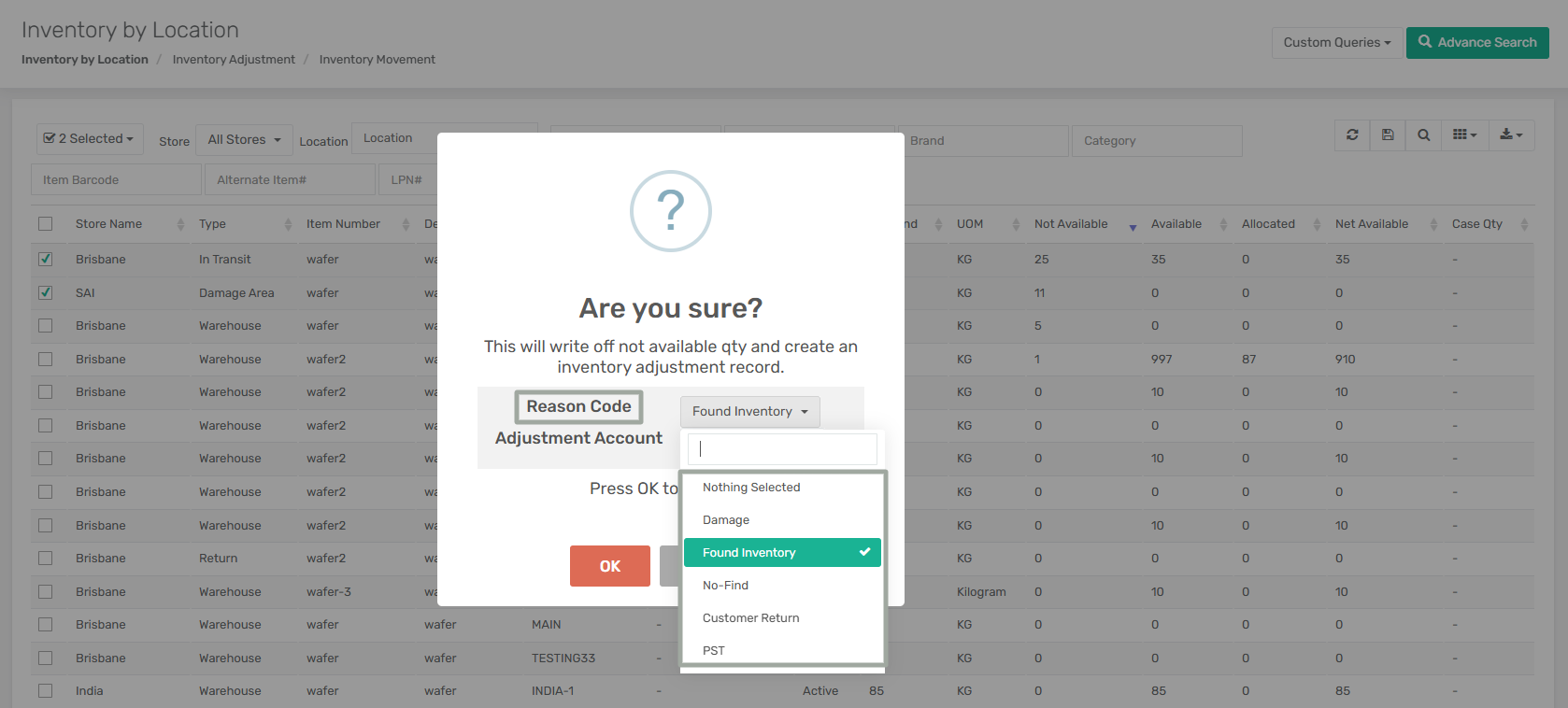
### **Enhanced Batch Write-Off Control for Unavailable Inventory**
**Overview:**
A new enhancement has been added to the **Batch Write-Off Not Available Inventory** function in the **Inventory by Location** module. Users can now select a custom **Reason Code** while performing batch write-offs of unavailable inventory instead of the system automatically assigning the default reason code.
This enhancement helps businesses better classify inventory adjustments and differentiate actual damaged inventory from other write-off scenarios.
***
**Key Enhancements:**
* Added a **Reason Code** dropdown in the **Batch Write-Off Not Available Inventory** confirmation window.
* Users can now select the required adjustment reason code before completing the batch write-off process.
* The selected reason code is automatically applied to the generated **Inventory Adjustment** record.
* Eliminates dependency on the default reason code for all batch write-off transactions.
* Improves inventory tracking, reporting accuracy, and audit visibility for write-off activities.
***
**How It Works:**
**Step 1:** Go to **Menu → Inventory → Inventory by Location** and select one or multiple inventory records with a **Not Available** quantity.
**Step 2:** Click on the **Options** menu and choose **Batch Write Off Not Available Inventory**.
**Step 3:** A confirmation pop-up will appear. In the pop-up, select the required **Reason Code** from the dropdown list.
**Step 4:** Select the required **Adjustment Account** and click on **OK** to continue.
**Step 5:** Go to the **Inventory Change Log** module to view the Inventory Adjustment transaction created by the system for the selected inventory quantities based on the selected **Reason Code**.
***
### **Enhanced Page Default Controls in Create Customer Module**
**Overview:**
Added the **“Set as Default (Bill To Address)”** and **“Set as Default (Ship To Address)”** options in the **Page Defaults** of the **Create Customer module**.
These options allow users to control the default behaviour of the **“Set as Default”** checkbox available inside the **Bill To Address** and **Ship To Address** **pop-ups** while creating or editing customer addresses.
***
**Key Enhancements:**
* The configured settings now control the default state of the **“Set as Default”** option inside the **Bill To Address** and **Ship To Address pop-ups**.
* When the **Set as Default (Bill To Address)** and **Set as Default (Ship To Address)** options are enabled in **Page Defaults**, newly added addresses are automatically marked as default.
* When these options are disabled, the **“Set as Default”** option remains unchecked by default.
* Functionality is supported in both the **Create Customer** and **Edit Customer modules**.
***
**How It Works:**
**Step 1:** Go to: **Menu → Sales → Customer Section → Create Customer**. Click on the **Vertical Ellipsis (⋮)** and select the **Page Defaults** option.
**Step 2:** The **Default Configuration** pop-up opens. Enable the **Set as Default (Bill To Address)** and **Set as Default (Ship To Address)** options based on your requirements.
**Step 3:** Click on the **Save** button to save the Page Default configuration. Then create a new customer or edit an existing customer.
**Step 4:** Go to the **Customer Centre** and open an existing customer record.
**Step 5:** Navigate to the **Contact Info** tab and open the **Address Info** section. While creating a new address or editing an existing address:
* If the **Set as Default (Bill To Address)** option is enabled in Page Defaults, the **“Set as Default”** checkbox on the Bill To Address pop-up is automatically selected.
* If the **Set as Default (Ship To Address)** option is enabled in Page Defaults, the **“Set as Default”** toggle on the Ship To Address pop-up is automatically enabled.
**Step 6:** If these options are disabled in Page Defaults, the “Set as Default” option remains unchecked by default in both address pop-ups.
***
### **Batch Update Support Added for Customer Custom Fields**
**Overview:**
Added support for batch updating **Customer Custom Fields** directly from the **Customer Centre** using the **Batch Update functionality**. Previously, users were unable to update Custom Field values for multiple customers simultaneously and had to manually open and update each customer record individually.
With this enhancement, all supported **Customer Custom Fields** are now available within the **Batch Update pop-up** in the Customer Centre. This improves efficiency and simplifies bulk maintenance of customer-specific custom field information.
***
**Key Enhancements:**
* **Customer Custom Fields** are now supported in the **Batch Update functionality** of the **Customer Centre**.
* Supported Custom Field types, such as **Text**, **Number**, **List**, **Date**, **Multi-Line Text,** and **Multi-Select List**, are available in the Column Name dropdown during **batch update**.
* Users can batch update Custom Field values for multiple customer records simultaneously.
* Updated Custom Field values are automatically reflected in the Customer Centre grid and customer records.
***
**How It Works:**
**Step 1:** Navigate to **Menu → Sales → Customer Section → Customer Centre** and select one or multiple customer records.
**Step 2:** Click on the **Options** menu and select the **Batch Update** option.
**Step 3:** The **Batch Update** pop-up opens. In the Column Name dropdown, the supported Customer Custom Fields are available for selection.
**Step 4:** Based on the selected Custom Field type, enter or select the required value in the **Value** field.
**Step 5:** Click on the **Update** button to apply the selected Custom Field value to all selected customer records and verify the updated values in the **Customer Centre** grid.
***
### **Synchronized Active Status Between Products and Variants**
**Overview:**
Enhanced the Product and Item validation logic to synchronize the active status between products and variants across UI, bulk upload, and API operations. Previously, users could activate product variants even when the associated base product was inactive, creating inconsistencies between product and variant statuses.
With this enhancement, when a base product is marked as inactive, all associated variants are automatically marked inactive, and the system prevents variants from being activated independently until the base product is reactivated.
Additionally, during bulk uploads, the system now evaluates the Active Flag of variant records and updates the corresponding product status accordingly.
***
**Key Enhancements:**
* When a **base product** is marked as **inactive**, **all associated variants** are automatically marked as **inactive**.
* The system prevents users from activating a variant if its base product is inactive.
* Validation is now supported across **UI**, **Bulk Upload**, and **API** processes.
* A validation message is displayed when attempting to activate a variant whose base product is inactive.
* During **bulk uploads**, if any variant record for a product contains the **ActiveFlag** value as **“Y”**, the corresponding base product is automatically marked as **active**.
***
**How It Works:**
**Step 1:** Navigate to **Menu → Admin → Product → Product Centre** and select an active product.
**Step 2:** Right-click on the product and select the **"Show Variants"** option to view the generated variants.
**Step 3:** The **Item Centre** opens, where all associated variant items can be seen in **Active status**, similar to the **base product**.
**Step 4:** In the **Product Centre**, mark the base product as inactive. To do this, click on the **Options** menu and select **Batch Updates**. In the Column Name field, select **Is Active**, **uncheck the Yes** **checkbox** in the **Value** field, and **update** the record.
**Step 5:** The system automatically marks all associated variants as inactive in the **Item Centre**.
**Step 6:** Navigate to **Menu → Admin →Item → Item Centre** and open one of the inactive variant items.
**Step 7:** Attempt to enable the **Active toggle** for the variant item and save the record.
**Step 8:** The system displays the validation message: *“Variant cannot be marked Active because its base product is In-Active.”*
***
### **Improved Vendor Info Visibility and Communication Tracking**
**Overview:**
Enhanced the Vendor Info module by adding a dedicated Comment section, ACH bank transfer indicator, and Memo column in the Transactions tab. These enhancements provide better visibility into vendor communication history, payment configuration, and transaction-level notes directly within the Vendor Info page.
***
**Key Enhancements:**
* Added a Comment section in the Vendor Info module for managing vendor-related discussions.
* Users can now upload and view attachments within the Comment section.
* Added the **“Is Bank Transfer Type ACH?”** field in Vendor Info to indicate whether the vendor uses **ACH bank transfer**.
* Added a new **“Memo”** column in the **Transactions** tab to display transaction-related remarks and notes.
* Added support to include the Memo column in exported transaction reports from the Vendor Info module.
***
**How It Works:**
**Step 1:** Navigate to **Menu → Purchase → Vendor Section → Vendor** **Info** and search for the required vendor.
**Step 2:** Open the vendor record. The system displays the newly added **Comment section** in the Vendor Info module.
**Step 3:** Click on the Comment section to view existing vendor comments, add new comments, and upload/view attachments related to the vendor.
**Step 4:** The system also displays the newly added field: **“Is Bank Transfer Type ACH?”** in the header section of the **Vendor Info**.
**Step 5:** Go to the **Transactions** tab and enable the **Memo** column from the Columns option if it is hidden.
The system displays transaction-related memo details in the Memo column for the corresponding transactions.
***
### **Streamlined Batch MO Creation in Manufacturing Centre**
**Overview:**
Enhanced the **Manufacturing Order (MO) Centre** by adding the **“Create Batch MO”** option under the **Options** menu. This enhancement allows users to create a Batch Manufacturing Order from multiple existing MOs directly within the MO Centre, improving bulk production planning and batch-level manufacturing management.
***
**Key Enhancements:**
* Added the **“Create Batch MO”** option in the Manufacturing Order Centre.
* Users can now create a Batch MO using multiple selected Manufacturing Orders.
* Added validation to allow Batch MO creation only for MOs in **Open** or **Released** status.
* Added validation to ensure all selected MOs belong to the same store.
* Added validation to prevent MOs already **linked to an** **existing Batch MO** from being selected again.
* Added an informational message when selected MOs have different Schedule Dates.
***
**How It Works:**
**Step 1:** Navigate to **Menu → Manufacturing → Manufacturing Order Centre** and select multiple Manufacturing Orders from the grid.
**Step 2:** Click on the **Options** menu and select **“Create Batch MO”**.
Step 3: The system validates the selected Manufacturing Orders before creating the Batch MO.
**Step 4:** The system allows Batch MO creation only when:
* All selected MOs are in Open or Released status.
* All selected MOs belong to the same store.
* None of the selected MOs is already linked to another Batch MO.
**Step 5:** If one or more selected MOs already belong to a Batch MO, the system displays an error message and prevents batch creation.
**Step 6:** If the selected MOs have different Schedule Dates, the system displays an informational message before proceeding.
**Step 7:** Once validations are completed successfully, the system creates the Batch MO for the selected Manufacturing Orders.
***
### **Enhanced Scan to Verify Functionality**
**Overview:**
Introduced improvements to the **Scan to Verify** process by adding real-time scanned item visibility, enhanced item verification validations, shipment-level Rate Shopper access, and automatic synchronization of shipment details across related transactions.
Users can now quickly verify items through scanning, access carrier rates directly from the **Shipment tab**, and ensure that selected shipping details are consistently reflected in Shipment, Invoice, Packing Slip, and Sales Order records.
***
**Key Enhancements:**
* Added the **Current Item#** field in the Scan & Verify module to display the latest scanned item.
* The **Item# search field** is automatically cleared after successful item verification.
* Added validation to display an error message when the scanned item does not belong to the selected wave.
* Added support to access the **Get Rates / Rate Shopper** feature directly from the Shipment tab within Scan & Verify.
* **Selected carrier service** and **shipping rate from** **Rate Shopper** are automatically reflected in the Shipment section.
* **Shipping Cost**, **Shipping Tax**, and **Shipping Amount** are now correctly reflected in **Invoice**, **Packing Slip**, and **Sales Order Shipping tab**.
***
**How It Works:**
**Step 1:** Navigate to **Menu → Warehouse → Picking → Pick Wave** and select the required wave. The selected wave appears in the **Wave Lines** section.
**Step 2:** Click on the **Scan & Verify** option to open the **Scan & Verify modal**.
**Step 3:** Scan or enter the **Item#** in the **Item search field** and press **Enter** or click **Verify**.
**Step 4:** The system displays the **scanned item** in the **Current Item# field** and automatically clears the **Item# field** after successful verification.
If the scanned item does not belong to the selected wave, the system displays an error message.
**Step 5:** In this case, the **Verified Qty** is 1 while the **Allocated Qty** is 5; therefore, the system displays the **Verification Status** as **Partially Verified**.
Users can manually modify the **Verified Qty** directly from the grid if required.
The system validates that the Verified Qty does not exceed the **Allocated Qty**. Once the **Verified Qty** becomes equal to the **Allocated Qty**, the system automatically updates the **Verification Status** to **Verified**.
**Step 6:** Once verification is completed, click **Close Wave**. The system creates the **shipment** and enables the **Shipment tab** within the Scan & Verify workflow.
**Step 7:** Navigate to the **Shipment** tab and click **Get Rates**.
The system opens the **Rate Shopper** pop-up. Enter the **Package Weight** and click **Get Rates**.
Based on the entered weight and package dimensions, the system displays the available carrier services and corresponding shipping rates.
**Step 8:** Select the required **shipping service** and click **Apply**. The selected rate and carrier in the rate shopper are automatically reflected in the **Shipment** section.
**Step 9:** After shipment processing, the **rate** and **Ship Carrier** details are automatically reflected in the **Invoice**, **Packing Slip**, and **Sales Order Shipping tab**.
***
### **Added Invoice Cartonization Detail** View **in the Invoice Centre**
**Overview:**
A new **Invoice Cartonization Detail** view has been added in the **Invoice Centre** and **Account 3PL Portal Invoice** to provide better visibility into carton-level inventory details associated with invoices.
This enhancement allows users to view carton-related LPN attributes directly from the Invoice Centre, including **Lot #**, **Batch #**, **Manufacturing Date**, **Expiry Date**, and **Quality** details. The same LPN attribute information is also available in the **Packing Slip Carton Detail** view in the **Packing Slip Centre** to ensure consistency across shipment and invoice records.
***
**Key Enhancements:**
* Added a new **Invoice Cartonization Detail** view in the **Invoice Centre**.
* Added support to display carton-level LPN attributes directly within the invoice listing.
* Added visibility for the following LPN attribute fields:
* **Lot #**
* **Batch #**
* **Manufacturing Date**
* **Expiry Date**
* **Quality**
* Ensured carton information displayed in **Invoice Centre** matches the carton details associated with the invoice and packing slip records.
***
**How It Works:**
**Step 1:** Navigate to **Menu → Sales → Invoice → Invoice Centre.**
**Step 2:** Select **Invoice Cartonization Detail** view from the view selection dropdown.
**Step 3:** The system displays invoice records along with carton-level LPN attribute information, including **Lot #**, **Batch #**, **Manufacturing Date**, **Expiry Date**, and **Quality** details.
***
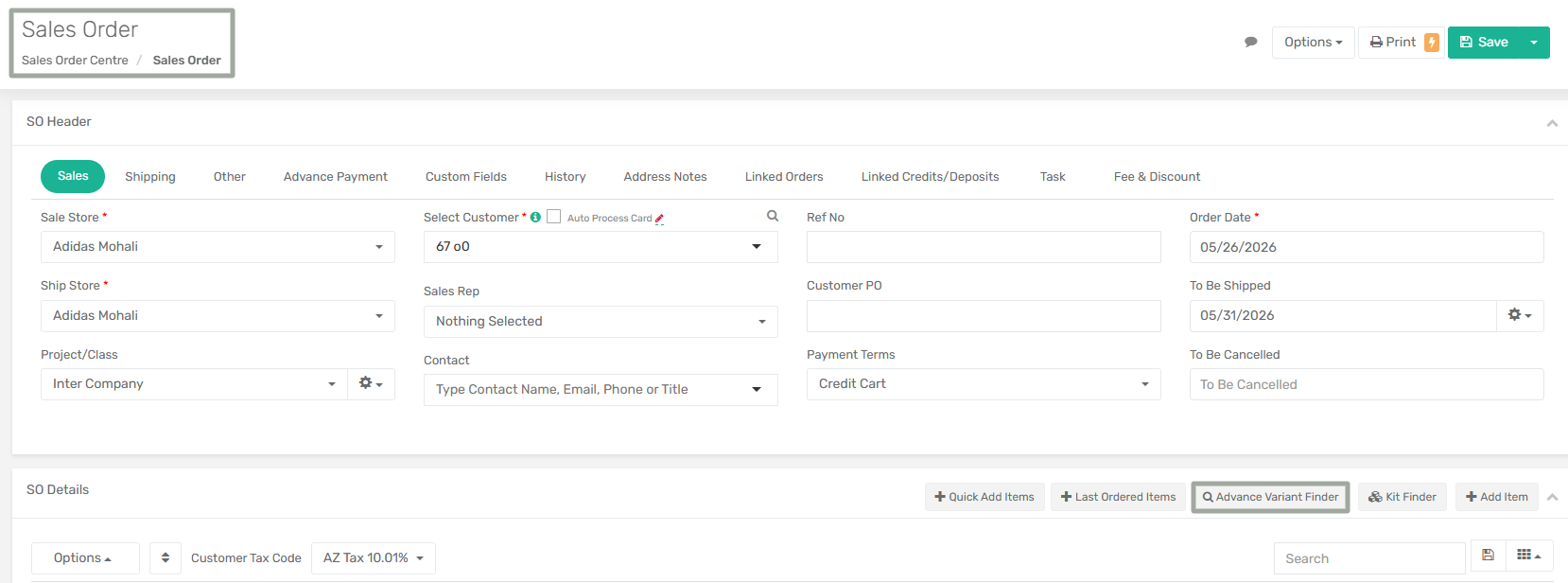
### **Enabled Advanced Variant Finder with Multi-UOM Support**
**Overview:**
The **Advanced Variant Finder functionality** is now supported when the Multi-UOM configuration is enabled. Earlier, this feature was available only when **Multi-UOM** was turned **OFF**.
With this enhancement, users can now add product variants through the Advanced Variant Finder while maintaining proper UOM handling, conversion logic, inventory visibility, and line-level pricing across Sales, Purchase, Transfer, and Estimate transactions.
The enhancement is available in the following modules:
* Create Sales Order
* Create Purchase Order
* Transfer Sales Order
* Transfer Purchase Order
* Create Estimate
***
**Key Enhancements:**
* Advanced Variant Finder now works seamlessly when **Multi-UOM** is **enabled**.
* Available inventory displayed inside the Variant Finder is shown in the item’s Base UOM.
* The system automatically applies the correct default UOM based on the transaction type:
* Sales Order (SO), Transfer Sales Order (TSO), and Estimate use the default Sales UOM.
* Purchase Order (PO) and Transfer Purchase Order (TPO) use the default Purchase UOM.
* Prices and amounts are calculated correctly based on the applied UOM and conversion factor.
***
**How It Works:**
**Step 1:** Navigate to **Menu → Admin → Item → Item Centre** and view the configured **Sell UOM, SKU UOM,** and **Purchase UOM** for the required item.
**Step 2:** Navigate to **Menu → Sales → Sales Order → Create Sales Order**.
**Step 3:** In the **SO Details** section, click on the **Advanced Variant Finder button**.
**Step 4:** Enter or select the required **Base Part/Product** and click **Find Variants**. The system displays all available product variants associated with the selected Base Part.
**Step 5:** The Variant Finder displays inventory availability, ATS quantities, allocated quantities, and SKU UOM.
**Step 6:** Enter the required variant quantities directly within the variant grid. The system automatically calculates the **Price** field based on the entered quantity and the **Sell UOM** (defined in the **UOM** tab of the **Create Item** page). Click on **Add To Order**.
**Step 7:** After adding the variants, the system reflects the **Sell UOM** and **unit prices** correctly at the Sales Order line level.
**Step 8:** Now, navigate to **Menu → Purchase → Purchase Order → Create Purchase Order** and follow the same process for adding the variants.
The system automatically applies the **Purchase UOM** at the Purchase Order line level and calculates pricing using the configured UOM conversion factor.
***
### **Added Shopify Setting “Invoice Priority Over Wave Allocation”**
**Overview:**
A new Shopify setting, **“Invoice Priority Over Wave,”** has been introduced to prioritize invoice processing over existing wave allocations when inventory is insufficient during invoice creation.
With this enhancement, the system can automatically unallocate inventory from existing unpicked **(Allocated)** waves before creating an inventory adjustment. This helps prioritize urgent invoice processing while minimizing unnecessary inventory adjustments.
***
**Configuration Details:**
**App Setting Name:** Invoice Priority Over Wave
**Setting Location:** Menu → Sales Channel → Order Settings → Warehousing(section) → Invoice (toggle) → Advanced Settings → Invoice Priority Over Wave (toggle).
***
**Prerequisite:**
The app config **“Auto Create Invoice Inventory Adjustments”** must be enabled from **Menu → App Config → System → Auto Create Invoice Inventory Adjustments**.
***
**Functionality:**
**When App Setting Is Enabled:**
* During invoice creation, if inventory is insufficient, the system first checks existing unpicked **(Allocated)** waves. It automatically unallocates inventory from eligible allocated waves to fulfill the invoice shortage.
* If sufficient inventory is still not available after wave unallocation, the system proceeds with **Inventory Adjustment** creation.
***
**When App Setting Is Disabled:**
* Inventory shortages are handled directly through **Inventory Adjustments**.
* Existing allocated waves are not modified or unallocated.
***
**How It Works:**
**Step 1:** Navigate to **Menu → App Config → System** and enable the app config **“Auto Create Invoice Inventory Adjustments”**.
**Step 2:** Navigate to **Menu → Sales Channel → Order Settings → Warehousing(section) → Invoice (toggle) →** **Advanced Settings** and enable the setting **“Invoice Priority Over Wave”**.
**Step 3:** Create an invoice in Shopify where the available inventory is lower than the required invoice quantity.
**Step 4:** During invoice creation, the system checks for inventory shortages. If inventory is insufficient, the system first checks existing **unpicked waves with allocated inventory** for the same item.
**Step 5:** The system automatically unallocates inventory from eligible allocated waves to fulfill the invoice requirement.
**Step 6:** If the inventory shortage still remains after wave unallocation, the system automatically creates an Inventory Adjustment for the remaining quantity shortage.
***
### **Added Inventory Reservation & Inventory Reservation Centre**
**Overview:**
The **Inventory Reservation feature** introduces a centralized reservation management process that enables users to reserve inventory either from **available on-hand stock** or against incoming **inventory linked through Purchase Orders**.
The Inventory Reservation Centre provides complete visibility into reservation quantities, linked order movements, consumption history, transferred quantities, incoming quantities, cancellations, and reservation lifecycle statuses from a single interface.
This enhancement helps businesses:
* Secure inventory for specific customers or entities
* Reserve incoming stock before physical receipt
* Prevent over-allocation of inventory
* Track reservation movement throughout the procurement and fulfillment lifecycle
* Maintain complete reservation history and status visibility
* Improve inventory planning and allocation accuracy
The feature supports two reservation methods:
1. **On-hand** Reservation
2. **Linked** Reservation
1. **Purchase Order**
Both reservation types are managed through the **Inventory Reservation Centre** with real-time quantity and status tracking.
***
**Key Enhancements:**
1. **Centralized Inventory Reservation Management**
* Added a dedicated **Inventory Reservation Centre** for creating, managing, and tracking reservations.
* Reservations can now be maintained independently with detailed quantity visibility and linked order tracking.
2. **Linked Purchase Order Reservation**
* Users can reserve inventory against incoming Purchase Orders before the inventory is physically received.
* Reservation remains tied to inbound inventory until the **ASN receiving** and **PO completion** processes are completed.
3. **Reservation Quantity Tracking**
* The system now tracks:
* Reserved Qty
* Cancelled Qty
* Total Incoming Qty
* Consumed Qty
* Remaining Qty
4. **Incoming Inventory Reservation Tracking**
* Reservation status automatically changes to **Incoming** when inventory is reserved against a Purchase Order that has not yet been received and is currently in **Open** status.
***
**How It Works:**
**A. Linked Order Type: On-hand**
**Step 1:** Navigate to **Inventory → Inventory Reservation** and create a new reservation entry.
**Step 2:** Select the **Store**, **Item Number**, and **Reservation Type** as **Customer**. Set **Linked Order Type** as **None (On-hand)**, choose the **Customer Entity** from the dropdown menu, and enter the **Effective Date** and **Expiry Date**.
**Step 3:** The **Total Qty on Store** field in the **Reservation Quantities** section displays the quantity available in the store.
If inventory already exists in store stock, the reservation is directly allocated from **on-hand inventory**.
**Step 4:** In the **Reservation Quantities** section, enter the required quantity to be reserved in the **Total Reserved Qty** field.
**Step 5:** Click on the **Save** button. The system displays a confirmation pop-up indicating that the selected inventory quantity will be reserved for the selected customer entity.
**Step 6:** Once the reservation is saved, the reservation entry is created successfully.
The reservation status updates automatically based on the **Effective Date**.
* If the Effective Date is equal to the **current date**, the reservation status becomes **Open**.
* If the Effective Date is set in the future, the reservation status becomes **Aging** until the Effective Date is reached, which means the reserved inventory cannot yet be consumed or allocated to the customer.
The reserved quantity is deducted from the available store inventory and can be viewed in the **Total Qty on Store** field.
**Step 7:** Now, create a **Sales Order** for the **same store, reserved customer** and **add the same item** for which the reservation was created.
**Step 8:** Release the Sales Order and create a **Wave**. During wave allocation, the system automatically consumes the reserved inventory quantity for the customer.
The system consumes reserved inventory based on the **reservation type** in the following order before using available inventory:
* **Customer**
* **Customer Group**
* **Sales Rep**
**Step 9:** If the wave is allocated for a quantity less than the reserved quantity, the reservation status changes to **Partially Consumed**. The **Total Consumed Qty** in the **Reservation Quantities** section displays the quantity that has been allocated through the wave and consumed by the customer.
**Step 10:** If the reserved quantity is fully consumed, the reservation status changes to **Completed**.
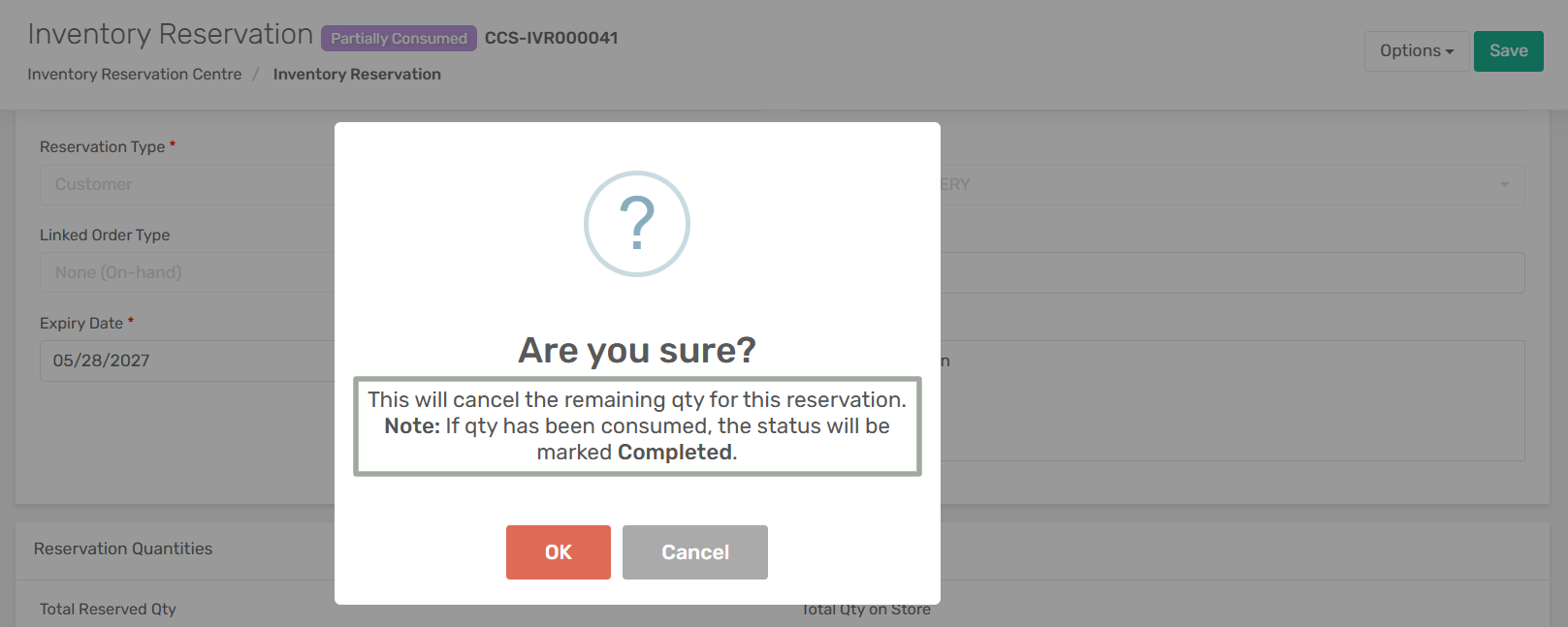
**Step 11:** To cancel any remaining reserved quantity, click on **Options → Cancel Reservation**.
A confirmation popup appears indicating that only the remaining quantity will be cancelled, while any quantity already consumed will remain unchanged.
**Step 12:** Once the cancellation is confirmed:
* The reservation status changes to **Completed** if part of the reserved quantity was already consumed.
* The remaining unconsumed quantity is released back to store inventory and is reflected in the **Total Qty on Store** field
* The cancelled quantity is updated in the **Total Cancelled Qty** field.
**Step 13:** If the reservation has already been fully consumed, the reservation remains in **Completed** status and cannot be cancelled.
**B. Linked Order Type: Purchase Order**
**Step 1:** Navigate to **Inventory → Inventory Reservation** and create a new reservation entry.
**Step 2:** Select the **Store**, **Item Number**, and **Reservation Type** as **Customer**. Set the **Linked Order Type** as **Purchase Order**, choose the **Customer Entity** from the dropdown menu, and enter the **Effective Date** and **Expiry Date**.
**Step 3:** In the **Linked Order Details** section, click on **Link Qty**.
The **Add/Update Linked Order Lines** pop-up appears, displaying available Purchase Orders for reservation linking.
**Step 4:** If no eligible Purchase Orders exist for the selected item, no records are displayed in the pop-up.
Since a linked reservation depends on incoming inventory, a Purchase Order must first be created for the item.
**Step 5:** Navigate to **Purchase → Purchase Order** and create a Purchase Order for the required item and quantity.
Save the Purchase Order and return to the reservation entry.
**Step 6:** Open the **Link Qty** pop-up again. The newly created Purchase Order is now available for selection.
Enter the quantity to be reserved in the **Reserved Qty (Current)** field and close the pop-up.
**Step 7:** Once the quantity is entered:
* The linked Purchase Order line is added to the **Linked Order Details** section.
* The reservation line status changes to **Incoming.**
* The **Reserved Qty** **(Current)** is reflected in the **Total Incoming Qty** field.
This indicates that the inventory is reserved against incoming stock that has not yet been physically received.
**Step 8:** Click the **Save** button. Once the reservation is created, the reservation status becomes **Incoming**.
**Step 9:** Now, process the inbound inventory by completing the Purchase Order receiving workflow.
**Release the PO** created and create the **ASN**. Once the ASN is created, receive the ASN and close it.
**Step 10:** Once the linked Purchase Order inventory is received, the reservation status changes from **Incoming** to **Open**.
**Step 11:** Create a **Sales Order** for the same store, reserved customer, and add the same item for which the reservation was created.
**Step 12:** Release the Sales Order and create a Wave. If the wave is allocated for a quantity less than the reserved quantity, the reservation status changes to **Partially Consumed**.
If the reserved quantity is fully consumed, the reservation status changes to **Completed**.
---
# Agent Instructions
This documentation is published with GitBook. GitBook is the documentation platform designed so that both humans and AI agents can read, navigate, and reason over technical content effectively. Learn more at gitbook.com.
## Querying This Documentation
If you need additional information that is not directly available in this page, you can query the documentation by asking a question.
Perform an HTTP GET request on the following URL with the `ask` and `goal` query parameters:
```
GET https://docs.xorosoft.com/whats-new/release-notes/previous-releases/2026/may-2026-release.md?ask=&goal=
```
`ask` is the immediate question: it should be specific, self-contained, and written in natural language.
`goal` is what the user is ultimately trying to achieve, the reason they need the answer. Sharing it helps GitBook give you a better, more relevant answer. A goal is most helpful when it describes the outcome the user wants rather than restating the question. For example, with `ask=how do I create an API token`, a goal like `automate deployments from our CI pipeline` lets GitBook tailor the answer to that use case.
The response will contain a direct answer to the question and relevant excerpts and sources from the documentation.
Use this mechanism when the answer is not explicitly present in the current page, you need clarification or additional context, or you want to retrieve related documentation sections.