> For the complete documentation index, see [llms.txt](https://docs.xorosoft.com/llms.txt). Markdown versions of documentation pages are available by appending `.md` to page URLs; this page is available as [Markdown](https://docs.xorosoft.com/xoroerp-1/manufacturing/workstation/manufacturing-workstation-logging.md).
# Manufacturing Workstation Logging
### Overview
The **Manufacturing Workstation Logging** module enables users to execute and track manufacturing processes at the workstation level during production. It provides real-time visibility into process execution, quantity processing, quality issue reporting, and quarantine handling.
Processes defined in the **Bill of Material (BOM)** are automatically inherited by the Manufacturing Order. The workstation logging module allows users to execute these processes in sequence and update production progress dynamically.
{% hint style="info" %}
To create a Workstation Logging, go to Menu > Manufacturing > Workstation > Workstation Logging
{% endhint %}
### Workstation Logging Fields
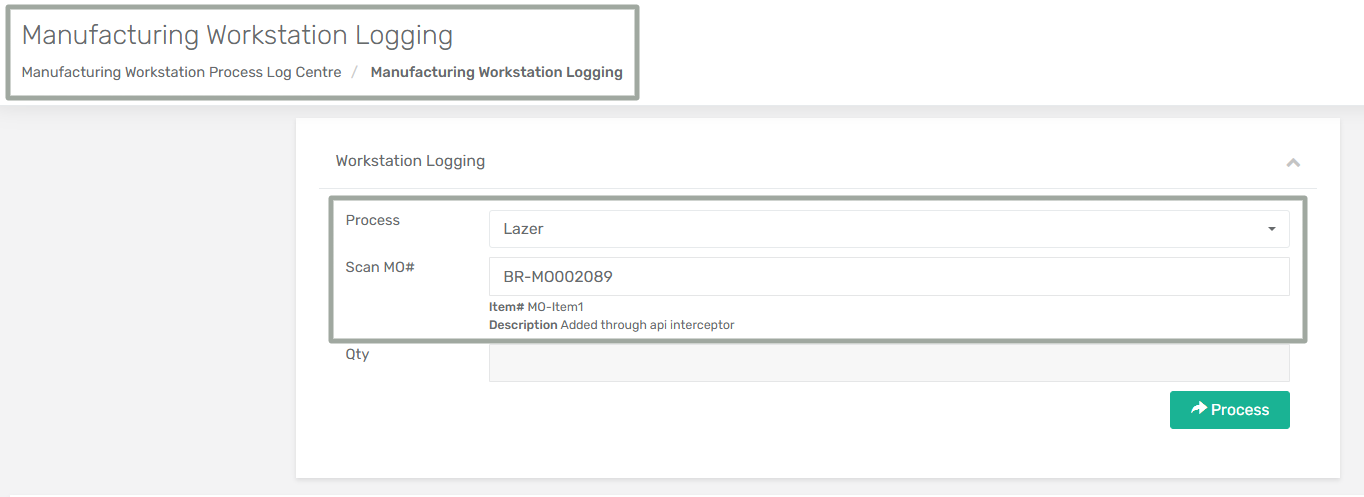
To create a workstation logging entry, begin by selecting the process associated with the specified MO and entering that Manufacturing Order (MO) number in the **Scan MO# field**. The system automatically retrieves the related item details and production quantities for execution.
After the basic information is populated, you can enter the quantity to be processed and record production activity.
#### Header Level Fields
The **Workstation Logging** section is used to execute a manufacturing process for a specific Manufacturing Order.
| Section | Field | Description |
| ------------------- | ------------ | ----------------------------------------------------------------------------------------------------------------------------------------------------- |
| Workstation Logging | Process | This field is a dropdown that consists of the list of manufacturing process to be executed. |
| Workstation Logging | Scan MO# | Used to enter or scan the Manufacturing Order number. Once entered, the system retrieves the quantity summary. |
| Workstation Logging | Item Details | This information is automatically fetched after scanning the MO. It displays the item number and description associated with the Manufacturing Order. |
| Workstation Logging | Qty | Specifies the quantity to be processed for the selected process. The entered quantity cannot exceed the available remaining quantity. |
#### Line Level Fields
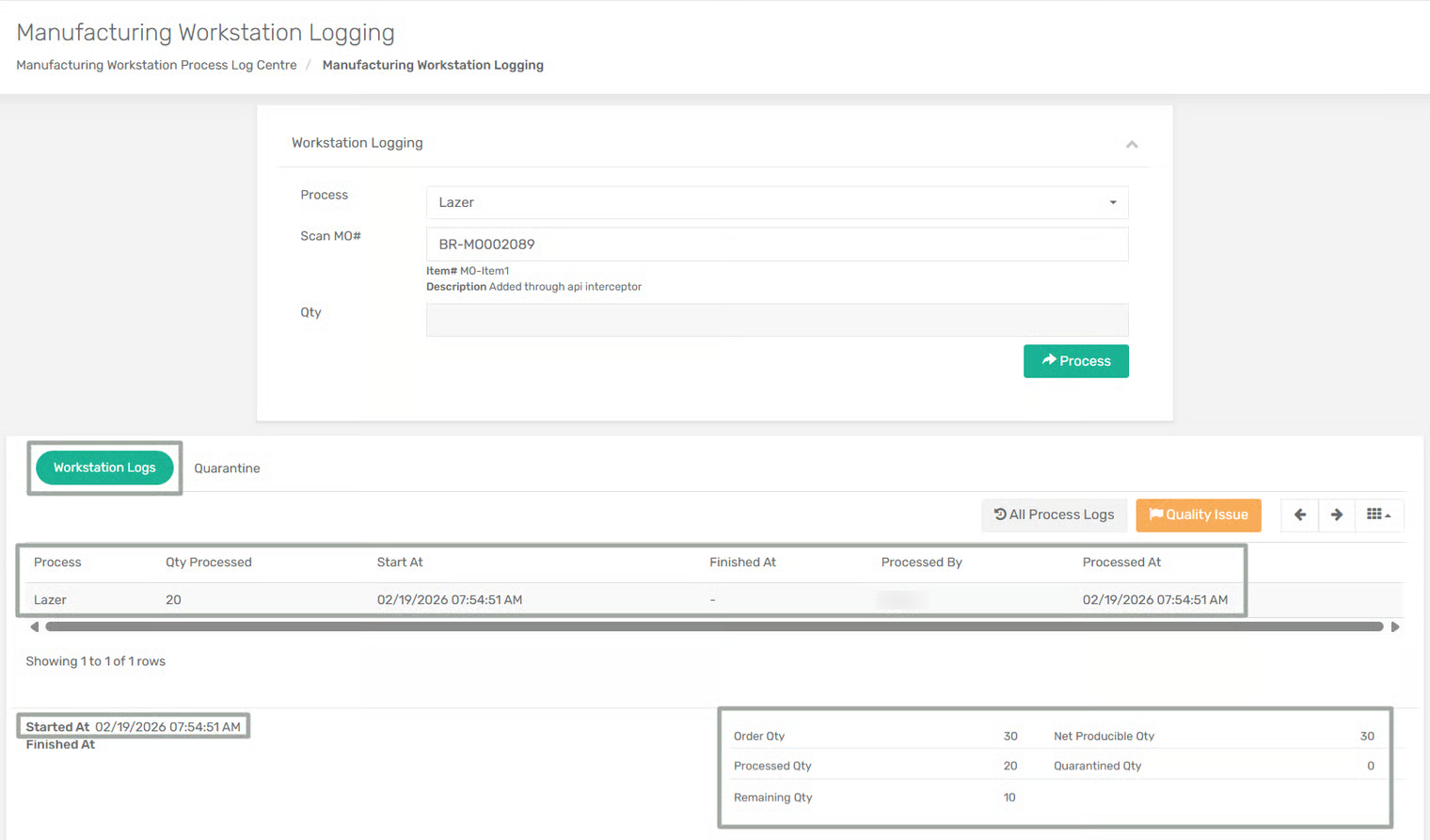
This module also allows you to track processed quantities, report quality issues, and manage quarantine records during execution. The following line-level fields are displayed in the **Workstation Logs** and **Quarantine** sections to track process execution and quality issue handling.
| Section | Field | Description |
| ---------------- | ------------------ | ---------------------------------------------------------------------- |
| Workstation Logs | Process | Name of the manufacturing process executed. |
| Workstation Logs | Qty Processed | Quantity processed during the execution of the process. |
| Workstation Logs | Start At | Date and time when the process execution started. |
| Workstation Logs | Finished At | Date and time when the process execution was completed, if applicable. |
| Workstation Logs | Processed By | User who executed the process. |
| Workstation Logs | Processed At | Date and time when the processing entry was recorded. |
| Quarantine | MO# | Manufacturing Order number associated with the quarantine record. |
| Quarantine | Process Name | Process in which the quality issue occurred. |
| Quarantine | Quarantined Qty | Quantity moved to quarantine due to a quality issue. |
| Quarantine | Quality Issue Code | Code of the Quality Issue selected. |
| Quarantine | Reported By | User who reported the quality issue. |
| Quarantine | Reported Datetime | Date and time when the quality issue was reported. |
| Quarantine | Status | Current status of the quarantine record (Open, Resolved, or Rejected). |
| Quarantine | Resolved By | User who resolved the quarantine record. |
| Quarantine | Resolved Datetime | Date and time when the quarantine record was resolved. |
### Manufacturing Workstation Logging Workflow
Users can create workstation logging using either method:
1. **From Manufacturing Workstation Logging Module**
Select the process based on the defined process sequence for the Manufacturing Order in the **Process** field and enter that Manufacturing Order (MO) number in the **Scan MO#** field. The item number and description are displayed for reference.
2. **From Manufacturing Order Centre**
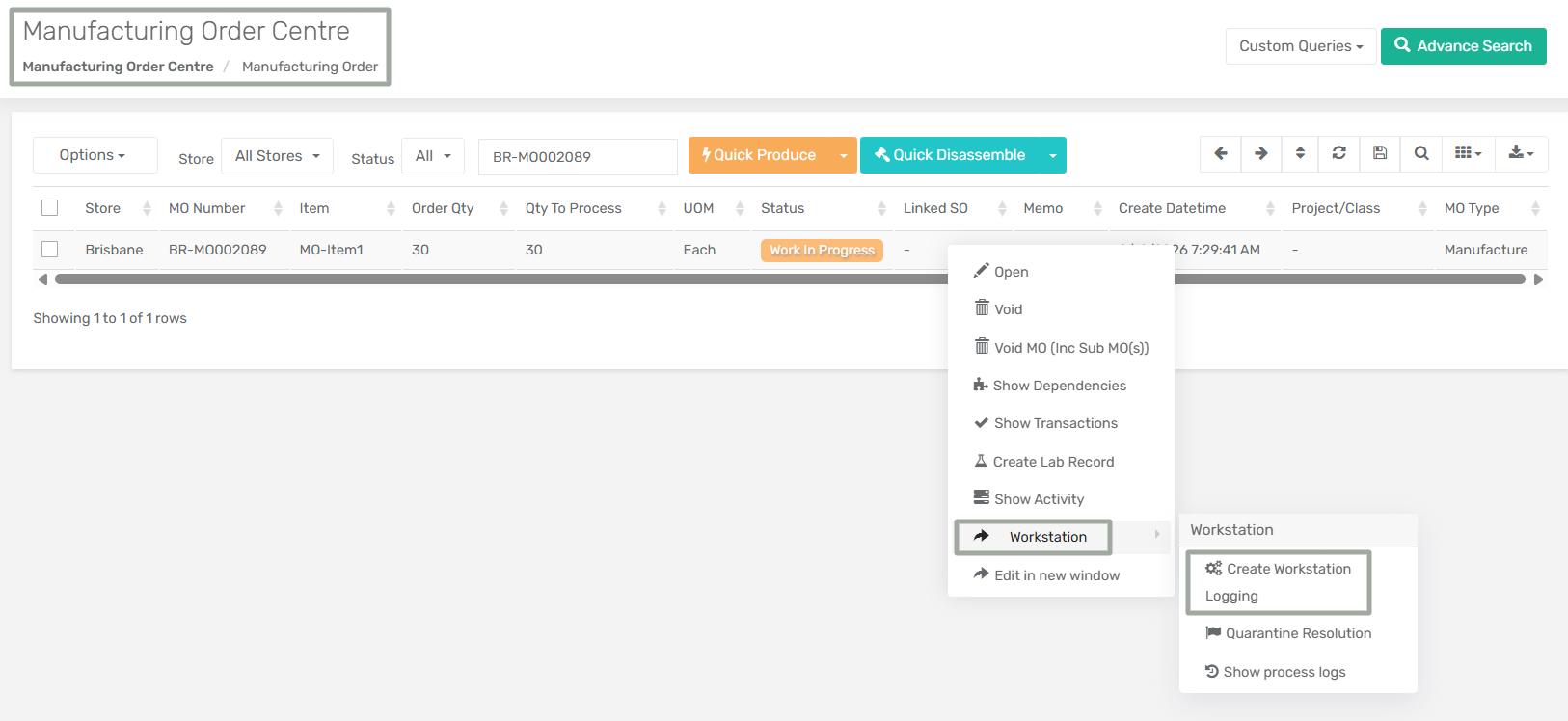
**Step 1:** Navigate to **Manufacturing → Manufacturing Order Centre**.
**Step 2:** Right-click the required Manufacturing Order and select **Workstation → Create Workstation Logging**.
After accessing the workstation logging screen for a MO using either of the above methods, you can view the order quantity, net producible quantity, processed quantity, quarantined quantity, and remaining quantity in the footer section before proceeding with the following steps.
**Step 3:** In the **Qty** field, enter the quantity you want to process for the selected manufacturing process. The quantity entered must not exceed the remaining quantity available for processing.
Click the **Process** button to execute the production entry.
**Step 4:** The system records the processed quantity in the **Workstation Logs** section and updates the production values in the footer, including processed quantity and remaining quantity. The system also records the process start time automatically.
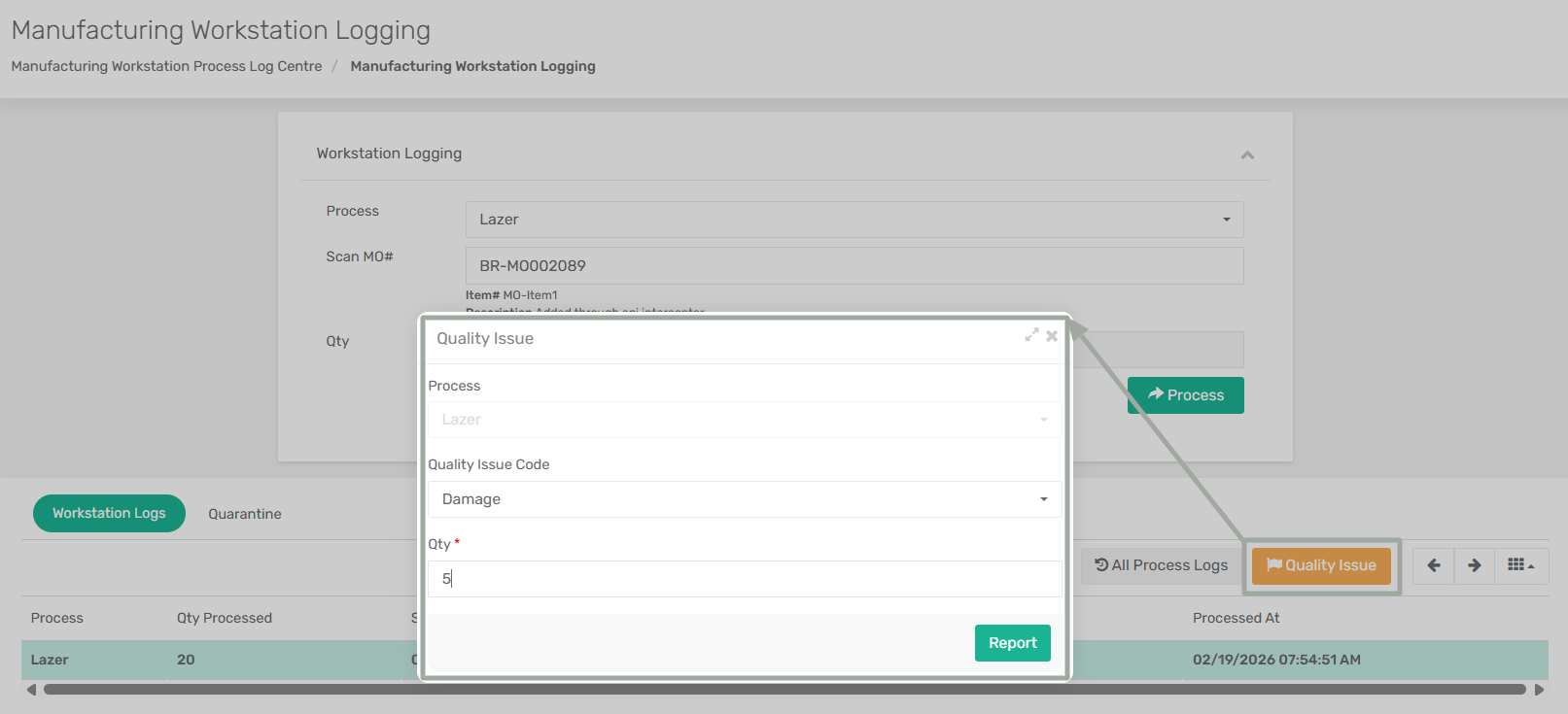
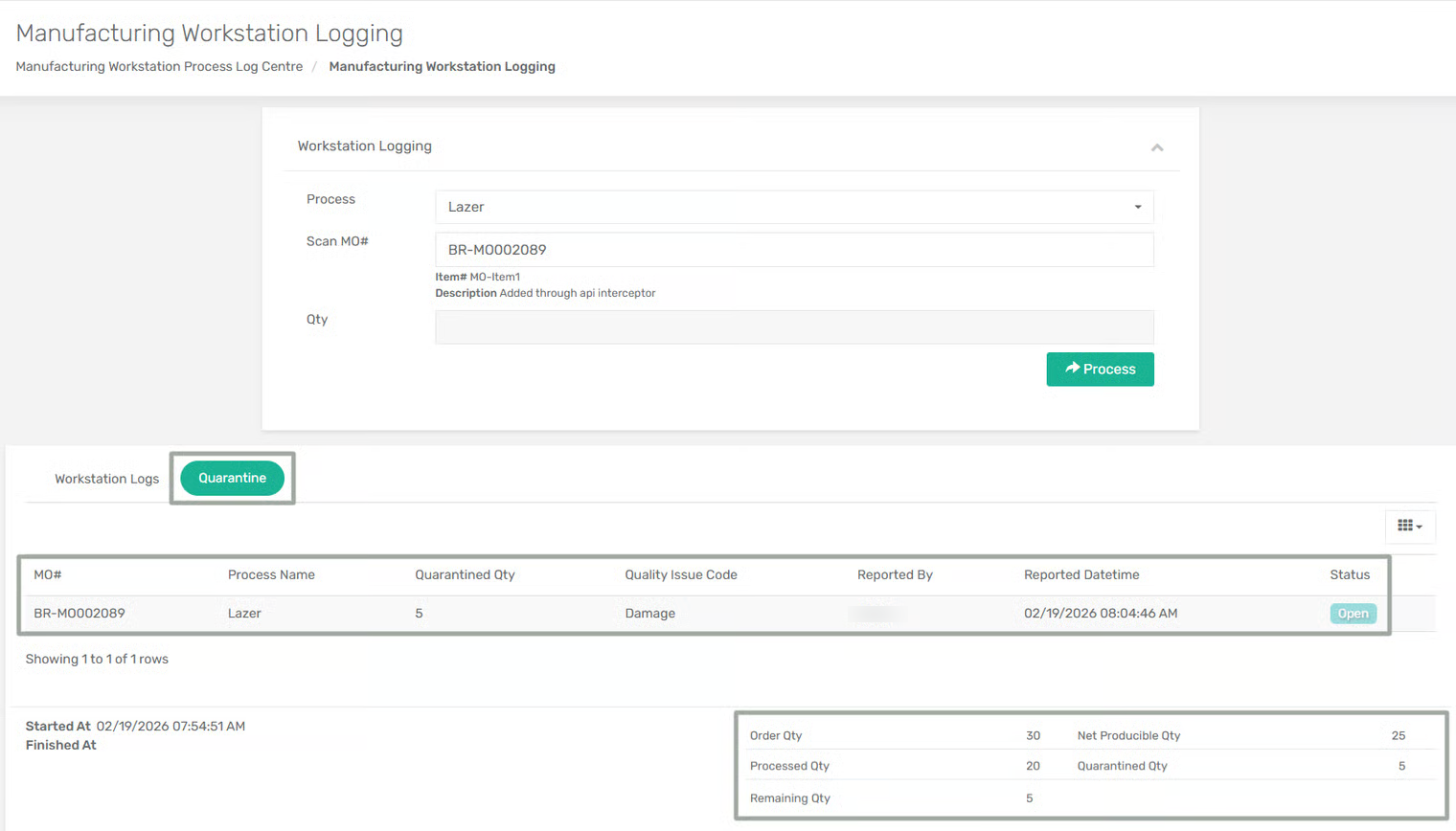
**Step 5:** If any units have quality defects during processing, click the **Quality Issue** option. A Quality Issues form opens where you must select the [quality issue code](/xoroerp-1/manufacturing/quality-issue-code/what-is-a-quality-issue-code.md) and enter the affected quantity.
**Step 6:** After confirming the action by clicking **Report**, the system moves the specified quantity to the **Quarantine** section and updates the net producible quantity, quarantined quantity, and remaining quantity accordingly.
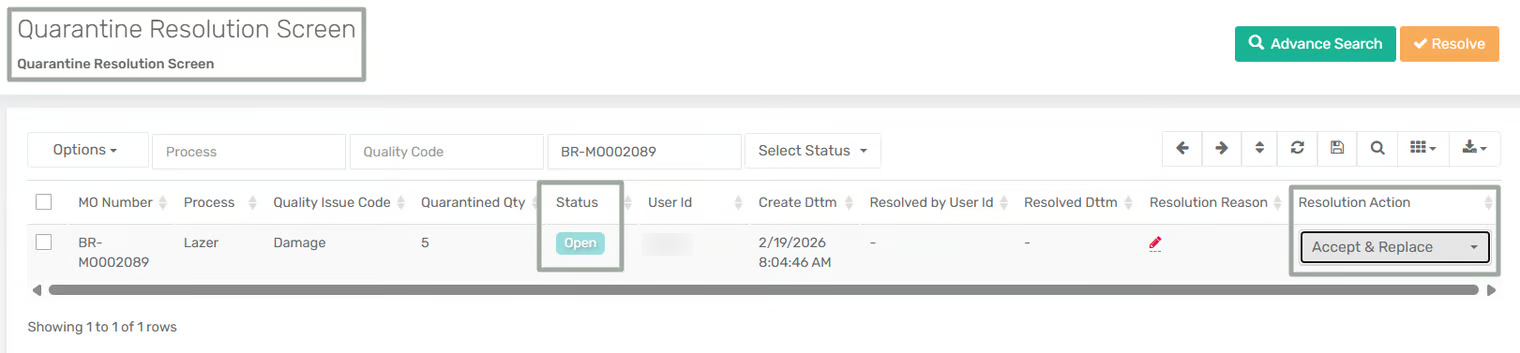
**Step 7:** To take action on quarantined items, open the [**Quarantine Resolution Screen**](/xoroerp-1/manufacturing/workstation/quarantine-resolution-screen.md) and select the required resolution action. Available resolution actions include accepting and replacing the quantity, accepting with short production, or rejecting the quantity.
After selecting the appropriate resolution and completing required inputs, click **Resolve** to update the quarantine status and adjust production quantities based on the selected action.
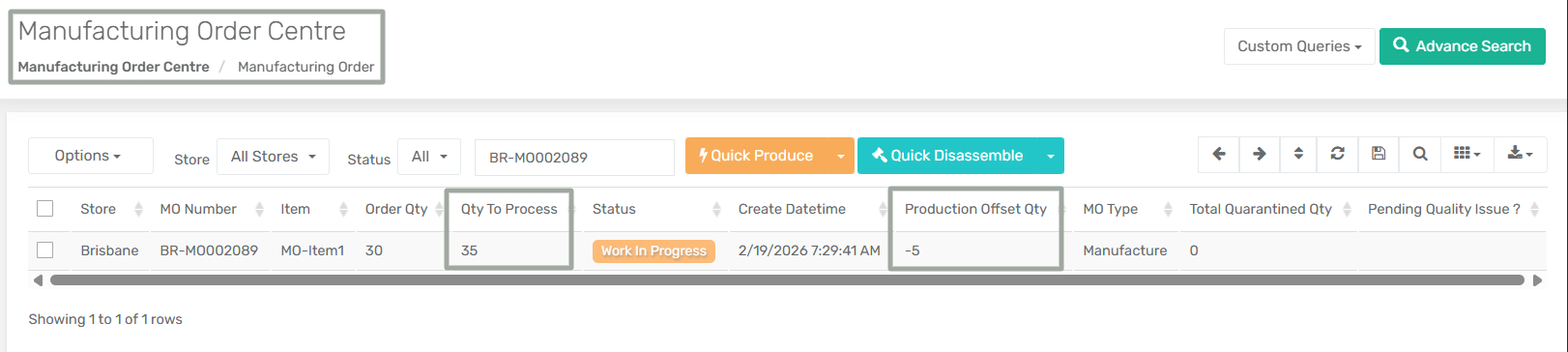
**Step 8:** Once the quarantined quantities are resolved, the system automatically updates the related Manufacturing Order values in the **Manufacturing Order Centre**. The following columns are updated based on the selected resolution action:
* **Production Offset Qty** displays the quantity adjusted due to quarantine resolution. In this case, it shows a value of **-5**.
* **Qty to Process** column is updated based on the selected resolution action and indicates the remaining quantity available for processing. In this case, the quarantined quantity of 5 is cleared and added back for reprocessing since the selected resolution action was **Accept and Replace**.
* **Pending Quality Issue** displays a checkmark when any quarantined quantity is not yet resolved.
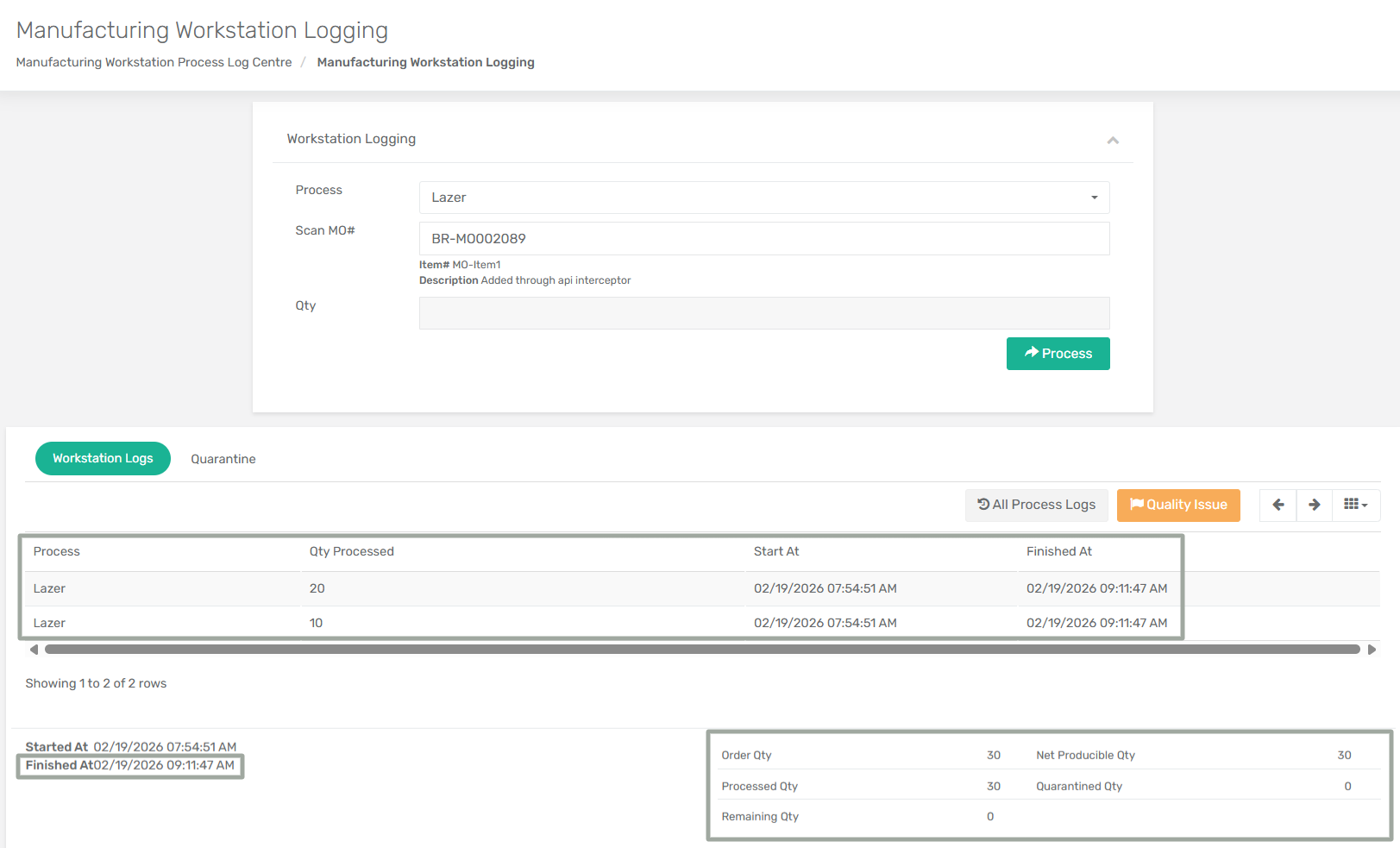
**Step 9:** Continue processing the remaining quantity until the entire available quantity for the process is processed or all quarantine records are resolved. Once the remaining quantity becomes zero, the system automatically records the **Finished At** date and time.
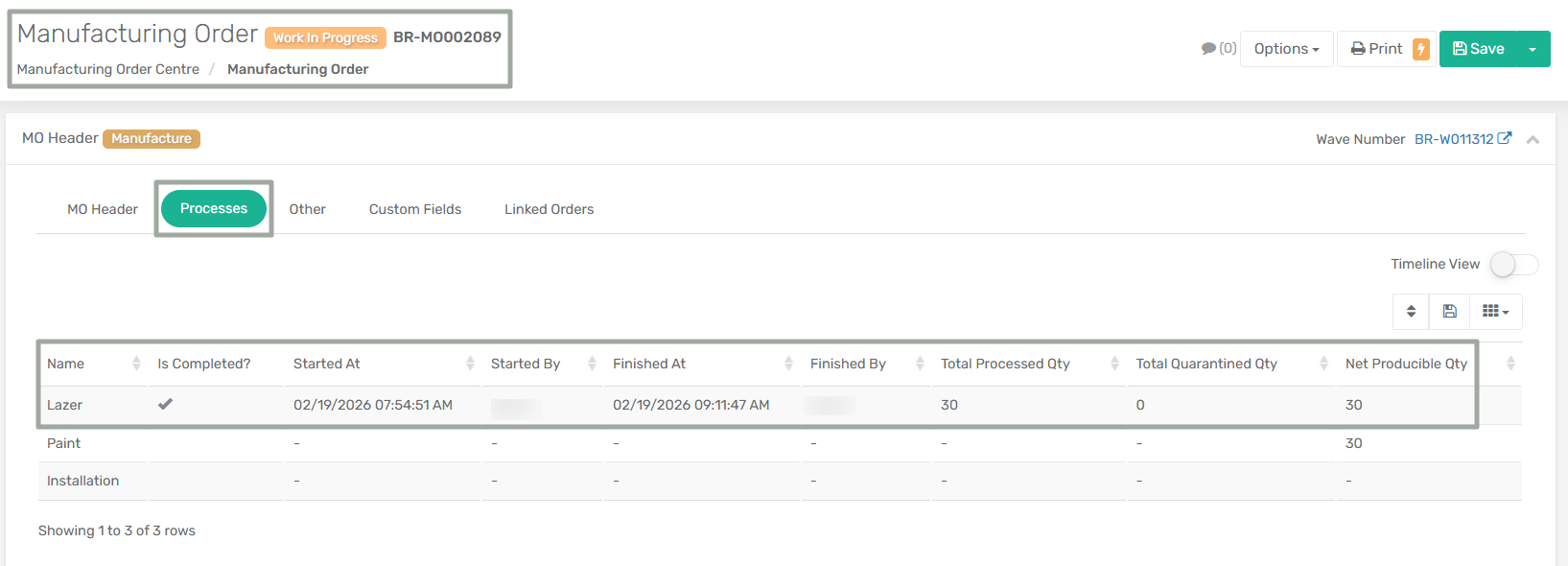
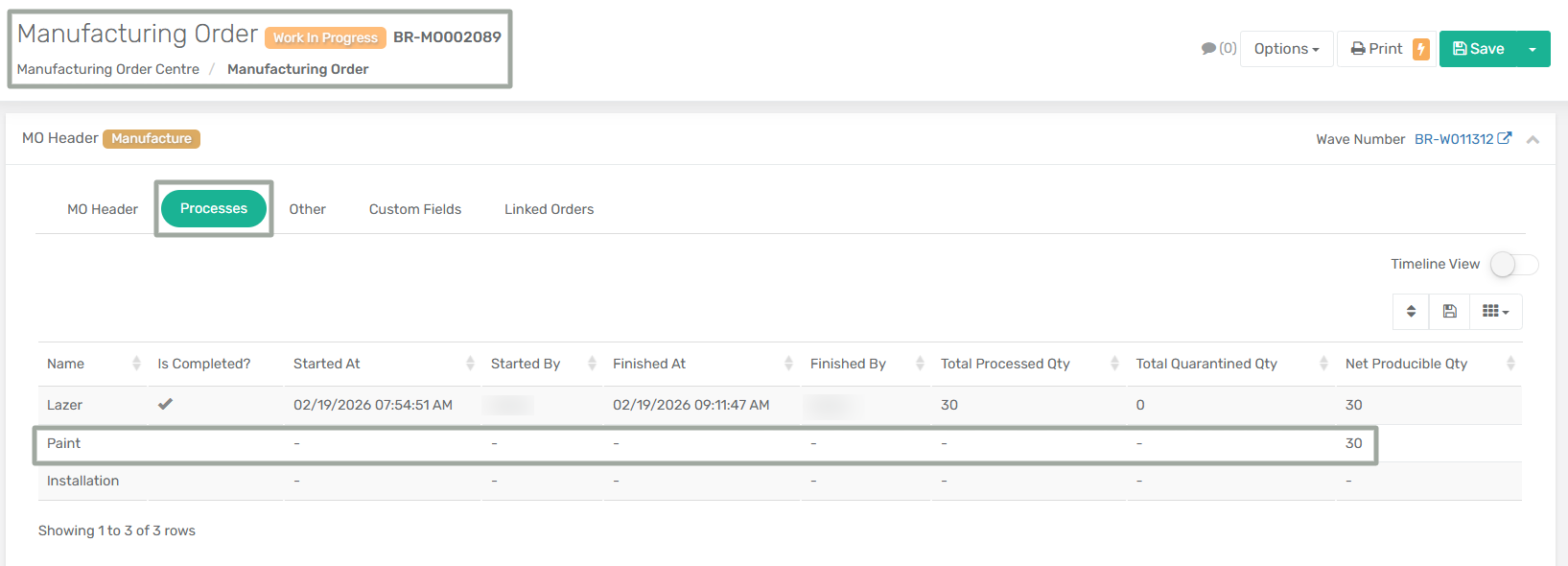
**Step 10:** The system marks the first process as completed and the net producible quantity from the previous process becomes the input quantity for the next process.
**Step 11:** Select the next process in the sequence and repeat the same execution steps. The final net producible quantity of the last process determines the total finished production output.
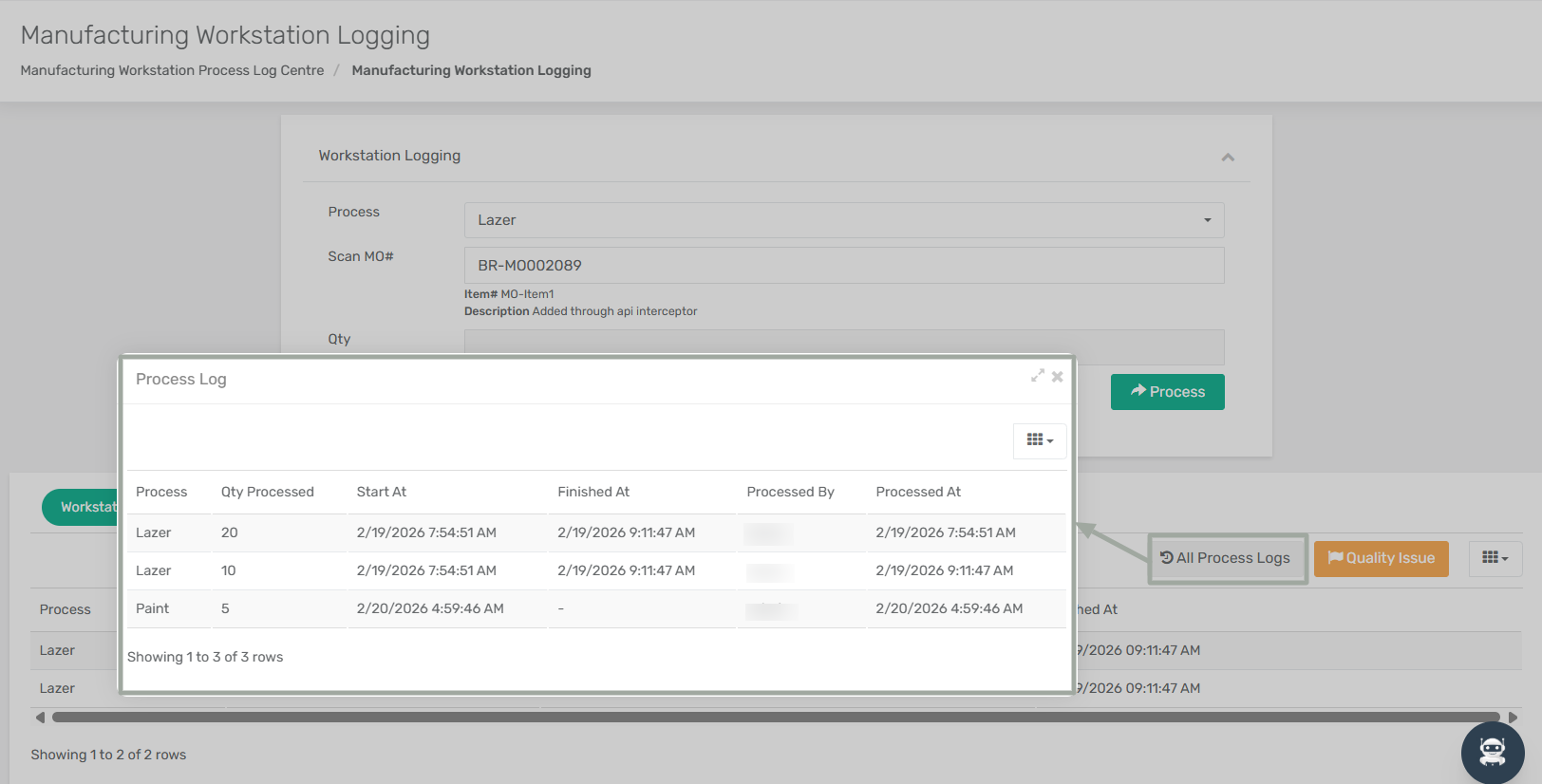
**Step 12:** Click the **All Process Logs** option to view the complete process history for the selected Manufacturing Order. The system opens a subform displaying process execution details such as the process name, quantity processed, process start time, completion time, user who processed the entry, and the timestamp of the processing activity.
This provides a consolidated view of all recorded production entries for tracking and audit purposes.
{% hint style="info" %}
If the [app configuration](/xoroerp-1/configuration/application/app-config/manufacturing.md#enable-mo-quarantine-notification) **Enable MO Quarantine Notification** is enabled, the system automatically triggers an email notification whenever a quarantine record is created during workstation processing. Users can also define the comma-separated list of recipient email addresses who will receive quarantine notifications by configuring the **MO Quarantine Notification Email List** setting.
{% endhint %}
### Validation Rules
* Production must follow the defined process sequence configured in the Bill of Material (BOM).
* Skipping process steps is not allowed.
* Any action on the process is allowed only when a net producible quantity exists.
* The input quantity for the next process cannot exceed the Net Producible Quantity of the previous process.
* Quarantined quantities must be resolved through a defined resolution action before completing the process.
---
# Agent Instructions
This documentation is published with GitBook. GitBook is the documentation platform designed so that both humans and AI agents can read, navigate, and reason over technical content effectively. Learn more at gitbook.com.
## Querying This Documentation
If you need additional information that is not directly available in this page, you can query the documentation by asking a question.
Perform an HTTP GET request on the following URL with the `ask` and `goal` query parameters:
```
GET https://docs.xorosoft.com/xoroerp-1/manufacturing/workstation/manufacturing-workstation-logging.md?ask=&goal=
```
`ask` is the immediate question: it should be specific, self-contained, and written in natural language.
`goal` is what the user is ultimately trying to achieve, the reason they need the answer. Sharing it helps GitBook give you a better, more relevant answer. A goal is most helpful when it describes the outcome the user wants rather than restating the question. For example, with `ask=how do I create an API token`, a goal like `automate deployments from our CI pipeline` lets GitBook tailor the answer to that use case.
The response will contain a direct answer to the question and relevant excerpts and sources from the documentation.
Use this mechanism when the answer is not explicitly present in the current page, you need clarification or additional context, or you want to retrieve related documentation sections.