# Creating Purchase Orders

Creating Purchase Orders in XoroERP is an essential step in efficiently managing your procurement process. The process of creating Purchase Orders entails entering the details of the goods and services you intend to acquire from your suppliers. This practice ensures the monitoring of both received and outstanding items or services, contributing to a streamlined procurement process. It's important to note that purchase orders do not impact the general ledger.

The purchase order process encompasses a range of statuses that help manage a purchase order's lifecycle. Each status signifies a distinct phase in the advancement of the order, indicating the current status of the order and allowing the users to proceed accordingly.

### Purchase Order Entry

To record a purchase order, you'll begin by entering essential header-level information, such as the store, vendor details, order date, and shipping information. Once the basic information is in place, you can proceed to add goods and services to the order. This simplified process helps you effectively handle purchase orders and effortlessly track the procurement of goods and services from vendors.

{% hint style="info" %}
To create a purchase order, go to **Menu > Purchase> Purchase Order**&#x20;
{% endhint %}

#### Purchase Order Header Fields

<table><thead><tr><th width="154.33333333333331">Section</th><th width="186.60003662109375">Field</th><th>Description</th></tr></thead><tbody><tr><td>Purchase</td><td>Store*</td><td>This is the store from which the purchase is being recorded from.</td></tr><tr><td>Purchase</td><td>Vendor*</td><td>Type a name, phone number, or email here to search and select a vendor for the order. </td></tr><tr><td>Purchase</td><td>Order Type</td><td>Specify the type of purchase order, such as wholesale, retail or Ecomm, to categorize and handle orders accordingly.</td></tr><tr><td>Purchase</td><td>Vendor Request Date</td><td>This field allows you to specify the data on which goods or services have been requested from the vendor.</td></tr><tr><td>Purchase</td><td>Expected Delivery Date*</td><td>This field allows you to specify an anticipated date on which the ordered goods or services are projected to be delivered. You have the option to apply or remove this date to all items in the order. <br>You can remove or apply this date to all or selected items in the order by clicking on the "Gear" icon and selecting the desired option. </td></tr><tr><td>Purchase</td><td>Expected Ship Date*</td><td>This field allows you to specify a date when the seller plans to ship the ordered items. It provides an estimate of when the products will be dispatched and begin their delivery process.<br>You can remove or apply this date to all or selected items in the order by clicking on the "Gear" icon and selecting the desired option. </td></tr><tr><td>Purchase</td><td>Ship To*</td><td>This field displays the address of the store where the goods are supposed to be delivered. When you select a store, this field is automatically populated with the associated store address, which can be edited as needed.</td></tr><tr><td>Purchase</td><td>Order Date*</td><td>The date on which the purchase order was created or initiated is captured in this field.</td></tr><tr><td>Purchase</td><td>Vendor Address*</td><td>This field displays the billing address of the vendor selected on the purchase order. When you select a vendor, this field is automatically populated with the associated billing address, which can be edited as needed. <br>If the <strong>"Enable Vendor Address Update from Purchase Order, Item Receipt and Bill modules</strong>" app config is enabled, users will see a <strong>“Update Address in Vendor”</strong> toggle option when editing vendor address details. If users update the vendor address and enable this toggle, the changes will be automatically reflected in the associated vendor’s master record.</td></tr><tr><td>Purchase</td><td>Vendor Tax Code</td><td>This field allows you to select the tax code for the vendor. If there is a default tax code associated with the vendor, this field should already be fetched once a vendor is selected. Changing this allows you to apply a different tax code to all the items in the PO.</td></tr><tr><td>Purchase</td><td>Payment Terms</td><td>You can specify the agreed-upon terms of payment for the purchase order, defining when and how the payment will be done.</td></tr><tr><td>Other Info</td><td>Vendor Contact</td><td>The full name of the vendor will be displayed here.</td></tr><tr><td>Other Info</td><td>Reference Number</td><td>This field displays the reference number for the order. For instance, if the purchase order has a linked sales order, this field contains the SO number.</td></tr><tr><td>Other Info</td><td>Ship Service</td><td>This field allows you to specify the type of shipping service for the purchase order, such as Standard Ground, Express Overnight, Two-Day Delivery, etc.</td></tr><tr><td>Other Info</td><td>Shipping Terms</td><td>These are the Shipping Terms options for the order. Available options are - Prepaid, Collect, Prepaid &#x26; Billed, Collect &#x26; Allowed, Third Party Billing.</td></tr><tr><td>Other Info</td><td>Shipping Account Number</td><td>This field displays the Shipping Account Number added for the Vendor.</td></tr><tr><td>Other Info</td><td>Order Tags</td><td>This field allows you to tag or categorize purchase orders, making it easier to sort and filter them based on specific criteria.</td></tr><tr><td>Other Info</td><td>F.O.B</td><td>Specify the freight on board - origin or destination.</td></tr><tr><td>Other Info</td><td>Shipping Method</td><td>Select the Shipping Method for the for the order. Available options are - Pick Up, Delivery (Own Truck), and Delivery (Third Party).</td></tr><tr><td>Other Info</td><td>Select Buyer</td><td>This field allows you to choose the Customer (if any) for whom the purchase order is being placed for.</td></tr><tr><td>Other Info</td><td>Project/Class</td><td>Select a project or class to associate this purchase order with.</td></tr><tr><td>Other Info</td><td>Carrier</td><td>Specify the carrier responsible for delivering the order. If Delivery (Own Truck) is selected, the company’s own carrier can be selected. If, however, Delivery (Third Party) is selected, choose another company’s carrier for shipping (FedEx, UPS, etc.).</td></tr><tr><td>Other Info</td><td>Default Location</td><td>Select the location at which you want to receive the goods.</td></tr><tr><td>Custom Fields</td><td>Custom Fields</td><td>This will allow you to enter data in the custom fields defined for the purchase order entity. This feature provides the flexibility to capture and store additional information relevant to the purchase order, tailoring the system to your unique business requirements.</td></tr><tr><td>Footer</td><td>Memo</td><td>The "Memo" field provides space for writing notes or any additional information related to the purchase order. This allows you to add important details or instructions that need to be considered during order processing.</td></tr><tr><td>Footer</td><td>Exchange Rate</td><td>If the purchase order is to a foreign vendor, the "Exchange Rate" field allows you to specify the conversion rate for currency exchange.</td></tr><tr><td>Footer</td><td>Vendor Message</td><td>In this field, you can enter a personalized message from the vendor or choose from pre-written messages to include in the purchase order printout.</td></tr></tbody></table>

{% hint style="info" %}
Fields marked with an asterisk \* suffix are required fields.
{% endhint %}

### Adding Lines to a Purchase Order

After inputting the header-level information in the purchase order, you'll proceed to enter line-level details, which encompass the specific goods and services being requested from the vendor. In the line-level section, you can add individual items, and specify their quantities, unit prices, and any applicable discounts or taxes.

There are multiple ways to add an item to a purchase order which are listed as follows -

* **Add Item**: This option allows you to add a single item at a time to the purchase order, ideal for quickly including individual items with specific attributes or quantities. To use this option, click the **"Add Item"** button in the Purchase Order detail section and a sub-form appears where you can enter the item details.

| **Field**        | **Description**                                                                                                                                                                                                                                                                                                                                                                                                                         |
| ---------------- | --------------------------------------------------------------------------------------------------------------------------------------------------------------------------------------------------------------------------------------------------------------------------------------------------------------------------------------------------------------------------------------------------------------------------------------- |
| Item Type        | Specifies the type of item being added (e.g., **Inventory**, **Non-Inventory**, **Service**, **Notes**). The available options in this dropdown can be controlled using the app config **“**[**Restrict Item Types in PO Add Item Dropdown**](https://docs.xorosoft.com/configuration/application/app-config/purchase#restrict-item-types-in-po-add-item-dropdown)**”**, which allows users to hide specific item types from selection. |
| Item Number      | Allows you to search and select the item to be added. This is a dropdown containing all available items. It also includes an **“Add New Item”** option, which redirects users to the **Create Item** page to create a new item if it does not already exist.                                                                                                                                                                            |
| Description      | Displays the description of the selected item. This field is editable and can be modified as needed.                                                                                                                                                                                                                                                                                                                                    |
| Qty              | Specifies the quantity of the item being added to the purchase order.                                                                                                                                                                                                                                                                                                                                                                   |
| Rate (Unit Cost) | Defines the **unit cost** of the item. This value is used to calculate the total line amount.                                                                                                                                                                                                                                                                                                                                           |
| Discount         | Allows users to apply a discount to the item line, if applicable.                                                                                                                                                                                                                                                                                                                                                                       |
| Tax Code         | Select the **applicable tax code** for the item. This is a dropdown field populated based on configured tax codes.                                                                                                                                                                                                                                                                                                                      |
| Delivery Date    | Specifies the expected **delivery date** for the item at the line level. This value is calculated using the **Lead Time (days)** in the **Item Vendor Mapping** module.                                                                                                                                                                                                                                                                 |
| Item Notes       | Allows users to enter any additional notes or instructions related to the item.                                                                                                                                                                                                                                                                                                                                                         |
| Project/Class    | Enables users to associate the item line with a specific project or class. This is a dropdown field.                                                                                                                                                                                                                                                                                                                                    |

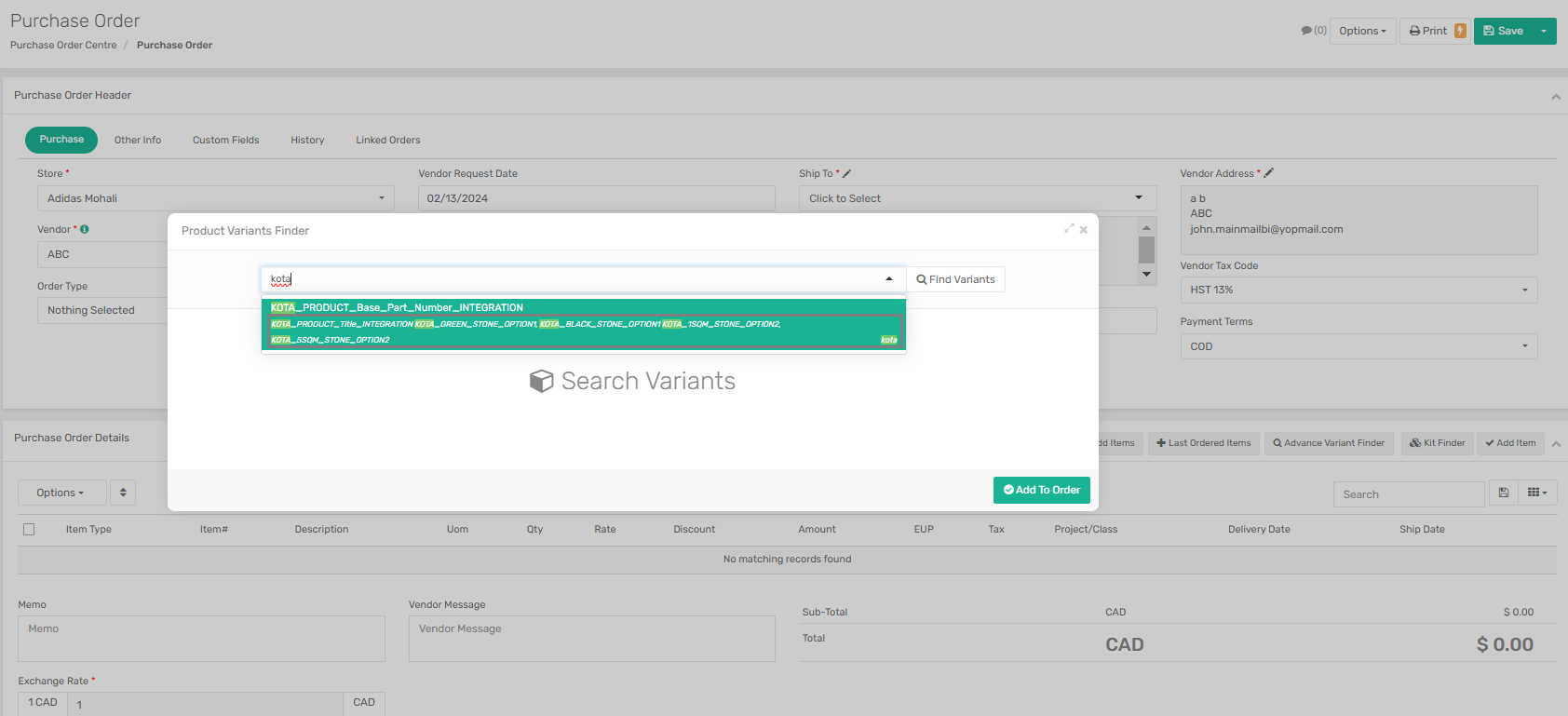
* **Advanced Variant Finder**: With the Advanced Variant Finder, you can efficiently bulk add items using a variant grid view, perfect for managing complex product configurations or multiple variants in a single operation. To use this option, click the "Advanced Variant Finder" button in the Purchase Order detail section. Here, within the **Product Variants Finder** popup window, you can now view the inclusion of option 1, option 2, option 3 values as subtext within the product dropdown menu of the advanced variant finder.

{% hint style="info" %}
To include option 1 and option 2 value as subtext within the product dropdown menu of the advanced variant finder -&#x20;

* Enable the feature **Show Option Values in Advance Variant Finder in App Config** to showcase the selected option values within the Advanced Variant Finder.&#x20;
* **Activate** both option 1 and option 2 by marking their respective checkboxes.&#x20;
  {% endhint %}

<figure><img src="https://3188343778-files.gitbook.io/~/files/v0/b/gitbook-x-prod.appspot.com/o/spaces%2Fkf8DNCjEfcSm64PCPcmf%2Fuploads%2FofXD9VmtQVL2btG3vLDB%2Fimage.png?alt=media&#x26;token=d376dbb3-abf9-40c0-9f54-44accf1f7d0f" alt=""><figcaption></figcaption></figure>

* **Quick Add Items**: The Quick Add Items feature enables the bulk addition of items to the purchase order using a table form with search capabilities, making it a convenient choice for quickly populating the order with multiple items. To use this option, click the "Quick Add Items" button in the Purchase Order detail section.
* **Last Ordered Items**: This option allows you to bulk add item(s) or easily repeat the item(s) last ordered from the vendor, streamlining the reordering process for frequently bought items. To use this option, click the "Last Ordered Items" button in the Purchase Order detail section.
* **Kit Finder**: The Kit Finder feature simplifies adding kits to the purchase order, allowing you to efficiently include pre-configured sets of items or components with a single selection. To use this option, click the "Kit Finder" button in the Purchase Order detail section.

{% hint style="info" %}
Use the convenient keyboard shortcut **(Alt+A)** for the "Add Item" option
{% endhint %}

#### Purchase Order Line Fields

<table><thead><tr><th width="264">Field</th><th>Description</th></tr></thead><tbody><tr><td>Alternative Item Number1</td><td>This field displays an alternative item number 1 for the item, providing additional identification.</td></tr><tr><td>Alternative Item Number2</td><td>This field displays an alternative item number 2 for the item, providing additional identification.</td></tr><tr><td>Alternative Item Number3</td><td>This field displays an alternative item number 3 for the item, providing additional identification.</td></tr><tr><td>Barcode</td><td>This field displays the barcode associated with the item.</td></tr><tr><td>Base Part#</td><td>This field displays the product base part number associated with the item.</td></tr><tr><td>Delivery Date</td><td>This field displays the expected delivery date for the item at the Purchase Order line level. When an <strong>Item–Vendor Mapping</strong> exists, the system automatically calculates the Delivery Date by adding the configured <strong>Vendor Lead Days</strong> to the <strong>PO Order Date</strong>. If no Item–Vendor Mapping exists for the selected item and vendor, the system follows the existing behavior and populates the Delivery Date from the PO header.</td></tr><tr><td>Discount</td><td>This field allows you to apply a discount to the item.</td></tr><tr><td>Description</td><td>This is an editable input field that displays the description of the item.</td></tr><tr><td><a href="https://app.gitbook.com/o/Io6LXfHxKCbW4ooKqqMR/s/kf8DNCjEfcSm64PCPcmf/~/changes/1396/modules/sales/sales-order/dropship-orders#dropship-workflow-in-xoro">Dropship </a>SO Number</td><td>For dropship items, this field captures the sales order number for the item.</td></tr><tr><td>EUP</td><td>This field indicates the Effective Unit Price for the item after the discount.</td></tr><tr><td>Is Manufactured?</td><td>This field indicated whether the item is manufactured or not.</td></tr><tr><td>Item#</td><td>The unique identifier for the item.</td></tr><tr><td>Item Image</td><td>This field displays the image related to the item.</td></tr><tr><td>Item Tags</td><td>This field displays the tags associated with the item.</td></tr><tr><td>Item Type</td><td>This field specifies the type of item, such as inventory, non-inventory, etc.</td></tr><tr><td>Line CBM</td><td>Displays the total volume measurement in cubic meters for all the item units added to the order.</td></tr><tr><td>Linked SO Qty</td><td>This column displays the linked sales order quantity on the PO detail line, providing users with visibility into associated sales order quantities for each purchase order.</td></tr><tr><td>Notes</td><td>This field provides the ability to add notes or additional information for the item line.</td></tr><tr><td>Option1 Name</td><td>Displays the name for Option 1 related to the item.</td></tr><tr><td>Option1 Value</td><td>Displays the value for Option 1 related to the item.</td></tr><tr><td>Option1 Code</td><td>Displays the code for Option 1 related to the item.</td></tr><tr><td>Option2 Name</td><td>Displays the name for Option 2 related to the item.</td></tr><tr><td>Option2 Value</td><td>Displays the value for Option 2 related to the item.</td></tr><tr><td>Option2 Code</td><td>Displays the code associated with Option 2 for the item.</td></tr><tr><td>Option3 Name</td><td>Displays the name for Option 3 related to the item.</td></tr><tr><td>Option3 Value</td><td>Displays the value for Option 3 related to the item.</td></tr><tr><td>Option3 Code</td><td>Displays the code for Option 3 for the item.</td></tr><tr><td>Project/Class</td><td>This field allows you to select a project or class to associate with the item line.</td></tr><tr><td>Purchase Notes</td><td>This field displays the "Purchase Notes" added onto the Item.</td></tr><tr><td>Qty</td><td>This is an editable input field that specifies the order quantity of the item.</td></tr><tr><td>Qty Received</td><td>Represents the quantity of the item received from the vendor on an ASN.</td></tr><tr><td>Qty In Receiving</td><td>Displays the quantity of the item that is in the process of being received (onto an ASN)</td></tr><tr><td>Qty Remaining</td><td>Displays the remaining quantity of the item to be received.</td></tr><tr><td>Received%</td><td>Displays the percentage of the quanity of the item that is received.</td></tr><tr><td>Ship Date</td><td>This field displays the date when the seller plans to ship the ordered item. It provides an estimate of when the item will be dispatched and begin their delivery process.</td></tr><tr><td>Status</td><td>This fields displays the status of the purchase order.</td></tr><tr><td>Tax</td><td>This is an editable input field that specifies the tax code applied to the item.</td></tr><tr><td>Tax Amount</td><td>Displays the calculated tax amount for the item.</td></tr><tr><td>Title</td><td>Displays the title associated with the base product of the item.</td></tr><tr><td>Unit CBM</td><td>Displays the measurement of volume in cubic meters for a single unit of the item.</td></tr><tr><td>Uom</td><td>Specifies the unit of measure for the item (liter, unit, kilogram, etc.).</td></tr><tr><td>UPC</td><td>Displays the Universal Product Code (UPC) for the item.</td></tr><tr><td>Vendor Part#</td><td>Displays the vendor part number for the item.</td></tr><tr><td>Vendor Internal Notes</td><td>Displays the values that are <strong>automatically pulled</strong> from the <strong>Internal Notes</strong> field defined in the <strong>Item Vendor Mapping Module</strong>, ensuring consistency and eliminating the need to manually copy or reference notes across modules.</td></tr></tbody></table>

{% hint style="info" %}
&#x20;If the PO is linked to a **Sales Order**, updating the **Delivery Date** will automatically update the Shipment Date at the line level in the corresponding Sales Order.
{% endhint %}

After completing the header fields and adding items, click on the **"Save"** button to create a purchase order. The system will automatically assign a unique number to the purchase order in the format of PR-P000001, where "PR" denotes the store code and 1 denotes a sequential series. This number will be displayed on the top left corner of the page. Once this number is generated, it becomes a permanent identifier and cannot be altered.

{% hint style="info" %}
Use the convenient keyboard shortcut **(Alt+S)** for the "Save" action and **(Alt+N)** for the "Save and New" action
{% endhint %}

The new purchase order will be created in the **Open** status. For more details on the purchase order statuses, read [Purchase Order Statuses](https://app.gitbook.com/o/Io6LXfHxKCbW4ooKqqMR/s/kf8DNCjEfcSm64PCPcmf/~/changes/57/modules/purchase-order/creating-purchase-orders#sales-order-status)

You can print this purchase order once it is created using the **Print** button situated on the top right of the page.

### Purchase Order Statuses <a href="#sales-order-status" id="sales-order-status"></a>

* **Open**: When a Purchase Order (PO) is initially created, it is in the "Open" status, indicating that it is not yet finalized, and modifications can be made to it.
* **Released**: After finalizing the PO, it can be "Released," allowing the procurement department to prepare it for receiving. However, the release is subject to the condition that there are no restrictions on the items (if applicable).
* **Partially Received**: If some items in the PO are yet to be received, the status becomes "Partially Received."
* **Received**: Once all items on the PO have been received and the order is fully fulfilled, it enters the "Received" status.
* **Closed**: The "Closed" status is applied manually to purchase orders where either the purchase order has been fulfilled, requires no further action, or is no longer valid. Closed orders are restricted from any further actions.
* **Cancelled**: The "Cancelled" status indicates that there are no items available on the order with an order quantity greater than zero. XoroERP also allows manually applying the "Cancelled" status. Cancelled orders are restricted from any further actions.
