> For the complete documentation index, see [llms.txt](https://docs.xorosoft.com/llms.txt). Markdown versions of documentation pages are available by appending `.md` to page URLs; this page is available as [Markdown](https://docs.xorosoft.com/xoroerp-1/purchase/vendor-section/vendor/inventory-in-transit-accounting.md).
# Inventory in Transit Accounting
Inventory in Transit Accounting allows businesses to recognize the accounting impact of inventory while it is in transit from a Vendor to the receiving location. The functionality connects Vendor-level accounting configuration, Purchase Orders, and ASNs to ensure that Inventory in Transit balances are recorded when goods are confirmed as in transit and reversed when the goods are received or billed.
### 1. What is the Functionality?
The **Inventory in Transit Accounting** functionality provides a controlled accounting flow for inventory that has been shipped by a Vendor but has not yet been received.
It allows you to configure dedicated accounts for inventory in transit at the **Vendor** level and determine, on each **Purchase Order (PO)**, whether inventory in transit accounting should be posted.
The functionality includes the following key components:
#### Vendor Configuration
The Vendor includes a **Use in Transit Accounting** option. When enabled, the following accounts must be configured:
* **Default In Transit Asset Account**
* **Default Transit Accrual Account**
These accounts are required to post Inventory in Transit accounting transactions.
When **Use in Transit Accounting** is disabled:
* The In Transit Asset Account and Transit Accrual Account are not required.
* The configured accounts are cleared and disabled.
* Purchase Orders default to **Do Not Post Inventory in Transit**.
{% hint style="info" %}
The currency of the Inventory in Transit accounts must match the Vendor's currency.
{% endhint %}
#### Purchase Order Configuration
The Purchase Order includes an **Inventory in Transit Accounting** option with the following choices:
* **Post Inventory in Transit**
* **Do Not Post Inventory in Transit**
This option allows you to determine which Purchase Orders require Inventory in Transit accounting and which do not.
When **Post Inventory in Transit** is selected, the configured Vendor accounts are copied to the Purchase Order. These account values are subsequently carried forward to the ASN.
For third-party Purchase Orders, the option defaults to **Do Not Post Inventory in Transit** when the setting is missing or invalid.
#### ASN Confirmation
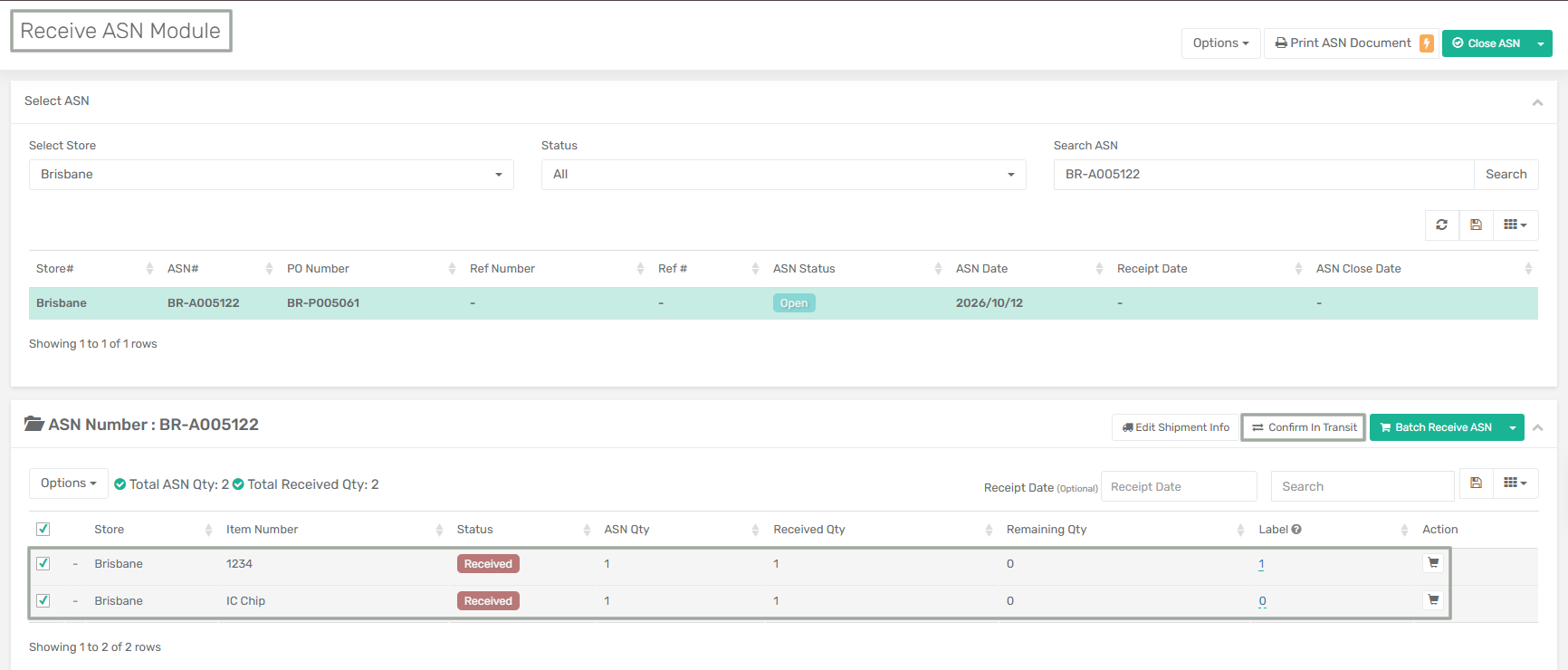
The ASN includes a **Confirm in Transit** action. This action allows users to confirm the quantity that has entered the in-transit stage.
The confirmation can be performed for:
* Full quantity
* Partial quantity
When the quantity is confirmed, Xoro creates the corresponding Inventory in Transit accounting transaction and tracks the confirmed quantity along with its accounting references.
***
### 2. How It Works
The functionality follows the workflow below:
**Vendor Configuration → Purchase Order → ASN → Confirm in Transit → Item Receipt/Bill → Accounting Reversal**
#### Step 1: Configure Inventory in Transit Accounting on the Vendor
Enable **Use in Transit Accounting** on the Vendor.
Configure:
* Default In Transit Asset Account
* Default Transit Accrual Account
Both accounts are mandatory when the toggle is enabled.
**Accounting requirement:**
> Vendor Currency = Inventory in Transit Account Currency
{% hint style="info" %}
If the toggle is disabled, the accounts are cleared and disabled.
{% endhint %}
***
#### Step 2: Select the Accounting Treatment on the Purchase Order
Create or open the Purchase Order and select one of the following:
**Post Inventory in Transit**\
Use this option when the PO requires Inventory in Transit accounting.
**Do Not Post Inventory in Transit**\
Use this option when the PO should not generate Inventory in Transit accounting.
When **Post Inventory in Transit** is selected, the configured Vendor accounts are copied to the Purchase Order.
The account information is retained on the PO and is not automatically changed if the Vendor's account configuration is updated later.
***
#### Step 3: Create the ASN
When an ASN is created from a Purchase Order configured for Inventory in Transit accounting, the relevant account information is copied to the newly created ASN lines.
The ASN therefore retains the accounting configuration applicable to that Purchase Order.
Changes made later to the Vendor's accounts do **not** change the accounts already stored on existing Purchase Orders or ASNs.
***
#### Step 4: Receive the ASN and Confirm the Inventory in Transit Quantity
First, receive the ASN in the Receive ASN module. Once the required items have been received, use the **Confirm in Transit** action to confirm that the goods have entered transit.
You can confirm either:
* The complete ASN quantity, or
* A partial quantity.
Once confirmed, Xoro creates the Inventory in Transit accounting transaction.
The accounting entry is:
| Account | Debit | Credit |
| -------------------------- | ----: | -----: |
| Inventory in Transit Asset | ✓ | |
| Transit Accrual | | ✓ |
The system also tracks the confirmed quantity and the associated accounting references.
Users can view the related accounting transactions from the **ASN Centre** by navigating to the **Options** menu and selecting **Show Transactions**.
***
#### Step 5: Receive or Bill the Inventory
When the goods are subsequently received through an **Item Receipt** or processed through a **Bill**, the Inventory in Transit accounting is reversed.
The reversal is:
| Account | Debit | Credit |
| -------------------------- | ----: | -----: |
| Transit Accrual | ✓ | |
| Inventory in Transit Asset | | ✓ |
Only the quantity that was previously confirmed as in transit is reversed.
For example, if 100 units were confirmed in transit but only 60 units were received, the accounting reversal applies only to those 60 received units. The remaining 40 units continue to retain their outstanding Inventory in Transit balance.
Users can view the related accounting transactions from the **Item Receipt Centre** by navigating to the **Options** menu and selecting **Show Transactions**.
***
#### Step 6: Handle Partial Receipts and Multiple Transactions
The functionality supports scenarios where inventory is received in multiple stages.
You can:
* Create Item Receipts for partial quantities.
* Create Bills directly.
* Partially close an ASN.
* Confirm and receive quantities through multiple transactions.
* Move remaining quantities between ASNs.
The system maintains the relationship between the confirmed quantities and their corresponding accounting transactions throughout these processes.
#### Workflow Example
**Vendor**\
↓\
Enable *Use in Transit Accounting*\
↓\
Configure In Transit Asset + Transit Accrual Accounts\
↓\
**Purchase Order**\
↓\
Select *Post Inventory in Transit*\
↓\
Vendor accounts copied to PO\
↓\
**ASN Created**\
↓\
Accounts copied to ASN lines\
↓\
**Confirm in Transit**\
↓\
Inventory in Transit Asset **Dr.**\
Transit Accrual **Cr.**\
↓\
**Item Receipt / Bill Created**\
↓\
Transit Accrual **Dr.**\
Inventory in Transit Asset **Cr.**\
↓\
**Inventory in Transit Balance Reversed**
#### Additional Transaction Handling
The functionality also supports the following operations:
* **Move Remaining Quantity:** Remaining quantities can be moved between ASNs while maintaining the applicable transit tracking.
* **Delete ASN Detail Locations:** ASN detail locations can be deleted when permitted.
* **Void ASN:** An ASN can be voided when eligible.
* **Merge Item Receipts:** Item Receipts can be merged. Transit tracking and accounting references are moved to the primary receipt without changing the overall accounting totals.
* **Convert Item Receipt to Bill:** An Item Receipt can be converted to a Bill. The transaction reference and type are updated without changing the accounting totals.
Once Inventory in Transit accounting has been posted, quantity changes that would invalidate the accounting are prevented.
Closed or voided ASN lines cannot be confirmed, moved, deleted, or received again.
***
### 3. Uses of Inventory in Transit Accounting
Inventory in Transit Accounting is useful when a business needs to recognize inventory and its corresponding liability **before the goods are physically received**.
#### Accurate In-Transit Inventory Valuation
The functionality records the value of inventory that has been confirmed as in transit, allowing businesses to maintain a more accurate view of inventory-related balances.
#### Clear Accounting Trail
Each confirmation and reversal is associated with accounting references, making it easier to trace the movement from:
**Purchase Order → ASN → In-Transit Confirmation → Receipt/Bill → Accounting Reversal**
#### Support for Partial Shipments and Receipts
Businesses can account for partial quantities without waiting for the entire Purchase Order or ASN to be received.
#### Vendor-Specific Accounting
The Vendor-level configuration provides default accounts that can be automatically carried to applicable Purchase Orders and ASNs, reducing manual account selection.
#### Controlled Accounting Reversal
When goods are received or billed, only the quantity previously confirmed in transit is reversed. This prevents incorrect reversal of quantities that have not yet entered the in-transit accounting flow.
#### Consistent Accounting Across 3PL and Receiving Processes
By retaining accounting references through ASN, Item Receipt, and Bill transactions, the functionality provides a consistent accounting trail even when inventory is received through multiple transactions or receipts are merged or converted.
---
# Agent Instructions
This documentation is published with GitBook. GitBook is the documentation platform designed so that both humans and AI agents can read, navigate, and reason over technical content effectively. Learn more at gitbook.com.
## Querying This Documentation
If you need additional information that is not directly available in this page, you can query the documentation by asking a question.
Perform an HTTP GET request on the following URL with the `ask` and `goal` query parameters:
```
GET https://docs.xorosoft.com/xoroerp-1/purchase/vendor-section/vendor/inventory-in-transit-accounting.md?ask=&goal=
```
`ask` is the immediate question: it should be specific, self-contained, and written in natural language.
`goal` is what the user is ultimately trying to achieve, the reason they need the answer. Sharing it helps GitBook give you a better, more relevant answer. A goal is most helpful when it describes the outcome the user wants rather than restating the question. For example, with `ask=how do I create an API token`, a goal like `automate deployments from our CI pipeline` lets GitBook tailor the answer to that use case.
The response will contain a direct answer to the question and relevant excerpts and sources from the documentation.
Use this mechanism when the answer is not explicitly present in the current page, you need clarification or additional context, or you want to retrieve related documentation sections.