> For the complete documentation index, see [llms.txt](https://docs.xorosoft.com/llms.txt). Markdown versions of documentation pages are available by appending `.md` to page URLs; this page is available as [Markdown](https://docs.xorosoft.com/xoroerp-1/sales/invoice/invoice-and-packing-slip-batch-centre/invoice-batch-centre-fields.md).
# Invoice Batch Centre Fields
The **Invoice & Packing Slip Batch Centre** provides users with a centralized view of all invoice batches. It offers various options and search capabilities to efficiently manage, filter, and navigate through batch records.
### Header Level Options
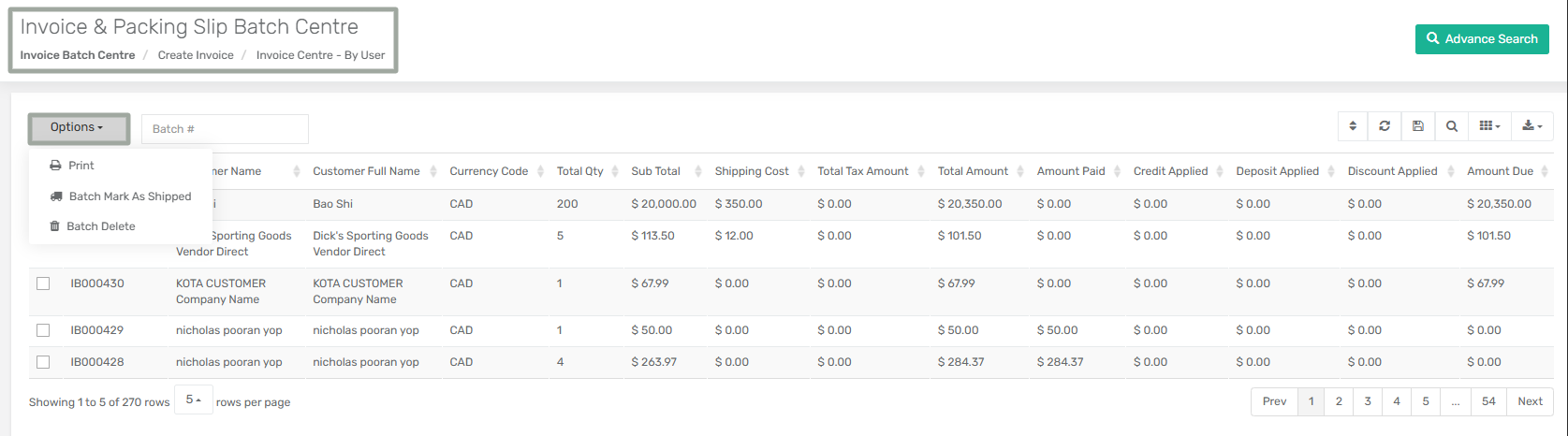
The **Options** dropdown provides the following actions for selected batch records:
| **Option** | **Description** |
| ------------------------- | -------------------------------------------------------------------------- |
| **Print** | Allows users to print the selected invoice batch details. |
| **Batch Mark As Shipped** | Marks the selected invoice batch as shipped, updating its shipment status. |
| **Batch Delete** | Deletes the selected batch record from the system. |
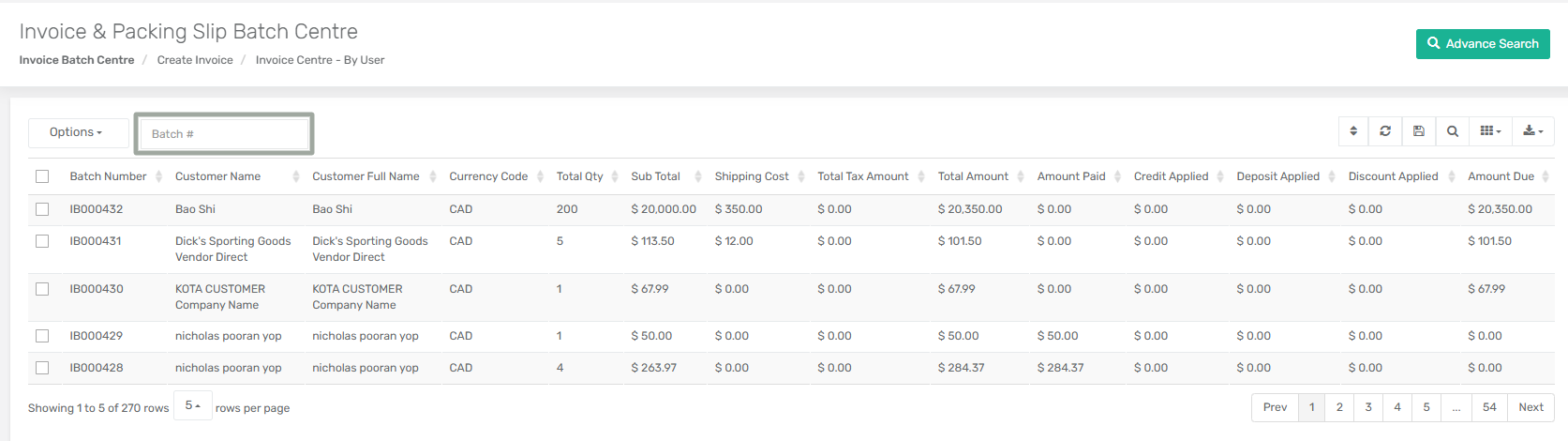
### Header Level Search Field
* **Batch #:** Allows users to filter and locate specific invoice batches using the batch number.
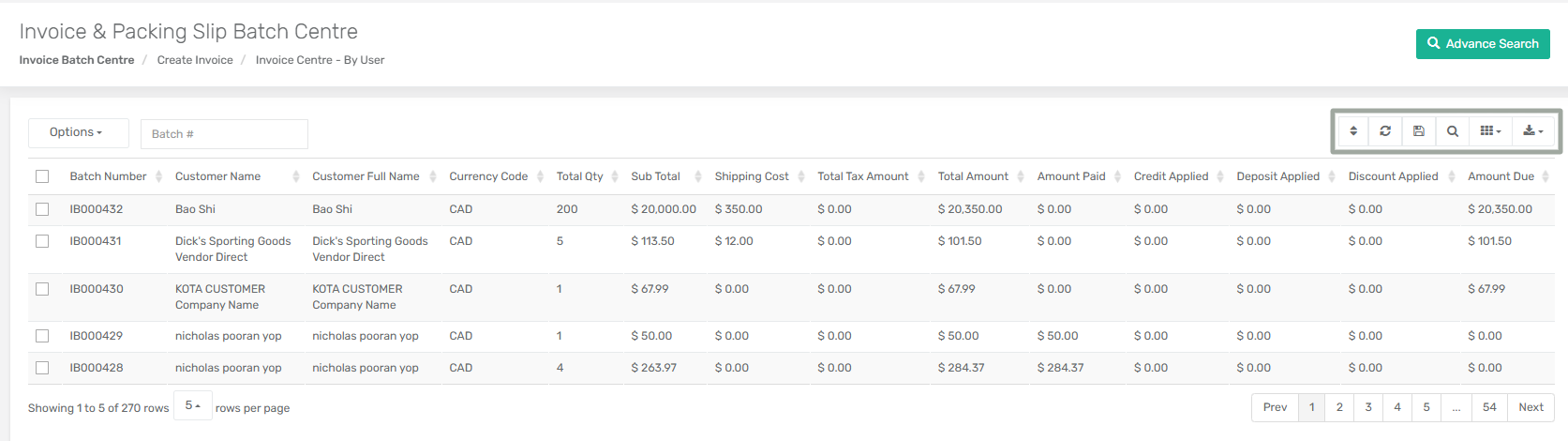
### Header Level Icons
These features cater to diverse needs, providing users with a seamless experience while navigating and managing customer information.
* **Navigation Controls:** This allows users to move between records or pages within the grid.
* **Refresh:** Reloads the batch records based on the applied filters to display the most recent data.
* **Save:** Saves user-specific UI preferences such as column visibility and layout.
* **Search:** Allows users to quickly search within the displayed records.
* **Columns:** Enables users to customize the visible columns in the grid. The Invoice & Packing Slip Batch Centre displays the following columns:
| **Field** | **Description** |
| ---------------------- | ----------------------------------------------------------------------------------------------------------------------------------------------------- |
| **Batch Number** | Displays the unique identifier assigned to the invoice batch. |
| **Customer Name** | Displays the customer name(s) associated with the batch. If multiple customers are included, the values are shown as comma-separated entries. |
| **Customer Full Name** | Displays the full name(s) of the customer(s) associated with the batch. If multiple customers exist, the values are shown as comma-separated entries. |
| **Currency Code** | Displays the currency code used in the batch (e.g., CAD, USD). |
| **Total Qty** | Indicates the total quantity of items included in the batch. |
| **Shipping Cost** | Displays the shipping cost associated with the batch. |
| **Total Tax Amount** | Displays the total tax applied to the batch. |
| **Total Amount** | Displays the final total amount including all charges. |
| **Amount Paid** | Indicates the amount paid against the batch. |
| **Credit Applied** | Displays the total credit applied to the batch. |
| **Deposit Applied** | Displays the total deposit applied to the batch. |
| **Discount Applied** | Displays any discounts applied to the batch. |
| **Amount Due** | Displays the remaining amount due for the batch after payments and adjustments. |
| **Customer Account#** | Displays the customer account number(s) linked to the batch. If multiple customers are included, the values are shown as comma-separated entries. |
* **Download:** Exports batch data into formats such as CSV, Excel, or PDF for reporting and analysis.
---
# Agent Instructions
This documentation is published with GitBook. GitBook is the documentation platform designed so that both humans and AI agents can read, navigate, and reason over technical content effectively. Learn more at gitbook.com.
## Querying This Documentation
If you need additional information that is not directly available in this page, you can query the documentation by asking a question.
Perform an HTTP GET request on the following URL with the `ask` and `goal` query parameters:
```
GET https://docs.xorosoft.com/xoroerp-1/sales/invoice/invoice-and-packing-slip-batch-centre/invoice-batch-centre-fields.md?ask=&goal=
```
`ask` is the immediate question: it should be specific, self-contained, and written in natural language.
`goal` is what the user is ultimately trying to achieve, the reason they need the answer. Sharing it helps GitBook give you a better, more relevant answer. A goal is most helpful when it describes the outcome the user wants rather than restating the question. For example, with `ask=how do I create an API token`, a goal like `automate deployments from our CI pipeline` lets GitBook tailor the answer to that use case.
The response will contain a direct answer to the question and relevant excerpts and sources from the documentation.
Use this mechanism when the answer is not explicitly present in the current page, you need clarification or additional context, or you want to retrieve related documentation sections.