# Data Export Centre

The Data Exporter tool is designed to facilitate the seamless export of data from different modules for further analysis, reporting, or processing in external systems. It offers a user-friendly interface with a variety of export options to suit your needs.

{% hint style="info" %}
To access the Data Export Centre, go to Menu > Utilities > Data Export > Data Export Centre
{% endhint %}

### Selecting a Module

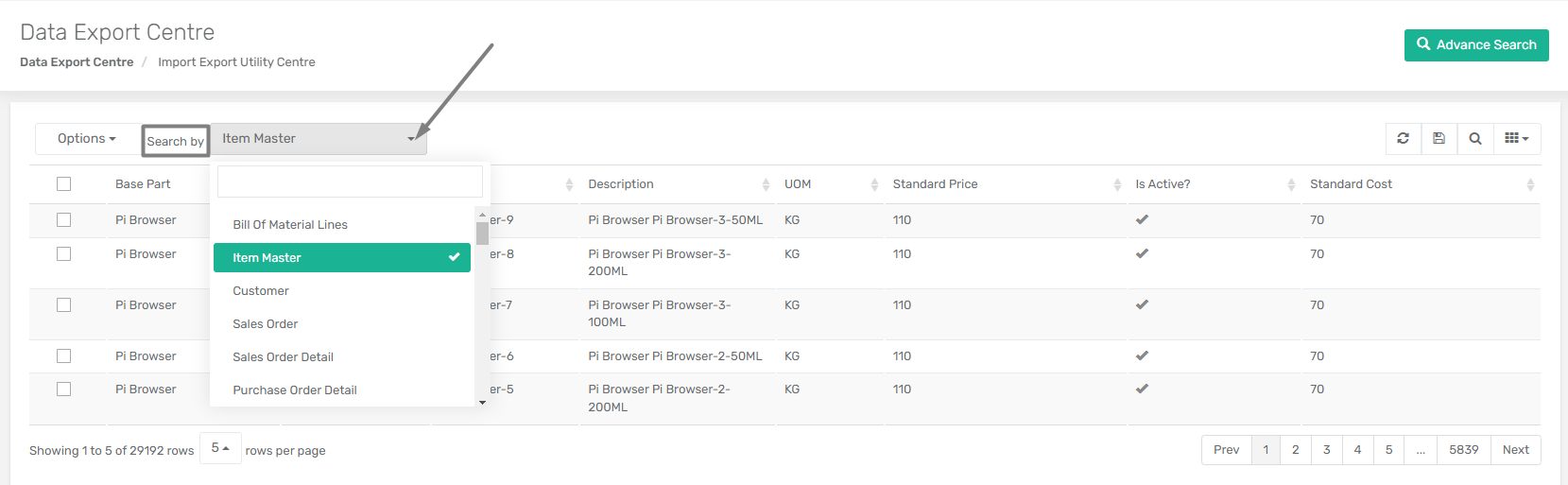
To begin the export process, the first step involves selecting the module containing the data you wish to export. Use the **Search By** option to choose the relevant module.&#x20;

<figure><img src="/files/B93r6jmD2J2zSbExPhSi" alt=""><figcaption></figcaption></figure>

Once selected, all the pertinent details related to that module will be automatically loaded. You have the option to export the data of the following modules:

* Bill Of Material Lines
* Item Master
* Customer
* Vendor
* Sales Order
* Sales Order Detail
* Purchase Order Detail
* ASN
* ASN Detail
* Item Receipt
* Bill
* Wave
* Wave Detail
* Invoice Header
* Invoice Detail
* Credit Memo Header
* Customer Deposit
* Inventory Adjustment Detail
* Chart Of Accounts
* Inventory By Item
* Journal Entry
* Pricing Rule
* Inventory By Location
* Packing Slip
* Account Register
* Bank Statement Detail
* Item Receipt Detail
* Bills Items Detail
* Bill Expense Detail
* Product Header
* Item Price Centre
* Credit Memo Line
* Commission Rule
* Inventory Change Log
* Wave Detail Allocation
* Import Duty Calculation
* Sales Summary Data
* Item Sales Forecast
* Default Document Template
* Manufacturing Order Detail
* Customer Address
* Invoice Cartonization Detail
* Journal Entry Detail
* Cycle Count Detail
* 3PL Change Entry Detail
* Packing Slip Detail
* 3PL Storage Inventory Snapshot
* Inventory By Item (Consolidated)
* Back Orders

### Data Export Centre Columns

The available fields in the Data Export Centre depend on the option selected in the Search By field. Based on the selected option, the system displays relevant columns to provide visibility into the corresponding records.

#### **Search By: Inventory By Item**

| **Field Name**                    | **Description**                                                                                                                                   |
| --------------------------------- | ------------------------------------------------------------------------------------------------------------------------------------------------- |
| Store Name                        | Displays the store associated with the inventory record.                                                                                          |
| Item Number                       | Shows the unique identifier of the item.                                                                                                          |
| On Hand                           | Indicates the total quantity of the item currently available in inventory.                                                                        |
| Not Available                     | Displays the quantity that is not available for sale due to reservations, quality holds, or other constraints.                                    |
| Available                         | Represents the quantity available for sale after accounting for reservations and exclusions.                                                      |
| On PO                             | Shows the quantity of the item currently on open Purchase Orders.                                                                                 |
| On PO (Draft)                     | Displays quantities on draft Purchase Orders that are not yet finalized.                                                                          |
| On SO                             | Indicates the quantity committed to confirmed Sales Orders.                                                                                       |
| In Picking                        | Displays the quantity currently allocated and in the picking process.                                                                             |
| Total Producible ATS Qty          | Displays the total producible Available-to-Sell quantity based on current inventory and Bill of Materials (BOM).                                  |
| Total Producible ATS Qty (Inc PO) | Displays the total producible Available-to-Sell quantity including open Purchase Orders, providing a forward-looking view of production capacity. |

{% hint style="info" %}
To enable the Total Producible ATS Qty and Total Producible ATS Qty (Inc PO) fields, the app configuration **Enable BOM Producible Inventory Levels** must be turned on.\
This configuration allows the system to maintain and calculate producible inventory levels based on Bills of Material (BOM) and activates the BOM Producible Inventory Sync Job. Without this setting enabled, these fields won't be available.
{% endhint %}

#### **Search By: Bill Of Material Lines**

| Field Name               | Description                                                                                                                      |
| ------------------------ | -------------------------------------------------------------------------------------------------------------------------------- |
| BOM Name                 | Identifies the BOM to which the line belongs.                                                                                    |
| BOM Item                 | Displays the finished good associated with the BOM.                                                                              |
| Sequence                 | Defines the order in which the component appears in the BOM.                                                                     |
| RM Item                  | Displays the raw material item used in the BOM line.                                                                             |
| BOM UOM                  | Unit of measure defined at the BOM (header) level.                                                                               |
| RM Type                  | Indicates the type of raw material (e.g., Inventory, Non-Inventory).                                                             |
| Description              | Provides details of the BOM line or component.                                                                                   |
| Qty                      | Specifies the required quantity of the raw material for the BOM.                                                                 |
| Unit Cost                | Displays the cost per unit captured for the BOM line.                                                                            |
| Notes                    | Captures any additional information for the BOM line.                                                                            |
| Line UOM                 | Unit of measure applicable to the raw material line.                                                                             |
| Create Datetime          | Shows when the BOM line was created.                                                                                             |
| Created By               | Identifies the user who created the BOM line.                                                                                    |
| Modified Datetime        | Shows when the BOM line was last updated.                                                                                        |
| Modified By              | Identifies the user who last modified the BOM line.                                                                              |
| Alternative Item Number1 | First alternate identifier mapped to the item.                                                                                   |
| Alternative Item Number2 | Second alternate identifier mapped to the item.                                                                                  |
| Alternative Item Number3 | Third alternate identifier mapped to the item.                                                                                   |
| Barcode                  | Displays the barcode linked to the raw material item.                                                                            |
| Prevent Sub MO           | Indicates whether sub-manufacturing orders are restricted for this line.                                                         |
| Revision                 | Displays the revision number of the BOM.                                                                                         |
| Is Revision              | Indicates whether the record belongs to a BOM revision.                                                                          |
| Is Latest?               | Indicates whether this is the latest revision of the BOM.                                                                        |
| Memo                     | Displays internal notes associated with the BOM.                                                                                 |
| Create Datetime Header   | Shows when the BOM header was created.                                                                                           |
| Created By Header        | Identifies the user who created the BOM header.                                                                                  |
| Modified Datetime Header | Shows when the BOM header was last updated.                                                                                      |
| Modified By Header       | Identifies the user who last modified the BOM header.                                                                            |
| Sent by Scheduler        | Indicates whether the BOM record was processed via scheduler.                                                                    |
| Sub BOM Revision         | Displays the revision of the linked sub-BOM, if applicable.                                                                      |
| Default Location         | Indicates the default location from which the raw material is consumed.                                                          |
| Average Unit Cost        | Displays the current average cost of the raw material based on inventory transactions.                                           |
| Is BOM Item Active?      | Indicates whether the BOM item is currently active.                                                                              |
| Standard Unit Cost       | Displays the predefined standard cost of the raw material, enabling comparison with the average cost for analysis and reporting. |

### Exploring Export Options

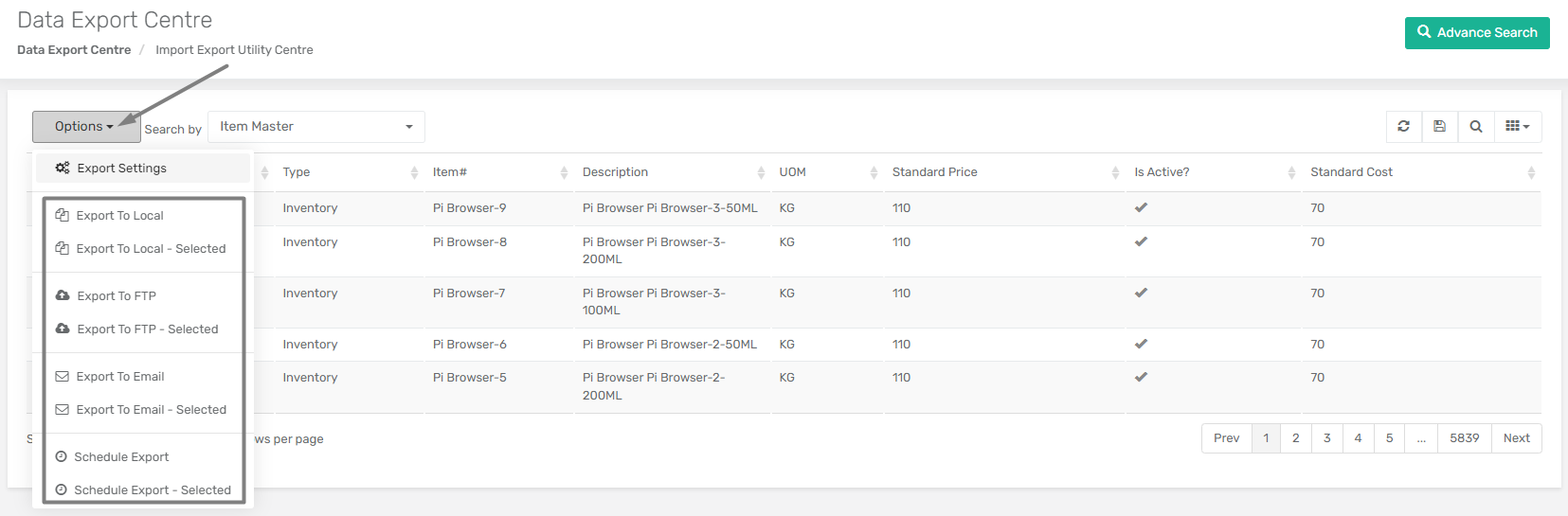
Once the details are loaded into the module, you can proceed to choose how you wish to export it. These options are easily accessible through the "**Options**" menu located at the top left corner of the screen.&#x20;

<figure><img src="/files/O2JfipN6N4KQcD5gG2qp" alt=""><figcaption></figcaption></figure>

The various export options available are:

#### 1. Export To Local

The "Export To Local" option enables users to export data directly to their local system, providing a convenient way to access and manipulate the data using their preferred tools or software.

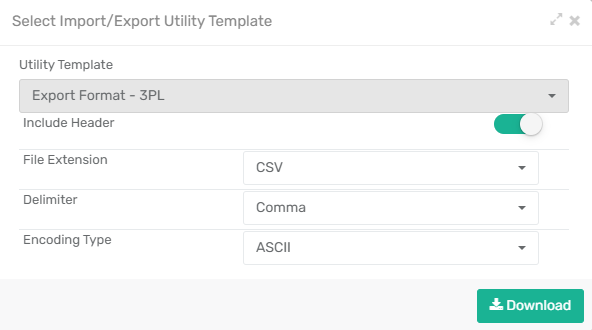
Once you click on this option, you will be redirected to the "Select Import/Export Utility Template" screen.&#x20;

<div align="left"><figure><img src="/files/HRuxERoPlOTbIeIDuFq9" alt=""><figcaption></figcaption></figure></div>

#### Select Import/Export Utility Template Fields

<table><thead><tr><th width="172">Field</th><th>Description</th></tr></thead><tbody><tr><td>Utility Template</td><td>This option allows you select the utility, if any, for the export.</td></tr><tr><td>Include Header</td><td>Enable this option to include the column names as the first line of the exported file.</td></tr><tr><td>File Extension</td><td>Specifies the type of file format for the import or export. Available formats include <code>.csv</code> and <code>.txt</code>.</td></tr><tr><td>Delimiter</td><td>Specify the desired delimiter to structure the exported data file accordingly. Available delimiters include commas (<code>,</code>), pipe (<code>|</code>), and tabs ( ).</td></tr><tr><td>Encoding Type</td><td>Specify the character encoding to be used for the import or export. Popular encoding types include UTF-8, ASCII, ANSI, etc. This ensures the correct interpretation of text in files, especially those containing special or non-English characters.</td></tr></tbody></table>

After you have set the utility template, click on "Download" to export the file into your local system.

#### 2. Export To Local - Selected

The "Export To Local - Selected" option offers a tailored approach for users seeking to export specific data subsets. This option allows users to selectively export only the desired data, enhancing efficiency and reducing unnecessary processing time.

#### 3. Export To FTP

The "Export To FTP" option provides you with the capability to transfer data to a designated FTP server. This option is particularly useful for organizations that require seamless integration with external systems or databases hosted on FTP servers.

Once you click on this option, you will be redirected to the "Select Import/Export Utility Template" screen. &#x20;

After you have set the utility template, click on "Send To FTP" to set the FTP details.

#### FTP Settings Fields

<table><thead><tr><th width="251">Field</th><th>Description</th></tr></thead><tbody><tr><td>Type</td><td>Select the preferred protocol for the FTP connection, "FTP/FTPS" or "SFTP".</td></tr><tr><td>Host</td><td>Enter the hostname or IP address of the FTP server where the files will be transferred.</td></tr><tr><td>Port</td><td>Enter the port number to establish the FTP connection. The default ports are 21 for FTP and 22 for SFTP.</td></tr><tr><td>Username</td><td>Enter the username required to authenticate and access the FTP server.</td></tr><tr><td>Password</td><td>Fill in the password associated with the provided username for authentication purposes.</td></tr><tr><td>Use SSL</td><td>Enable this to use the SSL encryption for the FTP connection. When enabled, data transferred between the client and server will be encrypted for added security.</td></tr><tr><td>Target Directory</td><td>Specify the location on the FTP server where the exported files will be stored after being transferred to the server.</td></tr><tr><td>Test Credentials</td><td>Click on this to validated the FTP credentials.</td></tr><tr><td>File Name</td><td>Enter the file name of your CSV is the name of that file when it gets sent over, so certain 3PLs are probably going to prefer certain names to certain formats for their files so you can always specify this.<br><em><strong>Please note that Date Expression can also be used as File Name. For example File[MMddyyyyhhmmss]= File10072017040500.</strong></em></td></tr><tr><td>Enable notification on Error</td><td><p>This feature at the bottom enables notifications in case of errors in the export.</p><p>Check this box if you want to get notified of an error every time there’s some kind of problem or if there’s an error with this scheduler. </p></td></tr></tbody></table>

After filling in the FTP details, click "Export Now" to export the data.

<figure><img src="/files/1HtK7LHqAFpbRo3BF6Gf" alt=""><figcaption></figcaption></figure>

#### 4. Export To FTP - Selected

Similar to the previous option, "Export To FTP - Selected" empowers users to export selected data subsets directly to an FTP server. This ensures that only relevant data is transferred, optimizing resource utilization and minimizing data transfer overhead.

#### 5. Export To Email

The "Export To Email" option offers a straightforward mechanism for sending data exports via email. This feature is beneficial for users who prefer to share data directly via email or need to distribute reports to stakeholders efficiently.

Once you click on this option, you will be redirected to the "Select Import/Export Utility Template" screen. &#x20;

After you have set the utility template, click on "Send To Email" to set the email details.

#### Email Settings Fields

<table><thead><tr><th width="297">Field</th><th>Description</th></tr></thead><tbody><tr><td>To</td><td>Enter the email address to which you intend to send the export file.</td></tr><tr><td>CC</td><td>This field allows you to include additional email recipients who will receive a copy of the scheduled wave export notification.</td></tr><tr><td>Subject</td><td>Specify a descriptive title for the export email, summarizing its purpose or content.</td></tr><tr><td>Body</td><td>Enter the main content of the email here.</td></tr><tr><td>Send From Email</td><td>Specify the email address from which the export email will be sent.</td></tr><tr><td>File Name</td><td>Enter the file name of your CSV is the name of that file when it gets sent over, so certain 3PLs are probably going to prefer certain names to certain formats for their files so you can always specify this.<br><em><strong>Please note that Date Expression can also be used as File Name. For example File[MMddyyyyhhmmss]= File10072017040500.</strong></em></td></tr><tr><td>Enable notification on error</td><td><p>This feature at the bottom enables notifications in case of errors in the export.</p><p>Check this box if you want to get notified of an error every time there’s some kind of problem or if there’s an error with this scheduler. </p></td></tr></tbody></table>

After filling in the email details, click "Export Now" to export the data.

#### 6. Export To Email - Selected

This option allows you to export specific data records via email.  It caters to the need for targeted data sharing, ensuring only relevant data is transferred.

#### 7. Schedule Export

This option allows you to schedule an export at specified intervals based on business needs. This feature is invaluable for organizations that require regular data updates or recurring reporting tasks.

Once you click on this option, you will be redirected to the "Select Import/Export Utility Template" screen. &#x20;

After you have set the utility template, click on "Schedule" to [schedule the export](/xoroerp-1/utilities/job-schedules/setting-up-data-import-export-scheduler.md).

#### 8. Schedule Export - Selected

Building upon the previous option, "Schedule Export - Selected" enables users to schedule exports for specific data subsets. By automating the export of targeted data, users can ensure the timely delivery of critical information without manual intervention.

### Export Settings

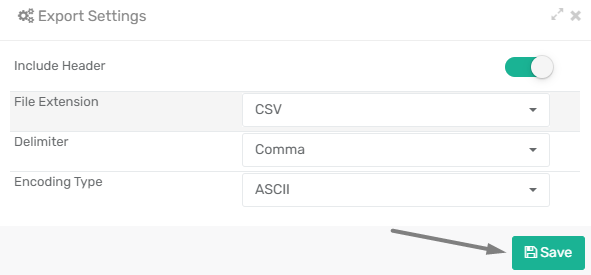
In addition to selecting the export type, the Data Export Centre offers a convenient "Export Settings" feature within the "Options" menu, allowing you to tailor the exported data according to your preferences.&#x20;

<figure><img src="/files/Gu6suHWGHGixAPuULbf9" alt=""><figcaption></figcaption></figure>

You can set the export settings such as File Extension, Delimiter, and Encoding Type. These settings will be applied to all the exports done from the centre.&#x20;

Once you have configured the desired export settings, click "Save" to apply the settings.

<div align="left"><figure><img src="/files/UlXylH4LvXYJ4NJnBtsF" alt=""><figcaption></figcaption></figure></div>


---

# Agent Instructions: Querying This Documentation

If you need additional information that is not directly available in this page, you can query the documentation dynamically by asking a question.

Perform an HTTP GET request on the current page URL with the `ask` query parameter:

```
GET https://docs.xorosoft.com/xoroerp-1/utilities/data-exports/data-export-centre.md?ask=<question>
```

The question should be specific, self-contained, and written in natural language.
The response will contain a direct answer to the question and relevant excerpts and sources from the documentation.

Use this mechanism when the answer is not explicitly present in the current page, you need clarification or additional context, or you want to retrieve related documentation sections.