> For the complete documentation index, see [llms.txt](https://docs.xorosoft.com/llms.txt). Markdown versions of documentation pages are available by appending `.md` to page URLs; this page is available as [Markdown](https://docs.xorosoft.com/xoroerp-1/utilities/manage-direct-debit-payment-services/stripe-ach-payments.md).

# Stripe ACH Payments

Stripe ACH allows businesses to collect payments from customers through Automated Clearing House (ACH) direct debit. XoroERP integrates with Stripe ACH to facilitate direct debit payment setup and connect the required Xoro bank account for processing ACH transactions.

To use Stripe ACH in XoroERP, you must first connect the **Stripe ACH payment service**, link a Xoro bank account to the service, and then set up the customer's direct debit authorization.

The Stripe ACH setup involves the following steps:

1. Connect the Stripe ACH payment service
2. Link a Xoro bank account to the Stripe ACH service
3. Send a Direct Debit Setup Request to the customer
4. The customer completes the bank account setup
5. Direct Debit is successfully set up for the customer

Let's see how you can set up Stripe ACH in XoroERP.

***

### Connecting Stripe ACH

1. To connect Stripe ACH, go to **Menu > Utilities > Manage Direct Debit Payment Services**.
2. In the **Manage Direct Debit Payment Services** module, under the **Add Service** section, locate **Stripe** and click **Connect**.

<figure><img src="https://3188343778-files.gitbook.io/~/files/v0/b/gitbook-x-prod.appspot.com/o/spaces%2Fkf8DNCjEfcSm64PCPcmf%2Fuploads%2Fnr82OH3S9FPwFC55jBIj%2Fimage.png?alt=media&amp;token=a7ebb1fe-72ac-4288-ab82-1e90fdf21252" alt=""><figcaption></figcaption></figure>

3. A **Stripe ACH Account Name** window appears. In the **Service Name** field, enter a name for the Stripe ACH payment service and click **Connect**.&#x20;

<figure><img src="https://3188343778-files.gitbook.io/~/files/v0/b/gitbook-x-prod.appspot.com/o/spaces%2Fkf8DNCjEfcSm64PCPcmf%2Fuploads%2Fearthg12xrY52RqTB4sA%2Fimage.png?alt=media&amp;token=f722f221-10f2-4a13-9146-d61ac94a0a76" alt=""><figcaption></figcaption></figure>

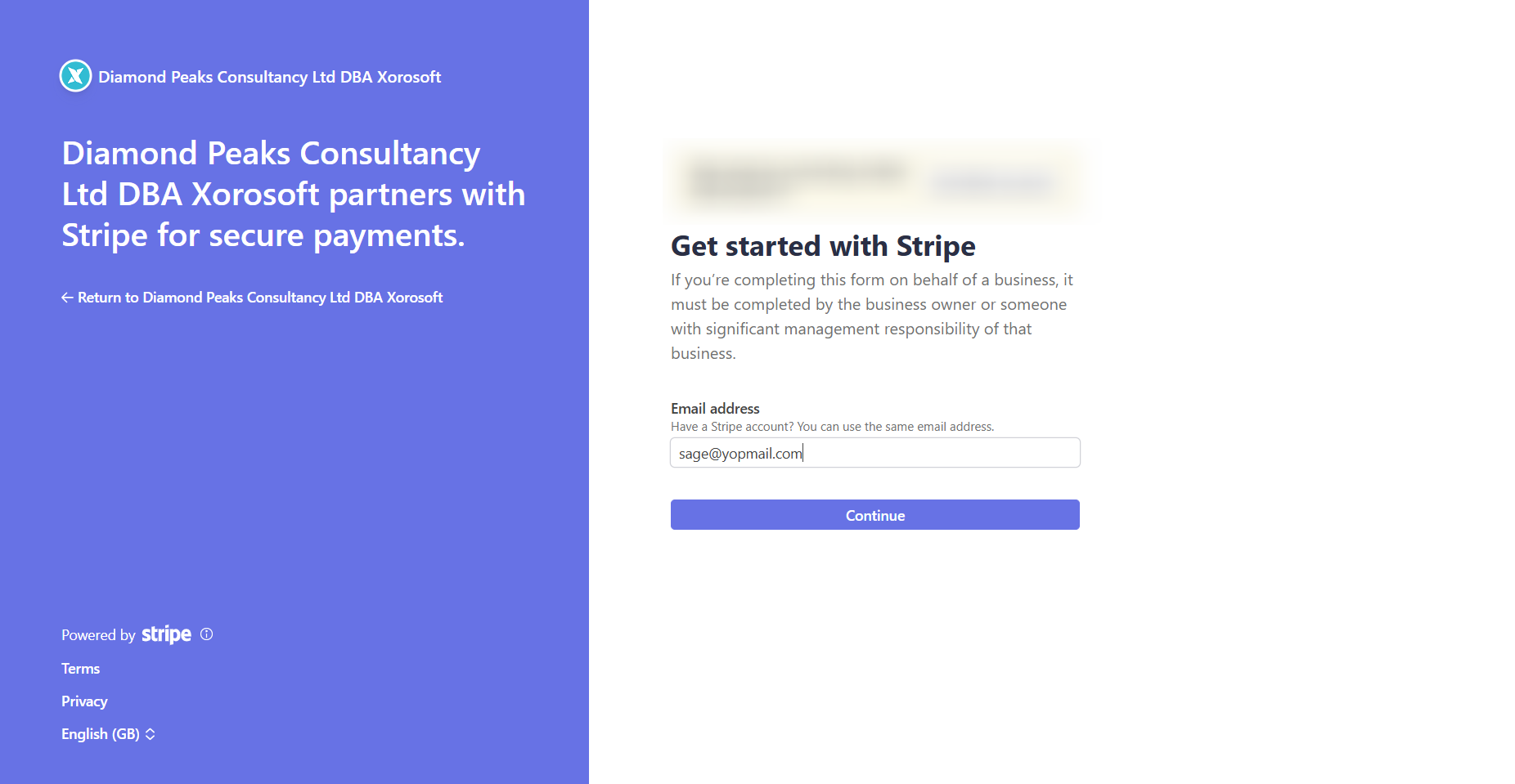
4. You will be redirected to the Stripe website to complete the account setup.

<figure><img src="https://3188343778-files.gitbook.io/~/files/v0/b/gitbook-x-prod.appspot.com/o/spaces%2Fkf8DNCjEfcSm64PCPcmf%2Fuploads%2FmwbPM5hdI0351EdOXwmJ%2Fimage.png?alt=media&amp;token=28231f40-7a5e-4d32-bcc6-8f12edf16265" alt=""><figcaption></figcaption></figure>

#### Setting Up Your Stripe Account

1. On the Stripe setup page, enter the email address associated with your Stripe account and click **Continue**. If you already have a Stripe account, you can use the same email address to sign in. If you do not have an account, Stripe allows you to create a new account during the setup process.
2. If you are creating a new Stripe account, enter the required account details. Create a password. Click **Submit**.

<figure><img src="https://3188343778-files.gitbook.io/~/files/v0/b/gitbook-x-prod.appspot.com/o/spaces%2Fkf8DNCjEfcSm64PCPcmf%2Fuploads%2Faid9PKWuIoCIkNnwiSDH%2Fimage.png?alt=media&amp;token=e1cedd15-eac4-4a78-b78d-231069e5527a" alt=""><figcaption></figcaption></figure>

3. Complete the additional account verification steps requested by Stripe. Set up **two-step authentication** when prompted and complete the verification process according to Stripe's instructions.
4. Once the Stripe account setup and authentication are complete, you will be redirected back to XoroERP.
5. The newly created Stripe ACH service is displayed under the **Active Services** section. A **Verified** status indicates that the Stripe ACH service has been successfully connected.

<figure><img src="https://3188343778-files.gitbook.io/~/files/v0/b/gitbook-x-prod.appspot.com/o/spaces%2Fkf8DNCjEfcSm64PCPcmf%2Fuploads%2Fy5JeIHwDP2YPTwIW6A0Q%2Fimage.png?alt=media&amp;token=7bddc306-76af-4d2b-9464-1fb6e6249f65" alt=""><figcaption></figcaption></figure>

***

### Linking a Bank Account to Stripe ACH

After connecting Stripe ACH, you must link a Xoro bank account to the payment service. The linked bank account is used for the Stripe ACH transactions processed through XoroERP.

1. In the **Active Services** section, locate the Stripe ACH service. Click **Link Xoro Bank Accounts**.
2. The **Setup Direct Debit Accounts** window appears. In the **Setup Direct Debit Accounts** window, select the required **Account** from the dropdown and the corresponding **Currency**. Click **Add**.

<figure><img src="https://3188343778-files.gitbook.io/~/files/v0/b/gitbook-x-prod.appspot.com/o/spaces%2Fkf8DNCjEfcSm64PCPcmf%2Fuploads%2FAeO97z2SFXaCnL5AGQ6G%2Fimage.png?alt=media&amp;token=e01d5f7f-fab8-46d1-86f4-5efc51a4ac01" alt=""><figcaption></figcaption></figure>

3. The selected account and currency are added to the list in the window. A confirmation message, **Record inserted successfully**, is displayed after the account is added.

<figure><img src="https://3188343778-files.gitbook.io/~/files/v0/b/gitbook-x-prod.appspot.com/o/spaces%2Fkf8DNCjEfcSm64PCPcmf%2Fuploads%2FOqcBvFYtxlrf9gJWfyVx%2Fimage.png?alt=media&amp;token=c123f777-e9c4-4af9-acec-da34fee3d586" alt=""><figcaption></figcaption></figure>

If required, you can set the linked bank account as the default account for the Stripe ACH service by clicking on **Set Default**.

<figure><img src="https://3188343778-files.gitbook.io/~/files/v0/b/gitbook-x-prod.appspot.com/o/spaces%2Fkf8DNCjEfcSm64PCPcmf%2Fuploads%2FF3NvBlFBds7u3CxmGbEf%2Fimage.png?alt=media&amp;token=cd43c87d-6af3-4179-aa67-0b696f8a89d4" alt=""><figcaption></figcaption></figure>

Once the bank account is linked, the Stripe ACH service in the **Active Services** section displays the linked Xoro bank account.

<figure><img src="https://3188343778-files.gitbook.io/~/files/v0/b/gitbook-x-prod.appspot.com/o/spaces%2Fkf8DNCjEfcSm64PCPcmf%2Fuploads%2F2FaRugqtFVuinMVs4yYX%2Fimage.png?alt=media&amp;token=3d3507ec-3220-42b7-9f39-45053b930583" alt=""><figcaption></figcaption></figure>

{% hint style="info" %}
You can add multiple bank accounts with USD currency to the Stripe ACH service, where applicable.
{% endhint %}

***

### Setting Up Direct Debit for a Customer

After connecting Stripe ACH and linking the Xoro bank account, you can send a direct debit setup request to a customer.

The setup request allows the customer to securely provide and authorize their bank account for future direct debit payments.

1. To send a setup request, go to the **Customer Centre**. Select the customer for whom you want to set up direct debit.

<figure><img src="https://3188343778-files.gitbook.io/~/files/v0/b/gitbook-x-prod.appspot.com/o/spaces%2Fkf8DNCjEfcSm64PCPcmf%2Fuploads%2F2Ba9Jg3L5iJBw3jvVE1j%2Fimage.png?alt=media&amp;token=947a6fb7-431b-4adb-817e-ac797b07e613" alt=""><figcaption></figcaption></figure>

2. From the Options menu, select **Send Direct Debit Setup Request(s)**. XoroERP sends the direct debit setup request to the customer's **main email address**.

<figure><img src="https://3188343778-files.gitbook.io/~/files/v0/b/gitbook-x-prod.appspot.com/o/spaces%2Fkf8DNCjEfcSm64PCPcmf%2Fuploads%2F1cSrdZAWqCQdbGERABfY%2Fimage.png?alt=media&amp;token=160cf4cc-f22c-4cb0-8c12-09d974edf623" alt=""><figcaption></figcaption></figure>

3. The customer receives an email containing a **Direct Debit Payment Request**. The email includes a **Start Setup** button that the customer can use to begin setting up their direct debit payment method.

<figure><img src="https://3188343778-files.gitbook.io/~/files/v0/b/gitbook-x-prod.appspot.com/o/spaces%2Fkf8DNCjEfcSm64PCPcmf%2Fuploads%2FscP7tSfggO0N8gjxvs9z%2Fimage.png?alt=media&amp;token=7cd16af6-9aba-406b-a047-5fdd6ec6b968" alt=""><figcaption></figcaption></figure>

#### Customer Direct Debit Setup

1. When the customer clicks **Start Setup**, they are taken to the direct debit setup page. On the **Set up a pre-Authorized Debit** page, the customer enters the required information, including:

* **Email**
* **Full Name**
* **Bank Account**

<figure><img src="https://3188343778-files.gitbook.io/~/files/v0/b/gitbook-x-prod.appspot.com/o/spaces%2Fkf8DNCjEfcSm64PCPcmf%2Fuploads%2FYd4ZH6Zff5KtMd9cZVlB%2Fimage.png?alt=media&amp;token=ddf9e503-76d3-4639-98c1-a5d117744628" alt=""><figcaption><p>The screenshot used in this documentation is from a <strong>testing bank account</strong> and is provided for demonstration purposes only.</p></figcaption></figure>

2. The customer can search for their bank and select the appropriate bank account setup method. Stripe ACH provides options for connecting the bank account, including connecting through a supported bank connection or entering bank details manually, depending on the available options.
3. If the customer chooses to connect their bank account through the available bank connection option, they are prompted to authorize the connection. Review the connection information. Clicks **Agree and continue**. Select the required bank account. Click on **Connect account**.

<figure><img src="https://3188343778-files.gitbook.io/~/files/v0/b/gitbook-x-prod.appspot.com/o/spaces%2Fkf8DNCjEfcSm64PCPcmf%2Fuploads%2F7Rex3wSSqVij04axhhLP%2Fimage.png?alt=media&amp;token=7ddf5bdf-7249-426d-a139-d7ea58da7001" alt=""><figcaption><p>The screenshot used in this documentation is from a <strong>testing bank account</strong> and is provided for demonstration purposes only.</p></figcaption></figure>

<figure><img src="https://3188343778-files.gitbook.io/~/files/v0/b/gitbook-x-prod.appspot.com/o/spaces%2Fkf8DNCjEfcSm64PCPcmf%2Fuploads%2FdfkqutwqhBkNJuwU9mrB%2Fimage.png?alt=media&amp;token=cb88822e-f273-4e0e-89a5-7bfad2411d07" alt=""><figcaption><p>The screenshot used in this documentation is from a <strong>testing bank account</strong> and is provided for demonstration purposes only.</p></figcaption></figure>

<figure><img src="https://3188343778-files.gitbook.io/~/files/v0/b/gitbook-x-prod.appspot.com/o/spaces%2Fkf8DNCjEfcSm64PCPcmf%2Fuploads%2F51Q9e2yakJVQWTzYFV9m%2Fimage.png?alt=media&amp;token=0a600598-00bb-4a80-ad71-b40984885346" alt=""><figcaption><p>The screenshot used in this documentation is from a <strong>testing bank account</strong> and is provided for demonstration purposes only.</p></figcaption></figure>

4. The selected bank account is then connected to the Stripe ACH setup.&#x20;

The customer is now set up for **Direct Debit (ACH)** payments through the Stripe ACH payment service configured in XoroERP.

***

### Paying the Customer Invoice Using Direct Debit

Once the **Stripe ACH** service has been connected, the bank account has been linked, and the customer has successfully set up their pre-authorized debit account, you can use the Direct Debit payment method to pay the customer's invoice.

1. Go to **Menu > Invoice > Invoice Payment** to open the **Invoice Payment** module. In the **Customer** field, select the customer whose invoice you want to pay.&#x20;

<figure><img src="https://3188343778-files.gitbook.io/~/files/v0/b/gitbook-x-prod.appspot.com/o/spaces%2Fkf8DNCjEfcSm64PCPcmf%2Fuploads%2FDL7spGfucSOqDQ1Z5Zxy%2Fimage.png?alt=media&amp;token=fe9208cc-6d0d-4ae7-b4af-70b35b655ebd" alt=""><figcaption></figcaption></figure>

2. Select the invoice you want to pay. In the **Payment Method** field, select **Interac Debit**.&#x20;

<figure><img src="https://3188343778-files.gitbook.io/~/files/v0/b/gitbook-x-prod.appspot.com/o/spaces%2Fkf8DNCjEfcSm64PCPcmf%2Fuploads%2FE91uSvQC4synNcypEq2l%2Fimage.png?alt=media&amp;token=091afb9b-df45-4ce6-8410-9df6b6d6382c" alt=""><figcaption></figcaption></figure>

3. Enable the **Direct Debit** checkbox displayed next to the Payment Method field. Once enabled, Xoro automatically displays the customer's configured Direct Debit payment account along with the masked account number.

<figure><img src="https://3188343778-files.gitbook.io/~/files/v0/b/gitbook-x-prod.appspot.com/o/spaces%2Fkf8DNCjEfcSm64PCPcmf%2Fuploads%2FJAedpMcSaWNPBwPxup8I%2Fimage.png?alt=media&amp;token=59122db2-b017-48cf-bf7b-00a90af66912" alt=""><figcaption></figcaption></figure>

4. If you want to use a different Direct Debit service or payment account, click the **pencil icon** next to the Direct Debit account. In the **Direct Debit Payment** window, select the required **Direct Debit Service** and the **Direct Debit Account** that you want to use for processing the payment.
5. Click **Confirm** to apply the selected Direct Debit service and account to the invoice payment.

<figure><img src="https://3188343778-files.gitbook.io/~/files/v0/b/gitbook-x-prod.appspot.com/o/spaces%2Fkf8DNCjEfcSm64PCPcmf%2Fuploads%2FbzjhWm5hARWU5Op0dMZe%2Fimage.png?alt=media&amp;token=a7337e3d-a847-4d58-93c6-65266c645b71" alt=""><figcaption></figcaption></figure>

<figure><img src="https://3188343778-files.gitbook.io/~/files/v0/b/gitbook-x-prod.appspot.com/o/spaces%2Fkf8DNCjEfcSm64PCPcmf%2Fuploads%2FZlOMiYROcjmYlUBitaPk%2Fimage.png?alt=media&amp;token=92e5f4be-0161-4e47-9e54-890a4e9bd7d8" alt=""><figcaption></figcaption></figure>

6. Verify the invoice, payment amount, Direct Debit service, and Direct Debit account. Once all the details are correct, click **Pay Selected Invoices** to process the payment.

<figure><img src="https://3188343778-files.gitbook.io/~/files/v0/b/gitbook-x-prod.appspot.com/o/spaces%2Fkf8DNCjEfcSm64PCPcmf%2Fuploads%2FAnzw4XInwhpA63PBm2o0%2Fimage.png?alt=media&amp;token=ccb9a2c2-f818-48f0-8c67-71082d07678f" alt=""><figcaption></figcaption></figure>

The selected customer invoice is processed using the configured **Stripe ACH Direct Debit** account.


---

# Agent Instructions
This documentation is published with GitBook. GitBook is the documentation platform designed so that both humans and AI agents can read, navigate, and reason over technical content effectively. Learn more at gitbook.com.

## Querying This Documentation
If you need additional information that is not directly available in this page, you can query the documentation by asking a question.

Perform an HTTP GET request on the following URL with the `ask` and `goal` query parameters:

```
GET https://docs.xorosoft.com/xoroerp-1/utilities/manage-direct-debit-payment-services/stripe-ach-payments.md?ask=<question>&goal=<user_goal>
```

`ask` is the immediate question: it should be specific, self-contained, and written in natural language.
`goal` is what the user is ultimately trying to achieve, the reason they need the answer. Sharing it helps GitBook give you a better, more relevant answer. A goal is most helpful when it describes the outcome the user wants rather than restating the question. For example, with `ask=how do I create an API token`, a goal like `automate deployments from our CI pipeline` lets GitBook tailor the answer to that use case.

The response will contain a direct answer to the question and relevant excerpts and sources from the documentation.

Use this mechanism when the answer is not explicitly present in the current page, you need clarification or additional context, or you want to retrieve related documentation sections.
