> For the complete documentation index, see [llms.txt](https://docs.xorosoft.com/llms.txt). Markdown versions of documentation pages are available by appending `.md` to page URLs; this page is available as [Markdown](https://docs.xorosoft.com/xoroerp-1/apps-and-integrations/edi-connections/orderful.md).
# Orderful
***
### 1. Overview
The **Orderful EDI Integration** in XoroERP enables automated exchange of EDI documents between trading partners and XoroERP. This integration supports order import, shipment confirmations, ASN processing, and inventory synchronization while ensuring controlled, traceable, and error-resilient data flow.
The Orderful integration is designed for operations and support teams to manage EDI transactions efficiently without manual intervention.
***
#### How Orderful EDI Works with XoroERP
Orderful acts as the communication layer between the trading partner and XoroERP. Orders are fetched from the configured trading partner, validated based on system rules, and dropped into XoroERP for fulfillment. Shipment confirmations, ASNs, and invoices are then generated from XoroERP and sent back through Orderful to the trading partner.
The integration ensures:
* Structured EDI document flow
* Controlled release of purchase and sales orders
* Accurate inventory synchronization
* Centralized monitoring through the Operations Page
***
### 2. Workflow
#### 2.1 Order Import Flow
* Purchase orders are fetched for the configured trading partner.
* Orders are dropped into the defined store and location.
* Based on configuration, purchase orders may be auto-released and optionally split by location.
* Item identifiers such as UPC or GTIN are used to match items.
#### 2.2 Shipment Confirmation Flow
* Once orders are fulfilled in XoroERP, shipment confirmations are generated.
* Document 856 is sent to the trading partner either individually or in a batch based on the configuration.
#### 2.3 ASN Processing Flow
* If enabled, ASNs are processed and acknowledged through import and send document configurations.
#### 2.4 Inventory / SKU Synchronization
* Inventory sync runs automatically after midnight when enabled.
* Inventory is filtered by tags and stores as configured.
* Daily sync ensures trading partner inventory remains up to date.
#### 2.5 Error Retry & Status Update
* Failed records are logged in the Logs tab.
* Errors can be retried after correction without reprocessing successful transactions.
***
### 3. Settings
These settings define how orders, acknowledgments, shipments, invoices, and inventory are processed with the trading partner.
***
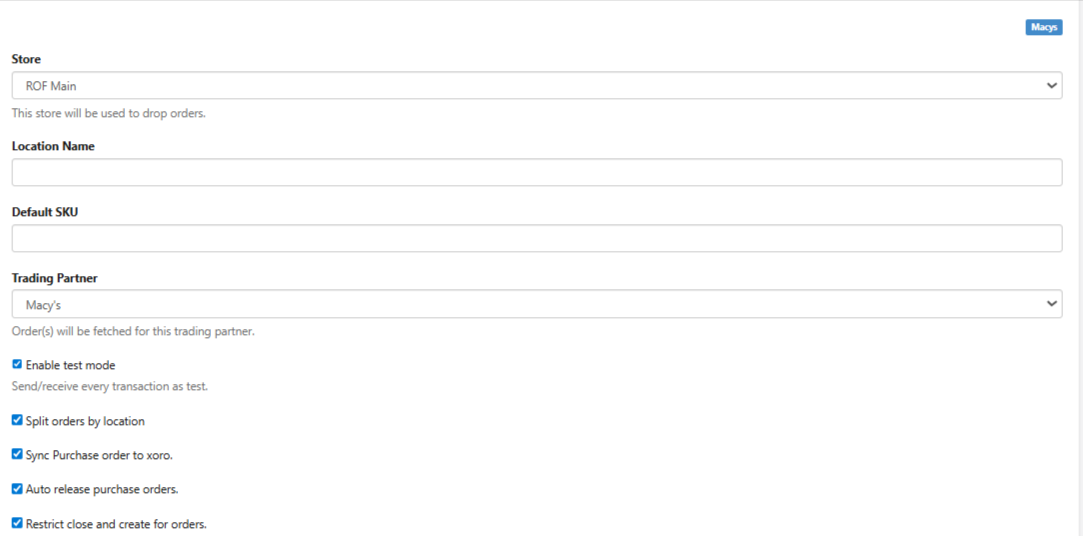
#### 3.1 Data Export Settings
The following accounts and configurations will be used in XoroERP. This can be changed later.
| **Field Name** | **UI Control** | **Description** |
| ------------------------------------ | -------------- | -------------------------------------------------------------------------------------------------------------------------------------------------------------------------- |
| Store | Dropdown | Specifies the XoroERP store where incoming orders received from the trading partner via Orderful will be created and managed. |
| Location Name | Dropdown | Defines the default warehouse location in XoroERP where imported orders will be placed for fulfillment and inventory allocation. |
| Default SKU | Text Field | Specifies a fallback SKU that XoroERP will use when item matching fails during order import, ensuring the EDI order is not rejected due to missing or unmatched item data. |
| Trading Partner – Macy’s | Dropdown | Identifies the trading partner (e.g., Macy’s) for which EDI orders will be fetched and processed through the Orderful integration. |
| Enable Test Mode | Checkbox | When enabled, all EDI send and receive transactions are processed in test mode through Orderful, allowing validation without affecting live orders or inventory. |
| Split Orders by Location | Checkbox | Splits imported EDI orders into separate XoroERP orders based on warehouse location, enabling location-specific fulfillment and processing. |
| Sync Purchase Order to Xoro | Checkbox | Enables the import of purchase orders from the trading partner via Orderful into XoroERP. Enabling this option reveals the **Auto Release Purchase Orders** setting. |
| Auto Release Purchase Orders | Checkbox | Automatically releases imported purchase orders in XoroERP after synchronization, removing the need for manual release. |
| Restrict Close and Create for Orders | Checkbox | Restricts manual creation or closure of orders in XoroERP, ensuring orders are managed strictly through the Orderful EDI workflow. |
***
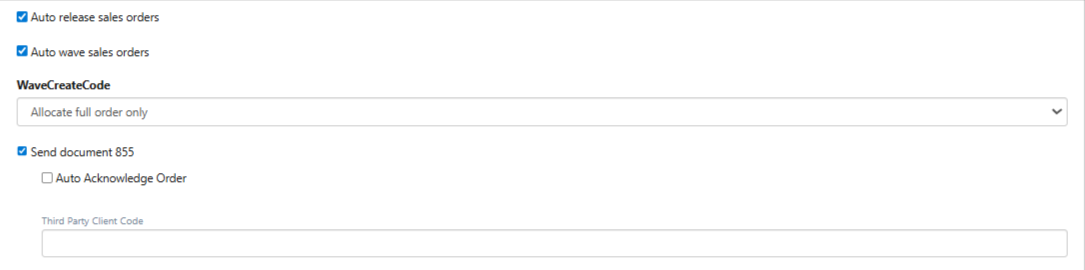
#### 3.2 Auto Wave Sales Orders
| **Field Name** | **UI Control** | **Description** |
| ------------------------------------ | ---------------- | ---------------------------------------------------------------------------------------------------------------------------------------------------------------------------------------- |
| Auto Release Sales Orders | Checkbox | Automatically releases sales orders in XoroERP immediately after they are created through the Orderful EDI integration. Enabling this option reveals the Auto Wave Sales Orders setting. |
| Auto Wave Sales Orders | Checkbox | Automatically creates fulfillment waves for eligible sales orders once they meet the configured allocation and fulfillment criteria, eliminating the need for manual wave creation. |
| WaveCreateCode | Dropdown | Defines the inventory allocation rule applied when sales orders are automatically waved. The selected option controls how and when inventory is reserved for order fulfillment. |
| Allocate Full Order Only | Selection Option | Allocates inventory only if all order lines and quantities are fully available, ensuring complete orders are fulfilled together. |
| Allocate Full Quantity Only Per Line | Selection Option | Allocates inventory for each order line only when the full quantity for that line is available, allowing partial order fulfillment by line. |
| Allocate What Is Available | Selection Option | Allows partial allocation based on available inventory, enabling orders to be waved and fulfilled even when stock is limited. |
***
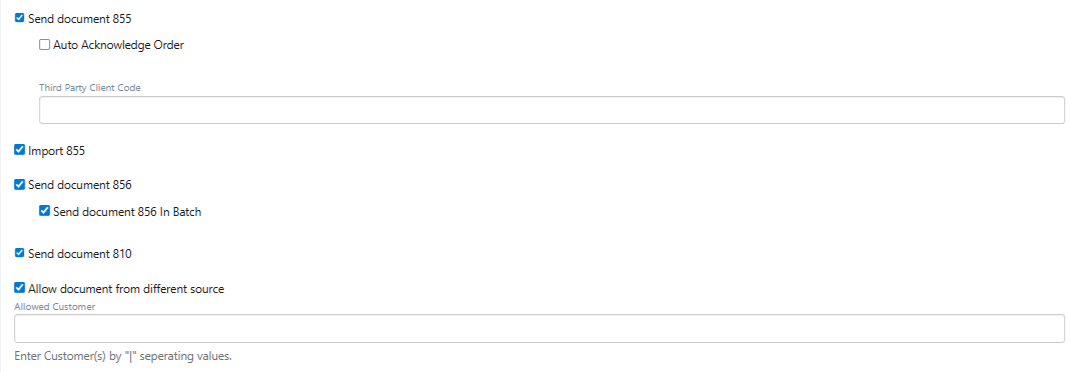
#### 3.3 EDI Document Controls
| **Field Name** | **UI Control** | **Description** |
| ------------------------------------ | -------------- | ------------------------------------------------------------------------------------------------------------------------------------------------------------------------------------------------------------------------- |
| Send Document 855 | Checkbox | Enables XoroERP to send the EDI 855 (Purchase Order Acknowledgment) to the trading partner via Orderful, confirming that purchase orders have been received and accepted for processing. |
| Auto Acknowledge Order | Checkbox | Automatically acknowledges orders once the 855 document is generated and transmitted. |
| Third Party Client Code | | |
| Import 855 | Checkbox | Allows XoroERP to import EDI 855 acknowledgment documents received from the trading partner through Orderful and update order status accordingly. |
| Send Document 856 | Checkbox | Enables XoroERP to send EDI 856 (Advance Ship Notice) documents through Orderful, providing shipment details such as items shipped, quantities, and tracking information. |
| Send Document 856 in Batch | Checkbox | Sends multiple EDI 856 shipment confirmations together in batch mode, improving performance when processing high shipment volumes. |
| Send Document 810 | Checkbox | Enables XoroERP to send EDI 810 (Invoice) documents to the trading partner through Orderful for billing and financial reconciliation. |
| Allow Document from Different Source | Checkbox | Allows XoroERP to accept and process EDI documents received through Orderful from multiple external systems associated with the same trading partner, instead of enforcing a single source endpoint. |
| Allowed Customer | Text Field | Specifies the customer codes whose EDI documents are allowed to be processed through this Orderful integration. Only documents linked to these customers will be accepted. Multiple values must be separated using the \` |
***
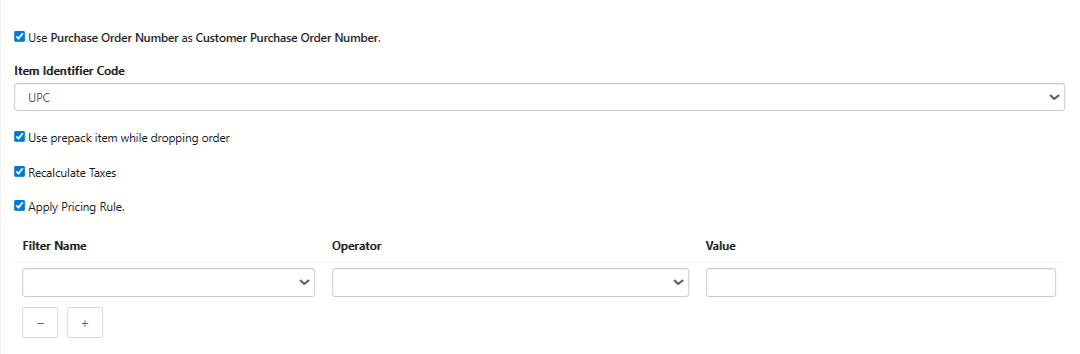
#### 3.4 General Settings
| **Field Name** | **UI Control** | **Description** |
| ----------------------------------------------------------- | -------------- | ------------------------------------------------------------------------------------------------------------------------------------------------------------------------------------------------------ |
| Use Purchase Order Number as Customer Purchase Order Number | Checkbox | Stores the Purchase Order number received from the trading partner via Orderful as the Customer Purchase Order Number in XoroERP, ensuring reference consistency between EDI data and internal orders. |
| Item Identifier Code | Dropdown | Specifies the item identifier (such as UPC, GTIN, or other EDI-standard codes) used to match incoming order lines with items in XoroERP, ensuring accurate item mapping during order import. |
| Use Prepack Item While Dropping Order | Checkbox | Processes incoming EDI orders using prepack logic by grouping component items into predefined packs during order creation, supporting bundled or prepack items sent by trading partners. |
| Recalculate Taxes | Checkbox | Recalculates taxes in XoroERP during order creation instead of using tax values from the EDI file, ensuring taxes are applied according to XoroERP’s internal tax configuration. |
| Apply Pricing Rule | Checkbox | Applies XoroERP pricing rules to imported EDI orders, allowing system-defined pricing, discounts, or contracts to override prices received from the trading partner. |
| Filter Name | Dropdown | Selects the order attribute used to filter incoming EDI orders during import, controlling which orders are created in XoroERP. |
| Operator | Dropdown | Defines the comparison logic applied to the selected filter attribute, such as equals, contains, or greater than. |
| Value | Text Field | Specifies the value used to evaluate the filter condition; only orders matching the defined criteria are imported into XoroERP. |
***
#### 3.5 Inventory Sync Settings
| **Field Name** | **UI Control** | **Description** |
| ------------------------------------------------- | ------------------------- | ---------------------------------------------------------------------------------------------------------------------------------------------------------------------------------------------------------------------------------------------- |
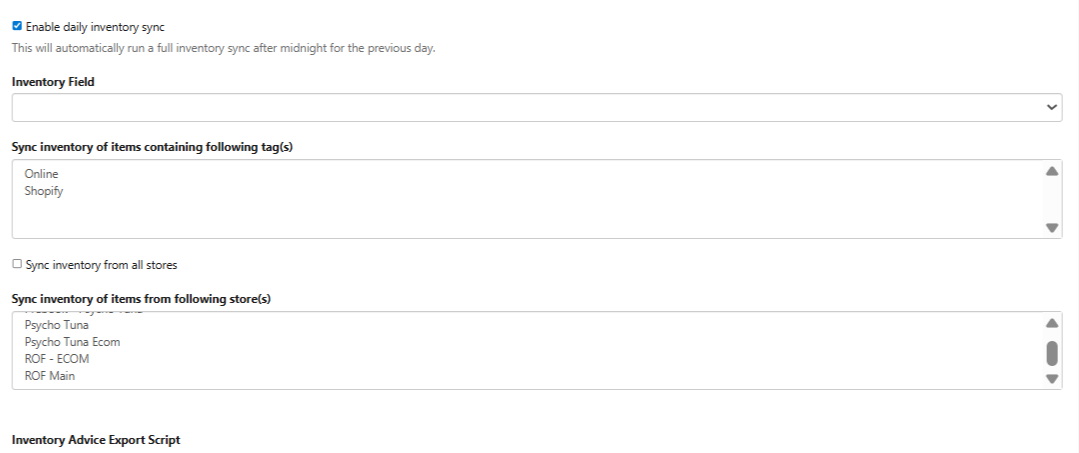
| Enable Daily Inventory Sync | Checkbox | Enables a once-per-day full inventory synchronization from XoroERP to Orderful, executed shortly after midnight. The sync sends inventory levels from the previous day, providing trading partners with a consistent daily inventory snapshot. |
| Inventory Field | Dropdown | Selects the XoroERP inventory metric sent through Orderful, such as available, on-hand, allocated, or other system-defined inventory values. The selected field determines how inventory quantities are represented to trading partners. |
| Sync Inventory of Items Containing Following Tags | Multi-Select / Text Field | Limits inventory synchronization to items that contain specific tags, allowing controlled sharing of approved or relevant inventory through Orderful. |
| Sync Inventory from All Stores | Checkbox | Synchronizes inventory from all stores configured in XoroERP, enabling centralized inventory reporting to trading partners. |
| Sync Inventory of Items from Following Stores | Multi-Select Dropdown | Restricts inventory synchronization to selected stores only, allowing inventory to be shared from specific warehouses or locations instead of all stores. |
#### 3.6 **Import / Export Settings**
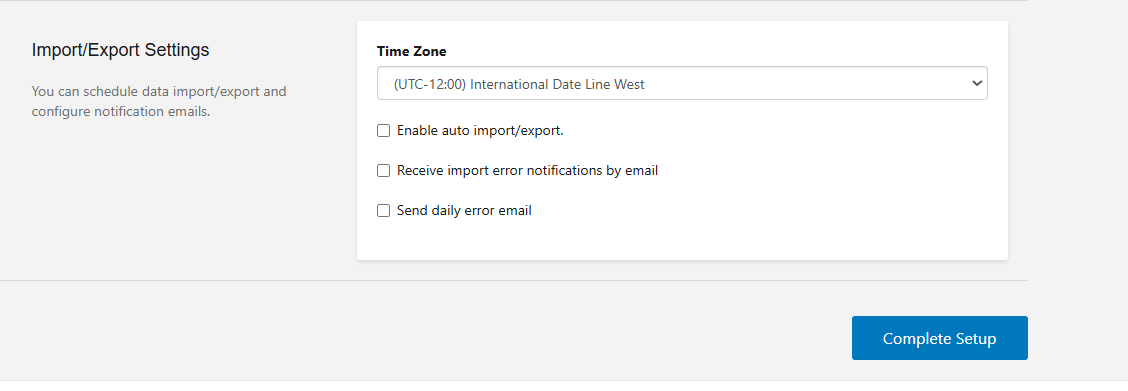
These settings control how **XoroERP integrates with** Orderful, including job scheduling, automation, and error notifications. They ensure that import and export processes run on time, follow the correct time zone, and provide visibility into integration issues for reliable day-to-day operations.
#### Time Zone & Automation Settings
| Setting | UI Element | Description |
| --------------------------------- | ------------- | --------------------------------------------------------------------------------------------------------------------------------------------------------------------------------------------------------------------------------------------------------------------------------------------- |
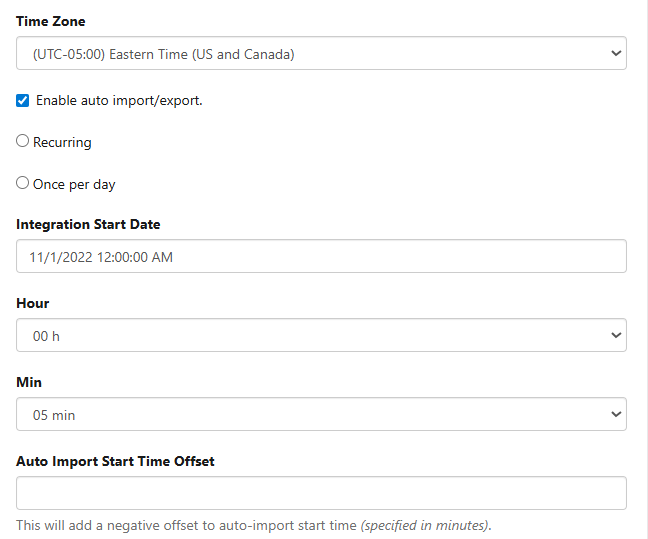
| **Time Zone** | Dropdown | Defines the time zone used for **all scheduled** Orderful **import and export jobs**. All automated Orderful processes—such as order export, shipment confirmation import, inventory sync, and status updates—run according to this selected time zone to ensure consistent execution timing. |
| **Enable Auto Import/Export** | Checkbox | Enables XoroERP to automatically run Orderful **import and export jobs** based on a configured schedule. When disabled, all Orderful -related processes must be triggered manually from the Operations page. |
| **Integration Start Date** | Date Picker | Specifies the date from which **automated** Orderful **jobs begin running**. No scheduled tasks will execute before this date. |
| **Hour** | Dropdown | Defines the **hour of execution** for scheduled Orderful jobs, based on the selected time zone. |
| **Min** | Dropdown | Defines the **minute of execution** within the specified hour. |
| **Auto Import Start Time Offset** | Numeric Input | Allows a **negative minute offset** to run Orderful import jobs earlier than the scheduled time, helping accommodate upstream processing delays. |
#### Error Handling & Notifications
| Setting | UI Element | Description |
| ----------------------------------------------- | ---------- | ---------------------------------------------------------------------------------------------------------------------------------------------------------------------------------------- |
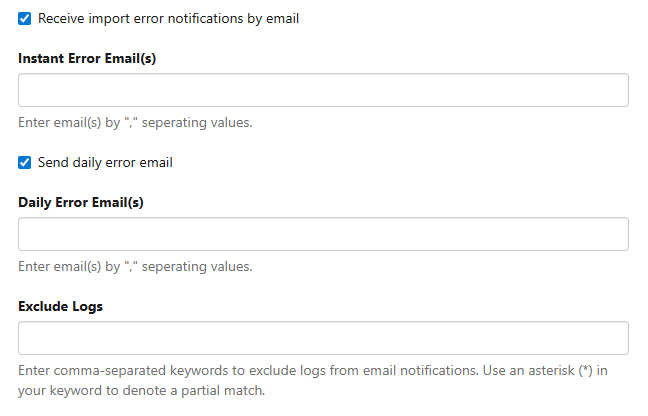
| **Receive Import Error Notifications by Email** | Checkbox | When enabled, XoroERP sends **instant email alerts** whenever a Orderful import or export job fails, allowing immediate awareness of integration issues. |
| **Instant Error Email(s)** | Text Input | This field becomes available when the **Receive Import Error** checkbox is enabled. Comma-separated list of email addresses that receive **real-time** Orderful **error notifications**. |
| **Send Daily Error Email** | Checkbox | Enables a **daily consolidated summary email** containing all Orderful import/export errors for the day. |
| **Daily Error Email(s)** | Text Input | This field becomes available when the **Daily Error Email(s)** checkbox is enabled. Comma-separated list of email addresses that receive the **daily** Orderful **error summary**. |
| **Error Email Filter Keywords** | Text Input | Allows filtering out specific log messages using **comma-separated keywords or wildcard patterns** (e.g., `*Inventory*`) to reduce alert noise from known or non-critical issues. |
***
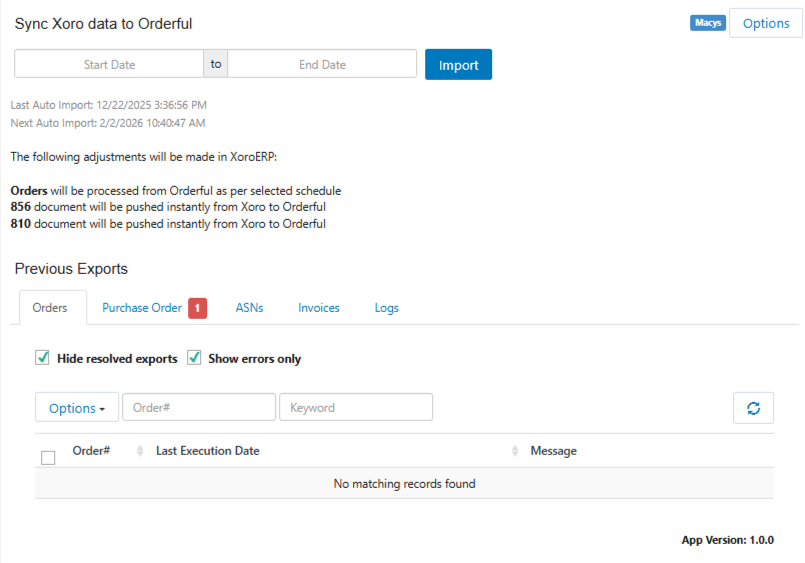
### 4. Operations Page
**Header Options**
* **Import Data** – Manually trigger the import of EDI documents from Orderful into XoroERP using the selected date range.
* **Start Date** – Defines the beginning of the date range for importing EDI documents from trading partners.
* **End Date** – Defines the end of the date range for importing EDI documents from trading partners.
* **Import** – Executes the import process based on the specified date range and selected document types.
**Import Data Fields**
These fields define the scope of data imported from trading partners through Orderful.
* **Start Date**\
Specifies the beginning of the date range for importing EDI documents. Only documents created or updated on or after this date are considered during import.
* **End Date**\
Specifies the end of the date range for importing EDI documents. Documents beyond this date are excluded from the import run.
* **Import Button**\
Manually triggers the import of EDI documents from Orderful into XoroERP based on the selected date range. This is commonly used for on-demand imports, historical reprocessing, or validation during setup and troubleshooting.
***
#### **Previous Exports**
View a history of EDI documents processed through the Orderful integration, with options to track status, review errors, and reprocess records as needed.
***
#### **5.1 Orders**
The Orders tab manages the import and tracking of purchase orders and sales orders exchanged with trading partners through Orderful.
#### **Purpose**
To track, process, and resolve issues related to order synchronization between trading partners and XoroERP via Orderful.
**Fields / Displayed Data**
* **Order #** – Unique identifier assigned to the order in XoroERP.
* **Trading Partner** – Indicates the trading partner from which the order was received.
* **Document Type** – Identifies the EDI document type (e.g., Purchase Order 850).
* **Last Execution Date** – Timestamp of the most recent import or processing attempt.
* **Message** – Displays validation errors, mapping issues, or processing status messages.
**Options**
* **Run** – Reprocesses the selected order records through the Orderful integration.
* **Mark as Resolved** – Marks the order as successfully processed to prevent duplicate handling.
* **Mark as Unresolved** – Reopens a previously resolved order for reprocessing.
**Filters / Checkboxes**
* **Hide Resolved Records** – Hides orders already marked as resolved.
* **Show Errors Only** – Displays only orders that encountered processing errors.
***
#### **5.2 Purchase Order**
The Purchase Orders tab specifically tracks inbound purchase order documents received from trading partners through Orderful.
**Purpose**
To monitor the import and processing of purchase orders into XoroERP.
**Fields**
* **Purchase Order #** – Trading partner’s purchase order reference.
* **Trading Partner** – Source of the purchase order.
* **Last Execution Date** – Timestamp of the most recent processing attempt.
* **Message** – Displays processing or validation details.
**Options**
* **Run** – Reprocesses selected purchase orders.
* **Mark as Resolved** – Marks successfully imported purchase orders.
* **Mark as Unresolved** – Reopens purchase orders for reprocessing.
**Usage Example**
If a purchase order is missing in XoroERP, users can review this tab to confirm whether it failed during import and retry processing.
***
#### **5.3 ASNs**
The ASNs tab manages outbound Advance Ship Notices (EDI 856) sent from XoroERP to trading partners via Orderful.
**Purpose**
To track the creation and transmission of ASNs and ensure shipment details are communicated successfully.
**Fields**
* **ASN #** – Unique ASN identifier.
* **Order Reference** – Associated order number.
* **Last Execution Date** – Timestamp of the last export attempt.
* **Message** – Displays export status or errors.
***
#### **5.4 Invoices**
The Invoices tab tracks outbound invoice documents (EDI 810) sent to trading partners through Orderful.
**Purpose**
To ensure invoice data is successfully transmitted for billing and reconciliation.
**Fields**
* **Invoice #** – Unique invoice reference.
* **Last Execution Date** – Timestamp of the export attempt.
* **Message** – Displays transmission status or errors.
***
#### **5.5 Logs**
The Logs tab tracks all Orderful EDI activities, providing a complete audit trail of document imports, exports, and system actions.
**Purpose**
To monitor, troubleshoot, and verify all EDI interactions between XoroERP and trading partners.
**Columns / Information Displayed**
* **Execution Date** – Date and time of the EDI operation.
* **Document Type** – Order, Purchase Order, ASN, or Invoice.
* **Trading Partner** – Source or destination of the document.
* **Reference #** – Associated order, ASN, or invoice reference.
* **Message** – Detailed processing, warning, or error information.
#### **Filters & Options**
* **Do Not Show Resolved Records** – Hides entries already marked as resolved.
* **Filter by Document Type** – Filters logs by Orders, ASNs, or Invoices.
***
---
# Agent Instructions
This documentation is published with GitBook. GitBook is the documentation platform designed so that both humans and AI agents can read, navigate, and reason over technical content effectively. Learn more at gitbook.com.
## Querying This Documentation
If you need additional information that is not directly available in this page, you can query the documentation by asking a question.
Perform an HTTP GET request on the following URL with the `ask` and `goal` query parameters:
```
GET https://docs.xorosoft.com/xoroerp-1/apps-and-integrations/edi-connections/orderful.md?ask=&goal=
```
`ask` is the immediate question: it should be specific, self-contained, and written in natural language.
`goal` is what the user is ultimately trying to achieve, the reason they need the answer. Sharing it helps GitBook give you a better, more relevant answer. A goal is most helpful when it describes the outcome the user wants rather than restating the question. For example, with `ask=how do I create an API token`, a goal like `automate deployments from our CI pipeline` lets GitBook tailor the answer to that use case.
The response will contain a direct answer to the question and relevant excerpts and sources from the documentation.
Use this mechanism when the answer is not explicitly present in the current page, you need clarification or additional context, or you want to retrieve related documentation sections.