> For the complete documentation index, see [llms.txt](https://docs.xorosoft.com/llms.txt). Markdown versions of documentation pages are available by appending `.md` to page URLs; this page is available as [Markdown](https://docs.xorosoft.com/xoroerp-1/apps-and-integrations/edi-connections/sps.md).
# SPS
### 1. Overview
The **SPS EDI integration** allows XoroERP to exchange business documents automatically with **SPS Commerce** using Electronic Data Interchange (EDI).
Instead of sending spreadsheets, emails, or paper documents, purchase orders, shipment confirmations, and invoices flow digitally between XoroERP and SPS. This removes manual data entry, and ensures that both systems always reflect the same order and shipment information.
For operations users, this means:
* No re-typing of customer orders
* Automatic updates when shipments are confirmed
* Faster billing cycles
* Fewer order and inventory mistakes
***
### 2. Workflow – SPS
#### 2.1 Document Creation in XoroERP
Daily business activities in XoroERP generate records such as:
* Sales Orders created from customer demand
* Shipment records when orders are fulfilled
* Invoices are generated once shipments are completed.
These records become the source for outbound EDI documents sent to SPS.
***
#### 2.2 EDI Export to SPS +
XoroERP converts these records into standardized EDI files such as:
* **997 – Functional Acknowledgment**
* **855 – Purchase Order Acknowledgment**
* **856 – Advance Shipping Notice (ASN)**
* **810 – Invoice**
These files are placed in the configured **target directories** where SPS Fulfillment picks them up.
**Flow:**\
XoroERP → SPS Fulfillment
***
#### 2.3 SPS Processing
SPS receives the EDI files and processes them inside its fulfillment network.
* Orders are validated
* Shipments are prepared
* Inventory is updated
* Shipment and status responses are generated
***
#### 2.4 EDI Import from SPS
SPS sends files back to XoroERP such as:
* **850 – Purchase Order**
* **997 – Receipt confirmations**
* **Shipment confirmations and inventory updates**
XoroERP imports these files and automatically updates:
* Order status
* Shipped quantities
* Tracking numbers
* Inventory levels
**Flow:**\
SPS Fulfillment → XoroERP
***
#### 2.5 Error Handling & Reprocessing
If any file fails to import or export:
* The error is logged.
* Notification emails are sent if enabled.
* The failed record can be reviewed, corrected, and retried from the Operations Page.
***
### 3. Settings
#### 3.1 Data Export Setting
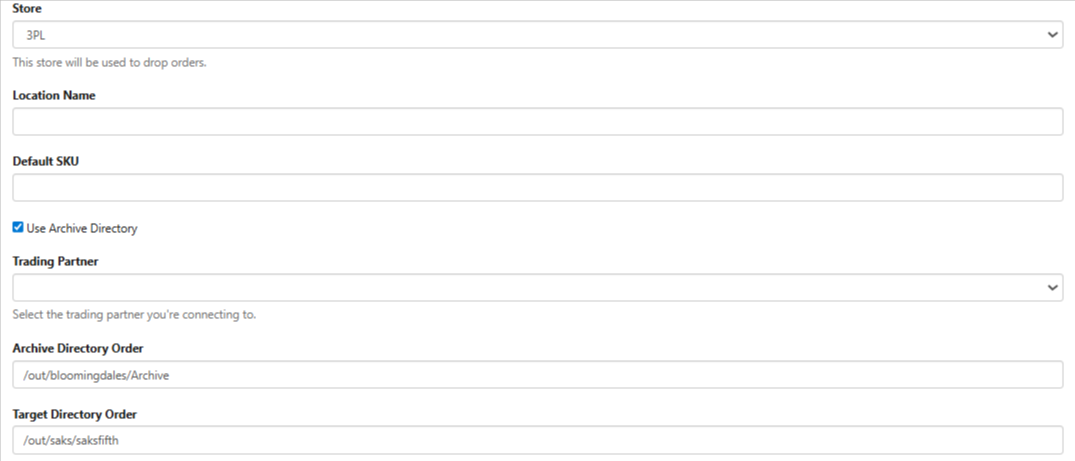
The following accounts and configuration will be used in XoroERP. This can be changed later.
| Setting | UI Element | Description |
| ----------------------- | ---------- | ----------------------------------------------------------------------------------------------------------------------------------------------------------------------------------------------- |
| Store | Dropdown | Selects the XoroERP store used for SPS EDI order processing. **All incoming EDI orders are created under this selected store**, ensuring consistent order ownership and reporting. |
| Location Name | Text Field | Defines the warehouse or fulfillment location used for both incoming and outgoing SPS EDI transactions. **All orders, shipments, and inventory updates are associated with this location.** |
| Default SKU | Text Field | Used when an item received via SPS EDI does not exist in XoroERP. **If an incoming EDI document references an unknown SKU, the system applies the Default SKU to prevent processing failures.** |
| Use Archive Directory | Checkbox | When enabled, **a copy of all processed SPS EDI files is stored for audit and troubleshooting purposes**. Enabling this option reveals additional archive-related fields. |
| Trading Partner | Text Field | Specifies the SPS trading partner you are connecting to. **This value determines which partner’s EDI documents are processed through this configuration.** |
| Archive Directory Order | Text Field | Displayed only when **Use Archive Directory** is enabled. **Defines the directory path where processed EDI order files are archived** for historical reference. |
| Target Directory Order | Text Field | Defines the directory path where inbound purchase order files (EDI 850) are placed by SPS. **XoroERP monitors this directory to pick up and process incoming orders.** |
***
#### 3.2 Auto Release & Waving
| Setting | UI Element | Description |
| ------------------------- | ---------- | ------------------------------------------------------------------------------------------------------------------------------------------------------------------------------------------------------------------------------------------------------------------------------------------------------------------------------------------------------------------------------------------------------------------------------------------------------------------------------------------------------ |
| Auto Release Sales Orders | Checkbox | When enabled, sales orders created via SPS EDI are automatically released in XoroERP after creation. **Checking this option reveals additional settings related to automatic waving and allocation.** |
| Auto Wave Sales Orders | Checkbox | When enabled, **XoroERP automatically creates waves for eligible sales orders** as soon as they meet the configured allocation and fulfillment conditions, eliminating the need for manual wave creation. |
| WaveCreateCode | Dropdown |
Defines how inventory allocation is performed when orders are automatically waved.
Allocate Full Order Only – Inventory is allocated only when the entire order quantity is available.
Allocate Full Quantity Only Per Line – Each order line is allocated only when its full quantity is available; partial lines are skipped.
Allocate What Is Available – Allows partial allocation based on currently available stock.
|
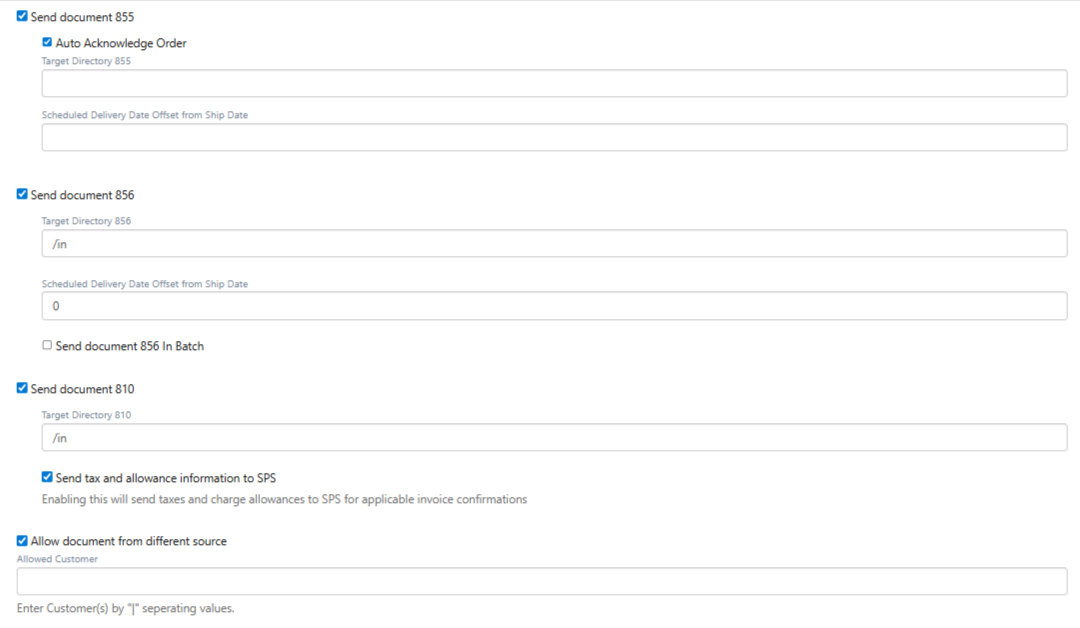
| Auto Acknowledge Order | Checkbox | When enabled, **orders are automatically acknowledged in XoroERP once the 855 Order Acknowledgement document is generated and transmitted**, ensuring immediate confirmation without manual intervention. |
***
#### 3.3 Shipment & Invoice Controls
| Setting | UI Element | Description |
| --------------------------------------------- | ------------- | ---------------------------------------------------------------------------------------------------------------------------------------------------------------------------------------------- |
| Target Directory 856 | Checkbox | When enabled, shipment confirmation (EDI 856) files are generated and placed in the configured target directory. **Enabling this option reveals additional fields related to 856 processing.** |
| Target Directory 856 | Text Field | Specifies the directory path where outbound EDI 856 shipment confirmation files are written for SPS to consume. |
| Scheduled Delivery Date Offset from Ship Date | Numeric Field | Defines the number of days to offset the scheduled delivery date from the ship date. **This value is added to the ship date to calculate the delivery date included in the 856 document.** |
| Send Document 810 | Checkbox | When enabled, invoice (EDI 810) documents are generated and sent to SPS. **Enabling this option reveals additional invoice-related fields.** |
| Target Directory 810 | Text Field | Specifies the directory path where outbound EDI 810 invoice files are written for SPS processing. |
| Send Tax and Allowance Information to SPS | Checkbox | When enabled, **tax details and charge or allowance information are included in EDI 810 invoice documents**, ensuring accurate financial reporting and reconciliation on the SPS side. |
| Allow Document from Different Source | Checkbox | When enabled |
***
#### 3.4 General Settings
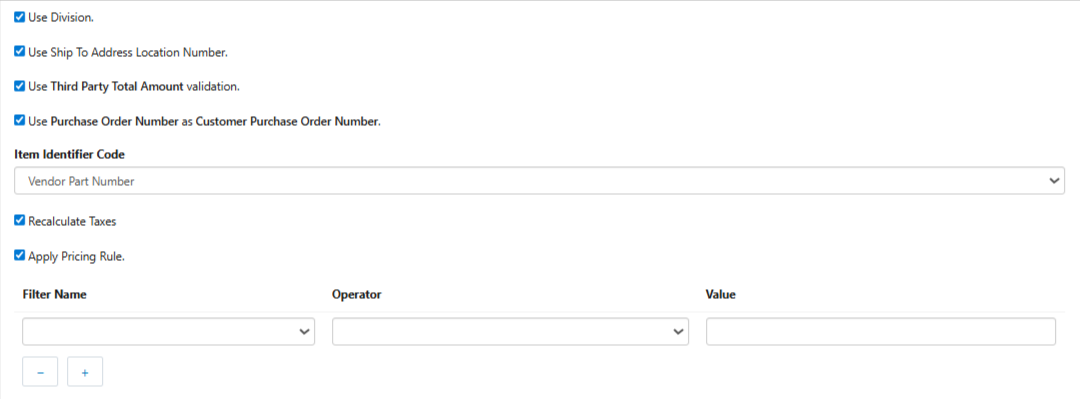
The following configurations will be used in XoroERP. This can be changed later.
| Setting | UI Element | Description |
| ----------------------------------------------------------- | ---------- | ---------------------------------------------------------------------------------------------------------------------------------------------------------------------------------------------- |
| Use Division | Checkbox | When enabled, **division information from SPS EDI documents is used during order creation** in XoroERP. This is typically required when the trading partner differentiates orders by division. |
| Use Ship To Address Location Number | Checkbox | When enabled, **the Ship-To location number from the EDI document is used to determine the delivery location**, ensuring accurate address and routing mapping. |
| Use Third-Party Total Amount Validation | Checkbox | When enabled, **the total amount received from SPS is validated against the calculated order total in XoroERP**. Any mismatch can be flagged to prevent incorrect order processing. |
| Use Purchase Order Number as Customer Purchase Order Number | Checkbox | When enabled, **the trading partner’s purchase order number is used as the customer purchase order number** in XoroERP for consistency and traceability. |
| Item Identifier Code | Dropdown | Defines how items are identified and matched during EDI processing. **The selected identifier must align** |
***
#### 3.5 Inventory Sync Settings
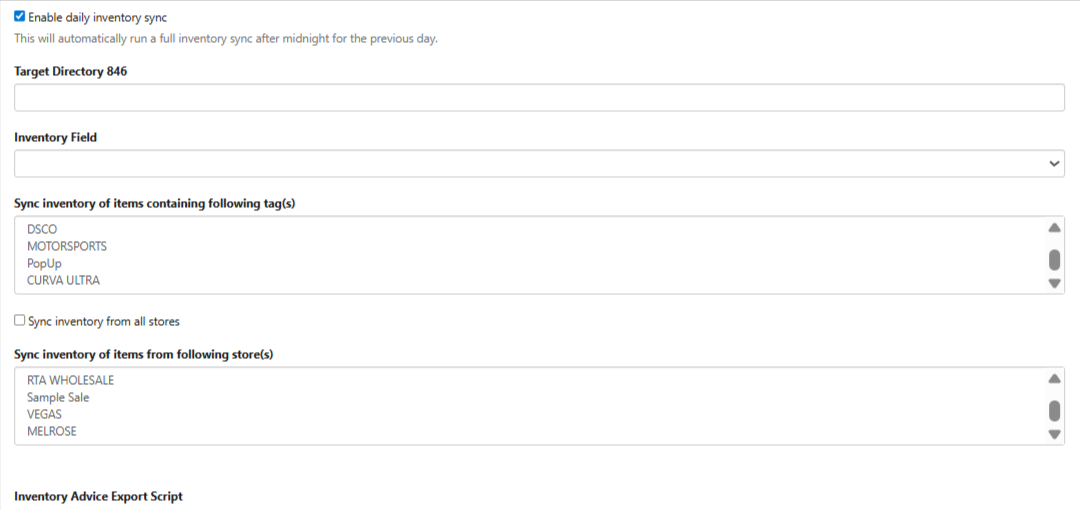
The following configurations will be used for syncing inventory with the Trading Partner. This can be changed later.
| Setting | UI Element | Description |
| --------------------------- | --------------------- | ----------------------------------------------------------------------------------------------------------------------------------------------------------------------------------------------------------------------------------------------------------- |
| Enable Full Inventory Sync | Checkbox | Enables inventory synchronization between XoroERP and SPS. **When enabled, XoroERP periodically fetches inventory data from SPS and updates inventory levels accordingly.** Enabling this option reveals additional inventory-related configuration fields. |
| Inventory Identifier Code | Dropdown / Text Field | Defines the identifier used to match inventory items between XoroERP and SPS. **This must align with the item identifier sent by SPS** (such as SKU, UPC, or other configured codes) to ensure accurate inventory mapping. |
| Xoro Inventory Level | Dropdown | Specifies which inventory quantity in XoroERP is used as the reference during synchronization. **This determines which internal inventory level is compared and updated based on SPS data.** |
| Third Party Inventory Level | Dropdown | Defines the inventory level reported by SPS that XoroERP should align with. **This determines which stock quantity from SPS is treated as the source for synchronization.** |
| Inventory Sync Schedule | Configuration | Controls how often inventory synchronization runs. **Inventory sync can be configured to run on a recurring interval or once per day**, depending on operational requirements. |
| Recurring | Option | When selected, **inventory sync runs repeatedly based on the configured hours and minutes interval**. |
| Once Per Day | Option | When selected, **inventory sync runs once every day at the configured time**. |
| Hours | Numeric Field | Defines the hour-based interval for recurring inventory sync jobs. |
| Minutes | Numeric Field | Defines the minute-based interval for recurring inventory sync jobs, allowing fine-grained scheduling. |
***
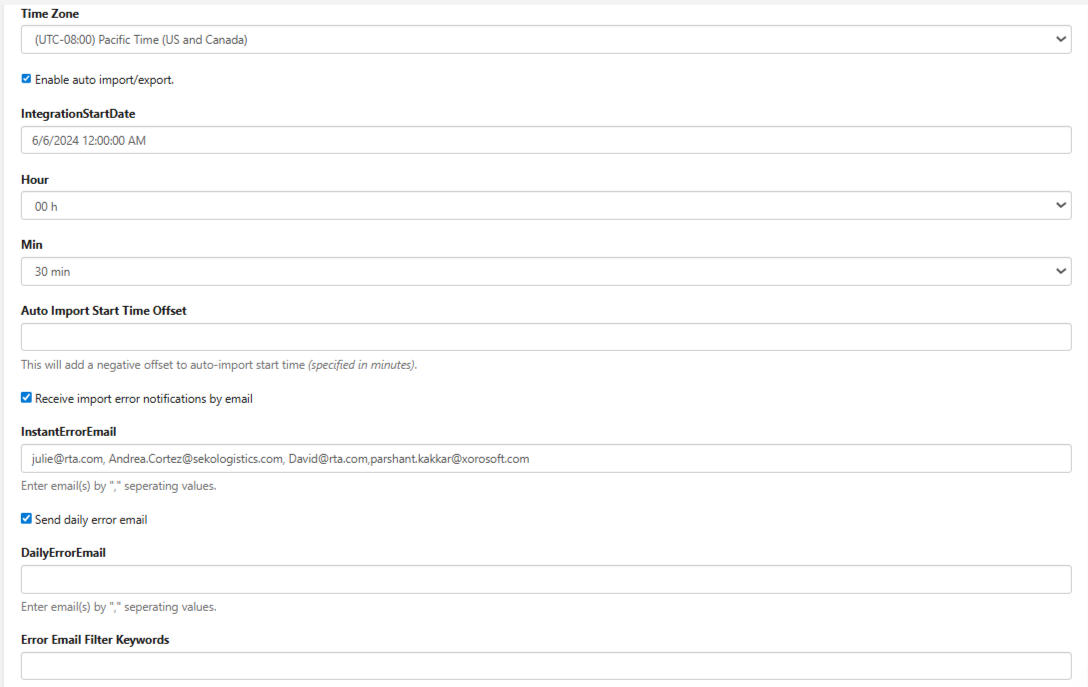
#### 3.6 Import Export Setting
You can schedule data import/export and configure notification emails.
| Setting | UI Element | Description |
| ---------------------------------- | ------------- | ---------------------------------------------------------------------------------------------------------------------------------------------------------------------------------------------------- |
| Time Zone | Dropdown | Selects the operational time zone used for scheduling all SPS import, export, and inventory sync jobs. **All automated processes run according to this selected time zone.** |
| Enable Auto Import / Export | Checkbox | When enabled, XoroERP automatically runs SPS-related import and export jobs without manual intervention. **Execution follows the configured start date, schedule type, and interval settings.** |
| Integration Start Date | Date Field | Defines the date from which automated SPS import and export jobs begin running. Jobs are not triggered before this date. |
| Recurring | Option | When selected, **import and export jobs run repeatedly based on the configured hour and minute interval**. |
| Once Per Day | Option | When selected, **import and export jobs run once per day** at the configured time. |
| Hours | Numeric Field | Defines the hour interval used when recurring execution is enabled. |
| Minutes | Numeric Field | Defines the minute interval used when recurring execution is enabled, allowing fine-grained scheduling. |
| Auto Import Start Time Offset | Numeric Field | Adjusts the import execution time earlier by the specified number of minutes. **For example, if the interval is 30 minutes and the offset is 5 minutes, imports run every 25 minutes.** |
| Receive Import Error Notifications | Checkbox | When enabled, **instant email notifications are sent whenever an SPS import job encounters an error**, allowing quick response. |
| Instant Error Email(s) | Text Field | Specifies one or more email addresses that receive immediate import error notifications. **Multiple email addresses must be separated by commas.** |
| Send Daily Error Email | Checkbox | When enabled, **a daily summary email containing all SPS-related import and export errors is sent** to the configured recipients. |
| Daily Error Email(s) | Text Field | Specifies the email addresses that receive the daily error summary. **Multiple email addresses must be separated by commas.** |
| Error Email Filter Keywords | Text Field | Allows filtering of log entries included in email notifications. **Keywords can be entered to exclude matching logs, and wildcards (such as `*error*`) are supported** to reduce notification noise. |
***
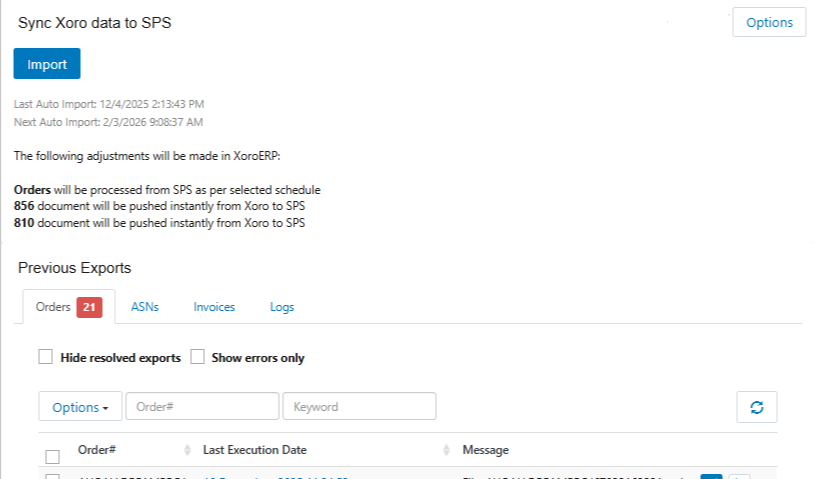
### 4. Operations Page
The Operations Page is the command center for monitoring and managing all SPS EDI activity.
***
**Header Options**
These options appear at the top of the Operations Page and control the SPS account configuration.
* **Add Account** – Connects a new SPS EDI account to XoroERP for order, shipment, and invoice processing.
* **Change Account** – Switches or updates the currently connected SPS EDI account.
* **Remove Account** – Disconnects the SPS EDI account from XoroERP and stops all related processing.
* **Settings** – Opens the SPS configuration settings page where export, import, inventory sync, and EDI behavior can be configured.
***
**Import Function**
The **Import** function allows users to manually trigger inbound SPS EDI processing without waiting for scheduled jobs.
* Imports include:
* Orders (EDI 850)
* Inventory adjustments
* Other enabled inbound EDI documents
This is commonly used for testing, reprocessing, or urgent operational needs.
***
#### 4.1 Orders
This tab shows all inbound and outbound **purchase order-related EDI files**.
Operations users use this tab to:
* Verify that orders were exported to SPS
* Check if inbound purchase orders were successfully imported
* Retry failed order records
* View error messages if a document was rejected
***
#### 4.2 Acknowledgements / Confirmations
This tab tracks:
* **997 – Functional Acknowledgements**
* **855 – Order Acknowledgements**
It helps confirm whether SPS:
* Received your documents
* Accepted or rejected the order details
This ensures that no order is missed or silently rejected.
***
#### 4.3 Inventory / ASN / Invoice Tabs
These tabs control shipment and inventory-related documents.
| Tab | Usage |
| ------------- | ----------------------------------------------------------------------------- |
| **Inventory** | Shows inventory adjustment files received from SPS. Keeps stock synchronized. |
| **ASN** | Tracks outbound Advance Shipping Notices (856). Confirms what was shipped. |
| **Invoice** | Tracks invoice files (810) sent to SPS after shipment. |
Each tab allows:
* Viewing file status
* Retrying failed records
* Reviewing error messages
***
#### 4.4 Logs
The Logs tab provides a complete history of:
* All imports and exports
* File names and timestamps
* Error messages and system responses
It is used for:
* Troubleshooting
* Audits
* Verifying what data was exchanged and when
---
# Agent Instructions
This documentation is published with GitBook. GitBook is the documentation platform designed so that both humans and AI agents can read, navigate, and reason over technical content effectively. Learn more at gitbook.com.
## Querying This Documentation
If you need additional information that is not directly available in this page, you can query the documentation by asking a question.
Perform an HTTP GET request on the following URL with the `ask` and `goal` query parameters:
```
GET https://docs.xorosoft.com/xoroerp-1/apps-and-integrations/edi-connections/sps.md?ask=&goal=
```
`ask` is the immediate question: it should be specific, self-contained, and written in natural language.
`goal` is what the user is ultimately trying to achieve, the reason they need the answer. Sharing it helps GitBook give you a better, more relevant answer. A goal is most helpful when it describes the outcome the user wants rather than restating the question. For example, with `ask=how do I create an API token`, a goal like `automate deployments from our CI pipeline` lets GitBook tailor the answer to that use case.
The response will contain a direct answer to the question and relevant excerpts and sources from the documentation.
Use this mechanism when the answer is not explicitly present in the current page, you need clarification or additional context, or you want to retrieve related documentation sections.