> For the complete documentation index, see [llms.txt](https://docs.xorosoft.com/llms.txt). Markdown versions of documentation pages are available by appending `.md` to page URLs; this page is available as [Markdown](https://docs.xorosoft.com/xoroerp-1/3pl-connections/bleckmann.md).
# Bleckmann
### **1. Overview**
The **Bleckmann 3PL integration** in XoroERP enables seamless communication between your ERP system and Bleckmann’s warehouse management environment. This integration supports automated export and import of operational data, ensuring that warehouse activities remain synchronized with XoroERP in real time.
#### **Key capabilities include:**
* Exporting product and order data from XoroERP to Bleckmann
* Receiving shipping confirmations and ASN confirmations from Bleckmann
* Handling inventory adjustments and related warehouse transactions
* Support for multiple receiving locations, damaged inventory locations, EU HS Codes, and hanging garment attributes
* Scheduling recurring import/export jobs through automated tasks
* Receiving instant and daily error notifications to stay informed of integration issues
This integration ensures **accurate order fulfillment, real-time inventory tracking, and consistent operational flow** between XoroERP and Bleckmann’s warehouse network.
***
### **2. Workflow**
**2.1 Data Export & Import**
Product, order, ASN, and inventory data are exported from XoroERP to Bleckmann using FTP-based file exchange, following the configured target directories, archive directories, and file naming formats.\
Bleckmann’s systems continuously monitor these directories, pick up incoming files, and process them based on the defined integration rules.
***
**2.2 Order Fulfillment**
Sales orders exported from XoroERP are received and processed in Bleckmann.\
Orders are picked, packed, and shipped at the Bleckmann warehouse according to mapped carriers, ship services, and shipping terms.\
Once shipped, Bleckmann generates Ship Confirmation files, which are sent back to XoroERP to update order status, wave lines, shipped quantities, carrier details, and tracking information.
***
**2.3 ASN Processing & Inventory Receiving**
ASNs exported from XoroERP notify Bleckmann of inbound inventory or returns.\
Upon physical receipt of goods, Bleckmann sends ASN Confirmation files back to XoroERP.\
XoroERP automatically receives inventory into the configured batch receive locations, including separate locations for damaged inventory when applicable.
***
**2.4 Inventory Updates & Adjustments**
Inventory adjustments such as shortages, overages, damages, and cycle count corrections are generated by Bleckmann and transmitted back to XoroERP.\
These adjustments are imported using dedicated inventory adjustment directories, ensuring accurate stock levels and warehouse reconciliation across systems.
***
**2.5 Automation & Notifications**
Scheduled auto import/export jobs ensure continuous synchronization of products, orders, shipments, ASNs, and inventory adjustments between XoroERP and Bleckmann.\
Email notifications alert administrators and support teams to any import/export failures, file validation errors, or processing issues, enabling timely resolution and operational continuity.
### **3. Settings**
The following settings define how XoroERP exchanges product, order, shipment, ASN, and inventory data with **Bleckmann** through an FTP-based 3PL integration.
#### 3.1 Data Export Settings
#### **Use Archive Directory (Checkbox)**
| Setting | UI Element | Description |
| --------------------- | ---------- | ------------------------------------------------------------------------------------------------------------------------------------------------------------------------------------------------------------------------------- |
| Use Archive Directory | Checkbox | When enabled, processed inbound and outbound files are automatically moved to their respective archive directories. **This keeps target directories clean and supports audit, traceability, and troubleshooting requirements.** |
***
#### **Export Products to Bleckmann (Checkbox)**
| Setting | UI Element | Description |
| ---------------------------- | ---------- | ---------------------------------------------------------------------------------------------------------------------------------------------------------------------------------------------------------------------------------------------------- |
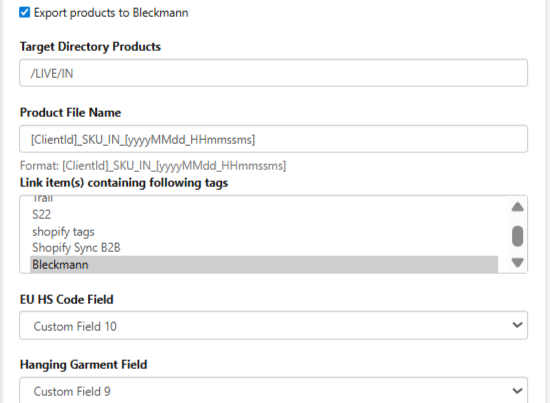
| Export Products to Bleckmann | Checkbox | When enabled, product master data (SKU and item information) is exported from XoroERP to Bleckmann. **Enabling this option reveals additional product-related configuration fields required for successful product file generation and processing.** |
***
| Setting | UI Element | Description |
| -------------------------------------- | ------------ | ----------------------------------------------------------------------------------------------------------------------------------------------------------------------------------------------------------------- |
| Target Directory – Products | Text Field | Specifies the FTP directory where product (SKU / item master) files are sent from XoroERP. **Bleckmann monitors this directory to import product master data**, so the path must match their configured location. |
| Product File Name | Text Field | Defines the naming convention used for exported product files. **The file name must strictly follow Bleckmann’s expected format** to ensure successful file pickup and processing. |
| Link Item(s) Containing Following Tags | Tag List | Restricts product export to items containing specific tags required by Bleckmann. **Only items with the selected tags are included in the product export.** |
| EU HS Code Field | Custom Field | Specifies the custom item field in XoroERP that stores the **EU HS Code**. **This value is required for customs declaration and regulatory compliance during international shipments.** |
| Hanging Garment Field | Custom Field | Specifies the custom item field used to identify **hanging garments**. This ensures items requiring special handling are correctly flagged for warehouse processing at Bleckmann. |
***
#### **Export Orders to Bleckmann (Checkbox)**
| Setting | UI Element | Description |
| ----------------------------------------- | ------------- | ------------------------------------------------------------------------------------------------------------------------------------------------------------------------------------------------------------------------------------------ |
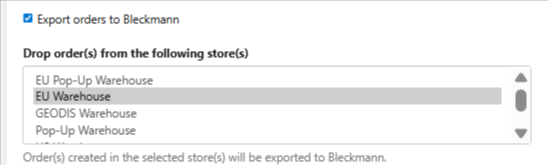
| Export Orders to Bleckmann | Checkbox | When enabled, sales orders are exported from XoroERP to Bleckmann for fulfillment processing. **Enabling this option reveals additional order-related configuration fields.** |
| Drop Order(s) from the Following Store(s) | Dropdown List | Specifies which XoroERP store(s) are eligible for order export. **Only orders created in the selected stores are exported to Bleckmann**, making this useful when multiple stores exist but only certain stores are fulfilled by this 3PL. |
***
#### Block Waves Created via QuickShip
| Setting | UI Element | Description |
| --------------------------------------------------------------------- | ---------- | --------------------------------------------------------------------------------------------------------------------------------------------------------------------------------------------------------------------------------- |
| Block Waves Created via QuickShip in Xoro from Flowing into Bleckmann | Checkbox | When enabled, waves created through **QuickShip** in XoroERP are prevented from being exported to Bleckmann. **This avoids unintended fulfillment requests and ensures that only planned fulfillment waves are sent to the 3PL.** |
***
#### Ship Method Name(s), Blocked SKU(s), Allowed Customer(s)
| Setting | UI Element | Description |
| ------------------- | ---------- | ------------------------------------------------------------------------------------------------------------------------------------------------------------------------------------------------------------------------------- |
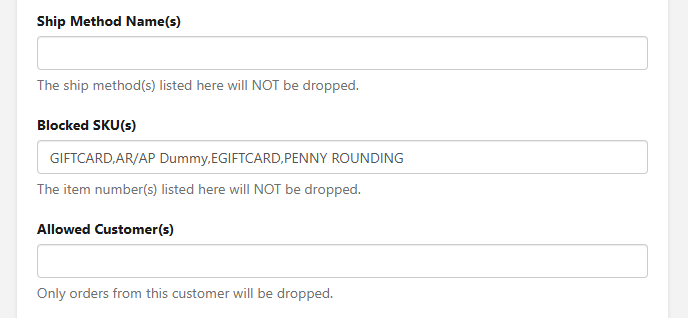
| Ship Method Name(s) | Text Field | Specifies the ship methods that are **allowed** to be exported to Bleckmann. **Only orders using the ship methods listed here are sent to Bleckmann.** Leave this field blank if ship method–based restriction is not required. |
| Blocked SKU(s) | Text Field | Lists item numbers (SKUs) that should be **excluded from export** to Bleckmann. **Any order line containing a listed SKU will not be sent**, making this useful for items not handled by the 3PL. |
| Allowed Customer(s) | Text Field | Restricts order export to specific customers. **Only orders belonging to the listed customers are exported to Bleckmann.** Leave blank to allow orders for all customers (subject to other rules). |
***
#### **Target Directory, Archive Directory**
| Setting | UI Element | Description |
| ------------------------------------- | ---------- | --------------------------------------------------------------------------------------------------------------------------------------------------------------------------------------------------------------------------------------------------- |
| Target Directory – Order | Text Field | Defines the FTP directory where **order files** generated by XoroERP are sent. **Bleckmann retrieves order files from this directory for fulfillment processing**, so the path must match Bleckmann’s configured pickup location. |
| Target Directory – Ship Confirmation | Text Field | Specifies the FTP directory where **ship confirmation files** are placed by Bleckmann after shipment processing. XoroERP monitors this directory to fetch shipment details. |
| Archive Directory – Ship Confirmation | Text Field | Defines the directory where ship confirmation files are **moved after successful processing** in XoroERP. This supports audit requirements and keeps the target directory clean. |
| Order File Name Format | Text Field | Defines the naming convention for order files sent to Bleckmann. The format follows:**`[ClientId]_ORD_IN_[yyyyMMdd_HHmmssms]`**This naming structure must align with Bleckmann’s expectations to ensure successful file pickup and processing. |
***
| Setting | UI Element | Description |
| --------------------- | ---------- | ------------------------------------------------------------------------------------------------------------------------------------------------------------------------------------------------------------------------------------------------------------------------------------------------------------------------------------------------------------------ |
| Disable Multishipment | Checkbox | Controls how ship confirmations received from Bleckmann are handled in XoroERP.**When enabled**, the ship confirmation is treated as final. All wave lines are closed, and any remaining unshipped quantities are unallocated and not expected to ship later. **When disabled**, multiple ship confirmations are allowed until the full order quantity is shipped. |
***
#### **Filters**
| Setting | UI Element | Description |
| ----------- | ----------------- | -------------------------------------------------------------------------------------------------------------------------------------------------------- |
| Filter Name | Dropdown | Selects the order attribute used for filtering orders exported to Bleckmann, such as **Order Tags, Ship To Country, Third Party Source, or Order Date**. |
| Operator | Dropdown | Defines the logical operator applied to the selected filter attribute (for example, Equals, Contains, Greater Than, Less Than, etc.). |
| Value | Text / Date Field | Specifies the value used to evaluate the filter condition. **Only orders matching the configured filter criteria are eligible for export to Bleckmann.** |
***
#### Default SKU, Third Party Site ID, Shipping Markup, Shipping Markup Order Type
| Setting | UI Element | Description |
| -------------------------- | ------------- | ------------------------------------------------------------------------------------------------------------------------------------------------------------------------------------------------------------------------------ |
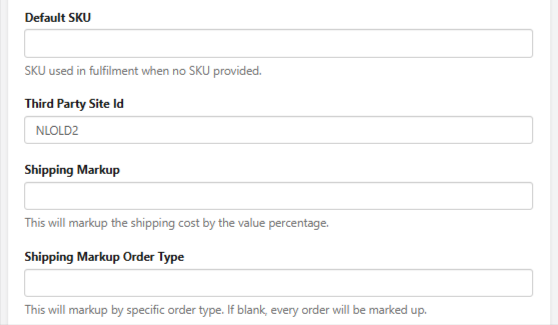
| Default SKU | Text Field | Defines a fallback SKU used when an order line does not include a SKU. **This prevents order processing failures caused by missing item identifiers.** |
| Third Party Site ID | Text Field | Identifies the **Bleckmann site or warehouse** used for routing exported orders. This ensures orders are sent to the correct fulfillment location within Bleckmann. |
| Shipping Markup | Numeric Field | Applies a **percentage-based markup** to shipping costs received from Bleckmann. The markup is calculated on top of the reported shipping charge and reflected in XoroERP. |
| Shipping Markup Order Type | Text Field | Restricts the application of the shipping markup to specific order types. **If one or more order types are specified, the markup applies only to those orders.** If left blank, the shipping markup applies to **all orders**. |
***
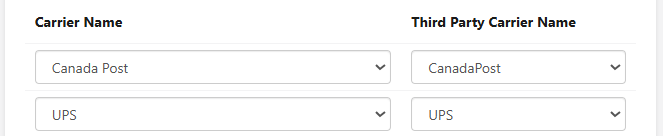
#### Carrier Name
| Setting | UI Element | Description |
| ------------------------ | ---------- | ------------------------------------------------------------------------------------------------------------------------------------------------------------------------------------------------------ |
| Carrier Name | Text Field | Defines the carrier name as configured in XoroERP. This value is used for internal order processing and shipping operations within XoroERP. |
| Third Party Carrier Name | Text Field | Specifies the corresponding carrier name used by Bleckmann. **This mapping ensures the XoroERP carrier is correctly recognized during data exchange and prevents carrier-related integration errors.** |
***
#### Ship Service Name
| Setting | UI Element | Description |
| ----------------------------- | ---------- | -------------------------------------------------------------------------------------------------------------------------------------------------------------------------------------------------------------------------- |
| Ship Service Name | Text Field | Specifies the ship service as configured in XoroERP. This value is used for internal order processing and shipment generation. |
| Third Party Ship Service Name | Text Field | Defines the corresponding ship service name used by Bleckmann. **This mapping ensures that the XoroERP ship service is correctly recognized by Bleckmann and prevents ship service–related processing or mapping errors.** |
***
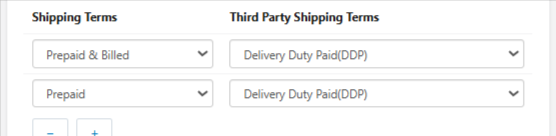
#### Shipping Terms
| Setting | UI Element | Description |
| -------------------------- | ---------- | ----------------------------------------------------------------------------------------------------------------------------------------------------------------------------------------------------------- |
| Shipping Terms | Text Field | Defines the shipping terms as configured in XoroERP. This value is used during order processing and shipment generation. |
| Third Party Shipping Terms | Text Field | Specifies the corresponding shipping terms expected by Bleckmann. **This mapping ensures that shipping terms from XoroERP are correctly translated and prevents shipping-term–related integration issues.** |
***
#### **3.30 Export ASNs to Bleckmann (Checkbox)**
Enables exporting Advanced Shipping Notices from XoroERP to Bleckmann. Checking this setting displays the following fields:
| Setting | UI Element | Description |
| -------------------------------------------- | ---------- | -------------------------------------------------------------------------------------------------------------------------------------------------------------------------------------------------------------- |
| Export ASNs to Bleckmann | Checkbox | When enabled, Advanced Shipping Notices (ASNs) are exported from XoroERP to Bleckmann. **Enabling this option reveals additional ASN-related configuration fields required for inbound inventory processing.** |
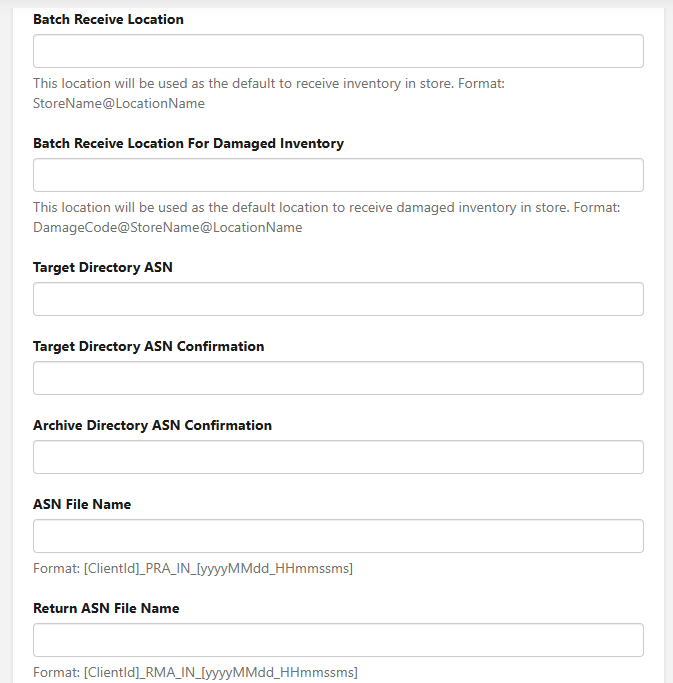
| Batch Receive Location | Text Field | Defines the default location where inbound inventory is received in XoroERP. The value must follow the format **`StoreName@LocationName`** to ensure correct inventory placement. |
| Batch Receive Location for Damaged Inventory | Text Field | Defines the location where **damaged inventory** is received. The value must follow the format **`DamageCode@StoreName@LocationName`**, allowing damaged stock to be tracked separately. |
| Target Directory – ASN | Text Field | Specifies the FTP directory where ASN files generated by XoroERP are sent for Bleckmann to retrieve and process. |
| Target Directory – ASN Confirmation | Text Field | Defines the FTP directory where **ASN confirmation files** from Bleckmann are received. XoroERP monitors this directory for confirmation imports. |
| Archive Directory – ASN Confirmation | Text Field | Specifies the directory where ASN confirmation files are **moved after successful import**. This supports auditability and keeps the target directory clean. |
| ASN File Name Format | Text Field | Defines the naming convention for ASN files sent to Bleckmann. The format follows:**`[ClientId]_PRA_IN_[yyyyMMdd_HHmmssms]`** |
| Return ASN File Name Format | Text Field | Defines the naming convention for **return ASN** files. The format follows:**`[ClientId]_RMA_IN_[yyyyMMdd_HHmmssms]`** |
| Enable Inventory Adjustment | Checkbox | When enabled, inventory adjustment files received from Bleckmann are processed in XoroERP. **Selecting this option reveals additional inventory adjustment–related configuration fields.** |
***
#### **Inventory Adjustment Processing**
***
| Setting | UI Element | Description |
| ---------------------------------------- | ---------- | -------------------------------------------------------------------------------------------------------------------------------------------------------------------------------- |
| Display Location Name | Text Field | Displays location names in inventory adjustment records. This helps users clearly identify the warehouse or location associated with each inventory adjustment entry. |
| Target Directory – Inventory Adjustment | Text Field | Defines the FTP directory where **inventory adjustment files** from Bleckmann are received. XoroERP monitors this directory to import inventory adjustment data. |
| Archive Directory – Inventory Adjustment | Text Field | Specifies the directory where **processed inventory adjustment files** are moved after successful import. This supports audit requirements and keeps the target directory clean. |
#### **3.5 Time Zone & Automation Settings**
#### **Time Zone**
Defines the time zone to be used for all scheduled import and export tasks.\
All automated Bleckmann sync processes—such as product export, order export, ship confirmation import, etc.—follow this time zone.
***
#### Enable Auto Import / Export
| Setting | UI Element | Description |
| ----------------------------- | ------------- | --------------------------------------------------------------------------------------------------------------------------------------------------------------------------------------------------------------------------------------------------------------------------------------- |
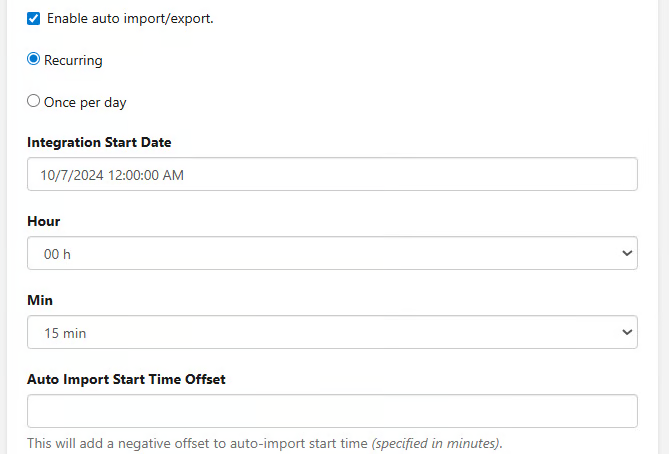
| Enable Auto Import / Export | Checkbox | When enabled, XoroERP automatically runs Bleckmann-related import and export jobs based on the configured schedule. **Enabling this option reveals additional scheduling fields.When disabled**, all Bleckmann imports and exports must be triggered manually from the Operations Page. |
| Integration Start Date | Date Field | Specifies the date from which automated Bleckmann jobs begin executing. **Transactions prior to this date are excluded from automated processing.** |
| Hour | Numeric Field | Defines the hour at which the scheduled Bleckmann job runs, based on the configured time zone. |
| Min | Numeric Field | Defines the minute at which the scheduled Bleckmann job runs, allowing precise control over execution timing. |
| Auto Import Start Time Offset | Numeric Field | Applies a **negative minute offset** to the scheduled execution time, allowing jobs to run earlier than the configured schedule when required. |
#### **Error Handling & Notifications**
#### **Receive Import Error Notifications by Email (Checkbox)**
| Setting | UI Element | Description |
| ------------------------------------------- | ---------- | -------------------------------------------------------------------------------------------------------------------------------------------------------------------------------------- |
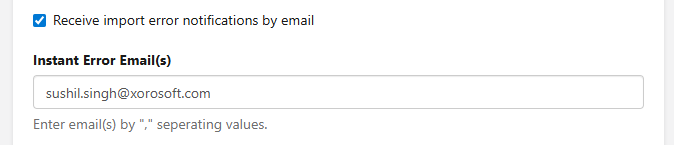
| Receive Import Error Notifications by Email | Checkbox | When enabled, XoroERP sends **instant email alerts** whenever any Bleckmann-related import or export process fails. **Enabling this option reveals the Instant Error Email(s) field.** |
| Instant Error Email(s) | Text Field | Specifies the email address(es) that should receive immediate error notifications. **Enter multiple email addresses separated by commas.** |
***
#### **Send Daily Error Email (Checkbox)**
| Setting | UI Element | Description |
| ---------------------- | ---------- | -------------------------------------------------------------------------------------------------------------------------------------------------------------------------------------------- |
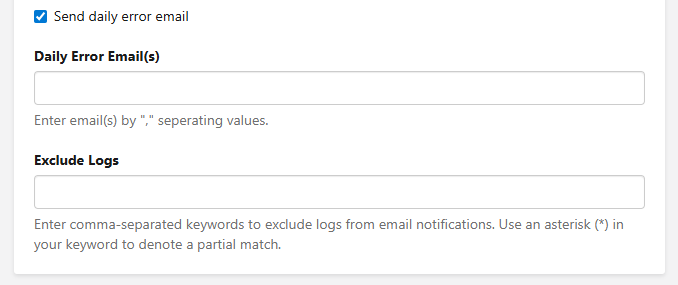
| Send Daily Error Email | Checkbox | When enabled, XoroERP sends a **consolidated daily summary** of all Bleckmann-related import and export errors. **Enabling this option reveals the Daily Error Email(s) field.** |
| Daily Error Email(s) | Text Field | Specifies the email address(es) that should receive the daily error summary. **Enter multiple email addresses separated by commas.** |
| Exclude Logs | Text Field | Allows filtering out specific log messages or known non-critical entries from email notifications. **Supports comma-separated keywords and wildcard patterns** (for example, `*Inventory*`). |
***
### **4. Operations Page**
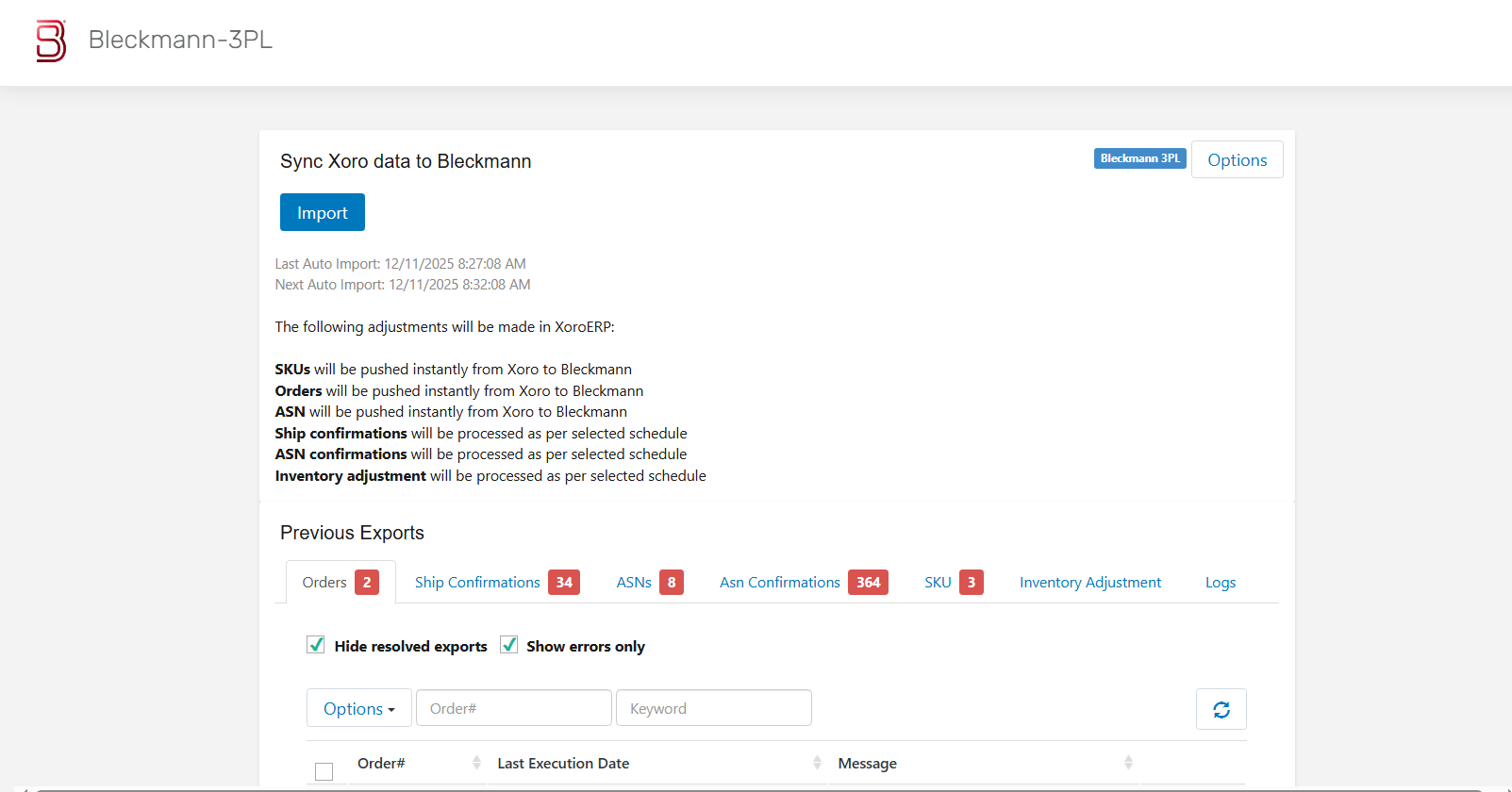
The **Operations Page** is the central workspace for monitoring, managing, and troubleshooting all day-to-day interactions between **XoroERP and Bleckmann**. It provides access to account management, manual import/export actions, operational tabs, and detailed logs.
***
**Header Options**
At the top of the Operations Page, you can access key actions for managing the **Bleckmann integration**:
**Add Account**
Adds a new Bleckmann account to XoroERP.\
This allows multiple Bleckmann accounts to be configured for different stores, regions, clients, or environments.
**Change Account**
Switch between existing Bleckmann accounts or update credentials for an already configured account.
**Remove Account**
Disconnects a Bleckmann account from XoroERP.\
All associated exports and imports will stop until another account is selected.
**Settings**
Opens the configuration panel where you can manage:
* Data Export Settings
* Import / Export Scheduling
* Store mappings
* Filters, ship methods, customers, SKUs
* Email notifications and error handling
***
**Import Button**
**Purpose**
Manually fetches and processes incoming files from **Bleckmann**, including:
* Ship Confirmations
* ASN Confirmations
* Inventory Adjustments
* Transfer Confirmations
**Functionality**
* Reads files from the configured **Target Directories**
* Updates order statuses, purchase orders, inventory levels, and ASN records
* Logs processing results and errors
* Sends email notifications if configured
These header options allow seamless movement between configuration and operational monitoring without leaving the integration context.
***
#### **Previous Exports**
View a history of previously exported data with options to manage and reprocess items.
#### **4.1 Orders**
**Purpose**
Export sales orders from XoroERP to **Bleckmann** for fulfillment.
**Steps**
1. Enable **Export Orders to Bleckmann**.
2. Configure store selection, filters (Allowed Customers, Blocked SKUs, Ship Methods), and quantity splitting if required.
3. Click **Run Export** to send orders to Bleckmann.
**Information Displayed**
* **Order # / Reference**\
Unique order identifier from XoroERP.
* **Last Execution Date**\
Timestamp of the last export attempt.
* **Status / Message**\
Indicates success, failure, or pending state with relevant error details.
**Actions**
* **Run** – Manually retries export for selected orders.
* **Mark as Resolved** – Marks completed or handled records as resolved.
* **Mark as Unresolved** – Reopens records requiring further action.
**Filters**
* **Hide Resolved** – Shows only active or problematic orders.
* **Show Errors Only** – Displays only orders that failed export.
This tab is the primary operational area for ensuring all orders intended for Bleckmann are successfully transmitted.
***
#### **4.2 Ship Confirmations**
**Purpose**
Monitor and process shipment confirmations sent back by **Bleckmann**.
**Information Displayed**
* **Ship Confirmation # / Reference**
* **Last Execution Date**
* **Message** (success or error details)
**Actions**
* **Run** – Manually reprocess selected ship confirmations.
* **Mark as Resolved / Unresolved** – Update record status as needed.
**Workflow**
1. Verify **Target Directory – Ship Confirmation** and **Archive Directory – Ship Confirmation** are configured.
2. Ship confirmations can be imported manually or via scheduled jobs.
3. Order status, shipped quantities, tracking numbers, and custom fields (e.g., Order Status at WMS, Preparation Code) are updated automatically.
***
#### **4.3 ASNs**
**Purpose**
Export **Advanced Shipping Notices (ASNs)** from XoroERP to Bleckmann.
**Steps**
1. Enable **Export ASNs to Bleckmann**.
2. Configure:
* Batch Receive Location
* Batch Receive Location for Damaged Inventory
3. Set:
* Target Directory – ASN
* Target Directory – ASN Confirmation
* Archive Directories
4. Click **Run Export** to generate ASN files.
***
#### **4.4 ASN Confirmations**
**Purpose**
Process ASN confirmations received from Bleckmann and update XoroERP records.
**Workflow**
* ASN confirmation files are placed in **Target Directory – ASN Confirmation**.
* XoroERP imports them automatically or manually.
* Each ASN is matched with the related order or PO.
* Quantities, locations, and statuses are updated.
**Error Handling**
* Discrepancies (missing ASN, SKU mismatch, quantity issues) are flagged.
* Errors are logged and email notifications are sent if enabled.
**Actions**
* **Run** – Re-import selected confirmations.
* **Mark as Resolved / Unresolved**
**Filters & Search**
* **Hide Resolved / Show Errors Only**
* **ASN Confirmation #**
* **Keyword** (order number or supplier reference)
**Information Displayed**
* **Order #**
* **Last Execution Date**
* **Message**
***
#### **4.5 SKU**
The **SKU tab** manages item master synchronization between XoroERP and **Bleckmann**.\
It supports both new SKU creation and updates (description, dimensions, UOM, weight).
**Actions**
* **Run** – Push or update SKU data.
* **Mark as Resolved / Unresolved**
**Filters**
* Hide Resolved
* Show Errors Only
**Search Fields**
* **SKU #**
* **Keyword** (product name, category, description)
**Information Displayed**
* SKU #
* Last Execution Date
* Message
**Example:**\
If SKU dimensions or weight are updated in XoroERP, the changes are automatically synced with Bleckmann to ensure consistent product specifications.
***
#### **4.6 Inventory Adjustment**
**Purpose**
Synchronize inventory adjustments between Bleckmann and XoroERP.
**Steps**
1. Enable **Enable Inventory Adjustment**.
2. Verify:
* Target Directory – Inventory Adjustment
* Archive Directory
3. Configure **Display Location Name** if required.
4. Run import/export as needed.
**Actions & Filters**
Same as other operational tabs:
* Run
* Mark as Resolved / Unresolved
* Hide Resolved / Show Errors Only
***
#### **4.7 Logs**
The **Logs tab** provides a complete audit trail of all integration activity between **XoroERP and Bleckmann**, including:
* Order, ASN, SKU, and inventory exports
* Import processes
* Scheduled job executions
* Errors and warnings
**Columns**
* **Export / Import Date**
* **Type** (order export, ship confirmation, ASN, etc.)
* **Keyword / Reference**
* **Message**
**Email Notification Alignment**
* **Receive Import Error Notifications by Email**
* **Exclude Logs** to filter noise
* **Send Daily Error Email** for consolidated reporting
**Filters**
* **Do Not Show Resolved Reports**
The Logs tab is the primary tool for diagnosing issues, verifying scheduled jobs, and confirming that Bleckmann integration processes are functioning as expected.
---
# Agent Instructions
This documentation is published with GitBook. GitBook is the documentation platform designed so that both humans and AI agents can read, navigate, and reason over technical content effectively. Learn more at gitbook.com.
## Querying This Documentation
If you need additional information that is not directly available in this page, you can query the documentation dynamically by asking a question.
Perform an HTTP GET request on the current page URL with the `ask` query parameter, and the optional `goal` query parameter:
```
GET https://docs.xorosoft.com/xoroerp-1/3pl-connections/bleckmann.md?ask=&goal=
```
`ask` is the immediate question: it should be specific, self-contained, and written in natural language.
`goal` is optional and describes the broader end goal you are ultimately trying to accomplish on behalf of the user. GitBook uses it to tailor the answer towards what is most useful for that goal.
The response will contain a direct answer to the question and relevant excerpts and sources from the documentation.
Use this mechanism when the answer is not explicitly present in the current page, you need clarification or additional context, or you want to retrieve related documentation sections.