> For the complete documentation index, see [llms.txt](https://docs.xorosoft.com/llms.txt). Markdown versions of documentation pages are available by appending `.md` to page URLs; this page is available as [Markdown](https://docs.xorosoft.com/xoroerp-1/3pl-connections/shipbob.md).
# Shipbob
### 1. Overview
The **ShipBob 3PL Integration** in **XoroERP** enables seamless communication between XoroERP and ShipBob’s third-party logistics (3PL) system.
This integration ensures real-time synchronization of **products, orders, shipments, and inventory** between both platforms — from order creation in XoroERP to final fulfillment by ShipBob.
Through this integration:
* **SKUs/Products** are pushed from XoroERP to ShipBob.
* **Orders** are automatically exported from XoroERP to ShipBob for fulfillment.
* **ShipBob sends back shipment confirmations** to XoroERP.
* **Inventory levels** are synchronized between ShipBob and XoroERP.
Overall, this integration:
* Reduces manual data entry.
* Eliminates redundancy.
* Automates warehouse data flow, making it more **reliable, traceable, and scalable**.
***
### 2. Installation
**2.1 Connect to XoroERP Instance**
1. Log in to your **XoroERP** account.
2. Navigate to the **Apps** module from the main dashboard.
3. Click the **3PL Connections** tab.
4. Select **Add 3PL Connection**.
5. Choose **ShipBob** from the list of available 3PL integrations.
**2.2 Install the Integration App**
1. Click **Install** to add the **ShipBob 3PL Integration** to your XoroERP instance.
2. After installation, the integration will be listed under your **Active Integrations**.
**2.3 Log In Using Credentials**
Configure the credentials provided by **ShipBob**:
* Account / Client Name
* API Endpoint / Base URL
⚙️ Make sure all credentials are valid and authorized for 3PL data access so that imports and exports can run without interruptions.
***
### 3. Workflow
The ShipBob 3PL integration automates the entire **order fulfillment and inventory sync** cycle between XoroERP and ShipBob.
#### 3.1 Wave Creation in XoroERP
* Orders are created in **XoroERP** and grouped into **waves** based on allocation rules and warehouse logic.
* Each wave represents a batch of orders ready for fulfillment through ShipBob.
#### 3.2 Product/SKU Export (Push SKU Enabled)
* When **Push SKU** is enabled, product master data from XoroERP is exported to ShipBob.
* This ensures that items being fulfilled exist in ShipBob with the correct SKU information.
* **Flow**: **XoroERP → ShipBob**
#### 3.3 Order Export to ShipBob (Order Push Enabled)
* Once waves are ready and orders meet the configured filters, XoroERP exports the orders to ShipBob automatically.
* ShipBob receives these orders into its system.
* **Flow**: **XoroERP → ShipBob**
#### 3.4 Shipment Fulfillment and Confirmation
* ShipBob processes the orders in its fulfillment centers.
* Once an order (or part of it) ships, ShipBob generates **shipment confirmations** and tracking details.
When **Fetch Ship Confirmation** is enabled in XoroERP:
* XoroERP fetches shipment confirmations from ShipBob.
* Orders and waves in XoroERP are updated accordingly:
* Shipment status
* Tracking number(s)
* **Flow**: **ShipBob → XoroERP**
#### 3.5 Inventory Synchronization (Sync Inventory Enabled)
* When inventory sync is enabled, XoroERP updates its inventory levels based on the quantities available at ShipBob.
* This ensures that:
* Order allocation in XoroERP is based on accurate stock.
* Overselling is minimized and stock-outs are visible in time.
***
### 4. Settings
The configuration controls how data is exchanged between **XoroERP and ShipBob**. It allows granular control over:
#### 4.1 Data Export Settings
| **Field Name** | **UI Control** | **Description** |
| ----------------------------------------- | --------------------- | ----------------------------------------------------------------------------------------------------------------------------------------------------------------------------------------- |
| Export Products to ShipBob | Checkbox | Enables the export of all product and SKU data from XoroERP to ShipBob, ensuring ShipBob maintains an up-to-date product catalog for fulfillment. |
| Export Orders to ShipBob | Checkbox | Enables the export of eligible orders from XoroERP to ShipBob for processing and fulfillment. Only orders that meet the defined export criteria are transmitted. |
| Drop Order(s) from the Following Store(s) | Multi-Select Dropdown | Specifies which store orders are eligible for export to ShipBob. Only orders originating from the selected stores are considered, allowing precise control over connected sales channels. |
| Block Waves Created via QuickShip | Checkbox | Prevents orders and waves created through QuickShip in XoroERP from being exported to ShipBob, allowing test or manual waves to remain internal. |
***
#### 4.2 Shipment Control
| **Field Name** | **UI Control** | **Description** |
| --------------------- | ------------------------- | -------------------------------------------------------------------------------- |
| Method Name(s) | Multi-Select Dropdown | Shipping methods to exclude from export. Orders using these methods are skipped. |
| Blocked SKU(s) | Multi-Select / Text Field | SKUs that should not be exported to ShipBob. |
| Allowed Customer(s) | Multi-Select Dropdown | Only orders from selected customers are exported. |
| Third Party Channel | Dropdown | Identifies the originating sales or integration channel for exported orders. |
| Disable Multishipment | Checkbox | Treats the first shipment confirmation as final and closes remaining wave lines. |
***
#### 4.3 Filters
* **Filter Configuration**\
Allows fine-grained control over which orders are exported using the following parameters:
| **Field Name** | **UI Control** | **Description** |
| -------------- | -------------- | -------------------------------------------------------------------------- |
| Filter Name | Dropdown | Selects the order attribute used for filtering. |
| Operator | Dropdown | Defines the condition applied to the filter. |
| Value | Text Field | Specifies the filter criteria. |
| — | — | Controls which orders are eligible for export based on defined conditions. |
***
#### 4.4 SKU & Quantity Handling
| **Field Name** | **UI Control** | **Description** |
| -------------- | -------------- | ------------------------------------------------------------------------------------------------------------------------------------------------------------------------------------------------------ |
| Default SKU | Text Field | A fallback SKU used during fulfillment when the order does not include SKU information. This ensures the export process continues smoothly even if product data is incomplete. |
| Split Quantity | Checkbox | Enables quantity splitting for merged items in ShipBob. When enabled, combined items in a single order can be divided into multiple fulfillment units to align with ShipBob’s processing requirements. |
***
#### 4.5 Shipping & Carrier Settings
| **Field Name** | **UI Control** | **Description** |
| --------------------------------------- | --------------------- | --------------------------------------------------------------------------------------------------------------------------------------------------------------------------------------------------------- |
| Shipping Markup | Numeric Field (%) | Adds a percentage-based markup to the shipping cost of exported orders. This can be used to account for additional shipping charges or internal pricing policies. |
| Shipping Markup Order Type | Text Field / Dropdown | Specifies the order types for which the shipping markup will be applied. If left blank, the markup is applied to all exported orders, allowing flexibility based on order classification. |
| Carrier Name → Third Party Carrier Name | Mapping Table | Maps carriers defined in XoroERP to their corresponding carrier names recognized by ShipBob. This ensures orders are exported with valid carrier names, preventing export failures or carrier mismatches. |
| **Field Name** | **UI Control** | **Description** |
| ----------------------------- | --------------------- | ---------------------------------------------------------------------------------------------------------------------------------------------------------------------------------------------------------------------------------- |
| Ship Service Name | Text Field / Dropdown | Represents the shipping method defined in XoroERP. This is the internal shipping option used to fulfill orders, such as standard, express, or overnight delivery. It is used to map XoroERP shipping services during order export. |
| Third Party Ship Service Name | Text Field / Dropdown | Represents the shipping service recognized by ShipBob. This value is used to translate the XoroERP shipping method into a ShipBob-compatible service, ensuring the correct shipping option is applied during fulfillment. |
***
#### **4.6 Auto Create Carrier**
| **Field Name** | **UI Control** | **Description** |
| ------------------------------------- | -------------- | -------------------------------------------------------------------------------------- |
| Auto Create Carrier and Ship Services | Checkbox | Automatically creates missing carriers and shipping services in XoroERP during export. |
#### 4.7 Export ASNs
| **Field Name** | **UI Control** | **Description** |
| -------------------------------------------- | ------------------- | -------------------------------------------------------------------------------------------------------------------------------------------------------------------------------------------------------------------- |
| Export ASNs to ShipBob | Checkbox | Enables the export of Advance Shipping Notices (ASNs) from XoroERP to ShipBob, allowing ShipBob to receive shipment details in advance for processing. Enabling this option reveals additional configuration fields. |
| Batch Receive Location | Text Field | Defines the default location where inbound inventory is batch-received during ASN processing. |
| Batch Receive Location for Damaged Inventory | Text Field | Specifies the default location used to receive damaged inventory during ASN processing. |
| Third Party Fulfillment | Checkbox / Dropdown | Indicates whether the ASN is associated with third-party fulfillment and controls how such inventory is processed in ShipBob. |
| **Field Name** | **UI Control** | **Description** |
| ---------------------------------- | -------------- | ------------------------------------------------------------------------------------------------------------------------------------------------- |
| Third Party Store | Dropdown | Selects the corresponding store in ShipBob for exported orders, ensuring orders are routed to the correct fulfillment account or location. |
| Use Ship Date as Transaction Date | Checkbox | Configures XoroERP to use the actual shipment date as the transaction date, ensuring accurate reporting and order synchronization. |
| Allow Third-Party Merged Shipments | Checkbox | Allows merged shipments from third-party systems to be processed as separate invoices, ensuring correct accounting and order tracking in ShipBob. |
***
#### 4.4 Inventory Sync Settings
| **Field Name** | **UI Control** | **Description** |
| -------------------------- | -------------- | ---------------------------------------------------------------------------------------------------------------------------------------------------------------------------------------------------------------- |
| Enable Full Inventory Sync | Checkbox | Activates complete inventory synchronization from ShipBob to XoroERP, ensuring stock levels in XoroERP reflect real-time fulfillment availability. Enabling this option reveals additional configuration fields. |
| **Field Name** | **UI Control** | **Description** |
| --------------------------- | -------------- | ------------------------------------------------------------------------------------------------------------------------------------------------------------------------------- |
| Warehouse Mapping | Mapping Table | Maps ShipBob warehouse locations to corresponding XoroERP inventory locations. This is required when operating with multiple warehouses or regional fulfillment centers. |
| Third Party → Xoro Location | Mapping Row | Maps third-party fulfillment locations (e.g., Amazon FBA) to XoroERP inventory locations to ensure accurate inventory reconciliation. |
| Inventory Identifier Code | Dropdown | Defines the unique item identifier used to reconcile inventory between XoroERP and ShipBob. |
| Xoro Inventory Level | Dropdown | Selects the XoroERP inventory metric used for comparison during synchronization (e.g., Net Available quantity). |
| Third Party Inventory Level | Dropdown | Selects the ShipBob inventory metric used for comparison during synchronization (e.g., Fulfillable Quantity). |
| Sync Frequency | Scheduler | Defines how often inventory synchronization runs. Supports recurring intervals or once-per-day execution, with configurable hours and minutes to control automatic sync timing. |
***
#### 4.5 Import/Export Scheduling
You can schedule automatic data flows for:
* Order export
* Shipment confirmation import
* ASN export/import (if enabled)
* Inventory sync
Options include:
* **Recurring** at a fixed interval
* **Once per day** at a specific time
You can configure:
* Start date
* Interval in minutes
* Optional offset for import/export to fine-tune timing
***
#### 4.6 Time Zone & Automation
**Time Zone**
* Set the **operational time zone** used for synchronization.
* Example: `(UTC-08:00) Pacific Time (US and Canada)`
**Enable Auto Import/Export**
* When enabled, XoroERP automatically runs import/export tasks based on the defined schedule.
**Auto Import Start Time Offset**
* An optional **negative offset (in minutes)** applied to the import start time.
* Example:
* Interval = 30 minutes
* Offset = 5
* Effective fetch every 25 minutes
**Enable Pending Ship Confirmation Sync**
* Automatically fetches **pending shipment confirmations** from ShipBob.
* Ensures that delayed or previously failed confirmations are picked up.
**Email Notifications**
* Receive **error notifications** immediately when import/export operations fail.
* Optionally receive a **daily summary** of errors.
* Multiple email addresses can be entered, separated by commas.
* You can filter or exclude logs using **wildcards** (e.g., `*timeout*`, `*error*`).
***
### 5. Operations Page
The **Operations Page** in XoroERP provides a centralized interface to **monitor, and manually trigger** data synchronization between XoroERP and ShipBob.
You can:
* Push data from XoroERP to ShipBob.
* Fetch shipment confirmations from ShipBob.
* Review ASNs, SKUs, and logs.
* Manually retry failed operations.
**Header Options**
* **Add Account** – Add another ShipBob account to your XoroERP integration.
* **Change Account** – Switch between multiple ShipBob accounts or update credentials.
* **Remove Account** – Disconnect the current ShipBob integration.
* **Settings** – Open configuration parameters for automated import/export and mapping.
**Sync Xoro Data to ShipBob**
This section allows you to **manually trigger** synchronization of Xoro data to ShipBob.
* **Start/End Date** – Specify a date range for the data to be synchronized.
* **Search Query** – Filter by order number, ASN, or keyword to sync specific records.
This is helpful for:
* Backfilling data.
* Re-running specific batches.
* Verifying integration behavior.
#### **Previous Exports**
View a history of previously exported data with options to manage and reprocess items.
#### 5.1 Orders
Manage and monitor **order exports** to ShipBob.
**Functions:**
* **Run** – Manually push selected orders from XoroERP to ShipBob.
* **Mark as Resolved** – Mark successfully exported orders as resolved.
* **Mark as Unresolved** – Reopen orders for reprocessing.
**Filters:**
* **Hide Resolved** – Hide successfully processed orders.
* **Show Errors Only** – Focus on orders that failed or encountered errors.
**Information Displayed:**
* **Order #** – Unique identifier for each order.
* **Last Execution Date** – Timestamp of the most recent export attempt.
* **Message** – Status or error details.
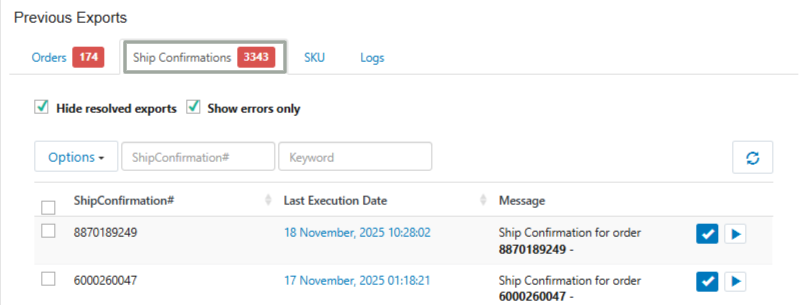
#### 5.2 Ship Confirmations
Track **shipment confirmations** fetched from ShipBob.
**Functions:**
* **Run** – Fetch and update shipment confirmations from ShipBob.
* **Mark as Resolved** – Mark processed confirmations as resolved.
* **Mark as Unresolved** – Reopen confirmations for further review or reprocessing.
**Filters:**
* **Hide Resolved** – Hide already processed shipment confirmations.
* **Show Errors Only** – Focus on failed confirmations.
**Search Options:**
* By **Ship Confirmation #** or keyword.
**Information Displayed:**
* **Ship Confirmation #** – Unique identifier for each shipment.
* **Last Execution Date** – Timestamp of latest operation.
* **Message** – Status or error message from the integration.
#### 5.3 SKU
Manage **SKU synchronization** between XoroERP and ShipBob.
**Functions:**
* **Run** – Manually sync SKU data.
* **Mark as Resolved / Unresolved** – Maintain the state of SKU sync records.
**Information Displayed:**
* **SKU #** – Item identifier.
* **Last Execution Date** – Last sync attempt.
* **Message** – Status or error message.
> Example: Updates made to product dimensions or weights in XoroERP are synced to ShipBob to maintain accurate shipping calculations.
#### 5.4 Logs
Monitor overall **integration activity**, including:
* Exports
* Imports
* SKU sync
* ASN operations
**Filters:**
* **Hide Resolved Exports** – Show only items needing attention.
* **Show Errors Only** – Focus on failed or problematic records.
**Columns:**
* **Export Date**
* **Type** (Orders, Ship Confirmations, ASNs, Inventory, etc.)
* **Keyword**
* **Order Ref #**
This tab is critical for **troubleshooting** and verifying that the integration is functioning as expected.
***
### 6. Summary
The **ShipBob 3PL Integration** for **XoroERP** provides a unified, automated bridge between your ERP and ShipBob’s logistics platform.
With:
* **Push SKU Enabled** → XoroERP → ShipBob
* **Order Push Enabled** → XoroERP → ShipBob
* **Fetch Ship Confirmation Enabled** → ShipBob → XoroERP
* **Sync Inventory Enabled** → ShipBob → XoroERP
* **Third Party Channel** and **Third Party Store** for source/store mapping
* **Disable Multishipment** for controlling shipment-finality behavior
* Powerful **filters**, **scheduling**, and **Operations Page** controls
you get:
* Faster, reliable fulfillment
* Reduced manual errors and data entry
* Accurate inventory and shipping status
* Clear multi-channel visibility and store-level control
* A more **transparent and scalable 3PL collaboration** with ShipBob
---
# Agent Instructions
This documentation is published with GitBook. GitBook is the documentation platform designed so that both humans and AI agents can read, navigate, and reason over technical content effectively. Learn more at gitbook.com.
## Querying This Documentation
If you need additional information that is not directly available in this page, you can query the documentation dynamically by asking a question.
Perform an HTTP GET request on the current page URL with the `ask` query parameter, and the optional `goal` query parameter:
```
GET https://docs.xorosoft.com/xoroerp-1/3pl-connections/shipbob.md?ask=&goal=
```
`ask` is the immediate question: it should be specific, self-contained, and written in natural language.
`goal` is optional and describes the broader end goal you are ultimately trying to accomplish on behalf of the user. GitBook uses it to tailor the answer towards what is most useful for that goal.
The response will contain a direct answer to the question and relevant excerpts and sources from the documentation.
Use this mechanism when the answer is not explicitly present in the current page, you need clarification or additional context, or you want to retrieve related documentation sections.