> For the complete documentation index, see [llms.txt](https://docs.xorosoft.com/llms.txt). Markdown versions of documentation pages are available by appending `.md` to page URLs; this page is available as [Markdown](https://docs.xorosoft.com/xoroerp-1/3pl-connections/deposco.md).
# Deposco
### 1. **Overview**
The **Deposco 3PL Integration** in **XoroERP** enables seamless two-way communication between XoroERP and **Deposco’s warehouse management system**.\
This integration ensures real-time synchronization of products, orders, shipments, and ASNs across both platforms — from order creation in XoroERP to fulfillment, shipping, and inventory updates by Deposco.
Through this integration:
* Orders are automatically exported from XoroERP to Deposco for fulfillment.
* Deposco updates **Shipment Confirmations** and **ASN (Advance Shipping Notice)** details directly back into XoroERP.
* **Voided Waves** in XoroERP automatically **cancel the corresponding orders** in Deposco.
* **SKU creation and updates** are supported in both directions — ensuring consistent product data.
This automation minimizes manual data entry, eliminates redundancy, and ensures a consistent, real-time flow of warehouse data between systems.
***
### **2. Installation**
#### **Step 1: Connect to XoroERP Instance**
1. Log in to your **XoroERP** account.
2. Navigate to the **Apps** module from the main dashboard.
3. Click on the **3PL Connections** tab.
4. Select **Add 3PL Connection**.
5. Choose **Deposco 3PL** from the list of available integrations.
#### **Step 2: Install the Integration App**
1. Click **Install** to add the Deposco 3PL integration.
2. Once installed, it appears under your integrations list in XoroERP.
#### **Step 3: Login Using Credentials**
1. Log in using your **Deposco API credentials** (endpoint, username, password).
2. Configure API credentials, default warehouse, and operational parameters for data automation.
3. Ensure credentials have authorization for Deposco 3PL data access.
***
### **3. Workflow**
The **Deposco 3PL integration** automates the entire fulfillment cycle:
#### **Step 1: Wave Creation**
Orders are grouped into waves in XoroERP. Each wave represents orders ready for fulfillment and tracking.
#### **Step 2: Automatic Export to Deposco**
When a wave is ready, orders are automatically exported to Deposco for processing. Deposco handles **picking, packing, and shipment**.
#### **Step 3: ASN Push and Confirmation**
ASNs (Advance Shipping Notices) are pushed from XoroERP to Deposco for all relevant Purchase Orders or RMAs.\
Deposco then sends **ASN Confirmations** back to XoroERP, confirming receipt and processing.
#### **Step 4: Shipment Fulfillment**
Once fulfilled, Deposco sends **Ship Confirmations** back to XoroERP, including tracking details.
#### **Step 5: Automatic Order Cancellation**
If a wave is voided in XoroERP, the **corresponding order in Deposco** is automatically **voided** to maintain synchronization.
#### **Step 6: Invoice Creation**
After receiving shipment confirmation, invoices are automatically generated in XoroERP, completing the fulfillment cycle.
***
### **4. Configuration Settings**
The configuration section allows you to control **what data is exchanged between XoroERP and Deposco**, **when**, and **how often**.
***
#### **4.1 Data Export Settings (Deposco)**
| Setting | UI Element | Description |
| ------------------------------------ | ---------- | ----------------------------------------------------------------------------------------------------------------------------------------------------------------------------------------------------------------------------------------------------------------------------------------------- |
| Export Products from Xoro to Deposco | Checkbox | When enabled, product (SKU) master data is exported from XoroERP to Deposco. **If no tags are selected, all items are exported.** **If one or more tags are selected, only items associated with those tags are included.** *Example:* selecting **TAG D** exports only SKUs tagged with TAG D. |
| Export Orders to Deposco | Checkbox | Enables export of sales orders from XoroERP to Deposco for fulfillment processing. **If no store is selected, orders from all stores are exported.** **If a specific store is selected, only orders belonging to that store are sent to Deposco.** |
| Block Waves Created via QuickShip | Checkbox | When enabled, **waves created through QuickShip are excluded from export to Deposco**. This is typically used to prevent internal, test, or ad-hoc QuickShip waves from entering the Deposco fulfillment workflow. |
| Send Merged Waves to Deposco | Checkbox | When enabled, updated merged waves are sent to Deposco. Individual waves that were previously sent are automatically voided. |
| Split Quantity | Checkbox | When enabled, **partial order quantities are allowed to be exported to Deposco**, supporting scenarios where orders are fulfilled in multiple shipments or only partial stock is available. |
***
#### **4.2 Order & Shipment Control Settings**
| Setting | UI Element | Description |
| --------------------- | ---------- | ----------------------------------------------------------------------------------------------------------------------------------------------------------------------------------------------------------------------------------------------------------------------------------------------- |
| Ship Method Name(s) | Text Field | Defines shipping methods that should be excluded from export to Deposco. **If one or more ship methods are entered, orders using those methods are not exported.** **If left blank, all shipping methods are allowed.** *Example:* entering **Local Pickup** excludes orders using that method. |
| Blocked SKU(s) | Text Field | Lists SKU codes that should be excluded from export. **If SKUs are entered, any order containing those SKUs is excluded.** **If left blank, all SKUs are eligible for export.** |
| Allowed Customer(s) | Text Field | Restricts export to specific customers. **If customer codes are entered, only orders for those customers are exported.** **If left blank, orders for all customers are eligible.** |
| Disable Multishipment | Checkbox | Controls how shipment confirmations from Deposco are handled. **When enabled, the first shipment confirmation received from Deposco is treated as final.** All wave lines are automatically closed and any remaining unshipped quantities are unallocated. |
***
#### **4.3 Filter Options**
Filters help refine which orders are exported from XoroERP to Deposco.
| Field | Description |
| --------------- | -------------------------------------------------------------------------------------------------------------------------------------------------------------- |
| **Filter Name** | Select the field to apply the filter on. Available options include: Ship to Country, Order Date, Third Party Source, Order Tags, Ship Service, and Order Type. |
| **Operator** | Defines how the filter condition is evaluated. Supported operators are: Contains, Does Not Contain, Equals, Greater Than, and Less Than. |
| **Value** | Enter the keyword(s) or numerical value used to evaluate the filter condition. |
| **Example** | Using the rule **Order Tags → Contains → Deposco** ensures that only orders tagged with *Deposco* are exported. |
***
#### **4.4 Pricing and Markup Settings**
| **Setting** | **UI Element** | **Description** |
| ------------------------------------- | --------------------- | -------------------------------------------------------------------------------------------------------------------------------------------- |
| Default SKU | Text Field | Used when Deposco’s shipment confirmation does not contain SKU information. This default SKU is applied to prevent processing failures. |
| Shipping Markup | Text Field | Adds a percentage-based markup on shipping costs. **Example:** `10` adds a 10% markup. Leave blank to apply no markup. |
| Shipping Markup Order Type | Text Field / Dropdown | Restricts shipping markup application to specific order types. Leave blank to apply the markup to all order types. |
| Auto Create Carrier and Ship Services | Checkbox | Automatically creates missing carriers or ship services in XoroERP when receiving data from Deposco, ensuring seamless data synchronization. |
***
#### **4.5 ASN (Advanced Shipping Notice) Settings**
| **Setting** | **UI Element** | **Description** |
| -------------------------------------------- | -------------- | ------------------------------------------------------------------------------------------------------------------------------ |
| Export ASNs to Deposco | Checkbox | Enables or disables ASN export from XoroERP to Deposco. When enabled, related configuration fields become available. |
| Batch Receive Location | Text Field | Defines the default store and location where inventory receipts are processed. **Format:** `StoreName@LocationName` |
| Batch Receive Location for Damaged Inventory | Text Field | Specifies the default store and location used for receiving damaged inventory. **Format:** `DamageCode@StoreName@LocationName` |
| Use Ship Date as Transaction Date | Checkbox | Uses the shipment date as the transaction date for shipment-related records. |
***
#### **4.6 Import/Export Setting**
You can schedule data import/export and configure notification emails.
* **Enable Auto Import/Export (Checkbox)** –\
When enabled, data is automatically fetched or pushed based on scheduled time intervals.
* **Integration Start Date, Hour/Minute** – Define the start date and interval for recurring imports/exports.
* **Auto Import Start Time Offset** –\
Adjusts the fetch time earlier by a defined number of minutes.
* **Example:** Interval = 30, Offset = 5 → Fetches every 25 minutes.
* **Enable Pending Ship Confirmation Sync (Checkbox)** –\
Automatically fetches pending shipment confirmations from Deposco to ensure shipment accuracy.
***
#### **4.7 Time Zone & Notifications**
* **Time Zone** – Select the operational time zone for sync scheduling.
**Email Notifications:**
* **Receive Import Error Notifications (Checkbox)** – Send immediate alerts for import failures.
* **Instant Error Email(s)** – Add comma-separated email addresses for instant alerts.
* **Send Daily Error Email (Checkbox)** – Enables daily error summaries.
* **Daily Error Email(s)** – Enter recipients for summary reports.
* **Exclude Logs** – Filter logs using keywords (supports wildcards like *error*).
***
### **5. Operations Page**
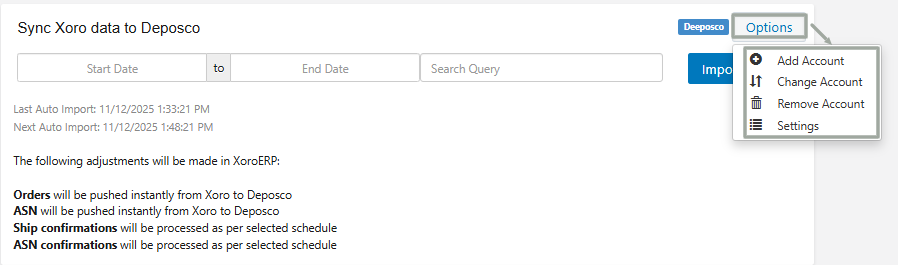
The **Operations Page** enables manual or automated control of synchronization between XoroERP and Deposco.
**Header Options**
* **Add Account** – Add another Deposco account to XoroERP.
* **Change Account** – Switch or update between multiple linked Deposco accounts.
* **Remove Account** – Disconnect the Deposco integration for that account.
* **Settings** – Access configuration parameters for import/export automation.
#### **5.1 Orders**
The **Orders tab** allows users to push sales orders from **XoroERP** to **Deposco** and monitor export status in real time.\
It supports both **automated** and **manual exports**, with detailed tracking for every transaction.
**Key Functions**
* **Run:** Manually export selected orders to Deposco.
* **Mark as Resolved:** Marks successfully processed orders as completed.
* **Mark as Unresolved:** Reopens failed records for reprocessing.
* **Filters:**
* **Hide Resolved:** Displays only pending or active exports.
* **Show Errors Only:** Shows orders that failed to export.
**Search Fields**
* **Order#:** Enter the specific order number.
* **Keyword:** Search by customer name, item, or any relevant tag.
**Information Displayed**
* **Order #:** Unique order identifier linked to XoroERP.
* **Last Execution Date:** Shows the date/time of the last export attempt.
* **Message:** Displays success or error details related to export.
**Automation Behavior**
💡 If an order is **voided in XoroERP**, it will **automatically cancel** in Deposco — no manual action required.
***
#### **5.2. Ship Confirmations**
This tab tracks **shipment confirmations** sent from **Deposco** back to **XoroERP**, ensuring all fulfilled orders are reflected correctly.
**Key Functions**
* **Run:** Manually fetch shipment confirmations.
* **Mark as Resolved:** Marks shipment updates as reviewed and complete.
* **Mark as Unresolved:** Reopens the confirmation for reprocessing.
* **Filters:**
* **Hide Resolved:** View only pending confirmations.
* **Show Errors Only:** Focus on failed or incomplete confirmations.
**Search Fields**
* **Ship Confirmation#:** Locate specific shipments by ID.
* **Keyword:** Search by customer name, order number, or carrier code.
**Information Displayed**
* **Ship Confirmation #:** Unique shipment ID received from Deposco.
* **Last Execution Date:** Timestamp of the last confirmation import.
* **Message:** Status message or error log (e.g., “Shipment Imported Successfully” or “Order Not Found”).
***
#### **5.3. ASNs (Advance Shipping Notices)**
The **ASNs tab** exports advance shipping notices from **XoroERP** to **Deposco**, alerting warehouse or production teams of incoming shipments.
**Key Functions**
* **Run:** Trigger export of pending ASNs.
* **Mark as Resolved / Unresolved:** Manage export state for each record.
* **Filters:**
* **Hide Resolved** and **Show Errors Only** options available.
**Search Fields**
* **ASN#:** Search by ASN number generated from XoroERP.
* **Keyword:** Search by order reference, warehouse, or vendor name.
**Information Displayed**
* **Order #:** Reference order related to ASN.
* **Last Execution Date:** When the ASN was last exported.
* **Message:** Export result message (success/failure).
***
#### **5.4. ASN Confirmations**
The **ASN Confirmations tab** displays acknowledgment responses received from **Deposco**, confirming that previously sent ASNs were successfully processed.
**Key Functions**
* **Run:** Manually re-import confirmations.
* **Mark as Resolved / Unresolved:** Update record status based on verification.
* **Filters:**
* **Hide Resolved / Show Errors Only** to narrow the view.
**Search Fields**
* **ASN Confirmation#:** Use this to find a specific confirmation.
* **Keyword:** Search by related order number or supplier reference.
**Information Displayed**
* **Order #:** Related order or shipment reference.
* **Last Execution Date:** Timestamp of the confirmation import.
* **Message:** Displays confirmation status or error info.
***
#### **5.5. SKU Tab**
The **SKU Tab** manages item master synchronization between **XoroERP** and **Deposco**.\
It supports both **new SKU creation** and **updates** (e.g., description, dimensions, UOM).
**Key Functions**
* **Run:** Push or update SKU details.
* **Mark as Resolved:** Marks SKU sync as completed.
* **Mark as Unresolved:** Flags SKU for re-export.
* **Filters:**
* **Hide Resolved / Show Errors Only** for easier error review.
**Search Fields**
* **SKU#:** Enter specific item or SKU number.
* **Keyword:** Search by product name, category, or description.
**Information Displayed**
* **SKU#:** Unique item identifier.
* **Last Execution Date:** Last time SKU was exported or updated.
* **Message:** Details of the export result or sync status.
**Example**
If a SKU’s **dimension or weight** is modified in XoroERP, the updated data will automatically sync with Deposco, ensuring both systems reflect the same product specifications.
***
#### **5.6. Logs Tab**
The **Logs Tab** provides complete visibility into **integration activities** between XoroERP and Deposco, covering both imports and exports.
**Purpose**
Used primarily for troubleshooting, verifying export timings, and validating communication between the two systems.
**Search/Filter Columns**
* **Export Date**
* **Type (Import/Export)**
* **Keyword**
* **Order Ref#**
**Filters**
* **Hide Resolved Exports:** Shows only open or pending jobs.
* **Show Errors Only:** Displays failed transactions for review.
**Information Displayed**
* **Import Date / Start Date / End Date**
* **Entity Type (Orders, ASNs, SKUs, etc.)**
* **Resolved (Yes/No)**
* **Type (Import/Export)**
**Example Use Case**
Use **Show Errors Only** to identify failed **Order exports**.\
Correct the issue in XoroERP (e.g., missing customer, inactive SKU) → Mark **Unresolved** → Click **Run** to retry.
***
### **6. Summary**
The **Deposco 3PL Integration** in **XoroERP** establishes a unified, automated bridge between XoroERP and Deposco’s warehouse operations.
It handles:
* Order Export and Auto-Cancellation
* ASN Push and Confirmation
* Ship Confirmation Imports
* SKU Create/Update Sync
* Error Logging and Real-Time Visibility
With complete configurability, scheduling, and error handling, it ensures:
* Faster order fulfillment
* Zero manual reconciliation
* Complete operational transparency
⚡ **In short, the Deposco 3PL Integration transforms complex logistics into a synchronized, error-free, and automated experience within XoroERP.**
---
# Agent Instructions
This documentation is published with GitBook. GitBook is the documentation platform designed so that both humans and AI agents can read, navigate, and reason over technical content effectively. Learn more at gitbook.com.
## Querying This Documentation
If you need additional information that is not directly available in this page, you can query the documentation dynamically by asking a question.
Perform an HTTP GET request on the current page URL with the `ask` query parameter, and the optional `goal` query parameter:
```
GET https://docs.xorosoft.com/xoroerp-1/3pl-connections/deposco.md?ask=&goal=
```
`ask` is the immediate question: it should be specific, self-contained, and written in natural language.
`goal` is optional and describes the broader end goal you are ultimately trying to accomplish on behalf of the user. GitBook uses it to tailor the answer towards what is most useful for that goal.
The response will contain a direct answer to the question and relevant excerpts and sources from the documentation.
Use this mechanism when the answer is not explicitly present in the current page, you need clarification or additional context, or you want to retrieve related documentation sections.