> For the complete documentation index, see [llms.txt](https://docs.xorosoft.com/llms.txt). Markdown versions of documentation pages are available by appending `.md` to page URLs; this page is available as [Markdown](https://docs.xorosoft.com/xoroerp-1/purchase/vendor-credit/vendor-rma.md).
# Vendor RMA
Vendor Return Merchandise Authorization (Vendor RMA) enables businesses to return defective, excess, or incorrect goods to vendors while maintaining accurate inventory and financial tracking.
The Vendor RMA module manages the complete return lifecycle — from initiating a return against a vendor bill to shipping items back, updating warehouse inventory, and posting vendor credits.
### Creating a Vendor RMA
When you are creating a Vendor RMA, begin by entering the header-level information, such as the bill number in the Receipt field (if applicable), RMA type, Return Inventory Store and shipping information. Once the basics are set, you can proceed to add item(s) to be returned to the RMA.
### Vendor RMA Header Fields
| **Section** | **Field** | **Description** |
| ----------- | ----------------------------- | ------------------------------------------------------------------------ |
| Main | Receipt\* | Allows entry or selection of the vendor bill reference for linked RMAs. |
| Main | Date | Specifies the Vendor RMA transaction date. |
| Main | Return Type\* | Defines the return category such as warehouse return. |
| Main | RMA Type\* | Determines whether the RMA is direct or linked to a bill. |
| Main | Vendor\* | Select the vendor to whom goods will be returned. |
| Main | Return Inventory Store\* | Specifies the store handling returned inventory. |
| Main | Select Account\* | Defines the financial account associated with the return transaction. |
| Main | Ref No | Optional reference number for tracking purposes. |
| Main | Project/Class | Associates the transaction with a project or classification if required. |
| Shipping | Ship Method | Specifies the method used to return goods, such as pickup or delivery. |
| Shipping | Ship Via/Carrier | Defines the carrier responsible for shipping the returned items. |
| Shipping | Shipping Terms | Specifies agreed shipping terms between the business and vendor. |
| Shipping | F.O.B | Indicates the freight ownership point (origin or destination). |
| Shipping | Total Weight | Records the total weight of the shipment. |
| Shipping | Ship Service | Defines service level such as standard or express. |
| Shipping | Ship Package Type | Specifies packaging type used for shipment. |
| Shipping | Shipping Notes | Allows entry of additional shipment instructions. |
| Shipping | Third Party Shipping Account# | Stores third-party shipping account reference if applicable. |
| Shipping | Shipping Expense Account | Account used for allocating shipping costs. |
| Shipping | Shipping Cost | Displays the total shipping charges. |
| Shipping | Tax Code | Specifies tax code applicable to shipping charges. |
| Shipping | Shipping Tax Amount | Displays tax applied to shipping cost. |
| Shipping | Total Amount | Displays total shipping cost including tax. |
{% hint style="info" %}
If the RMA Type is set to **Vendor RMA-Linked**, the **Receipt\*** field becomes accessible, allowing you to enter the **bill number** for which you want to create the RMA.
{% endhint %}
### Adding Lines to the Vendor RMA
After entering the header-level information, you can proceed to add line-level details. This includes selecting the item(s) to be returned, specifying quantities, unit prices, return notes, and any applicable taxes.
If the RMA type is **“Vendor RMA-Linked”**, the line-level details are automatically fetched from the associated bill. For **“Vendor RMA-Direct”**, you must manually add the item(s). To add item(s) to the Vendor RMA, click the **“Add Items”** button.
### Vendor RMA Detail Fields
| **Field** | **Description** |
| -------------- | ------------------------------------------------------------------------------------------------------------------------------- |
| Item# | The unique identifier for the item. |
| Item Type | Indicates the the type of item, such as inventory, non-inventory, etc. |
| Description | This field is editable only when the RMA Type is set to **Direct** and not **Linked**. It displays the description of the item. |
| Unit Cost | This field is editable only when the RMA Type is set to **Direct** and not **Linked**. It displays the price of the item. |
| Restocking Fee | This field displays re-stocking fee for the item. |
| Qty | Quantity being returned. |
| Tax | Applicable tax code. |
| Amount | Displays the calculated amount, which is the result of (Unit Price \* Qty - Taxes). |
| Return Note | You can enter return remarks to provide additional details about the return. |
| RCode | This is an editable field that displays the item return code of the item that you are adding. |
After entering the header fields and adding items, click **Save** to create the Vendor RMA. The system automatically assigns a unique number to the generated RMA. Once generated, this number becomes a permanent identifier and cannot be changed. After saving, the Vendor RMA is created in the **Open** status. For more information, refer to [**Vendor RMA Statuses**](#vendor-rma-statuses).
### Vendor RMA Workflow
A Vendor RMA can be created either directly from the **Vendor RMA** module or from an existing **Vendor Bill**. Choose the method based on whether the return is linked to a vendor bill.
1. **Create Vendor RMA from the Vendor RMA module**
**Step 1:** Navigate to **Menu → Purchase → Vendor Credit → Vendor RMA**. In the **RMA Type** field, select **Vendor RMA-Direct**.
**Step 2:** Enter the required header-level fields and shipping details, if applicable. Click **Add Items** to add the item(s) you want to return and specify their quantities.
**Step 3:** Click **Save**. The system generates a unique Vendor RMA number, and the Vendor RMA is created in **Open** status, ready for further processing.
2. **Create Vendor RMA from the Vendor Bill**
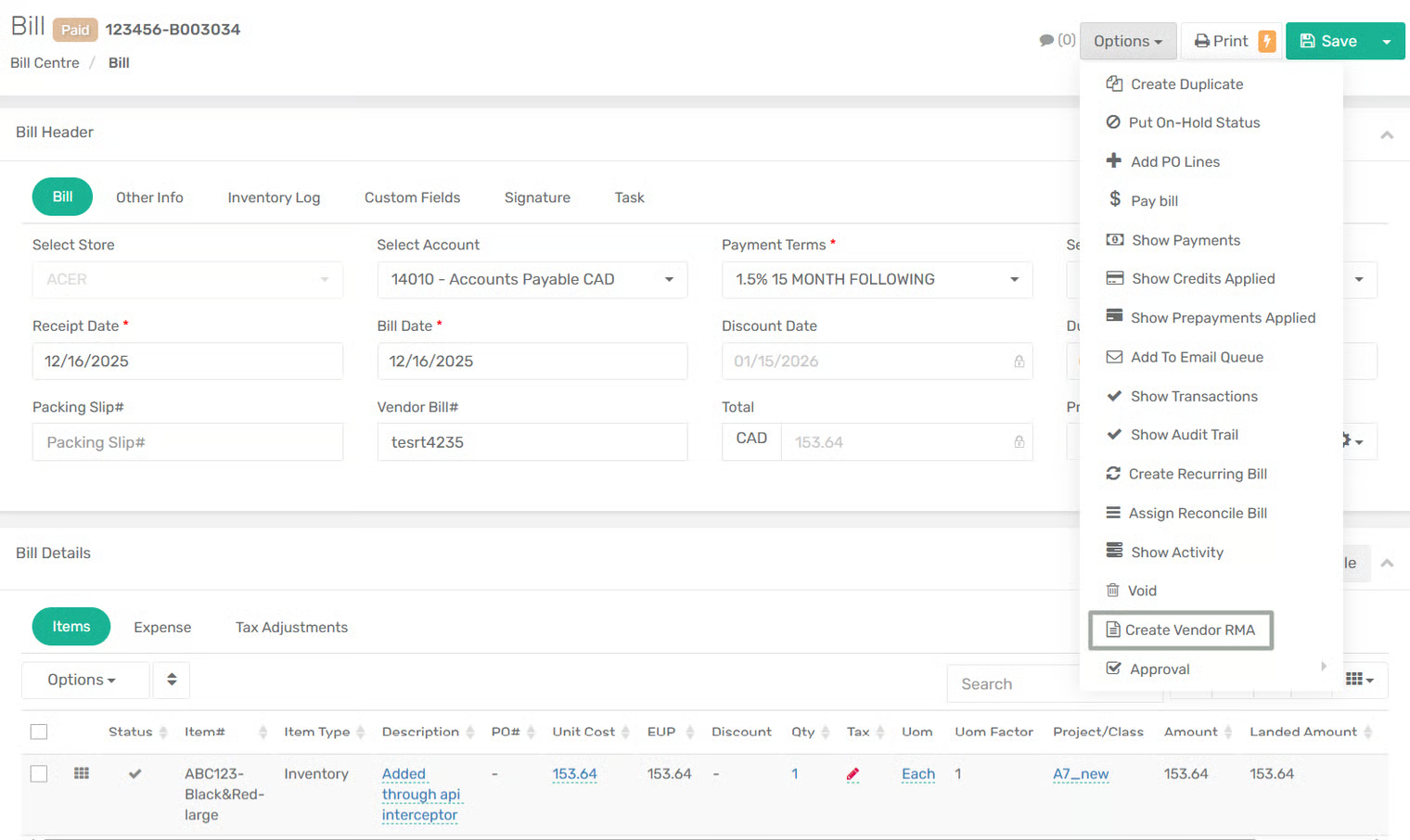
**Step 1:** Navigate to **Menu → Purchase → Bill Centre**, and open the required vendor bill. Click the **Options** menu (top-right corner) and select **Create Vendor RMA**.
You can perform the same process from the Vendor RMA module by selecting **Vendor RMA-Linked** in the **RMA Type** field. Then, click the search icon in the **Receipt** field and enter the required receipt details, such as **Vendor**, **Store**, and **Bill Number**, based on the option selected in the **Search By** dropdown.
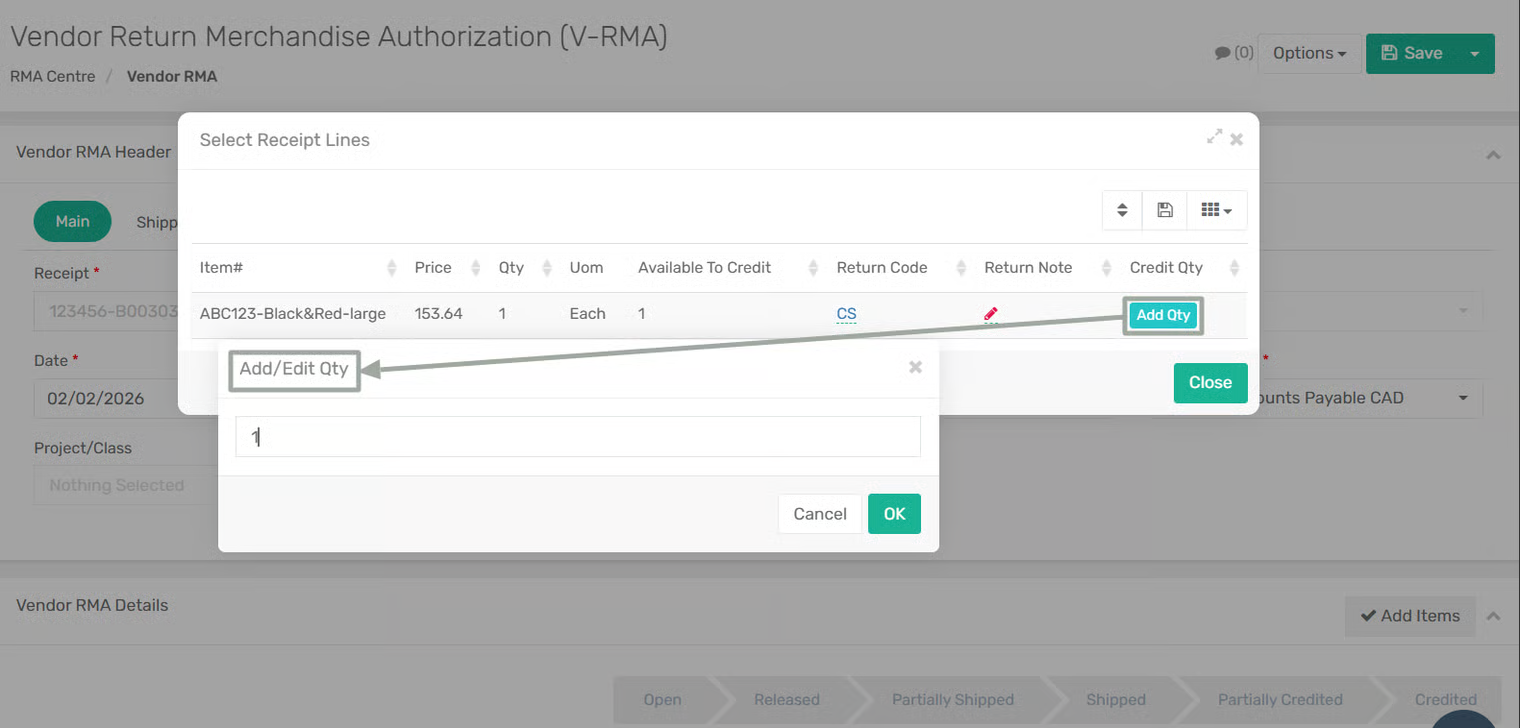
**Step 2:** The system automatically opens a Vendor RMA screen with vendor details populated, the bill reference linked in the **Receipt** field, and item details prefilled from the bill.
Review the prefilled items and adjust the return quantities as required.
**Step 3:** Click **Save**. The Vendor RMA is generated in **Open** status.
After the Vendor RMA is created through either one of the above methods, complete the return process using the following workflow.
**Step 5:** Open the created Vendor RMA and click **Release RMA** from the **Options** menu.
The Vendor RMA status changes from **Open** to **Released**, and the system automatically generates a wave, visible in the **Wave Centre**.
**Step 6:** After the wave is generated, perform the warehouse operations such as picking and packing the returned items.
**Step 7:** The Vendor RMA status is automatically updated to **Shipped** if all items are sent, or **Partially Shipped** if only some quantities are shipped. The inventory clearing account is credited with the corresponding amount.
Once the wave is processed and shipped, the items are moved from the original warehouse location to the **In Transit** location.
**Step 8:** After the vendor confirms receipt of the returned items, open the Vendor RMA and click **Post Vendor Credit** from the **Options** menu.
The system creates a vendor credit record, clears the in-transit inventory balance, adjusts the Vendor Accounts Payable balance, and updates the Vendor RMA status to **Credited**.
**Step 9:** The generated vendor credit is available in the Vendor Credit Centre and can be applied to another bill or processed as required.
{% hint style="info" %}
Users can select the default clearing account for inventory adjustments and transactions generated during the Vendor RMA process through the app configuration **“Clearing Inventory Account for Vendor RMA.”**
{% endhint %}
### Vendor RMA Header Level Options
The following options are available in the **Options** drop-down menu:
* **Release RMA:** Releases the Vendor RMA and generates a wave for processing.
* **Post Vendor Credit:** Creates a vendor credit after the return process is completed.
* **Post Vendor Credit (Selected Lines):** Creates a vendor credit only for the selected return items.
* **Void:** Cancels the Vendor RMA record. Once voided, the record cannot be processed further.
### Vendor RMA Statuses
Vendor RMA statuses indicate the current stage of the return process. The following statuses are available, from creation to final vendor credit processing.
* **Open:** The Vendor RMA has been created and is editable. No warehouse processing has started.
* **Released:** The Vendor RMA has been released, and a wave has been generated for warehouse processing.
* **Partially Shipped:** Some items included in the Vendor RMA have been shipped to the vendor, while the remaining items are pending shipment.
* **Shipped:** All items in the Vendor RMA have been shipped to the vendor.
* **Partially Credited:** Vendor credit has been posted for only some of the returned items.
* **Credited:** Vendor credit has been fully processed for all returned items, and the Vendor RMA process is complete.
### How to Void a Vendor RMA?
A Vendor RMA can only be voided when it is in **Open** status. If the Vendor RMA is in **Released** status, the generated [wave must be voided](https://docs.xorosoft.com/xoroerp-1/warehouse/picking/pick-wave/how-to-void-a-wave-unallocate-an-order) first before the Vendor RMA can be voided. Once you void the wave, the Vendor RMA changes from **Released** to **Open** status.
To void a Vendor RMA in **Open** status, follow the steps below:
**Step 1:** Navigate to the **RMA Centre** and open the Vendor RMA record you wish to void.
**Step 2:** Select **Void** from the options dropdown menu located in the top-right corner of the page.
**Step 3:** A confirmation dialog box appears displaying that the **"Vendor RMA was voided successfully"**.
{% hint style="info" %}
If the wave is already **Shipped** or **Partially Shipped**, the Vendor RMA cannot be voided.
{% endhint %}
---
# Agent Instructions
This documentation is published with GitBook. GitBook is the documentation platform designed so that both humans and AI agents can read, navigate, and reason over technical content effectively. Learn more at gitbook.com.
## Querying This Documentation
If you need additional information that is not directly available in this page, you can query the documentation dynamically by asking a question.
Perform an HTTP GET request on the current page URL with the `ask` query parameter, and the optional `goal` query parameter:
```
GET https://docs.xorosoft.com/xoroerp-1/purchase/vendor-credit/vendor-rma.md?ask=&goal=
```
`ask` is the immediate question: it should be specific, self-contained, and written in natural language.
`goal` is optional and describes the broader end goal you are ultimately trying to accomplish on behalf of the user. GitBook uses it to tailor the answer towards what is most useful for that goal.
The response will contain a direct answer to the question and relevant excerpts and sources from the documentation.
Use this mechanism when the answer is not explicitly present in the current page, you need clarification or additional context, or you want to retrieve related documentation sections.